Find Field Options and the models that have them
Field Options turn an ensemble field into a statistic, spread, probability or timing map. They sit on the layer card under the variable, on the ensembles listed here.
Show me in the app- Click the model name near the top of the sidebar and click Ensemble. Global ensembles are under Global, REFS and the NBM under Mesoscale, REPS under Canadian and ICON-EU-EPS under European. ECMWF AIFS EPS and AI GEFS are in the AI menu, under Ensemble.
- Pick an ensemble and a run.
- Click the Edit Layers tab, click Add Layer and add a field, such as 2m Temperature or 24 Hour Precipitation. It draws as the ensemble mean (on the NBM, the blend).
- On the layer card, find Field Options under the variable and open its menu: Statistics, Spread, Probability or Timing.
Tips
- Field Options show only on fields the ensemble’s members carry. Fields that are already a probability or a spread, precipitation-type reflectivity and wind direction never have them.
- NAEFS, MOGREPS-G, HREF and Hybrid GEFS have no Field Options; their fields draw as published.
- On the NBM and the storm surge models, the ⓘ next to Field Options opens About these Field Options: where the numbers come from and which hours have them.
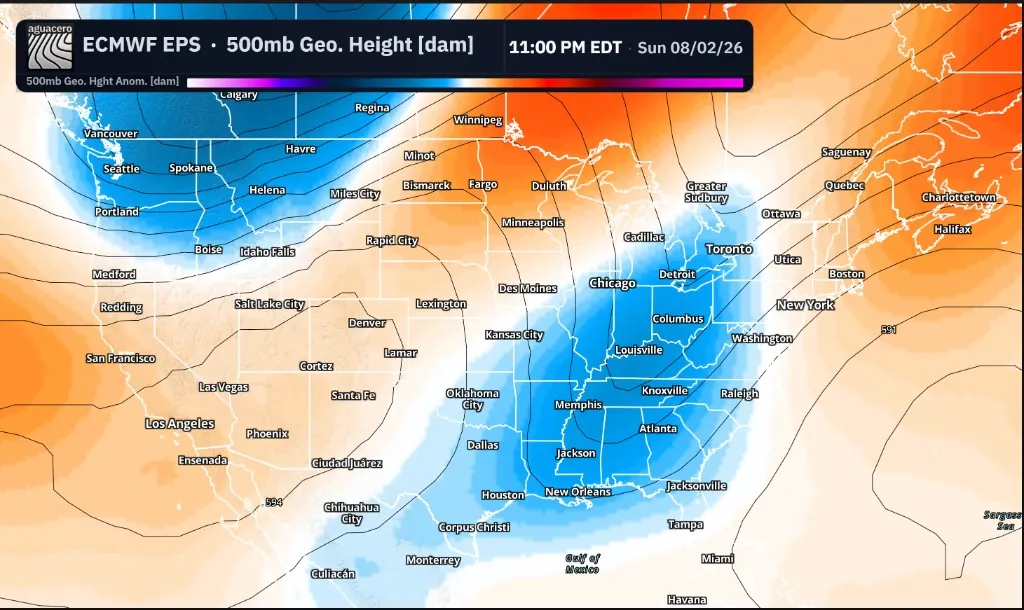
The four modes, and how the layer is named
What each Field Options mode maps, its units, and how the legend and on-map title name it.
Tips
- Each mode keeps its own colors on the layer. Restyle a probability map, switch to Statistics and back, and your probability colors return.
- Spread converts between units by scale only, so a 2 °C standard deviation reads 3.6 °F, not 35.6 °F.
Statistics: mean, median, percentiles, min and max
Draw a field as its ensemble mean, median, any of the 5th to 95th percentiles, or the lowest or highest member at each point.
Show me in the app- Under Field Options, keep Statistics.
- Drag the Statistic slider, or click a number under it. The name of the stop shows on the right, such as 90th percentile.
- Let go to redraw the map.
Percentiles are worked out point by point, so a 90th percentile map isn’t any one member’s forecast. It shows, at each place, a high-end value that only 1 in 10 members beats.
Tips
- The slider redraws when you let go, so dragging past several stops fetches only the last one. The arrow keys move one stop at a time.
- On the NBM the middle stop reads Blend (NBM blend), the regular NBM. Some NBM fields and the storm surge models have other stops; see their sections.
- min and max follow single members, so one outlier sets them. 5 and 95 are steadier.

Percentile ranges at points
Print a low and a high value at each point, such as the 10th and 90th percentiles, over the statistic you shade.
- Keep Statistics under Field Options and pick the statistic to shade, such as 50 (the median).
- Turn on the Point pill on the layer row.
- Under Point Labels, pick a pair.
- Read each point as low | high.
Tips
- Point Labels shows only in Statistics mode with the Point pill on.
- A field lists only the pairs it has. NBM snowfall, ice, snow ratio and snow level offer 10th | 90th percentile and 5th | 95th percentile; NBM CAPE and PWAT only 10th | 90th percentile.
- Point spacing, font size and decimals are on the layer’s Point tab.
Spread: where the members disagree
Map how far apart the members are, as a standard deviation, variance, normalized spread, full range or the gap between two percentiles.
Show me in the app- Under Field Options, pick Spread.
- Under Spread, pick a measure.
- For Percentile range, pick the lower and upper percentiles under Percentiles, such as 10 to 90.
Tips
- Normalized spread shows where this forecast is unusually uncertain for the place and hour, so it doesn’t simply light up the stormy latitudes every day.
- Range (max−min) jumps with one outlier member. A percentile range such as 10 to 90 ignores the outer members.
Spread isn’t offered on NBM snowfall, ice, snow ratio, snow level, snow depth, CAPE or PWAT. P-ETSS offers only Range (max−min), and P-Surge none.
Probability: the chance of a threshold
The percent of members above or below a threshold you type, such as 24-hour precipitation of an inch or more, or temperatures below freezing.
Show me in the app- Under Field Options, pick Probability.
- Under Conditions, click a comparison: >, ≥, < or ≤.
- Type a threshold in the box, in the units shown beside it. The map redraws about half a second after you stop typing, or when you press Enter or click away.
- Read the map as the percent of members that meet the condition. The line under the conditions says it in words, such as “Share of members where 24hr Precip ≥ 1.00 in.”
Tips
- Every member counts the same. On the GEFS (31 members) one member is about 3%, and on REFS (14 members) about 7%, so the map moves in steps of that size.
- Switch the layer to another ensemble and it keeps its conditions.

Joint probabilities: AND and OR
Combine up to four conditions, such as at or below freezing AND precipitating, for the share of members that meet all of them, or any of them.
- Set up a Probability or Timing layer.
- Click + Add condition. The new row starts on Total Precipitation when the members have it.
- Click the new row’s variable, type to search and pick a field, such as 2m Temperature or 10m Wind Speed.
- Set its comparison and threshold.
- Pick AND for members that meet every condition, or OR for members that meet at least one.
- Click × on a row to remove it.
Tips
- Each member is checked on its own, so “2m Temp ≤ 32 °F AND 6hr Precip ≥ 0.05 in” counts the members that are cold and wet at once. Multiplying two separate chances can’t tell you that.
- A row on a field this model’s members lack is dimmed and says Not in this model’s members; left out here and kept for models that have it. It counts again when you switch to a model that has the field.
- On a model that takes one condition, the extra rows are hidden but stay on the layer, and come back on a member ensemble.
Joint probabilities need member data: GEFS, GEPS, AI GEFS, ECMWF EPS, ECMWF AIFS EPS, ICON-EPS, ICON-EU-EPS, REPS and REFS.
Timing: when a chance is first reached
Map the earliest forecast hour when the chance of your conditions reaches a level you set, such as the first hour with a 50% chance of freezing.
Show me in the app- Under Field Options, pick Timing.
- Set the Conditions the same way as for a probability, with + Add condition and AND / OR if you need them.
- Drag Probability level to the chance you want.
- Read the map in forecast hours. Hover a point for its value.
Tips
- Places that never reach the level by the end of the run are left blank.
- Low levels, such as 20%, show when an event becomes possible; high ones, such as 70%, when it becomes likely.
- Timing counts in hours after the run started, so compare runs by valid time, not by the number alone.
Save Field Options as your own variable
Name a statistic, spread, probability or timing setup and pick it from Add Layer later, on any ensemble that can draw it.
Show me in the app- Set up Field Options the way you want, such as a joint probability.
- Click ☆ Save as variable.
- Check the Variable name. It starts as the layer’s title, such as “P(2m Temp ≤ 32 °F AND 6hr Precip ≥ 0.05 in)”.
- Pick or type a Category and Subcategory. They start as the field’s own, such as Surface and Temperature.
- Click Save variable. The card now shows ★ and the name.
- Later, click Add Layer > Model and open that category, or type the name in Search variables.... Your variable reads ★ and its name.
Tips
- ☆ Save as variable shows only once Field Options change the field, so the plain mean has nothing to save.
- A saved variable shows in Add Layer only on models whose members have every field it uses, and that can combine its conditions. A two-condition variable never shows on the NBM.
- Each layer keeps a full copy of the setup, so renaming or deleting a saved variable never breaks a bundle or workflow.
- Saved variables don’t show in the Add Layer list while an archive is loaded.
The NBM: percentiles and the blend
The NBM has no members to count. Field Options read NOAA’s published percentiles instead, and the middle stop is the blend itself.
Show me in the appThe National Blend of Models runs every hour over the US. Pick it with the model name > Ensemble > Mesoscale > NBM. Its plain fields are the blend. On the fields below, Field Options reads the percentiles NOAA publishes with the NBM, so the stops differ from a member ensemble’s.
Tips
- On the first group, Probability reads the chance off NOAA’s percentiles. The line under it says “Chance that …, from the NBM percentile distribution.”
- The NBM takes one condition: “NBM publishes each variable on its own, so conditions can’t be combined.”
- Total Precipitation, 1 and 3 Hour Precipitation and the 12-hour highs and lows have no Field Options on the NBM.
- The ⓘ next to Field Options tells you which percentiles a field uses and which hours have them.
The NBM is on the Free plan.
Related guideForecast modelsThe NBM and NDFD in the Forecast models guide.NBM chances at NOAA’s thresholds
For snowfall, ice and snow depth, NOAA publishes the chance of more than a few fixed amounts. Probability on these fields shows NOAA’s own chances.
- On the NBM, add 1 Hour Snowfall, 6 Hour Snowfall, 6 Hour Freezing Rain [FRAM] or Snow Depth.
- Under Field Options, pick Probability. The comparison offers only >.
- Pick an amount from the threshold list. The line under it names every threshold and the hours that have them.
Tips
- The list shows in the layer’s units, so it reads in cm when the layer is in cm.
- A threshold carried over from another model snaps to the nearest one NOAA publishes and switches to >.
- These fields have no Spread or Timing, and + Add condition stays greyed out.
NBM snowfall windows
NBM snowfall comes as five variables, one per window, each with a percentile slider. The time bar follows the hours NOAA publishes for the stop you pick.
- On the NBM, click Add Layer > Model > Precipitation and pick 1 Hour Snowfall, 6 Hour Snowfall, 12 Hour Snowfall, 24 Hour Snowfall or Total Snowfall under Snow.
- Under Field Options, drag Statistic to a percentile, or keep Blend.
- To change the window, open the layer’s variable menu and pick another snowfall variable.
Tips
- The 12-hour, 24-hour and total percentiles add up the hourly and 6-hour percentiles, so high percentiles run high and low ones run low.
- On a percentile stop the time bar ends where NOAA’s percentiles end. Click Blend to get the whole run back.
- Older bundles that used the separate percentile snowfall variables still draw; those variables just left Add Layer.
NBM winter fields
Snow-to-liquid ratio, FRAM ice accretion, the chance of each precipitation type, snow level and snow depth, with percentiles and NOAA’s chances where it publishes them.
Show me in the app- Switch the panel to the NBM.
- On Edit Layers, click Add Layer and type a name in Search variables..., such as Snow Liquid, FRAM, Chance of, Snow Level or Snow Depth.
- Click the field to add it, then use Field Options where it has them.
Tips
- The NBM also has 1 Hour and 3 Hour Precipitation under Precipitation > QPF.
- Pair Snow Liquid Ratio with 6 Hour Snowfall to see whether a high total comes from a wet or a fluffy snow.
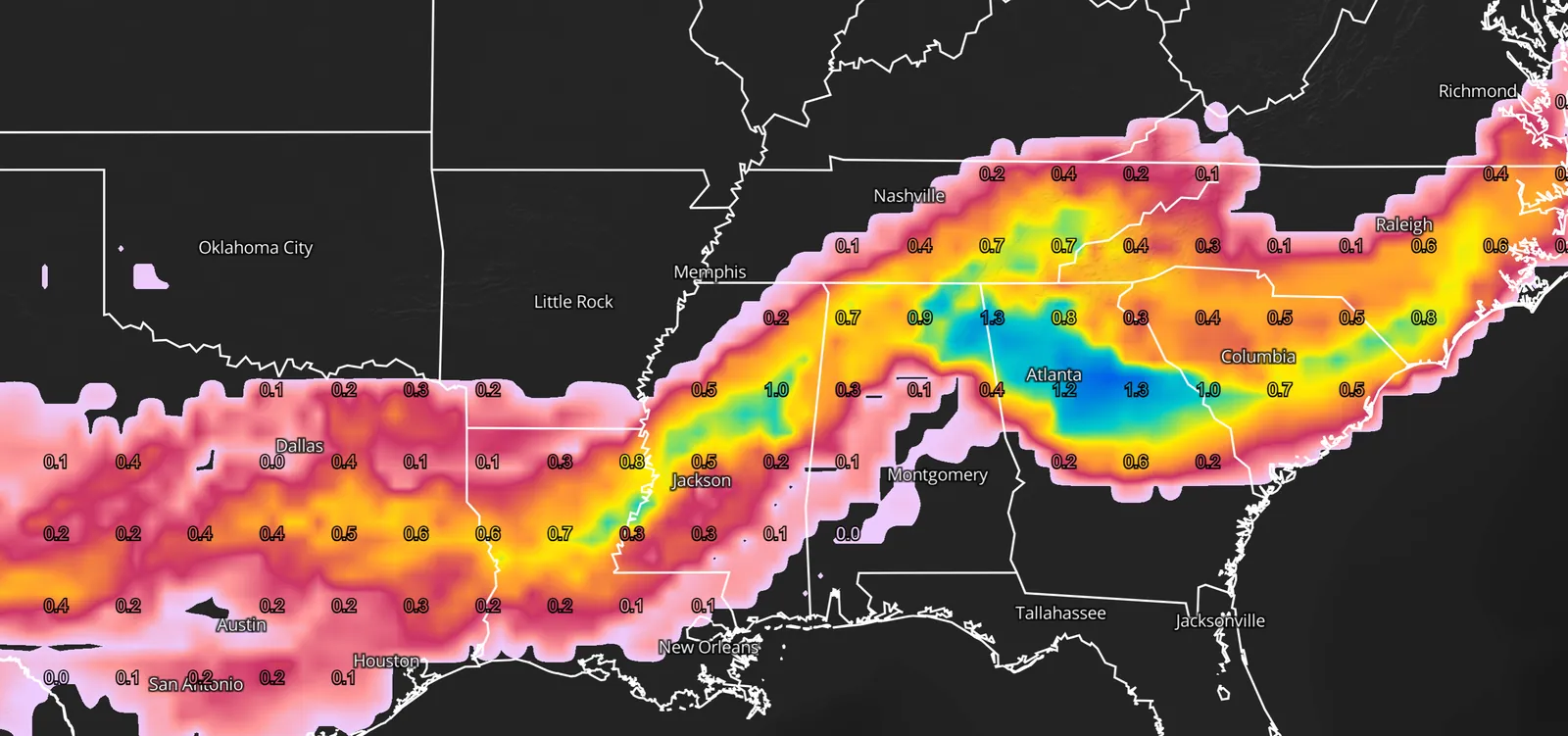
NBM aviation fields
Ceiling, cloud base and layers, sky cover, visibility, low-level wind shear and the chance of a low ceiling or visibility, for TAF-style planning.
Show me in the app- Switch the panel to the NBM.
- Click Add Layer > Model > Aviation, or search for Ceiling, Cloud Layer, LLWS or Prob.
- Click a field to add it.
Tips
- A ceiling below 1000 ft or visibility below 3 mi is IFR or lower. Prob. Ceiling starts at 1000 ft and Prob. Visibility at 3 mi.
- Past hour 36 most aviation fields are every 3 hours, so the time bar skips the hours in between.
Threshold sliders on NBM and REFS chances
Some chances come from NOAA at a few fixed thresholds. Add Layer lists each set as one variable, and a slider on the layer card picks the threshold.
- Add one of the variables below, such as Prob. Ceiling on the NBM.
- On the layer card, drag the slider under the variable, such as Ceiling below, or click a number under it. The value shows on the right, such as 1000 ft.
- Let go. The layer switches to that threshold and keeps its colors.
Tips
- The ⓘ beside the NBM sliders lists which thresholds run how far into the forecast.
- If the bundle still has its built-in name, such as Prob. Ceiling or the old threshold’s title, it is renamed to the new threshold so the on-map name stays right. A name you typed is never changed.
- The other thresholds left Add Layer. Bundles that use them still draw and show the slider.
The slider picks among NOAA’s fixed thresholds. For any threshold you like, use Probability under Field Options on an ensemble field.
REFS
NOAA’s 14-member short-range ensemble over the US. Field Options give its probabilities at any threshold, and a few of NOAA’s own probabilities stay as variables.
REFS counts 14 equal members: the RRFS, its five ensemble members and the HRRR, from this run and from the run 6 hours earlier. After hours 42, 48 and 54, where the HRRR and the earlier runs end, fewer members remain. Pick it with the model name > Ensemble > Mesoscale > REFS.
Tips
- NOAA’s reflectivity and updraft helicity chances are smoothed neighborhood chances: storms anywhere nearby count. A point chance from Field Options on updraft helicity reads differently.
- NOAA’s MLCAPE and MLCIN chances use each member’s published values. Field Options works some members’ values out from their profiles, so the two can differ by a few percent.
- Bundles that use the old REFS probability or combination variables still draw.
- REFS also has Member Low Centers & Tracks.
Storm surge ensembles (P-ETSS and P-Surge)
On P-ETSS and P-Surge, Field Options show NOAA’s published surge statistics: exceedance heights, the chance of topping a height and when it is first reached.
NOAA publishes these ensembles only as statistics, so Field Options offer what NOAA publishes and take one condition. Pick them with the model name > Marine > Storm Surge.
Tips
- The 90th percentile is the water level with a 10% chance of being exceeded.
- A new condition starts at 3 ft. A threshold outside NOAA’s range moves to the nearest end.
Anomaly types
Show an anomaly field as a departure, in standard deviations, as a climate percentile or as a percent of normal, on ensembles and single-run models alike.
Show me in the app- Click Edit Layers, then Add Layer, and type Anomaly in Search variables....
- Click a field, such as 2m Temperature Anomaly, 500mb Geopotential Height Anomaly or MSLP Anomaly.
- On the layer card, under Anomaly Type, pick a type.
Tips
- Anomaly Type shows only when a field has more than one type, and lists only the types it has.
- On an ensemble, Standardized (σ) and Climo Percentile use the ensemble-mean anomaly, and Field Options hide. Switch back to Anomaly to get them again.
- With Anomaly, Field Options work on the anomaly itself: Probability on GEFS 2m Temperature Anomaly starts at ≥ 0, the chance of warmer than normal.
- The separate relative anomaly variables left Add Layer on models that have the anomaly; pick Relative Anomaly here instead.
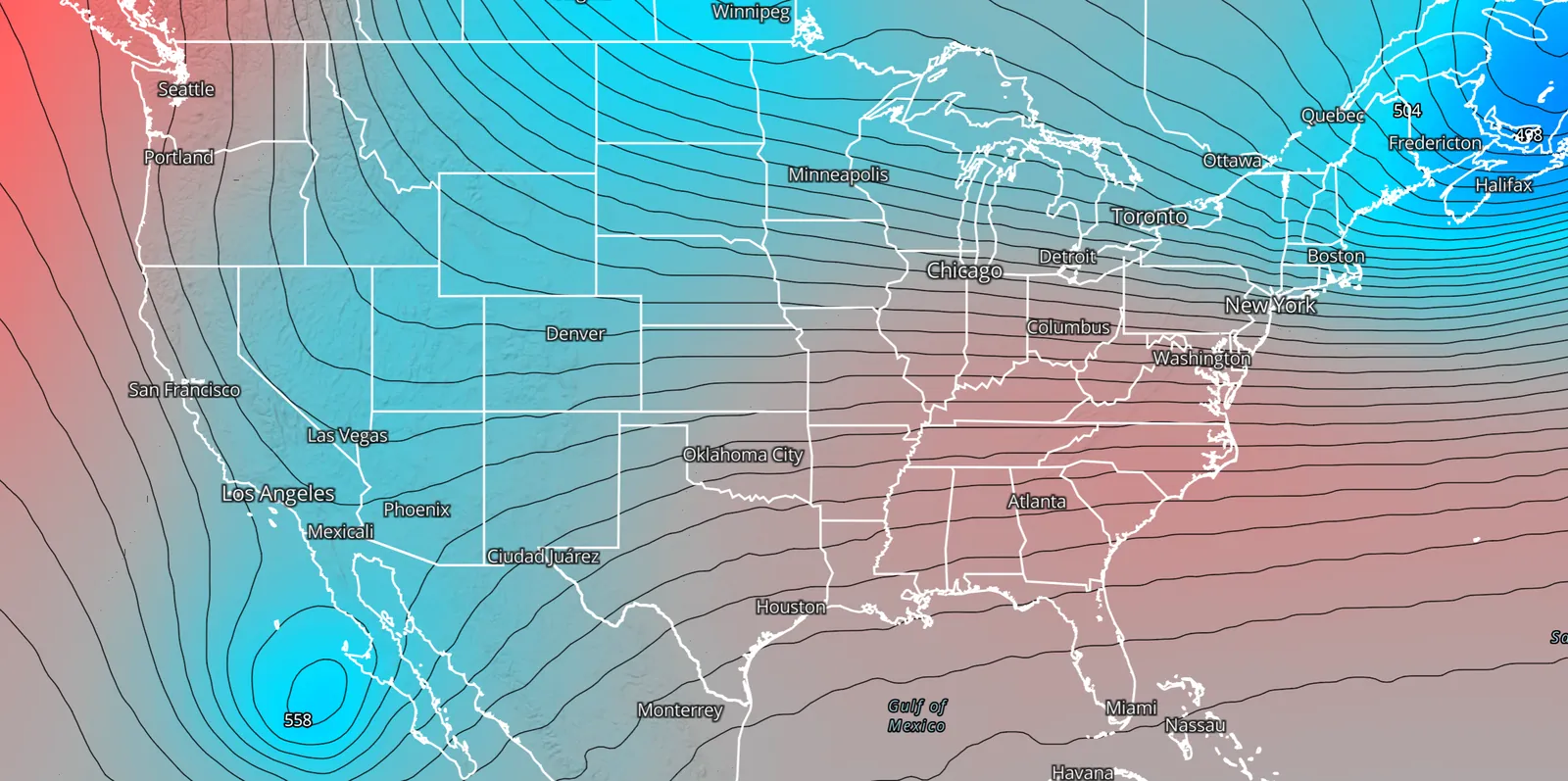
Member low centers and tracks
Every member’s surface lows as a red L with its central pressure, and each member’s track up to the time on the slider.
Show me in the app- Switch the panel to GEFS, AI GEFS, GEPS, ECMWF EPS, ECMWF AIFS EPS or REFS.
- On Edit Layers, click Add Layer > Model > Surface, then Member Low Centers & Tracks under Mean Sea Level Pressure. Or search for Member Low.
- Step through time. Each member’s track grows up to the slider time, with a dot and an L with the central pressure where its low is now.
- Click Edit Layer on the card to change what’s drawn.
Tips
- The Default library bundle Member Low Centers & Tracks also draws the ensemble-mean MSLP anomaly as a fill and the mean MSLP as black contours under the lows. On Select Data, keep the Default list and type Member Low in Search bundles....
- The layer loads every hour of the run, so tracks fill in over a few seconds the first time.
- Lower Max pressure to 1000 hPa to keep only the deeper storms; raise Min track length to 24 h to hide brief lows.
- Member lows track lows only; there is no member highs layer.

Free on GEFS, GEPS, AI GEFS and REFS. ECMWF EPS and ECMWF AIFS EPS need Enthusiast or higher.
Every member at one point
Ensemble meteograms show every member at one place as box plots, plumes, member heatmaps and chances, including the NBM’s percentiles.
Field Options map the whole area at one time. For one place over the whole run, right-click the map on an ensemble and click Ensemble under Meteograms.
Related guideSoundings, cross sections and chartsEnsemble meteograms: layouts, added ensembles and models, and the NBM’s percentiles.Recipe: the chance of cold precipitation, and when it starts
Map the share of members that are at or below freezing and precipitating at the same time, save it, then map when it first becomes possible.
- Switch the panel to GEFS (or ECMWF EPS) and add 6 Hour Precipitation.
- Under Field Options, pick Probability. The first row reads ≥ 0.10 in; type 0.05.
- Click + Add condition. Click the new row’s variable, search for 2m Temperature and pick it. It starts at < 32 °F; click ≤.
- Keep AND. The map shows the share of members that are at or below freezing and have at least 0.05 in in the 6 hours ending at that time.
- Click ☆ Save as variable, name it, file it under Winter and click Save variable.
- Switch Field Options to Timing and set Probability level to 30%: the map shows the first forecast hour when cold precipitation becomes possible.
Tips
- For ice, start from 6 Hour Freezing Rain [QPF] on GEFS or ECMWF EPS instead.
- Swap 2m Temperature for 850mb Temperature to look for snow aloft.
- Your saved variable shows in Add Layer on every member ensemble that has both fields.
Recipe: a reasonable worst-case snow map
Show the middle of the pack, the high end and the range of snowfall at each point, then the chance of a big total.
- Switch the panel to GEFS or ECMWF EPS and add Total Snow [Kuchera] (or Total Snow [10:1]).
- Under Field Options, click 50 for the median.
- Click 90: the amount only 1 in 10 members beat at each point.
- Turn on the Point pill and set Point Labels to 10th | 90th percentile to print the low and high ends.
- Switch to Probability and type 6 for the chance of 6 in or more.
- Over the US, switch to the NBM and add Total Snowfall: its 90 stop is NOAA’s 90th percentile.
Tips
- max is one member’s forecast at each point, often an outlier. 90 or 95 is the steadier high end.
- Kuchera scales snow by temperature, so it runs higher than 10:1 in cold air and lower near freezing.
Recipe: find where the ensemble disagrees
Shade the 500 mb height spread under the mean surface pattern and the member lows, to see which systems the members can’t agree on.
- Switch the panel to ECMWF EPS or GEFS.
- Add 500mb Geopotential Heights. It starts as lines; turn its Fill pill on and its Line pill off.
- On that layer, set Field Options to Spread and pick Normalized spread.
- Add MSLP and show it as lines (Line pill on, Fill off). On an ensemble it is the ensemble mean.
- Add Member Low Centers & Tracks to see where the members put the surface lows.
- Step through time. Areas above 1 are more uncertain than usual for that latitude and hour.
Tips
- Pick Standard deviation instead for the spread in dam.
- Add Layer doesn’t offer a field that is already in the bundle, so to see one field’s spread beside its mean, split the board into two panels.
Plans, and what gets saved
Which plans have which ensembles, and where Field Options, sliders and saved variables are kept.
Common questions
Answers to the ensemble and NBM questions we hear most.
Why is there no Field Options on my layer?
The model or field doesn’t have them. Field Options are on GEFS, GEPS, AI GEFS, ECMWF EPS, ECMWF AIFS EPS, ICON-EPS, ICON-EU-EPS, REPS, REFS, the NBM, P-ETSS and P-Surge, and only on fields their members (or NOAA’s percentiles) carry. They also hide while an anomaly layer is set to Standardized (σ) or Climo Percentile, and Member Low Centers & Tracks has its own settings under Edit Layer.
Why is one of my conditions dimmed?
This model’s members don’t carry that field, so the row is left out of the map. It stays on the layer and counts again on a model that has the field. AI GEFS, for example, has no 2 m dew point or gust.
Why can the NBM take only one condition?
The NBM has no members. NOAA publishes each variable’s percentiles on its own, so there is no way to know how often two things happen together. + Add condition is greyed out there; extra rows from another model are hidden and kept.
Why is the NBM threshold a list instead of a box, with only >?
For snowfall, ice and snow depth, NOAA publishes the chance of more than a few fixed amounts, and the app shows NOAA’s own chances. Other NBM fields, such as temperature and precipitation, take any threshold and comparison.
Why is the map blank at some hours?
The field doesn’t exist then. A 24-hour total starts at hour 24, NBM percentiles end around hour 48 to 54 on most runs, NOAA’s 6-hour snow and ice chances exist only for windows ending 00, 06, 12 and 18Z, and many NBM aviation fields stop at hour 36. On a Timing map, blank means the level is never reached. Click Blend on the NBM to get the whole run back.
What is the IQR?
The interquartile range: the 75th percentile minus the 25th, the spread of the middle half of the members. It is the Percentile range default; pick other percentiles under Percentiles, such as 10 to 90.
Should I use the mean or the median?
The mean averages every member, so a few wet members pull it up and it spreads light precipitation everywhere. The median (50) is the middle member at each point and keeps sharper edges. For precipitation and snow, the median is often closer to what most members show.
Why doesn’t my saved variable show in Add Layer?
It shows only on models whose members have every field it uses and that can combine its conditions, so a two-condition variable never shows on the NBM, and one built on CAPE never shows on AI GEFS. Saved variables also hide while an archive is loaded, and you must be signed in.
Why is there no Save as variable button?
It appears once Field Options change the field. A layer still on the mean (or the NBM blend) has nothing to save. On a layer made from a saved variable, the card shows ★, Edit and Delete instead, or Update “name” after you change it.
Why does the NBM percentile map look the same on two runs in a row?
For temperature, dew point, humidity, wind, gust and 6- to 48-hour precipitation, NOAA publishes the NBM percentiles only from the 00, 06, 12 and 18z runs, about 6 hours later. Hourly runs in between use the latest of those valid at the same time. Snowfall, ice, snow ratio, snow level, CAPE and PWAT percentiles come with each run.
Why does the probability jump in steps?
Each member is one vote. With 31 GEFS members a step is about 3%; with 14 REFS members it is about 7%.
Why did my bundle’s name change when I moved a threshold slider?
It still had a built-in name, such as Prob. Ceiling or the old threshold’s title, so the app renamed it to the new threshold to keep the on-map name right. Names you typed are never changed.
Why do some member lows have no L?
Where Ls would overlap, only the deepest low shows; zoom in to separate them. Max pressure hides lows above its value (1012 hPa by default), and Min track length hides lows whose track is shorter than 12 hours by default.
Can I track member highs?
No. The member layer tracks low-pressure centers only.