Open a meteogram
Right-click any point for a meteogram from the model on the map, the NWS NDFD forecast or every member of an ensemble.
Show me in the app- Load a model bundle on the map, for example the GFS or HRRR.
- Right-click the map where you want the forecast. On a touch screen, press and hold.
- Under Meteograms, click Model. The meteogram opens over the board and its controls open in the sidebar.
- Under Layout, pick what to plot, such as Forecast card or Default.
- Under Days, pick how much of the run to show.
- Click × (Close meteogram) in the corner of the chart to close it.
Tips
- Clicking one of your saved meteogram layouts in the library also opens a meteogram. Once one is open, Location Search in the controls moves it to a place you type.
- The meteogram items leave the right-click menu in archive mode, while the Archive Builder has an archive loaded.
- You can hide or reorder the right-click items in Settings under Context menu.
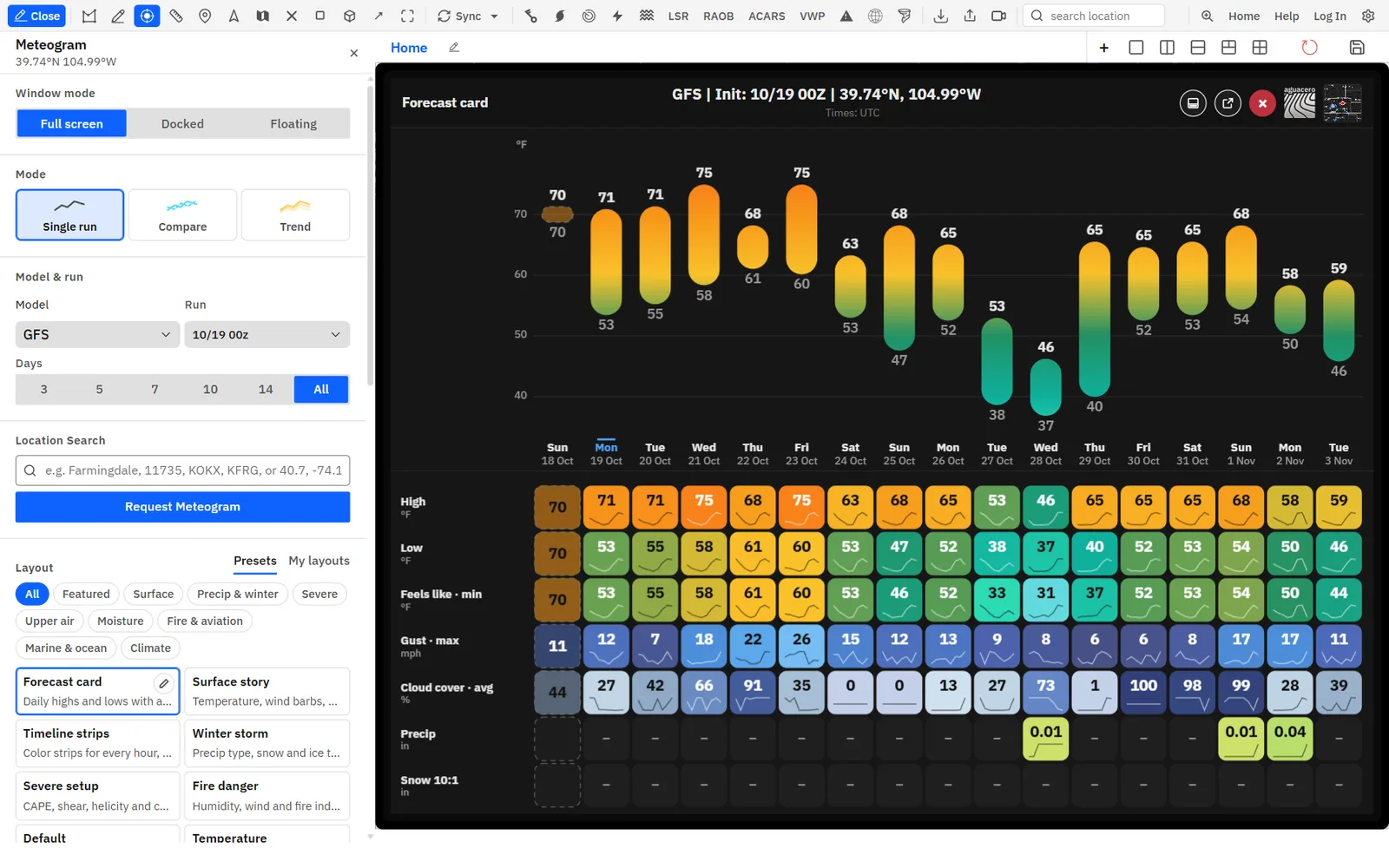
The meteogram controls, top to bottom
Every section of the controls panel and what it does, in the order the panel shows them.
While the layout editor is open, it replaces the rest of the panel. Click ‹ at its top to come back.
Change the model, run or point
Switch models and runs, or move the meteogram to a place you type, without going back to the map.
- Under Model & run, open Model and pick a model. Only models that cover the point and have a run listed are offered.
- Open Run to pick an older run.
- Under Location Search, type a city, zip code, airport or station code, or coordinates such as 40.7, -74.1.
- Click Request Meteogram. The meteogram moves there and the map recenters on it.
Tips
- A new point, model or run clears any models you were comparing. Trend and Verify runs reload for the new point.
- Right-click somewhere else on the map and click Model again to move the meteogram with the mouse.
- Product models such as air quality, marine and climate models switch to a layout made for them, unless one of your own layouts is up.
NDFD meteograms
The official National Weather Service forecast grids at a point, as a meteogram, whatever model the map shows.
- Right-click the map and click NDFD under Meteograms. Or pick NDFD in the meteogram’s Model menu.
- Under NDFD Issuance, open Run to pick an issuance.
- Pick a layout, such as Forecast card or Default.
- To go back to the map’s model, pick it in Model.
Tips
- The hourly NDFD issuances reach about 3 days ahead. The 00Z issuance reaches 7 days: pick it under Run for days 4 to 7.
- On a Day range or Day grid, NDFD highs and lows come from its own daily maximum and minimum temperature forecasts, which catch the afternoon peak that its 6-hourly steps after day 3 miss. This needs Day starts at 00:00.
- NDFD can be compared with other models in Compare mode.
NDFD is free. If no issuance is listed yet, or the point is outside the NDFD area, the app says so.
Related guideForecast modelsNBM and NDFD on the mapPick a mode
One run, several models, earlier runs, runs scored against observations, or every ensemble member.
Tips
- Compared, trend and verify runs draw on line plots only. Entering one of those modes with a layout that has none, such as Forecast card, shows Default instead, and your layout comes back when you return to Single run.
- Members mode has its own layouts. Switching in and out keeps each mode’s last layout.
- Ensembles with members open in Members mode for every new point and model. Switching to the NBM opens Single run; click Members for its percentiles.
- A spinner on the mode card means its runs or members are still loading.
Compare, Trend and Verify show a lock on Free and Enthusiast, and clicking one opens the upgrade dialog.
Pick a layout
Layouts set which plots the meteogram draws: built-in presets by topic, and the layouts you saved.
Show me in the app- Under Layout, stay on Presets.
- Click a topic chip: All, Featured, Surface, Precip & winter, Severe, Upper air, Moisture, Fire & aviation, Air quality, Marine & ocean or Climate. Only topics with a layout for this model show.
- Hover a tile for its description, and click it to redraw the chart.
- Click the pencil on a tile (Customize this layout) to open it in the editor.
- Click My layouts for the layouts you saved.
Tips
- Layouts the model can’t draw are hidden. A plot whose variables the model lacks says so on the chart.
- In Compare, Trend and Verify, only layouts with a line plot are listed.
- The app remembers your last layout for Single run and for Members mode separately.
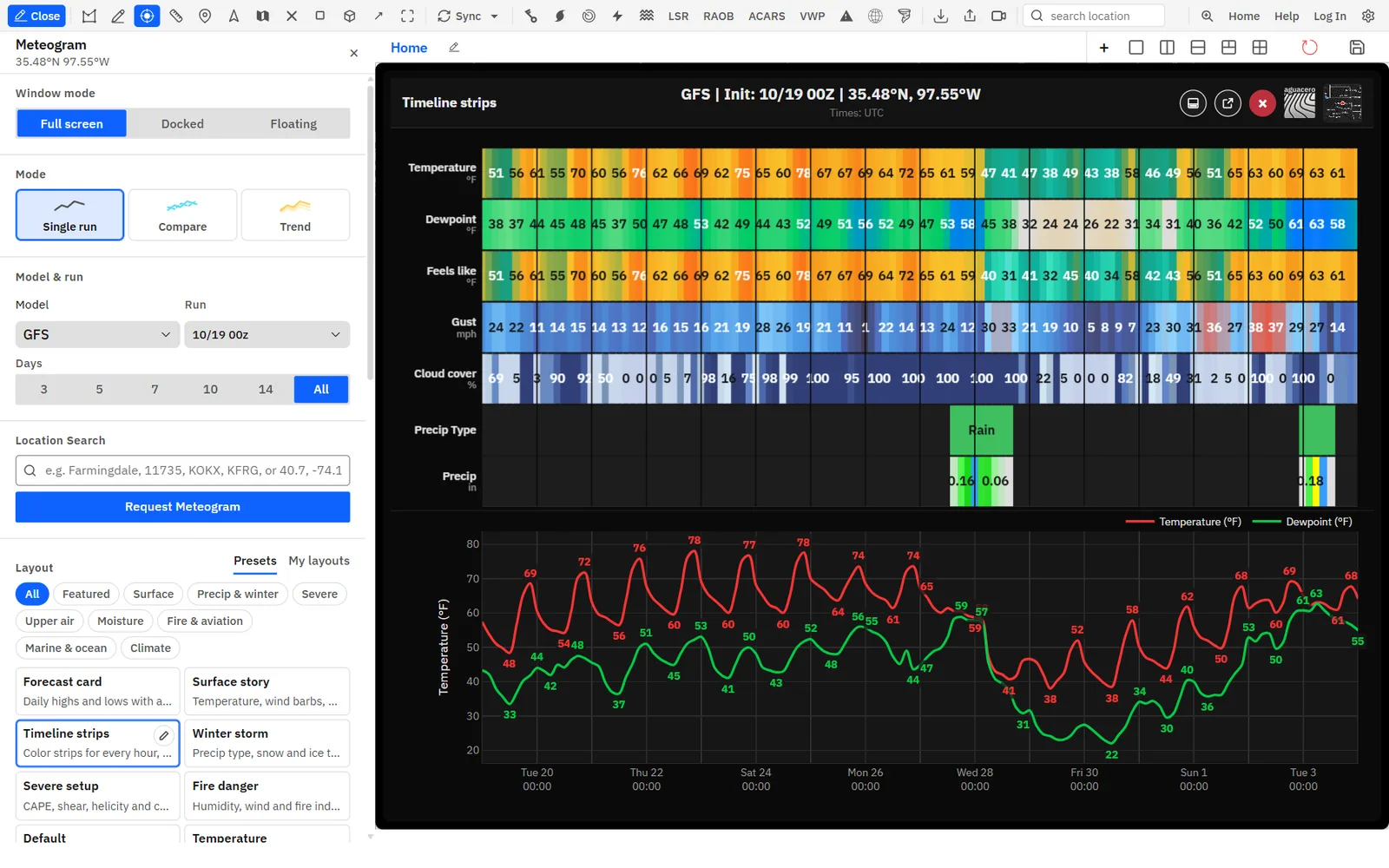
Winter, snowfall and aviation layouts
What Winter storm, Snowfall and Aviation forecast draw, and the extra fields the NBM and HRRR add.
These layouts draw what each model has and leave out plots it has no fields for. Most models give snow and ice from their precipitation-type totals (10:1 and Kuchera snow, freezing rain, sleet). The NBM adds its own fields: snowfall with its 10th and 90th percentiles, ice accretion, snow ratio, precip type chances, ceilings, cloud base, low-level wind shear and the chance of low ceilings and visibility. The HRRR family adds ceiling and cloud base.
Tips
- Ceilings are in feet in both unit systems, like on the map.
- The NBM also has Members-mode layouts for its percentiles: Winter, Snowfall and Aviation. See NBM percentiles in Members mode.
- Snow ratio under Display switches every 10:1 or Kuchera series in these layouts at once.
Days, dates and partial days
Show a set number of days, a range of dates you pick, and leave out days the run covers only in part.
- Under Days, click 3, 5, 7, 10, 14 or All. Day one is the calendar day of the run’s first hour.
- For a set range, open First day shown and Last day shown under Dates and pick the days.
- Click Clear dates, or any Days button, to go back to Days.
- Under Display, turn on Hide partial days to leave out a first or last day the run covers only in part.
Tips
- Run totals start again at the first day shown, so day sums and total lines match the days on screen.
- A date range lasts for this session only, since dates go stale; Days and Hide partial days are saved.
- A date range that misses the run you switch to is ignored, and Days applies.
- On a Day range, a partial day’s bar has a dashed outline.
Dates and Hide partial days are hidden in Members mode and on runs that fit in one day.
Read, zoom and pan the chart
Hover for exact values, pin a time, zoom in on hours or values, and click a day to zoom to it.
The header names the layout, the model and run, and the point: the airport you searched for or the nearest town, with its coordinates under it. It also shows the time zone the chart uses (Times:) and notes for the mode, observations and normals. Plots share one time axis. Weekday labels, midnight lines and night shading come from Appearance.
Shortcuts
- Hover a plot
- Read every line at that time; the date shows in the header
- Click
- Pin the readout; click again to let it go
- Scroll over a plot
- Zoom in or out in time around the cursor
- Scroll over the left axis
- Zoom the plot’s values
- Drag
- Pan in time; every plot follows
- Drag the left axis
- Move the plot’s values up or down
- Click a day
- On a Day range or Day grid: zoom every time plot to that day
- Tap / drag (touch)
- Tap to show and pin a readout; drag to pan
Tips
- Click ↺ Reset at the top of the plots to go back to the view the chart opened on.
- Hover a day on a Day range or Day grid for its values and the times of the high and low.
- Turn off Mouse readouts under Display to hide the hover values.
- With Min / max badge on in Customize, each plot shows the lowest and highest value in view.
- Times follow the time zone menu on the time bar.
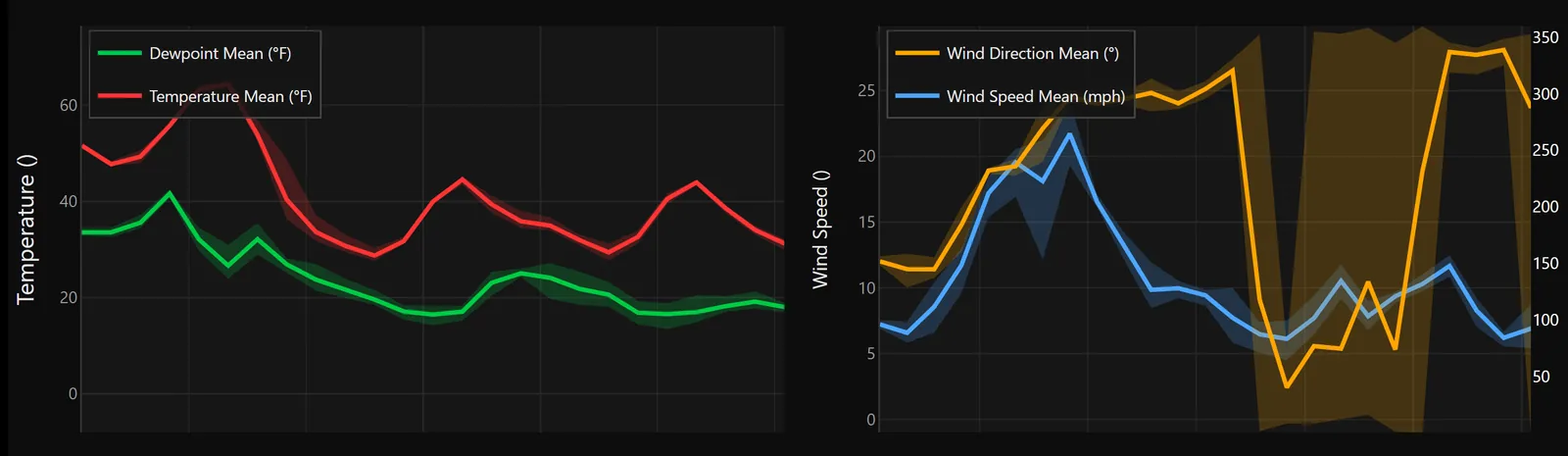
Compare modelsProfessional
Draw other models over the meteogram’s model at the same point, as lines, a plume or box plots.
- Open a meteogram with a line layout, such as Default.
- Under Mode, click Compare.
- Open Add model to compare and pick a model. Add as many as you like.
- Under Display Mode, pick Lines, Plume or Box.
- Click Single run to go back.
Tips
- Compared models draw on line plots only. Strips, day ranges and day grids show the primary model.
- The header shows Compare · N models.
- A new point, primary model or run clears the list.
Needs Professional or Creator.
Trend earlier runsProfessional
Draw the runs just before the current one, so you can see how the forecast has changed.
- Open a meteogram with a line layout.
- Under Mode, click Trend.
- Under Earlier runs, pick 1 to 6.
- Read the list under it: each run with its age, such as −6 h. Older runs draw fainter.
Tips
- Trend uses the runs right before the one under Run. Pick an older Run to trend from there.
- Display Mode works here too: a plume or box plots of the runs.
- Runs load three at a time; the panel shows Loading runs N of M….
- The header shows Trend · N runs.
Verify runs against observationsProfessional
Score earlier runs of the meteogram’s model against the last hours of observations, to see which runs did best here.
- Open a meteogram with a line layout, such as Default.
- Under Mode, click Verify.
- Under Observations, pick ASOS or RTMA.
- Under Last, pick 12 h, 24 h or 48 h, and under Earlier runs pick 1 to 6.
- Read the scores in the table, and on each plot.
Tips
- A positive temperature bias means the run was too warm.
- A run is scored only on the hours it covers, so a newer run may have fewer hours.
- Verify always draws lines and draws the observations itself, so Display Mode and the Observations switch are hidden.
- The header shows Verify · N runs · H h.
Needs Professional or Creator.
Members mode: every ensemble member
Every member of an ensemble at one point as box plots, percentile bands, plumes, member heatmaps and chances, beside other ensembles and models.
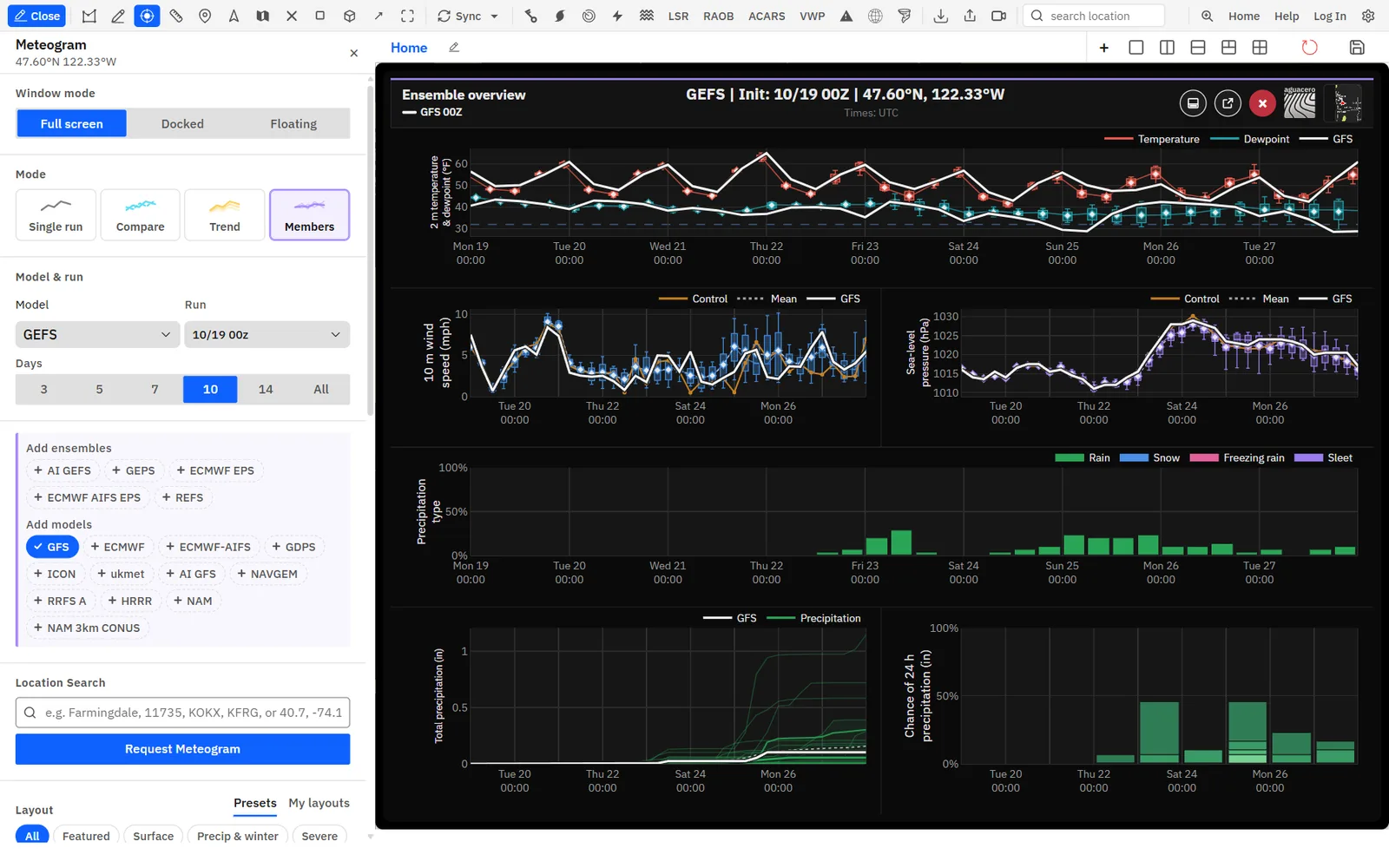
Show me in the app- Switch the map to GEFS, AI GEFS, GEPS, ECMWF EPS, ECMWF AIFS EPS or REFS.
- Right-click the map and click Ensemble under Meteograms (or Model).
- Under Layout, pick a Members layout, such as Ensemble overview.
- Under Add ensembles, click up to 2 other ensembles to draw beside it.
- Under Add models, click up to 4 models to draw as lines. The ensemble’s own run, such as the GFS for the GEFS, has its own chip and is on from the start.
- Hover a plot for the median, mean, range and member count at that time.
Tips
- Box plots span the 25th to 75th percentiles, with whiskers at the 10th and 90th, a median line and a mean diamond. On one-variable box plots, the control member is a line and the mean a dotted line.
- Ensembles take fixed colors. Added models are drawn in the text color: the ensemble’s own run solid, the others dashed, dotted and so on, named in the legend.
- Hover a heatmap cell for that member’s value and its rank among the members.
- AI GEFS has no ice, sleet or severe fields, so those layouts aren’t offered for it.
- Click Single run to see the ensemble’s mean fields as an ordinary meteogram.
GEFS, GEPS, AI GEFS, REFS and the NBM are on the Free plan. ECMWF EPS, ECMWF AIFS EPS and premium models under Add models show a lock on Free and need Enthusiast or higher.
Related guideForecast modelsEnsembles on the mapMembers plot types and amounts
How each Members plot draws the members, and how accumulation windows work for precipitation, snow and ice.
Tips
- Wind direction draws only as member dots (plumes), and precip type only as Shares or a heatmap.
- Plot titles say the window first, such as “24 h precipitation by member”, so a run total never looks like a 24-hour amount.
Snow and ice by member
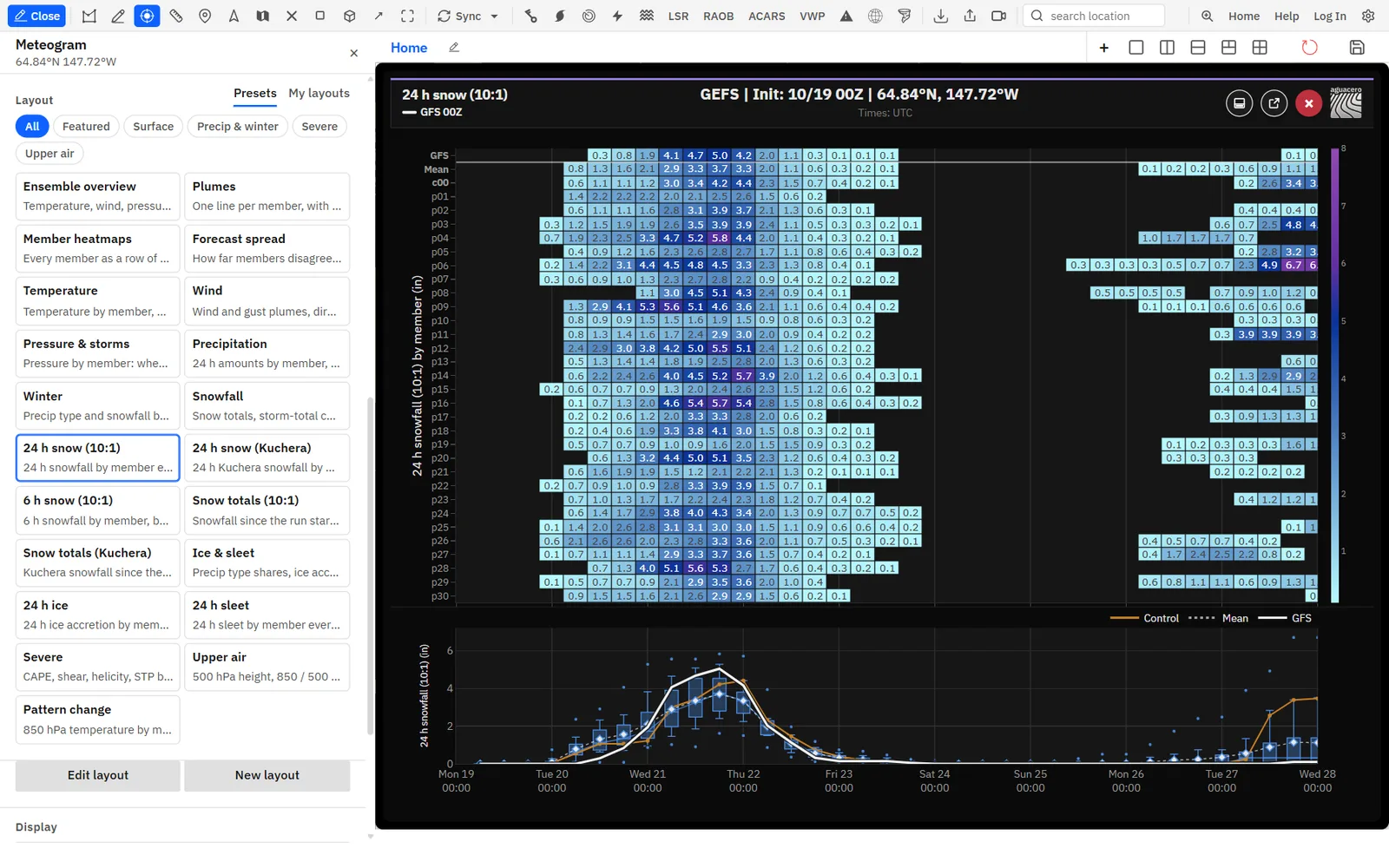
A grid of snow, ice or sleet for every member with a box and whisker underneath, to see how many members bring a storm and when.
Show me in the app- Open a meteogram in Members mode at the place you want.
- Under Layout, click Precip & winter.
- Pick a grid layout (see the table).
- Read the grid: one row per member, the added models and the mean on top, and the amount printed in each cell.
- Read the box and whisker below for the spread on the same windows.
Tips
- The 24-hour columns overlap: each one ends 6 hours after the last. On the first day they start at the run time.
- If an ensemble has no Kuchera snowfall, the plot shows 10:1 snow and its title says (10:1).
- Ice uses ice accretion where the ensemble has it, else the freezing rain amount.
ECMWF EPS has no control member, so its box plots show the mean line only.
Snow ratio: 10:1, Kuchera or each layout’s own
Switch every snowfall series on the chart between 10:1 and Kuchera snow with one setting.
- Open a layout with snowfall, such as Forecast card, Winter storm or the Members Winter layout.
- Under Display, find Snow ratio.
- Click Layout, Kuchera or 10:1.
Tips
- Layouts named for a ratio, such as 24 h snow (Kuchera), and plots that show both ratios side by side stay as they are.
- A series stays as built when the model doesn’t have the other ratio.
- The setting changes what draws, not your saved layouts, and it is remembered for every meteogram.
Snow ratio shows only when the layout has a 10:1 or Kuchera snowfall series.
NBM percentiles in Members mode
The National Blend of Models publishes percentiles instead of members. Members mode draws them as box plots, bands, heatmaps and chances.
- Open a meteogram on the NBM. It opens in Single run.
- Under Mode, click Members.
- Under Layout, pick a percentile layout (see the table).
- Hover a plot for the median, mean and range at that time.
Tips
- Heatmap rows are the published percentiles, with the mean on top.
- There are no members to draw, so plumes and precip type aren’t offered, and other ensembles can’t be added.
- Precipitation comes in the windows the NBM publishes. In the editor, Amounts offers 6 h, 12 h and 24 h.
- When the percentiles come from an earlier NBM run than the one shown, the chart says Percentiles from and that run.
Climate normals on temperature plots
The 1991–2020 normal high and low at the nearest climate station, drawn beside the forecast temperature.
- Open a layout with a 2 m temperature plot, such as Default or Forecast card.
- Under Display, turn on Normals.
- Read the header: the normal high and low for the first day shown, then the station name and its distance.
Tips
- Normals come from NOAA’s U.S. Climate Normals in the US and GHCN-Daily stations elsewhere.
- With no station within 60 km (37 mi), the header says so and nothing draws.
- The normals give only each day’s high and low, so the Lines curve is an estimate of a normal day, not an hourly normal.
- Your choice is remembered.
Normals shows only when the layout has a 2 m temperature plot it can draw on (not wind barbs, member heatmaps or chances).
Observations on the chart
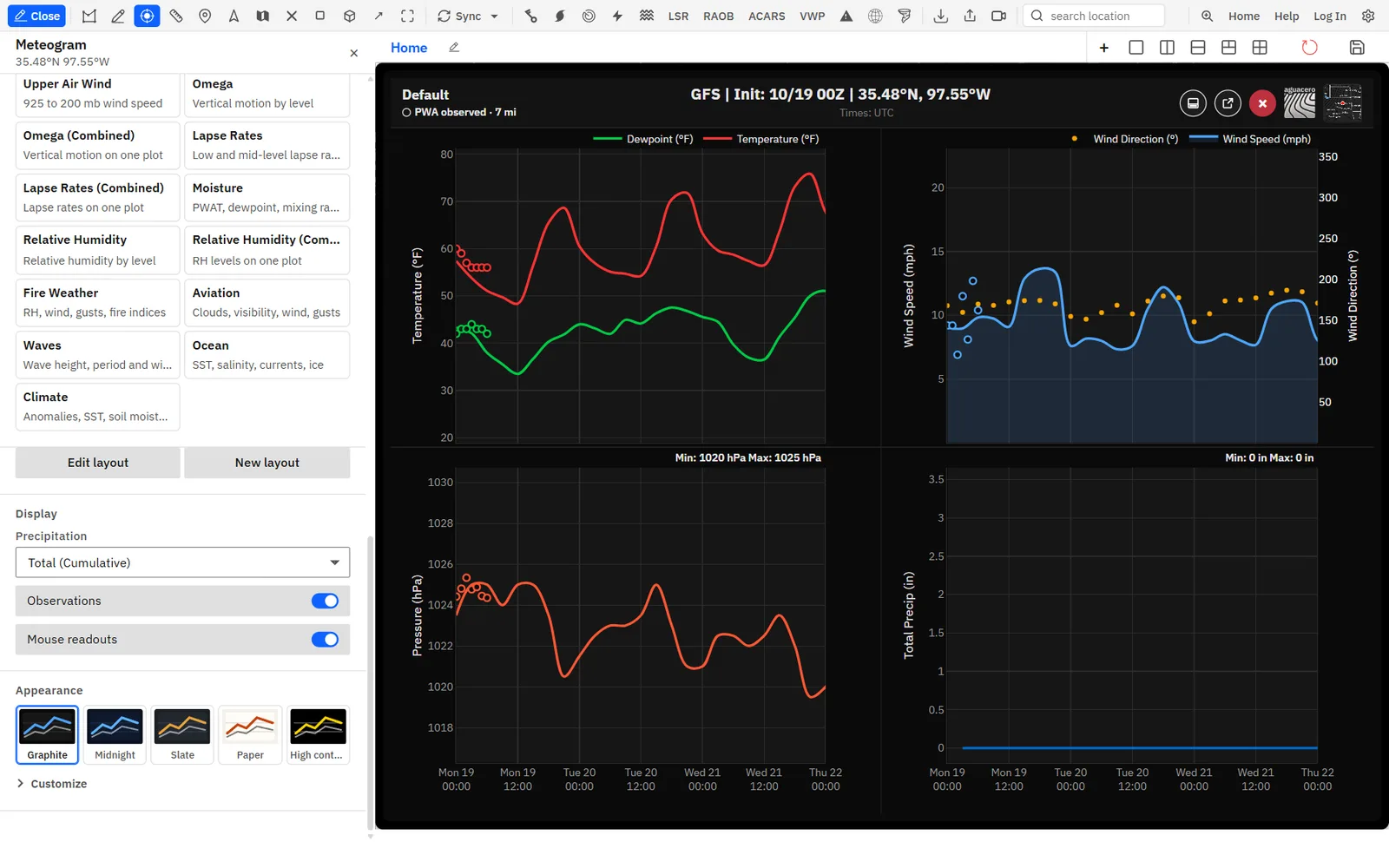
Hourly observations drawn as rings over the forecast, so you can see how the run is doing so far.
Show me in the app- Open a layout with a line plot, such as Default, or a Members layout with box, percentile or plume plots.
- Under Display, turn on Observations.
- Under Observed by, pick ASOS or RTMA.
- Read the rings: one per hour, in the color of the line they match. The header names the station and its distance, or the analysis.
Tips
- Temperature, dew point, feels-like, humidity, wet bulb, wind, gusts, pressure and visibility get rings. Stations above 750 m get no pressure.
- When nothing draws, the header says why, for example no ASOS station within 19 mi or no reports in the last day.
- Hover a time to read the observed values with the forecast.
Observations shows only when the layout has a plot it can draw on, and not in Verify mode, which draws observations itself.
Precipitation amounts
Choose whether precipitation, snow and ice lines show the total since the run started or the amount over the last hours.
- Open a layout with precipitation, such as Default.
- Under Display, open Precipitation.
- Pick Total (Cumulative) or an amount from 1-hour to 72-hour.
Tips
- A saved amount the run can’t show, such as 1-hour on a 6-hourly ensemble, falls back to Total (Cumulative).
- Your choice is remembered for every meteogram.
- Members heatmaps and chances set to Follow precipitation setting use this amount too.
Precipitation shows only when the layout has an amount that adds up, such as precipitation, snow or ice.
Build a layout in the editor
Pick the plots, variables, colors and axes yourself. The chart redraws with every change.
Show me in the app- Open a meteogram and click Edit layout to start from the current layout, or New layout for a blank one.
- Type a Name.
- Click a plot card to open it, and pick its type: Lines, Strips, Day range or Day grid.
- Click + Add variable, search, and pick a variable.
- Click + Add plot for another plot. With two or more plots, pick One column or Two columns.
- Click ‹ (Done editing) when you’re done, or save the layout to your library.
Tips
- Changing a plot’s type keeps the variables that type can show.
- If you made no changes, ‹ goes back to the layout you started from. Otherwise the layout stays on the chart as Unsaved, with Save and Discard in the layout picker.
- Discard changes in the editor goes back to where you started.
A layout holds up to 12 plots, and a plot up to 8 variables.
Variables: color, style, axis and order
Each variable row in a plot card has its own color, style or daily value, axis and place in the order.
Tips
- Add the same variable twice to a day grid for separate high and low rows, each with its own color.
- Members heatmaps, chances and precip type show one variable; their button reads Change variable.
Plot settings by type
The extra settings each plot type has: reference lines, bar fills and colormaps, outlines, day starts and more.
Tips
- The rounding of day range bars and day grid cells is set for every meteogram by Corners in Customize.
- A colormap picked here belongs to this layout only. Your map colormaps don’t change.
Save layouts to your library
Keep a layout you built, and open it from the meteogram or from the library like a bundle.
- In the layout editor, click Save to library.
- Type a Layout name. Pick a Category (Meteograms to start) and Subcategory (General), or type new ones.
- Leave Private on to keep it to yourself, then click Save layout.
- Find it on the My layouts tab, grouped by category and subcategory.
Tips
- Your layouts also show in Select Data under My, in their category. Click one there to switch the meteogram to it, or to open a meteogram at your last meteogram point (or the map center).
- A Members layout opens the meteogram in Members mode. In Compare, Trend and Verify, only your layouts with a line plot are listed.
- The theme isn’t saved with a layout: Appearance applies to every meteogram.
Saving needs an account. Saved layouts count toward your bundle limit: 10 on Free, 20 on Enthusiast and unlimited on Professional and up.
Related guideBundles, workflows and your libraryBrowse the library in Select DataThemes and Customize
Pick a theme for every meteogram, and fine-tune its colors, text, lines, spacing, corners and header.
- Scroll the controls to Appearance.
- Click a theme tile.
- Pick a Font, or click Upload your own font to add one in Settings.
- Click Customize for the rest. It reads Customize (edited) once you change something.
Tips
- Logo and Map inset also decide what copied and downloaded images include.
- The theme saves to your account; the newest change wins across devices.
Copy or download the chart image
Save the meteogram as a PNG or copy it to paste into a post or message.
- Right-click the chart. On a touch screen, press and hold.
- Click Copy Meteogram Image to copy it, or Download Meteogram Image to save it.
Tips
- The image is the chart as you see it, header included, at twice screen resolution. The cursor line and readouts are left out.
- Downloads are PNG files named with the model and run.
- Turn off Logo or Map inset under Customize to leave them off. The map inset is also left out when the point is outside the map’s view.
- For a bigger image, make the chart Full screen first.
Chart windows and phones
Keep the map in view with a docked or floating meteogram, and what changes on a phone-sized screen.
Tips
- The dock and pop-out buttons on the chart do the same, and the app remembers the last mode you used.
- On a phone-sized screen, the meteogram opens full screen without the controls panel. A strip at the bottom has Model, Run, Layout and, when the layout can use them, Observations (with its source) and Normals.
- The chart on a phone uses the theme and the days, snow ratio and other choices you saved on a larger screen.
Docked and floating windows are on desktop only.
Related guideSoundings, cross sections and chartsDock, float and resize chartsStation (ASOS) meteograms
An observed meteogram of about the last 24 hours at a surface station, in the same chart and with station layouts.
- Turn on surface stations (Surface obs on the toolbar).
- Click a station on the map. Its observed meteogram opens.
- Under Layout, pick ASOS Observations, Winter weather, Fire Weather or a model layout that observations can fill.
- Click another station on the map to switch.
Tips
- The header shows Latest: and the time of the newest report.
- Station meteograms keep their own last layout, separate from model meteograms. The editor lists only what stations report.
- A library layout clicked while a station meteogram is open applies to it.
- The controls show the station code in place of the mode, model, days and location search.
Plans, and what the app remembers
Which meteogram tools need a plan, and which choices are saved to your account.
Recipe: a 7-day forecast card for a city
A clean daily forecast graphic with normals, ready to post.
- Load the GFS or ECMWF, right-click the map and click Model under Meteograms.
- Type the city under Location Search and click Request Meteogram.
- Under Layout, click Forecast card.
- Under Days, click 7, and under Display turn on Hide partial days and Normals.
- Under Appearance, pick Paper or Midnight, and set Corners under Customize to taste.
- Make the chart Full screen, then right-click it and click Download Meteogram Image.
Recipe: how many members bring snow?
Check when and how much snow the ensembles agree on at one place.
- Switch the map to the GEFS, right-click the town and click Ensemble under Meteograms.
- Under Layout, click Precip & winter, then 24 h snow (Kuchera).
- Count the members with snow in each column, and read the box and whisker for the spread.
- Under Add ensembles, click GEPS to put its members beside the GEFS.
- Switch to Snowfall for storm-total chances, and set Snow ratio to 10:1 to compare the fixed-ratio totals.
Recipe: an airport aviation briefing
Ceilings, visibility, wind and shear at an airport, checked against the latest reports.
- Load the NBM or HRRR, right-click the map and click Model under Meteograms.
- Type the airport code, such as KSFO, under Location Search and click Request Meteogram.
- Under Layout, click Aviation forecast.
- Under Days, click 3, then pick the flight day under Dates if you want only that day.
- Under Display, turn on Observations with ASOS to see the airport’s reports over the forecast.
- On the NBM, read IFR chances and the low-level wind shear plot.
Common questions
Answers to the meteogram questions we hear most.
Why are Compare, Trend and Verify locked?
They need Professional or Creator. On other plans the mode cards show a lock and open the upgrade dialog. Members mode, observations and normals are on every plan.
Why can’t I find a layout for this model?
The picker hides layouts the model has no fields for, such as Winter storm on a model without snow or ice, or Aviation forecast without ceilings or visibility. Compare, Trend and Verify list only layouts with a line plot, Members mode has its own layouts, the NBM’s Members mode takes only its percentile layouts, Storm timing is REFS only, and AI GEFS has no ice, sleet or severe layouts.
Why does the NDFD meteogram show only about 3 days?
The hourly NDFD issuances reach about 3 days ahead. Under NDFD Issuance, open Run and pick the 00Z issuance for the full 7 days.
Why don’t observations appear?
The Observations switch shows only for layouts with a line plot (or Members box and plume plots) of an observed field, and not in Verify mode. With ASOS, there must be a station within 30 km (19 mi) with reports in the last 24 hours; try RTMA, which reads the analysis at the point (US only). The chart header says why nothing draws.
Why is there no control line on ECMWF EPS?
ECMWF EPS has no control member in its member data, so its box plots show the mean line only, and its heatmap rows are numbered members. GEFS, AI GEFS and GEPS have a control member.
Why does a Kuchera snow plot say 10:1?
Some ensembles have no Kuchera snowfall. The plot then shows 10:1 snow and says so in its title.
Should I use 10:1 or Kuchera?
10:1 assumes 10 inches of snow per inch of liquid, which is simple and easy to compare. Kuchera sets the ratio from the temperature aloft, so it gives more snow in very cold storms and less in storms near freezing. Compare both with the Members Snowfall layout, or switch the whole chart with Snow ratio.
Why does precipitation look flat?
With Total (Cumulative), the line shows the amount since the run (or the first day shown) started, so it stays flat through dry hours. Pick a window such as 6-hour under Precipitation to see each period’s amount. Only windows that fit the run’s time step are listed.
Why are Dates and Hide partial days missing?
They are hidden in Members mode and when the run fits in one day. In Members mode, use Days.
Why did my date range go away?
A date range lasts for the session, and a Days button or Clear dates removes it. It is also ignored on a run that doesn’t reach those days.
Why did my layout change when I clicked Compare?
Compared runs draw on line plots only, so a layout without one, such as Forecast card, is set aside and Default is shown. It comes back when you click Single run.
Why are the normals missing?
Normals shows only for layouts with a 2 m temperature plot. If no climate station is within 60 km (37 mi), the header says so and nothing draws.
Why can’t I save my layout?
Saving needs you to be signed in. Saved layouts count toward your bundle limit (10 on Free, 20 on Enthusiast); at the limit, the app offers an upgrade. Editing a layout you already saved and clicking Save doesn’t use another slot.
Why are the meteogram controls missing?
On a phone-sized screen the meteogram opens full screen with a strip of controls at the bottom instead of the panel. On desktop, the controls are in the sidebar while the chart covers the board, or in a panel beside it when docked or floating.