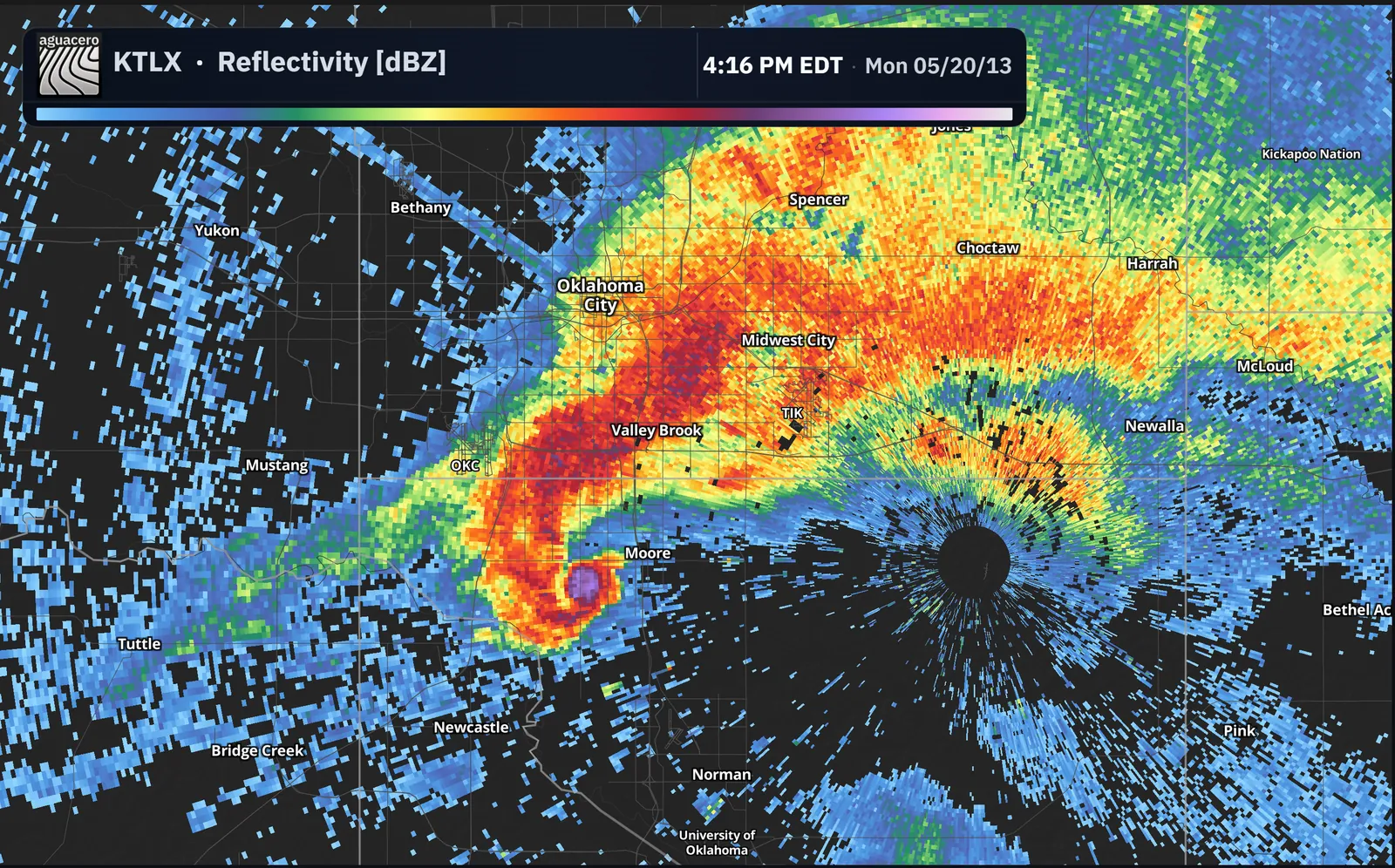
Load a past event
Switch the time bar from Live to Archive, set a time window in the Archive Builder and load it onto the active board.
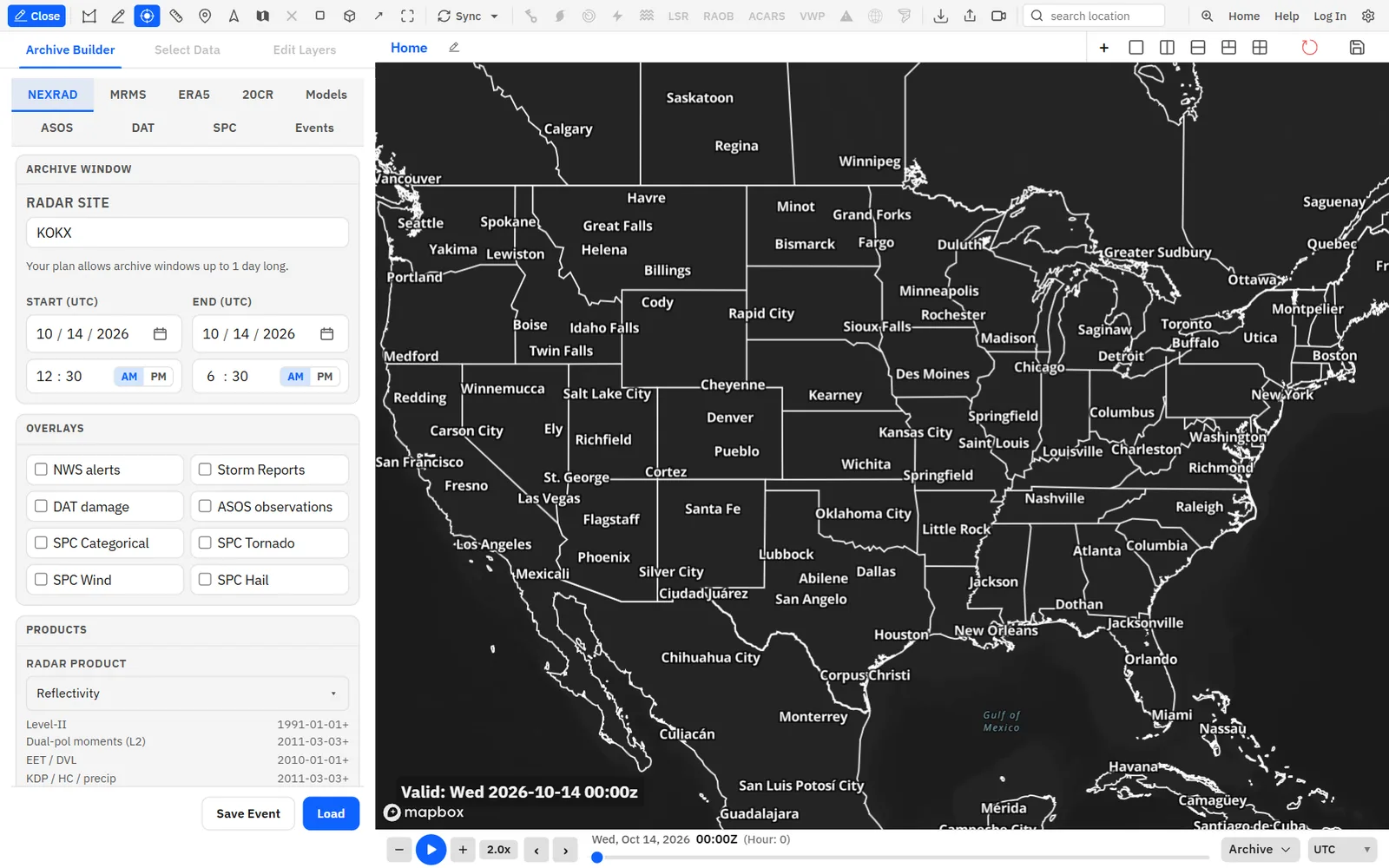
Show me in the app- On the time bar, open the Live menu and choose Archive. The Archive Builder opens in the sidebar.
- Click a dataset tab: NEXRAD, MRMS, ERA5, 20CR, Models, ASOS, DAT or SPC.
- Under Archive window, set Start and End. Times use the board’s time zone.
- Pick the products you want, and tick any Overlays for the same window.
- Click Load. The data loads on the active board, and Select Data and Edit Layers unlock.
- Press Space or drag the time bar to play through the event.
Tips
- When you change the start time, the end moves to one hour later. Move the end out as far as your plan allows.
- After the first load the button reads Update. Change the window or products, then click Update to reload.
- To leave, choose Live in the same time bar menu, or click Exit archive in the builder. The live workspace comes back.
Switching to Archive clears the layers on the active board. Save your bundle first if you want to keep it. Window limits: NEXRAD and MRMS 1 hour on Free, 2 hours on Enthusiast, 24 hours on Professional. ASOS 4 hours, 12 hours and 3 days. ERA5 and 20CR 12 hours, 24 hours and 5 days. DAT and SPC 30 days on every plan.
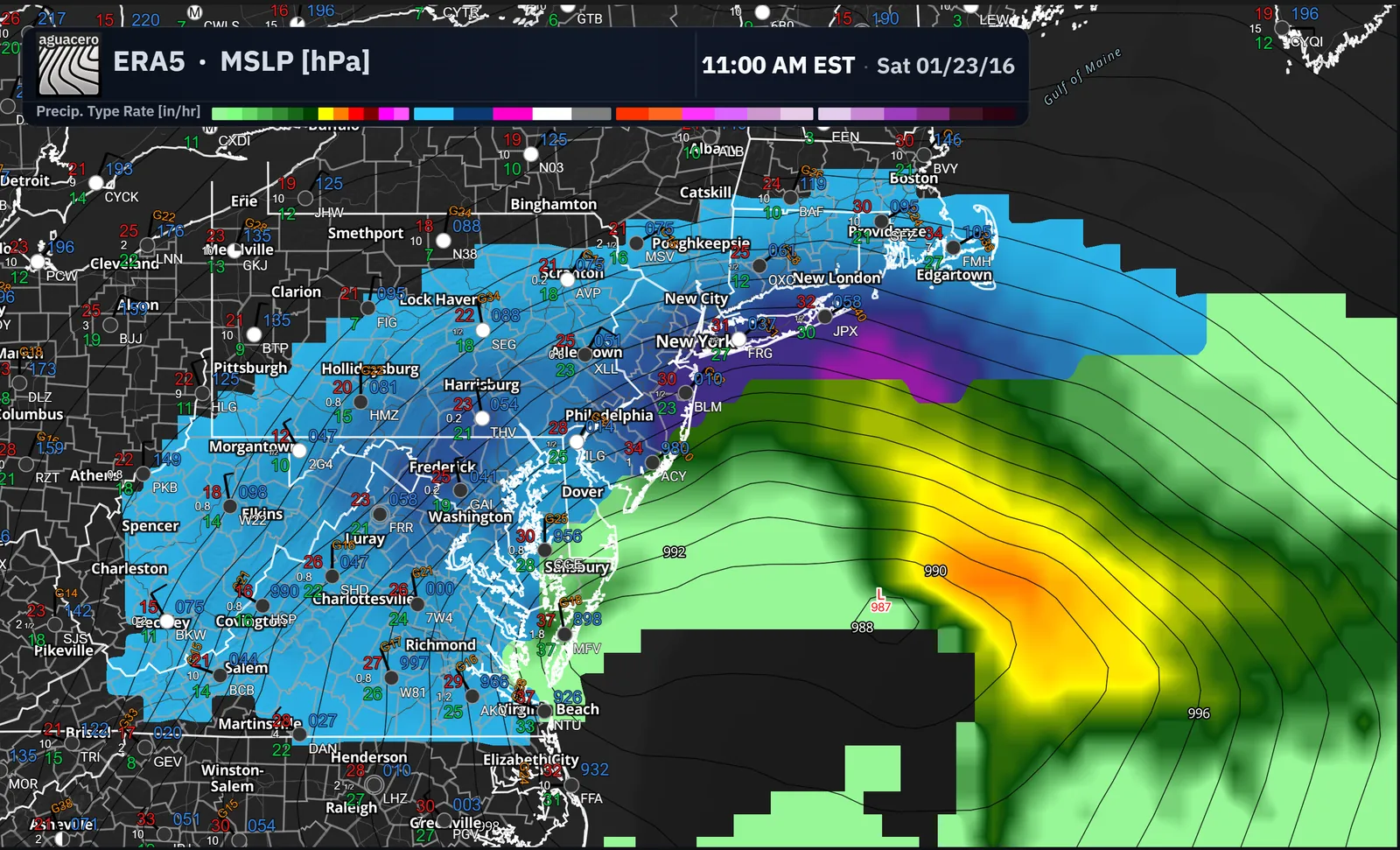
Replay NEXRAD radar
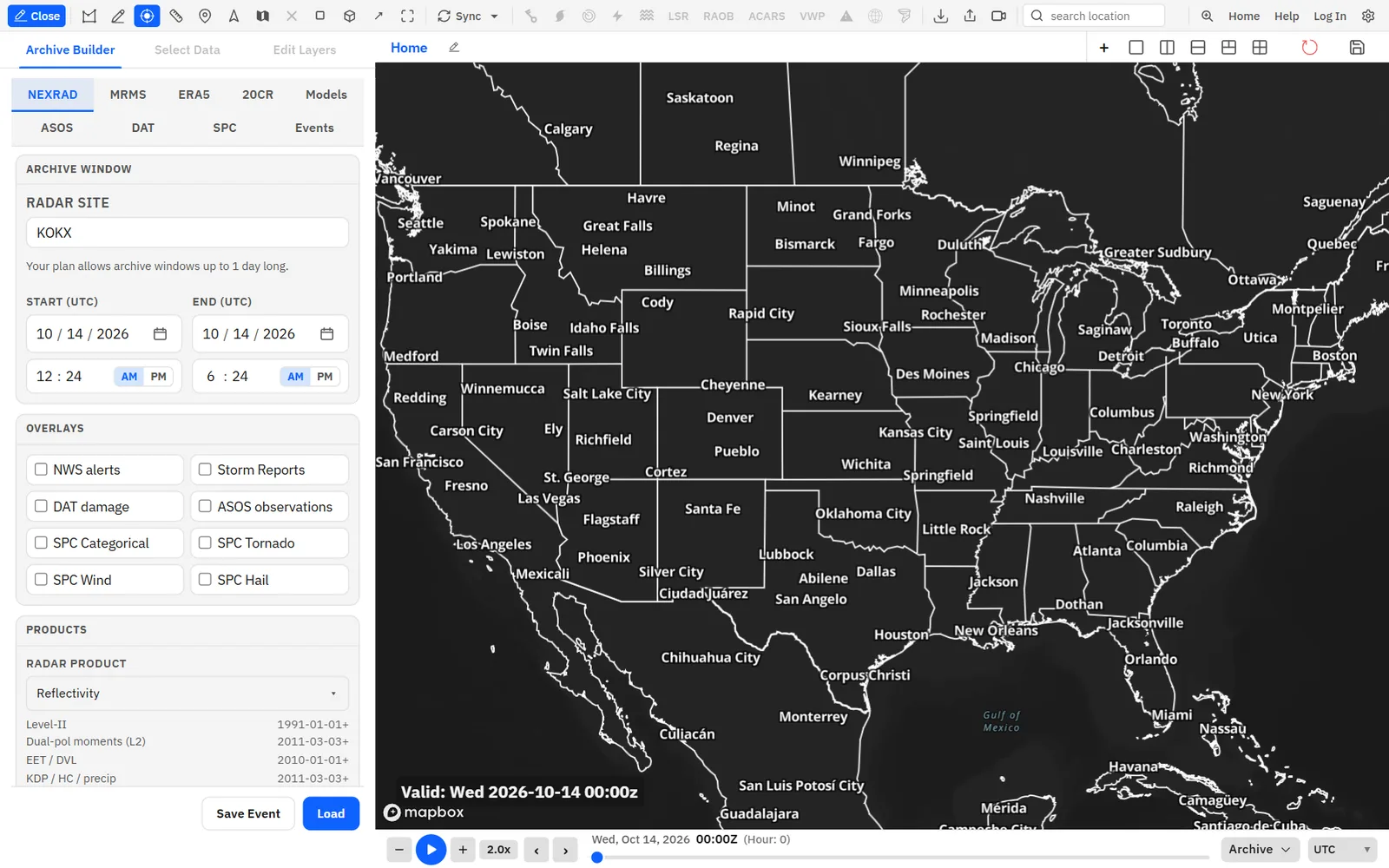
Load Level II radar back to 1991 and Level III products back to 1999 for any NEXRAD site.
Show me in the app- In the Archive Builder, click the NEXRAD tab.
- Type the four-letter site ID in Radar site, for example KTLX.
- Set Start and End.
- Under Products, pick a Radar product.
- Click Load.
Tips
- Dual-pol products start in March 2011. Products that the site or date can’t provide stay unavailable in the picker.
- Archived velocity is dealiased automatically.
- Cross sections in Archive mode work only when NEXRAD is the dataset. The VWP toolbar button works for windows from 1999 on.
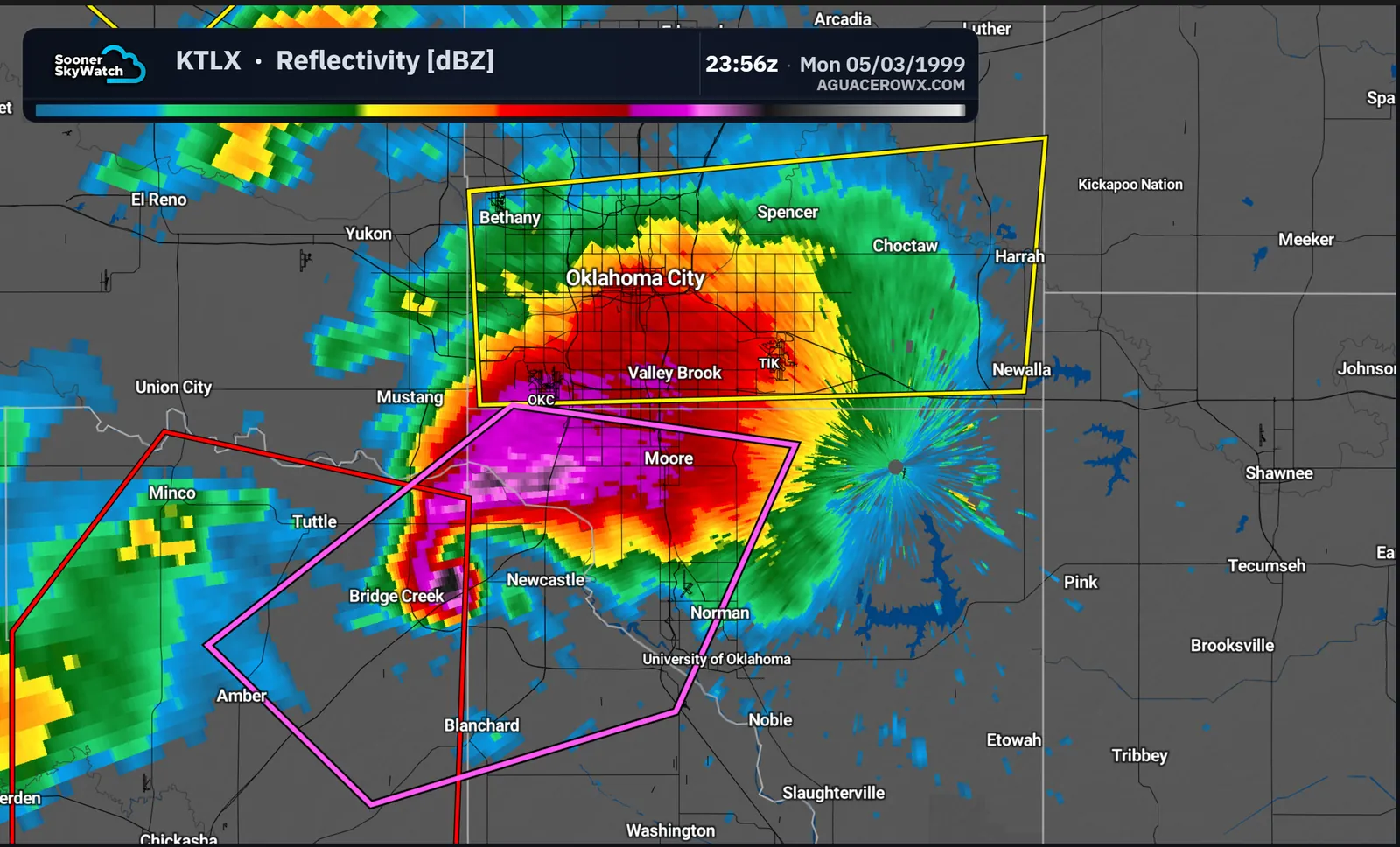
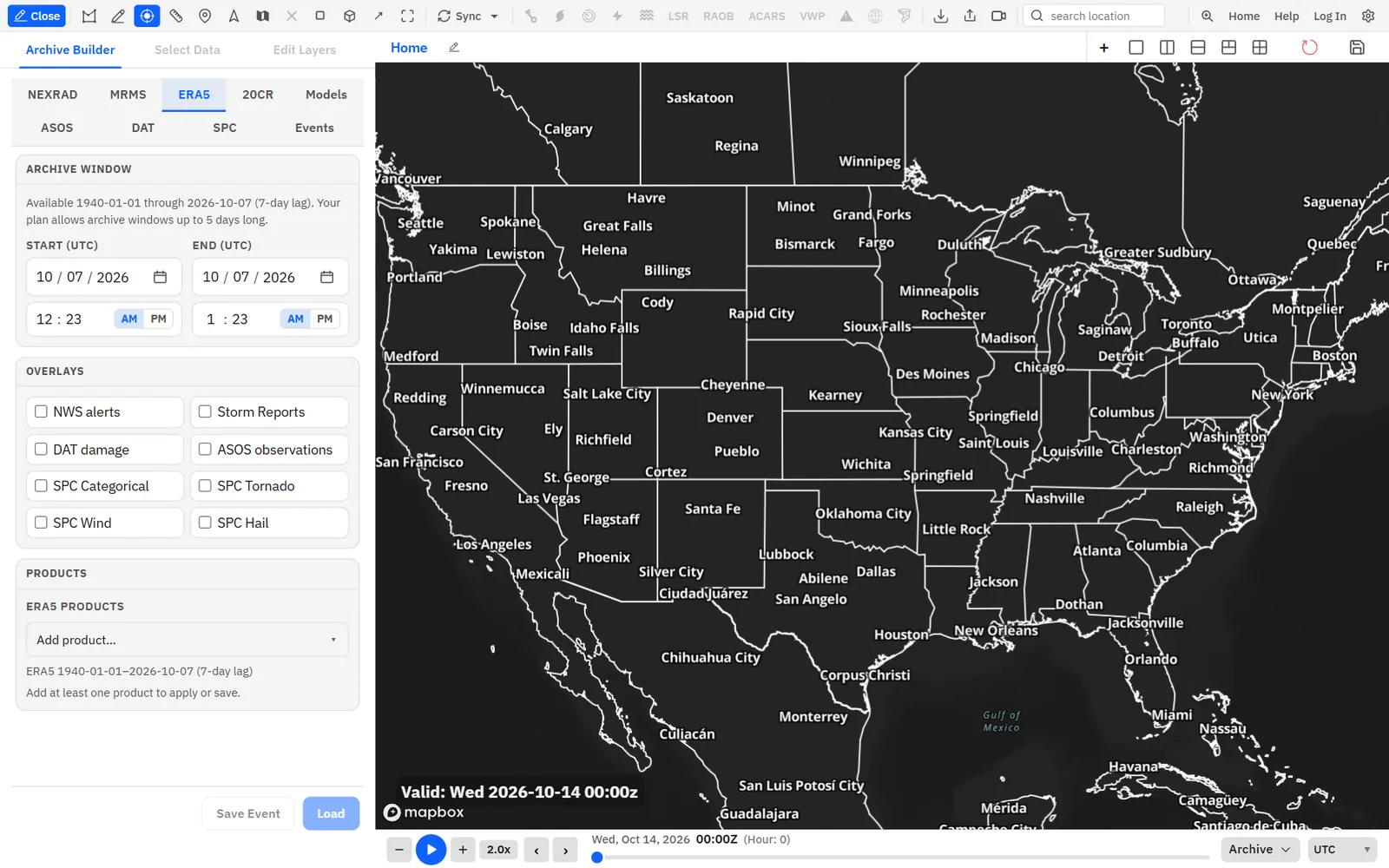
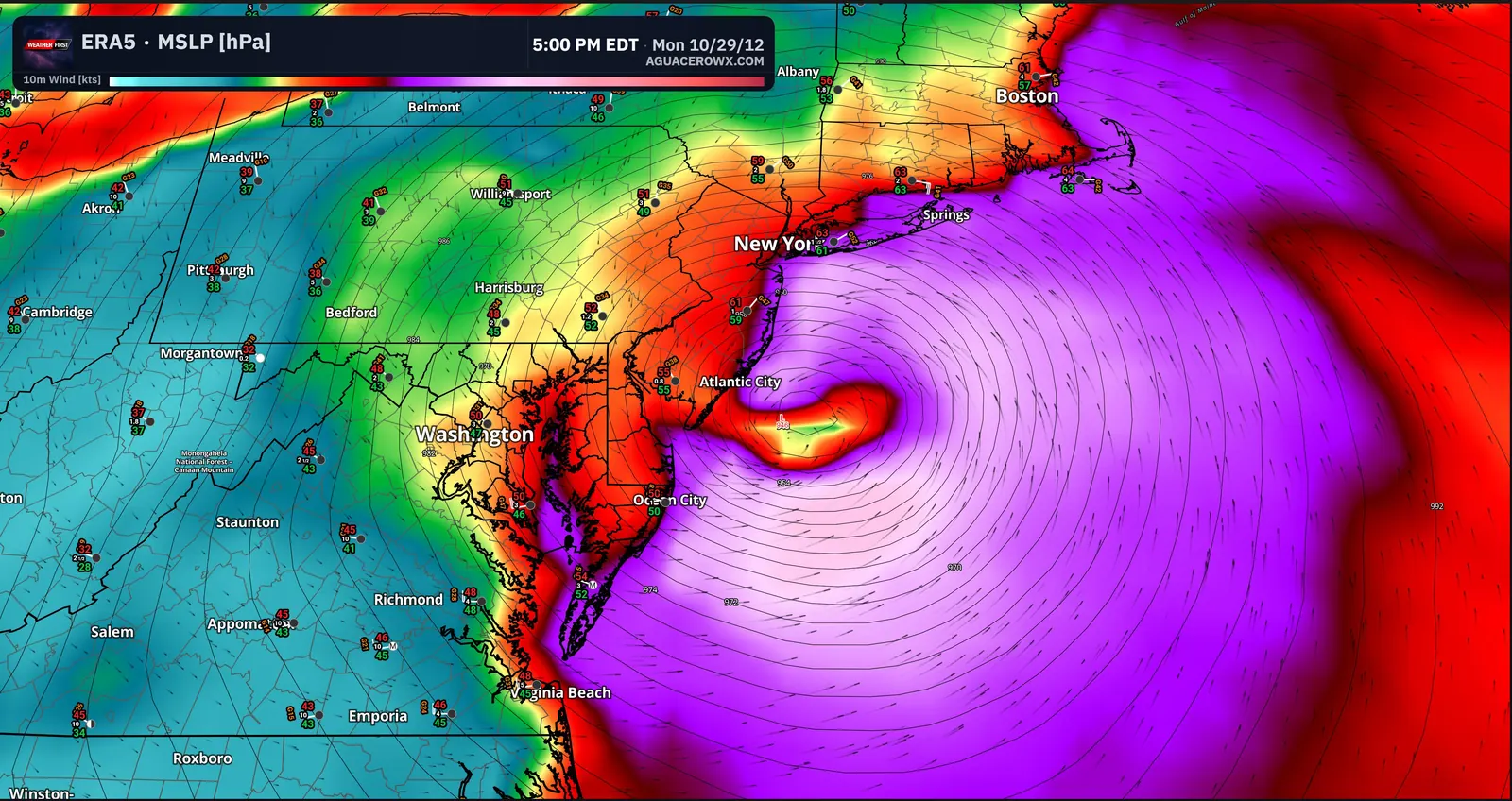
ERA5 reanalysis back to 1940
Load ERA5 reanalysis fields for any date from 1940 to about a week ago, to see the setup behind an event.
Show me in the app- In the Archive Builder, click the ERA5 tab.
- Set Start and End. The note above the fields shows the latest date you can pick.
- Under ERA5 products, open Add product… and pick a field. Repeat to add more.
- Click Load.
Tips
- Some ERA5 products are anomalies, such as the 700–500 hPa lapse rate anomaly, which compare the event with climatology.
- To drop a product, click the remove button next to its name.
ERA5 windows can be 12 hours on Free, 24 hours on Enthusiast and 5 days on Professional.
20CR reanalysis back to 1836
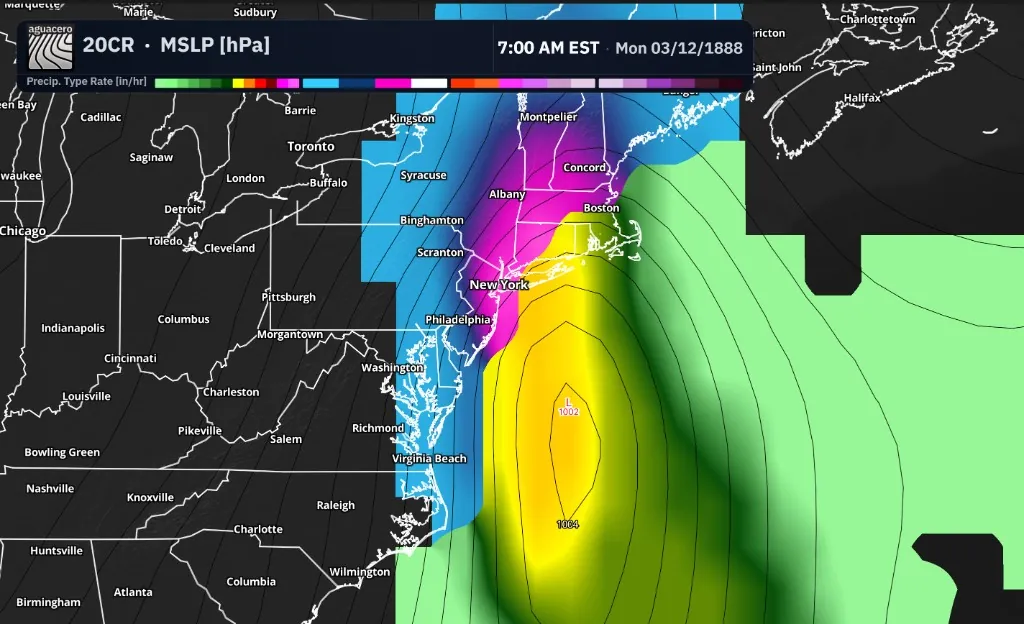
The Twentieth Century Reanalysis covers 1836 to 2015, every 3 hours, for storms long before radar and satellites.
Show me in the app- In the Archive Builder, click the 20CR tab.
- Set Start and End between 1836 and 2015.
- Under 20CR products, open Add product… and pick one or more fields.
- Click Load.
20CR uses the same window limits as ERA5: 12 hours on Free, 24 hours on Enthusiast and 5 days on Professional.
Past HRRR and GFS runs and SPC outlooks
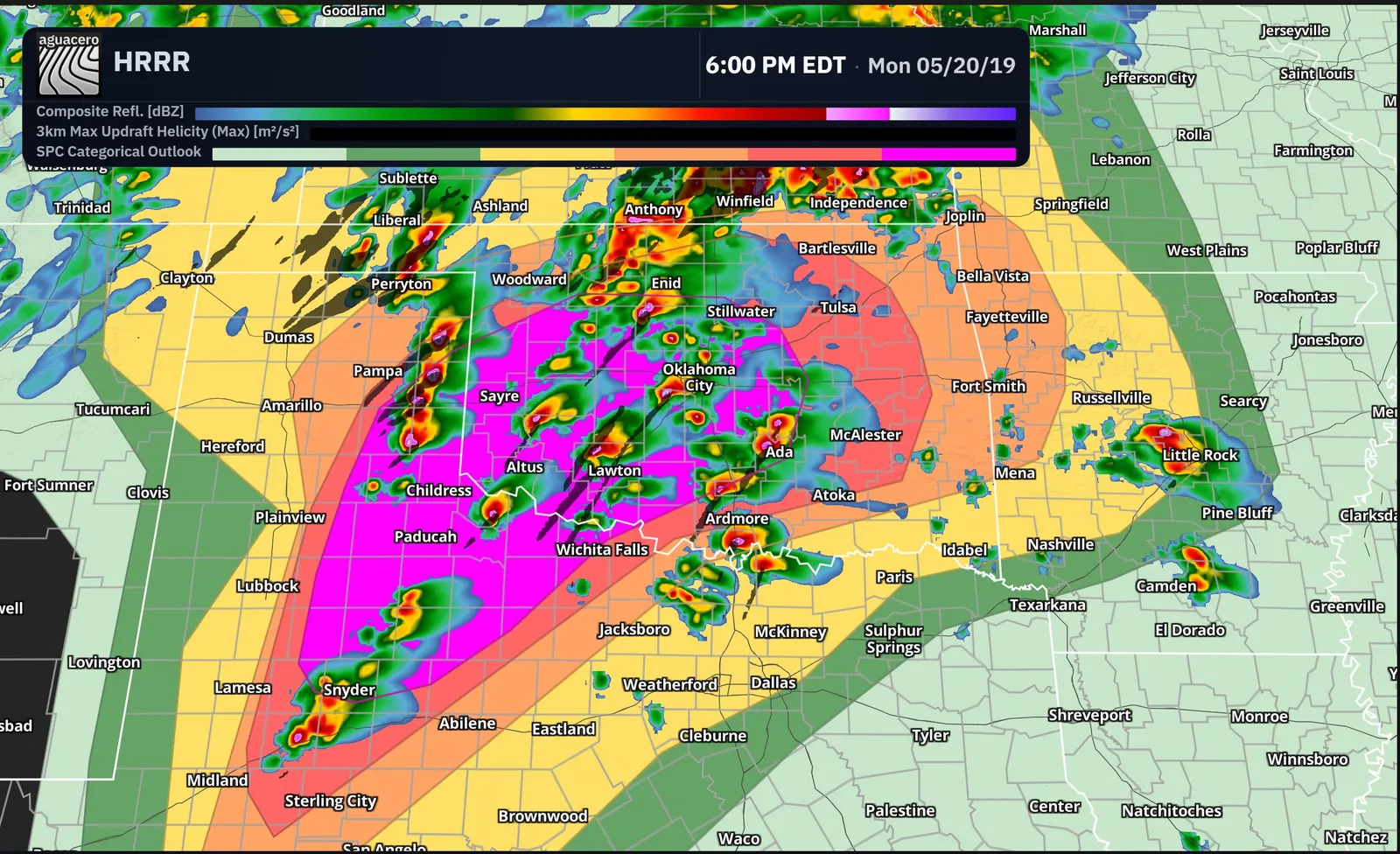
Reload an old HRRR or GFS run, and show the SPC convective outlooks that were in effect at the time.
Show me in the app- In the Archive Builder, click the Models tab.
- Choose HRRR or GFS under Model.
- Set Init date (UTC) and Run (UTC), then pick the last forecast hour in Max FH.
- Under Variables, open Add variable… and pick the fields you want.
- Click Load.
For outlooks on their own, click the SPC tab, set the window, tick SPC Categorical, SPC Tornado, SPC Wind or SPC Hail, and click Load. On other tabs you can add the same outlooks under Overlays.
Tips
- HRRR goes back to August 2014 and GFS to 2021. The note at the top of the tab shows the earliest date for the model you picked.
- Categorical SPC outlooks go back to 1987. Tornado, wind and hail probabilities start in 2002.
On Free, HRRR is limited to the 00, 06, 12 and 18z runs through forecast hour 18, and GFS through hour 72. Enthusiast and up get every run and forecast hour.
Past observations, reports and warnings
Load surface observations back to 1900, storm reports from 2003, NWS alerts from 1986, damage surveys, ACARS from 2019 and historical RAOB soundings.
Show me in the app- For surface observations alone, click the ASOS tab in the Archive Builder and set the window.
- On any other tab, tick the extras you want under Overlays: NWS alerts, Storm Reports, DAT damage or ASOS observations.
- Click Load.
- To see soundings from the window, turn on RAOB or ACARS on the toolbar, then click a site.
Tips
- An overlay that isn’t available for your dates stays greyed out and shows the date its coverage starts.
- The DAT tab loads NWS damage surveys from 2010 on, with windows up to 30 days.
ASOS windows can be 4 hours on Free, 12 hours on Enthusiast and 3 days on Professional. RAOB and ACARS stay disabled until an archive window is loaded.
Save and reopen events
Save an archive window as an event so you can reload the same case later in one click.
Show me in the app- Set up a window in the Archive Builder.
- Click Save Event at the bottom of the builder. If the window isn’t loaded yet, it loads first.
- Enter a Name, Category and Subcategory, then click Save Event.
- To reopen it later, click the Events tab and click the event’s name.
Tips
- On the Events tab, use the pencil to change an event’s name, category or window, then click Update event. The trash icon deletes it.
- Once a window is on the board, the save icon at the top right of the board also reads Save Event.
- Type in Search events… to find an event in a large library.
Sign in to save events. You can keep 1 event on Free, 5 on Enthusiast and unlimited events on Professional and up.