
Open the tropical cyclone hub
See every active storm worldwide, jump to one on the map, and open its forecasts, models, ensembles and recon from one place.
Show me in the app- Click Tropical cyclones on the toolbar.
- Click the Storms tab.
- Click a storm card. The map flies to the storm and the hub shows its position, motion, pressure and last update.
- Click Ensembles, Intensity plots, Aircraft recon or Official forecasts to open that product for the storm.
- Click the back arrow to return to the list of storms.
Tips
- Click Satellite in a storm’s details to add clean longwave infrared from the nearest satellite sector.
- Turn on Show current storms on map on the Layers tab to plot every active storm.
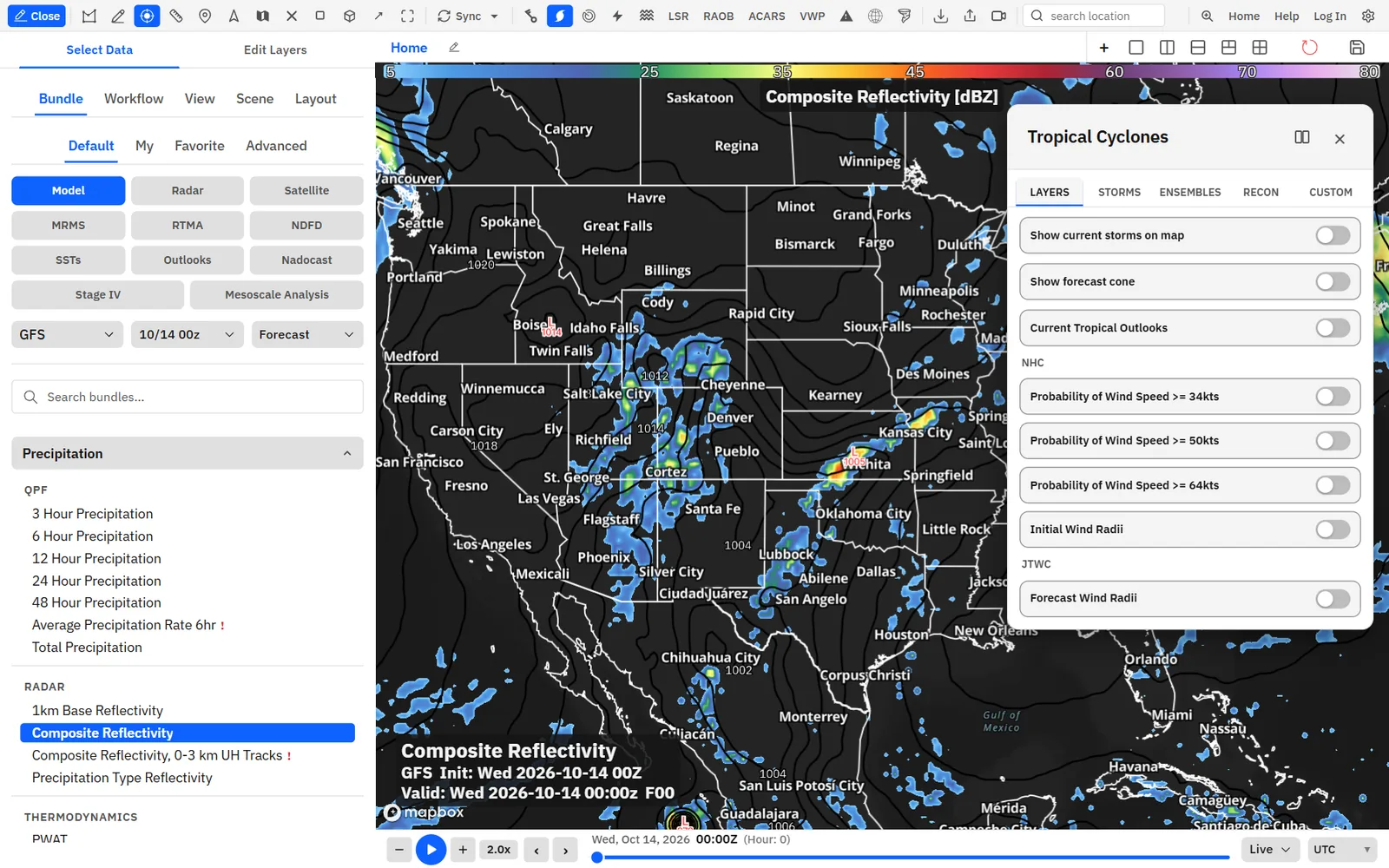
NHC and JTWC forecasts
Official forecast cones and tracks, wind speed probabilities and wind radii, with styles you can change and labels you can drag. JTWC covers the Pacific.
Show me in the app- Click Tropical cyclones on the toolbar.
- On the Layers tab, turn on Show forecast cone.
- Under NHC, turn on a wind speed probability or Initial Wind Radii if you want them. Under JTWC, turn on Forecast Wind Radii.
- To restyle the cone, open the Custom tab and click Current Cone.
- Change the Forecast cone, Tracks and Position markers settings.
- Drag a forecast point label on the map to move it. Double-click it to put it back.
Tips
- Choose the rows the storm popup shows in Settings, under Appearance, Feature popups, Tropical popup fields.
- Official forecasts in a storm’s details turns on the cone for that storm.
Ensemble tracks
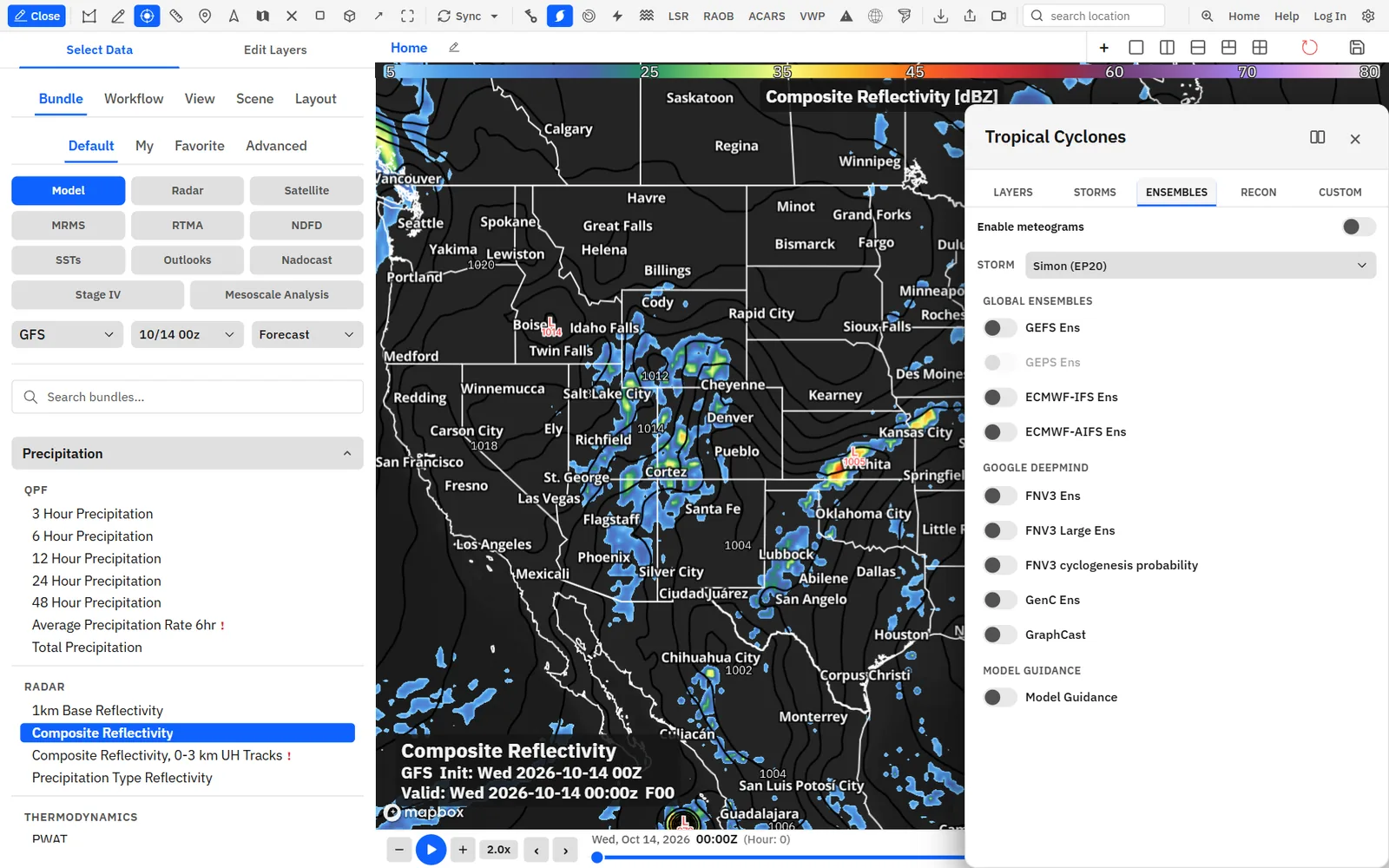
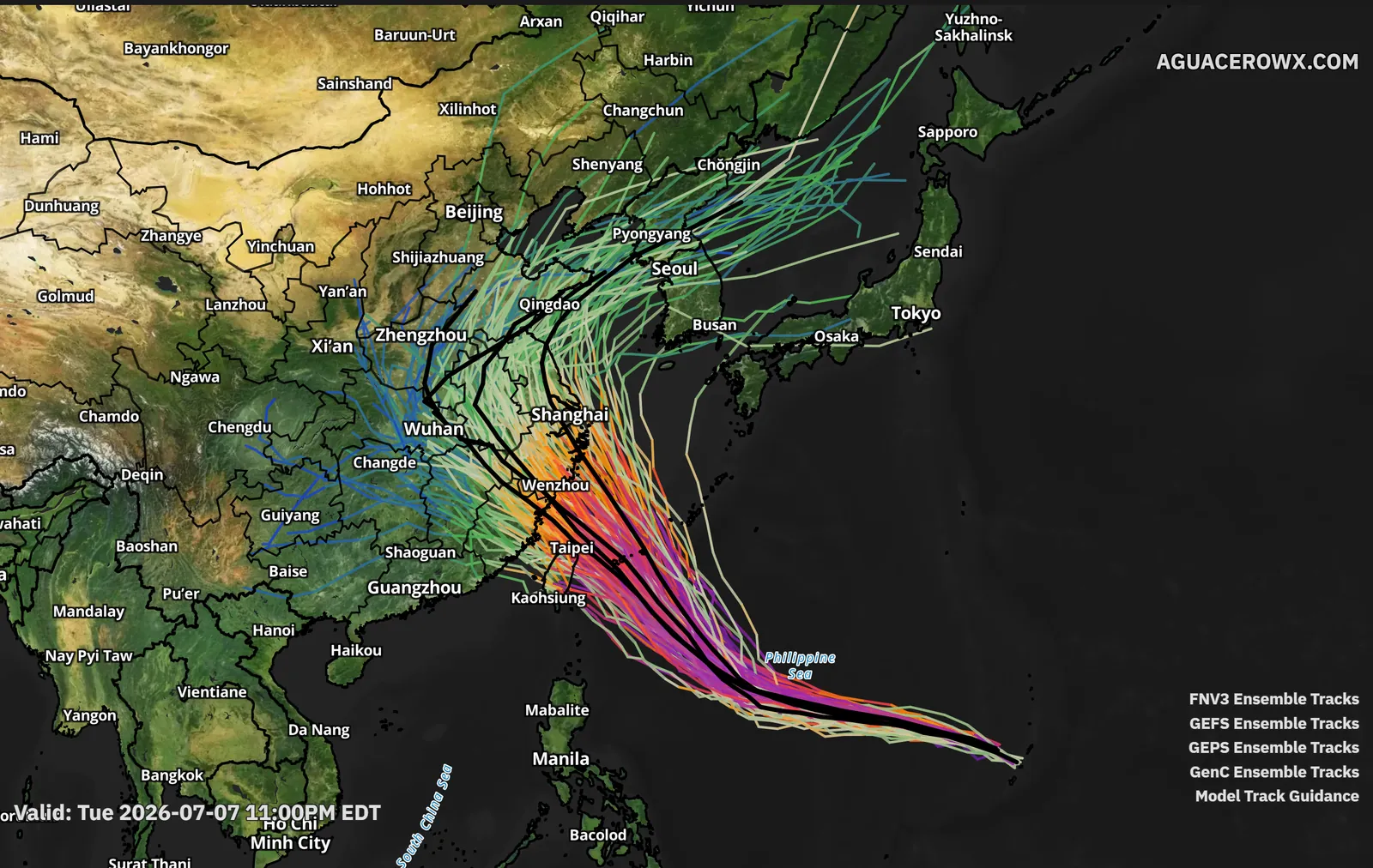
Spaghetti plots from GEFS, GEPS, ECMWF and Google DeepMind ensembles, with a name and color for each model.
Show me in the app- Click Tropical cyclones on the toolbar.
- Click the Ensembles tab.
- Pick the storm under Storm.
- Turn on one or more products, such as GEFS Ens, GEPS Ens, ECMWF-IFS Ens or FNV3 Ens.
- Pick a run from the menu next to a product if you want an earlier one.
- Under Track Type, color the tracks by wind, pressure, lead time or model, or switch to a probability view.
Tips
- Model names labels each track with its model. Ensemble mean and Mean only add or keep the mean track.
- Clip to slider time draws each track only up to the time on the slider.
Intensity graphs
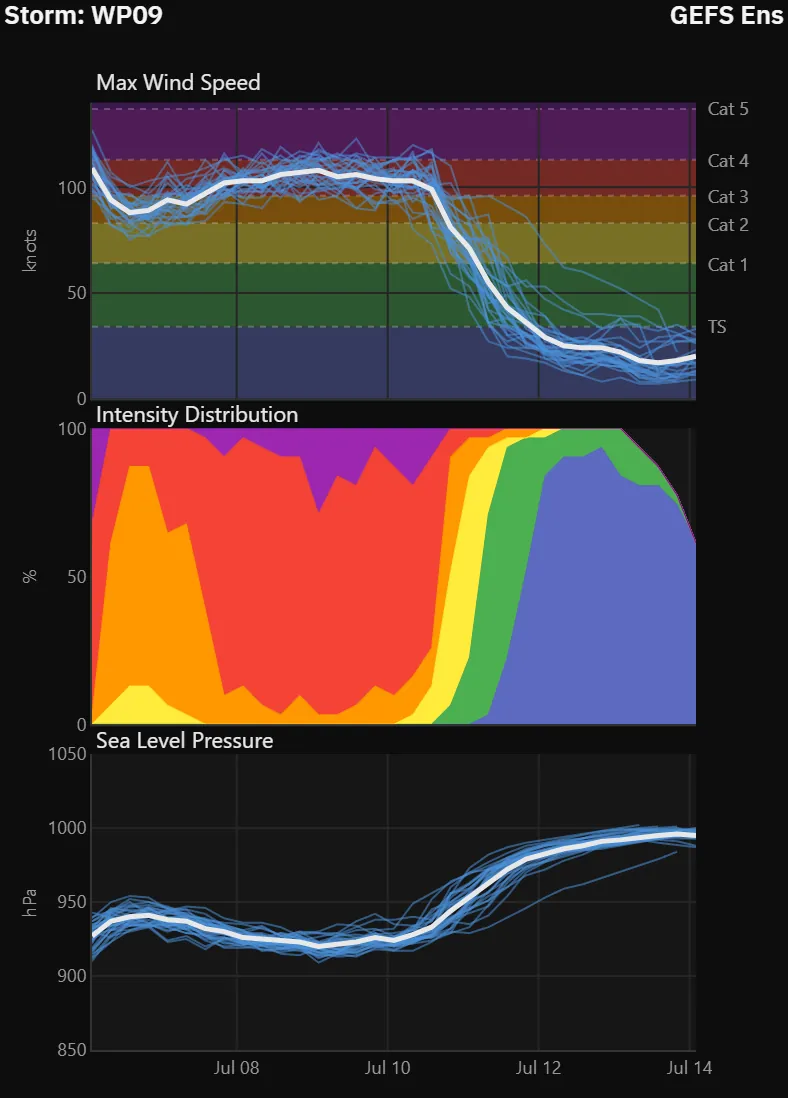
Ensemble maximum wind, sea level pressure, intensity distribution and 24-hour wind change for each storm.
Show me in the app- Click Tropical cyclones on the toolbar.
- On the Storms tab, click a storm.
- Click Intensity plots. The charts open docked under the map.
- Use the menus at the top of the charts to switch the storm, product or run.
Tips
- You can also turn on Enable meteograms on the Ensembles tab.
- Right-click a chart to copy or download it, or all of them at once.
Recon and dropsondes
Hurricane Hunter flight data and dropsonde observations on the map, colored by the field you pick.
Show me in the app- Click Tropical cyclones on the toolbar.
- Click the Recon tab.
- Turn on Enable recon.
- Pick a Storm, then a Mission.
- Choose a field under Color by, and Dots or Barbs under Display.
- Click a dropsonde marker on the map to open it in the sounding viewer.
Tips
- Turn on Enable meteograms for charts of flight-level wind, pressure and temperature along the flight.
- Remove recon takes the flight off the map. Reset all also restores the default settings.
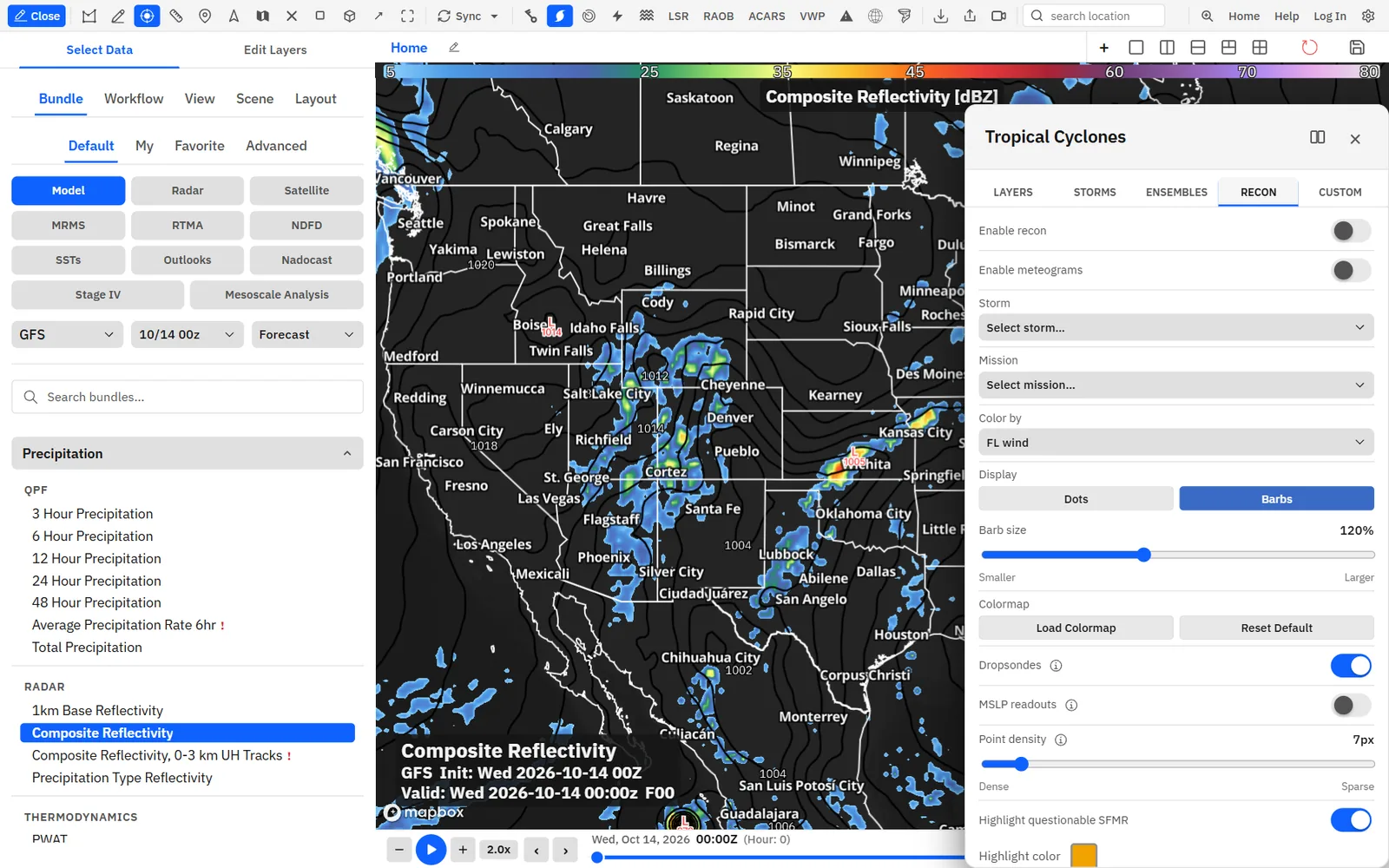
Barbs work only when you color by FL wind or SFMR wind.
Hurricane modelsEnthusiast
HAFS-A, HAFS-B, HWRF and HMON for each active storm, with hurricane diagnostics such as maximum potential intensity and shear.
Show me in the app- Open the sidebar and click the model menu, which shows the current model’s name, to open the model picker.
- Type the model name in Search models..., or open the Hurricane category.
- Under HAFS-A, HAFS-B, HMON or HWRF, click the storm, for example 09L.
- Add hurricane fields such as Maximum Potential Intensity or 200-850mb Bulk Shear with Add Layer.
- To keep the map on the storm, turn on Hurricane storm following in Settings under Data, Model.
Needs Enthusiast or higher. Each model is listed only while it runs for an active storm. Storm following needs you to be signed in.