Quick start: sketch, measure and read a value
Use all three tools on one map in under a minute.
- Click Drawing on the toolbar. The drawing toolbar opens near the bottom of the screen.
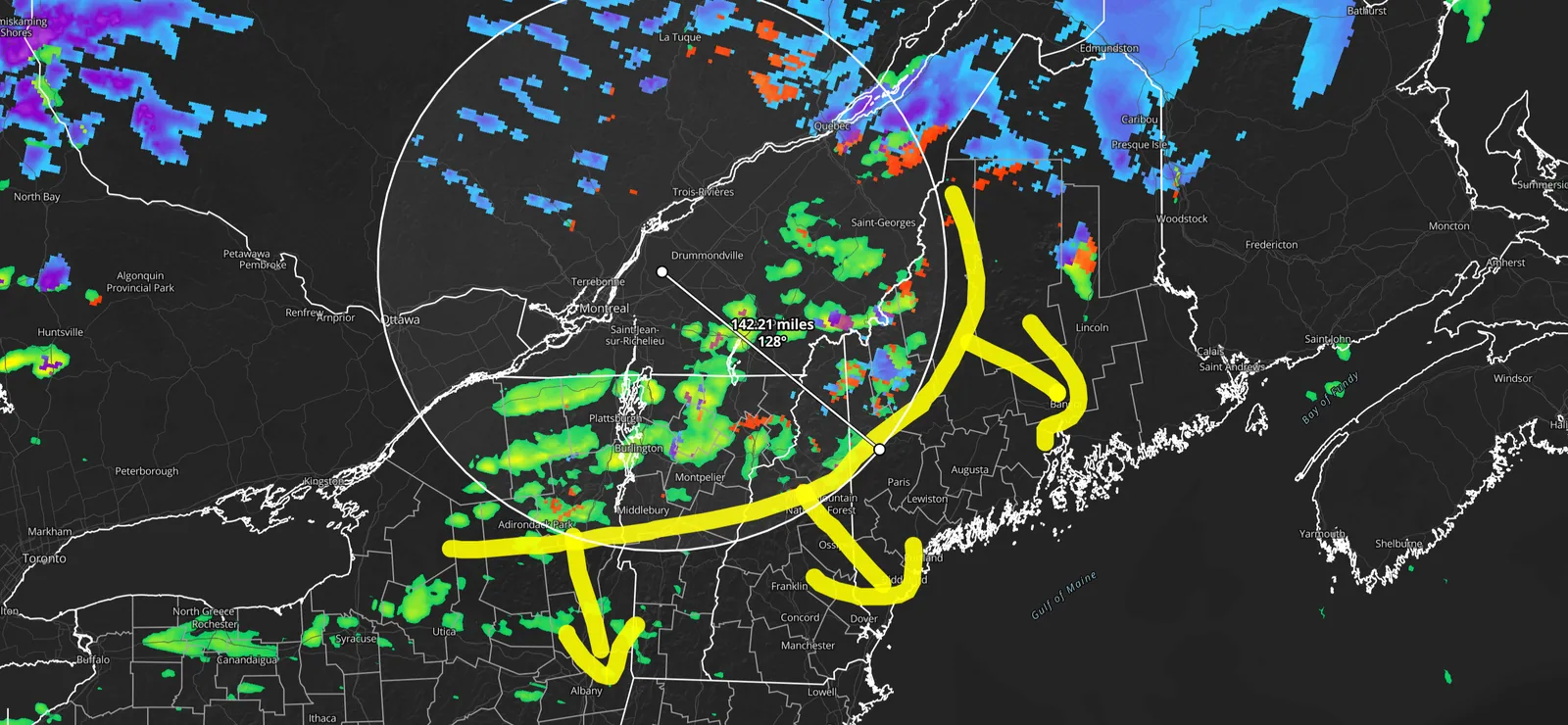
- Press and drag on the map to draw. Circle a storm or sketch its path.
- Click the × (Close Drawing) on the drawing toolbar. Your drawing stays on the map.
- Double-click Ruler. Press on the map at a start point, drag to an end point and release. The distance and bearing appear on the line.
- Double-click Ruler again to stop measuring. The measurement clears.
- Move the mouse over the map. The readout next to the cursor lists each layer’s value. If it doesn’t appear, double-click Mouse readouts to turn it on.
- Click the map to pin the readout there.
Draw freehand on the map
A pen and eraser for quick markup over any data: circle a hook echo, sketch a storm’s path or underline a boundary.
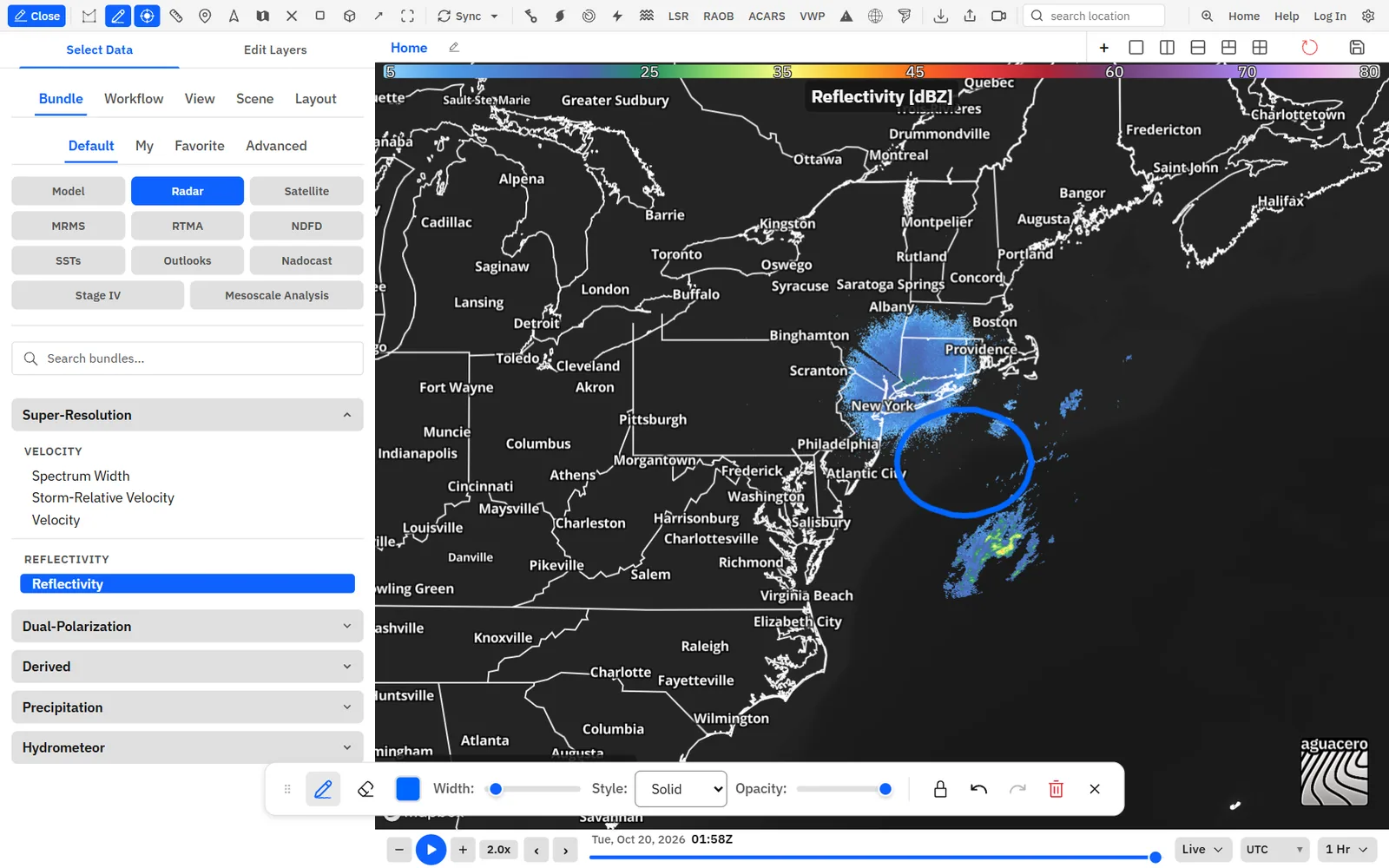
Show me in the app- Click Drawing on the toolbar (tooltip Drawing Tool). The drawing toolbar opens at the bottom center of the screen, and the cursor turns into a crosshair.
- Choose Pen. Click the color swatch (Change drawing color) and pick a color.
- Set Width, Style and Opacity.
- Press and drag on any map panel. Release to finish the stroke.
- To move the map without closing the tool, click the lock button (Unlock to Pan Map). Click it again (Lock to Draw) to keep drawing.
- Click Drawing on the toolbar again, or Close Drawing on the drawing toolbar, to put the tool away. Your drawings stay on the map.
Tips
- Drag the drawing toolbar by its grip or any empty spot to move it. It returns to the bottom center the next time you open it.
- Each stroke keeps the color, width, style and opacity it was drawn with, so you can mix colors in one sketch.
- Turning on Drawing turns the ruler off.
Erase, undo and clear
Fix part of a stroke with the eraser, step back with Undo, or wipe the map with Clear All.
- Click Eraser on the drawing toolbar. A ring follows the cursor to show the eraser’s size.
- Set Width to the eraser size you want. The ring’s diameter equals Width in pixels.
- Drag over the part of a stroke you want to remove. Only the part under the ring goes away; the rest of the stroke stays, split into pieces if needed.
- Click Pen to draw again.
Tips
- One eraser drag is one step for Undo, however many strokes it touched.
- Width is shared by the pen and the eraser. Set it back after erasing if you made it large.
- Clear All can be undone, but only until you reload the app.
How drawings behave across panels, time and exports
Drawings are pinned to places on the map, shared by every panel, and kept until you clear them or reload.
Tips
- Every panel and board shows the same drawings. Draw on any panel and the stroke appears at the same spot on all of them, which helps when you compare models side by side.
- Strokes are tied to map locations. They pan and zoom with the map, but their width stays the same number of screen pixels at every zoom.
- Drawings don’t change when you step or play through time. They stay until you erase or clear them.
- Drawings stay on the map after you close the tool. To remove them, open the tool and use Eraser or Clear All.
- Drawings, and the drawing settings, last until you reload or close the app. They are not saved in bundles, workflows or your account.
- Drawings are part of the map, so image, GIF and video exports include them.
- When a Skew-T, meteogram or cross-section window is open on the board, the pen also draws on top of that window. Those strokes still belong to the map underneath, so they move if you pan.
- On a phone, opening a sounding pauses the drawing tool, and it comes back when you close the sounding.
Measure distance and bearing
Drag between two points to get the straight-line (great-circle) distance and the bearing, with a range circle around the start point.
Show me in the app- Double-click Ruler on the toolbar, or single-click it and turn on Measure on the map. The button lights up and the cursor turns into a crosshair.
- Press on the map at the start point, such as a storm, and drag to the end point, such as a town.
- Release. The line stays with its distance and, below it, the bearing.
- Drag again to measure something else. The previous measurement on that panel clears.
- Double-click Ruler again to stop. All measurements clear.
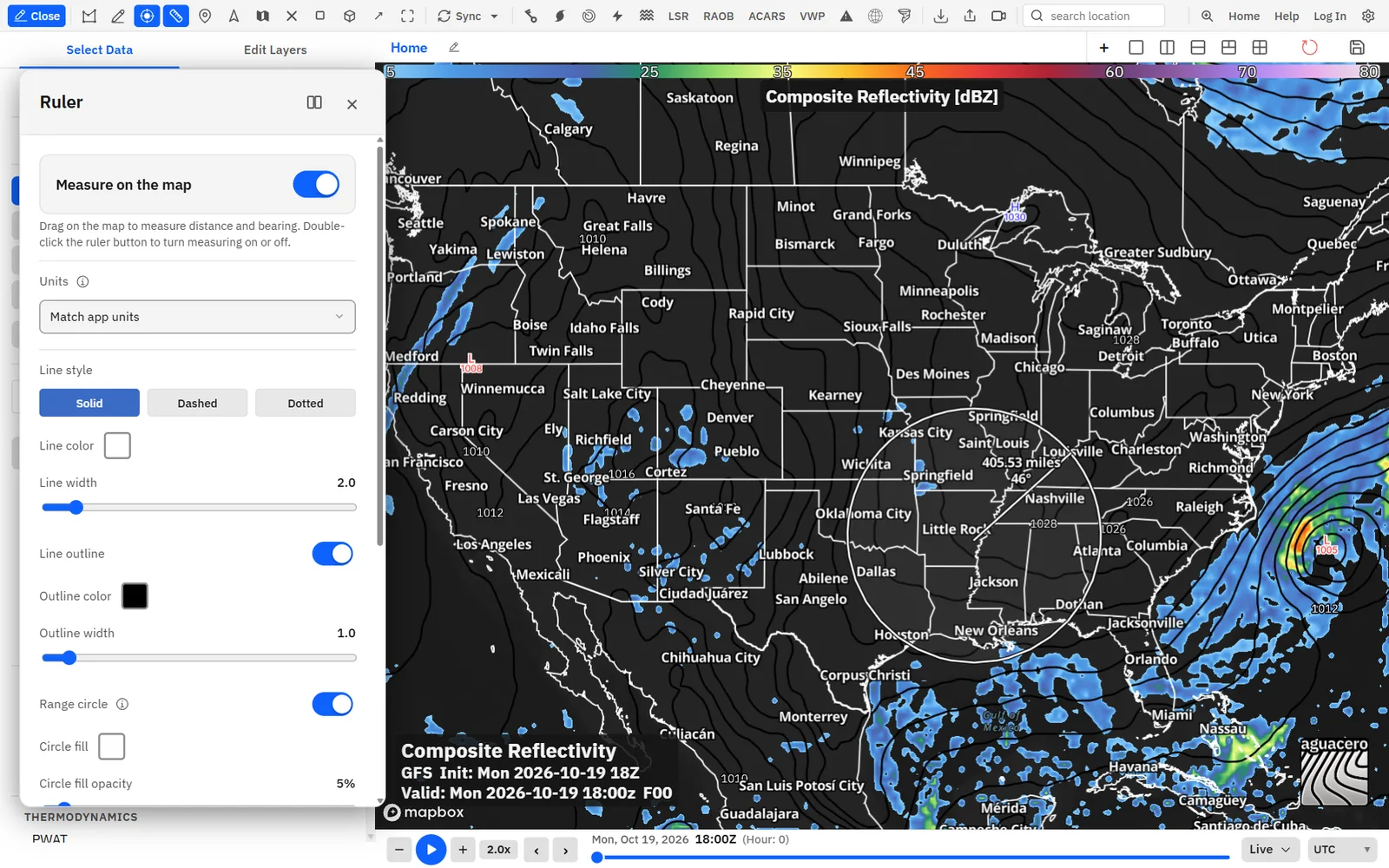
The label reads like 104.37 miles, with 62° on the line below. The distance has two decimals in the unit you chose (miles, km or nmi). The bearing is in whole degrees from 0° to 359°, measured clockwise from true north at the start point toward the end point. The range circle is centered on the start point with a radius equal to the measured distance, so it shows everywhere that is the same distance away.
Tips
- Each panel keeps its own measurement, so you can measure a different distance on each panel of a layout.
- The distance is a straight line over the earth’s surface, not a road distance.
- While the ruler is on, clicking the map measures instead of pinning a mouse readout. Pin your readouts first, then measure.
- On a phone, tap the arrow beside the tool button in the top bar, pick the ruler (Switch to Measure Distance), then drag with one finger. Ruler in the menu opens its settings.
Style the ruler
Choose the units, the line, the range circle and the distance label. Changes redraw the current measurement right away.
Single-click Ruler to open the Ruler window. Every setting applies to all panels.
Tips
- For an on-air range ring, set Line style to Dashed, Line width to 3, a bright Line color and Circle fill opacity around 15%.
- Use Nautical miles for aviation and marine work.
Read values under the cursor
A live readout next to the cursor lists the value of every layer on the panel, plus coordinates, elevation and radar beam height if you want them.
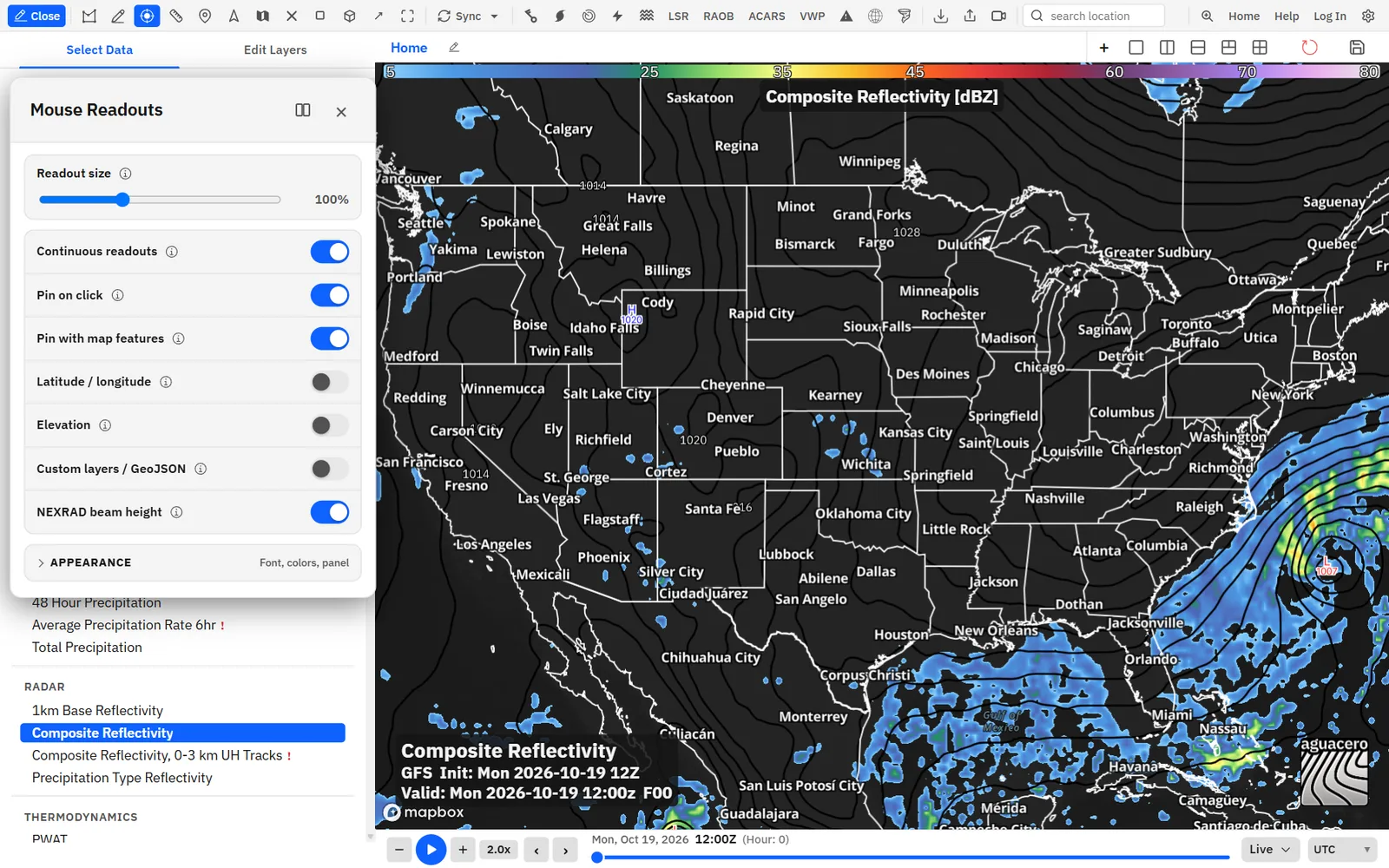
Show me in the app- Single-click Mouse readouts on the toolbar. The Mouse Readouts window opens.
- Make sure Continuous readouts is on. It is on by default, and a double-click on the toolbar button turns it on or off.
- Turn on any extras: Latitude / longitude, Elevation, Custom layers / GeoJSON or NEXRAD beam height.
- Move the cursor over a panel. The readout lists each layer’s value at that point, with its units.
Tips
- The readout follows the panel under the cursor, so in a multi-panel layout each panel shows its own layers.
- On a phone there is no cursor. A crosshair sits in the middle of the map and the readout shows the values under it; pan the map to move it. Turn it on by picking the target (Switch to Center Readout) from the tool button’s arrow, and open its settings with Mouse Readouts in the main menu.
- Mouse readouts are different from point readouts, which print values across the map or at cities and name markers. Those are set per layer.
Choose what readouts show
The top of the Mouse Readouts window sets the size, the pin behavior and the extra rows.
The Appearance section at the bottom (Font, colors, panel) styles the readouts. It is covered in the next sections.
Pin readouts to the map
Keep a readout on the map as a popup. Pins update as you step through time, and they appear in exports.
- With Pin on click on, click the map. A popup with every layer’s value at that point stays there.
- Or press Alt + Shift and click. That always pins, even with Pin on click off and even on a warning or other map feature.
- Click the × on a pin to remove it, press Backspace to remove the newest pin on the active panel, or Shift + Backspace to remove them all.
Tips
- Pins belong to the panel you clicked. Their values refresh when you change the time or the layers on that panel. A layer you remove drops out of the pin, and a pin with no values left disappears.
- Pins appear in image, GIF and video exports. Live cursor readouts never do, so pin any value you want in an export.
- Clicking doesn’t pin while the ruler, a cross section, a box sounding or the storm tracker is drawing, while the PGEN window is open, or while you pick highlight areas.
- Pinning needs a mouse, so it isn’t available on a phone.
- Backspace closes the newest feature popup or storm-track popup on the panel first, then pinned readouts.
Shortcuts
- Alt + Shift + click
- Pin a mouse readout (rebind under Map & tools as Pin mouse readout)
- Backspace
- Remove the most recent pinned readout on the active panel
- Shift + Backspace
- Clear every pinned readout on the active panel
- Shift + Delete
- Same as Shift + Backspace
Style readouts: hover and pinned, and what they contain
Live and pinned readouts have separate styles. Choose which you are editing, then set what each row shows.
- In Mouse Readouts, open Appearance at the bottom.
- Click Hover to style the live cursor readout, or Pinned to style pinned popups. The window opens on Pinned.
- Watch the preview box. It shows two sample rows (Temp and Dewpoint) in the current style.
- Click Reset hover style or Reset pinned style at the bottom to go back to the defaults for that tab.
Readout fonts, colors and text outline
Set the typeface, size and colors of the values and labels, or let the colors follow the data.
Readout background, outline and shadow
Shape the box behind the values: solid or gradient, see-through or not, with an outline, rounded corners and a shadow.
Keyboard shortcuts for these tools
Pin and clear readouts from the keyboard, and bind your own keys to turn each tool on or off.
Shortcuts
- Alt + Shift + click
- Pin a mouse readout at the click
- Backspace
- Remove the newest popup or pinned readout on the active panel
- Shift + Backspace
- Clear all pinned readouts and popups on the active panel
These start without a key. Bind them in Settings → Keyboard shortcuts:
Where these settings are saved
Readout and ruler settings follow your account; drawings and measurements don’t outlive the session.
Tips
- Mouse readout settings and both readout styles save to your account when you are signed in, and load on any device. Signed out, they reset when you reload.
- Ruler settings save to your account the same way. Measurements themselves clear when you turn the ruler off or reload.
- Drawings and the drawing toolbar’s color, width, style and opacity last until you reload. They are not saved anywhere.
- Pinned readouts last until you remove them or reload.
- Opening a workflow never changes your ruler or readout settings; they are yours, not the workflow’s.
- Settings → Mouse readouts holds the same window as the toolbar button.
Recipe: a telestrated storm briefing
Circle a storm, sketch its path, pin key values and show the distance to the next town, then export the frame.
- Load NEXRAD reflectivity and zoom to the storm.
- Click Drawing. Pick red with Change drawing color, set Width to 8 and circle the storm’s core.
- Set Style to Dashed and Width to 5, and draw the expected path. Add two short strokes at the end for an arrowhead.
- Click Close Drawing. The sketch stays.
- In Mouse Readouts, turn on Latitude / longitude if you want coordinates, then Alt + Shift + click the storm core to pin its values.
- Single-click Ruler. Set Line color to yellow, Line style to Dashed and Circle fill opacity to 15%. Turn on Measure on the map.
- Drag from the storm to the town in its path. The label shows how far away it is and the bearing, and the circle shows every place at that distance.
- Export the frame or loop. The sketch, the pin and the ruler are all part of the map.
Recipe: clean on-air values with pinned readouts
Turn pinned readouts into large, color-coded value tags for a broadcast or stream, with no cursor clutter.
- Open Mouse Readouts. Turn Continuous readouts off so no live readout follows your cursor on air, and turn Pin on click off so stray clicks don’t pin.
- Set Readout size to 130%.
- Open Appearance and choose Pinned. Turn off Show field labels, keep Show units and turn on Degree symbol only (hide °C / °F / K). Set Decimal places to 0 and Alignment to Center. Turn off Show close button.
- Turn on Bold, set Font size to 22 and turn on Text color matches data, so each temperature takes its colormap color.
- Keep Show background on. Set Fill to Gradient, pick a dark Color 1 and Color 2, Opacity 90%, Corner radius 10 px and Padding 10 px. Turn on Popup outline with Outline matches data, and keep Drop shadow on.
- Add a temperature layer, then Alt + Shift + click each city you want to show. Step through time and the tags update.
- Press Shift + Backspace to clear the panel for the next segment.
Tips
- For tags at every city or at your own client sites without clicking, use point readouts set to city, and name markers.
Common questions
Answers to the questions people ask most about drawing, the ruler and mouse readouts.
My drawings disappeared after I reloaded. Can I get them back?
No. Drawings last for the session only and aren’t saved in bundles, workflows or your account. Export an image if you need to keep one. For maps you want to save and reopen, use PGEN products.
Why does my drawing show on every panel?
All panels and boards share one set of drawings, placed by map location. Use Eraser or Clear All to remove them.
How do I move the map while the drawing tool is open?
Click the lock button (Unlock to Pan Map). The map pans and zooms normally until you click it again (Lock to Draw).
Why are the color, Style and Opacity controls greyed out?
Eraser is selected. Click Pen to change them. Width stays active because it sets the eraser’s size.
Can I draw arrows, text, shapes or fronts?
Not with the freehand pen; sketch arrows from strokes. For text, shapes, fronts, hatched areas and saved products, use PGEN.
Why does a line look thinner or thicker after I zoom?
Line width is measured in screen pixels, so it stays the same on screen while the map scales under it.
My ruler measurement vanished. Why?
A new drag on the same panel replaces it, and turning the ruler off clears every measurement. Turning on Drawing also turns the ruler off.
What does the degree number on the ruler mean?
It is the bearing from the start point to the end point, clockwise from true north: 0° is north, 90° east, 180° south and 270° west. Turn it off with Show bearing.
Can I make the ruler label bigger?
The label size is fixed. You can change its font, color and outline in the Ruler window.
Clicking the map doesn’t pin a readout. Why?
Check that Pin on click is on, or use Alt + Shift + click. Pins also don’t happen while the ruler, a cross section, a box sounding or the storm tracker is drawing, while the PGEN window is open, or on a phone. If you clicked a warning, turn on Pin with map features.
Why did my pinned values change?
Pins refresh when the time or the layers on their panel change, so they always match the map you see.
Why isn’t the cursor readout in my exported image?
Live cursor readouts are left out of exports on purpose. Pin the values you want; pins are included.
The cursor readout isn’t showing at all.
Continuous readouts may be off; double-click Mouse readouts on the toolbar to turn it on. The readout also needs at least one data layer, or an extra such as Latitude / longitude, to have anything to show.
Can I make readouts bigger without changing every style setting?
Yes. Readout size scales both live and pinned readouts from 70% to 160%.