Draw your first forecast map
Open the Drawing Tools window, draw a front, add a low and a label, and save the result as a product.
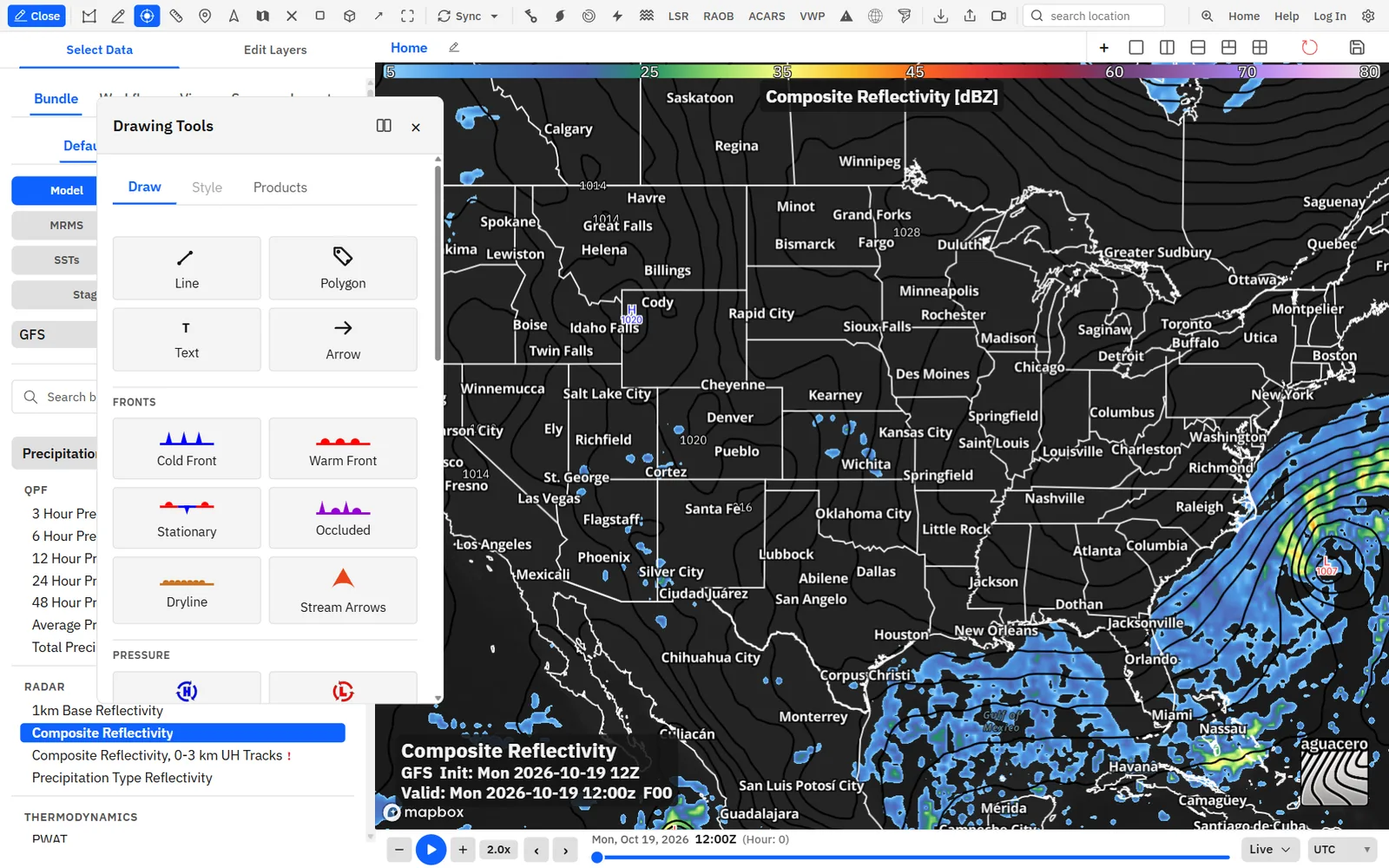
Show me in the app- Click PGEN on the toolbar. The Drawing Tools window opens on the Draw tab.
- Under Fronts, click Cold Front. The button stays highlighted while the tool is on.
- On the map, click where the front starts, then click more points along it. Press Enter or double-click to finish. The front is selected and the Style tab opens.
- Under Pressure, click Low (L), then click the map at the low’s center.
- Click Text, then click the map. Double-click the New Text label, type your text and click anywhere else on the map to finish.
- To change anything, click it on the map (with no tool on) or click its row in the Layers list. Its settings open on the Style tab.
- Type a name in the Product Name box and click Save New. Sign in if asked.
Tips
- Each tool draws one feature and then turns itself off. Click the tool again to draw another.
- Click a highlighted tool button to turn the tool off without drawing.
- Picking a tool clears the current selection, and clicking the map with a tool on draws instead of selecting. Turn the tool off to select things again.
Find your way around the Drawing Tools window
The window has three tabs: Draw for tools and the layer list, Style for the selected feature, and Products for saved maps.
The window floats over the map. Drag its header to move it. The Mount in map UI button next to the close button docks it beside the map on a desktop screen. Closing the window with × keeps everything you drew on the map.
Related guideWorkspace and workflowsWith Pop out controls on (Professional), PGEN works from the separate controls window too.Draw lines, arrows, polygons and fronts
Line, Polygon, Arrow, every front and Stream Arrows share one point-by-point drawing method that makes straight or curved segments.
- Click Line, Polygon, Arrow or one of the Fronts tools.
- Click the map to set the first point.
- Click to add each next point. The segment to it is straight.
- To curve a segment, press on the spot for the next point and drag before you let go. The segment bends toward where you drag, and the preview follows the pointer.
- Press Backspace to take back the last point you added.
- Press Enter or double-click to finish. With Polygon, you can also click the square handle on the first point (it appears after three points) to close the area.
- The new feature is selected and its Style tab opens. The tool turns off.
Shortcuts
- Enter
- Finish the line, polygon, arrow or front you are drawing
- Double-click
- Finish the path (the map doesn’t zoom while a path tool is on)
- Backspace
- Remove the last point while drawing
- Esc
- Cancel the path you are drawing
Tips
- A line, arrow or front needs at least two points, and a polygon needs at least three. With fewer, nothing is added.
- A click within about 15 pixels of the last point is ignored, so a slow double-click doesn’t add a stray point.
- Finishing a polygon with Enter or a double-click closes it back to the first point for you.
- While a path tool is on, dragging on the map bends the segment instead of panning. Zoom with the scroll wheel, or finish the path before you pan.
- The arrowhead on Arrow, the side the front symbols sit on and the way Stream Arrows point all follow the direction you draw.
- Right-clicks are ignored while you draw.
Reshape, move and rotate a path
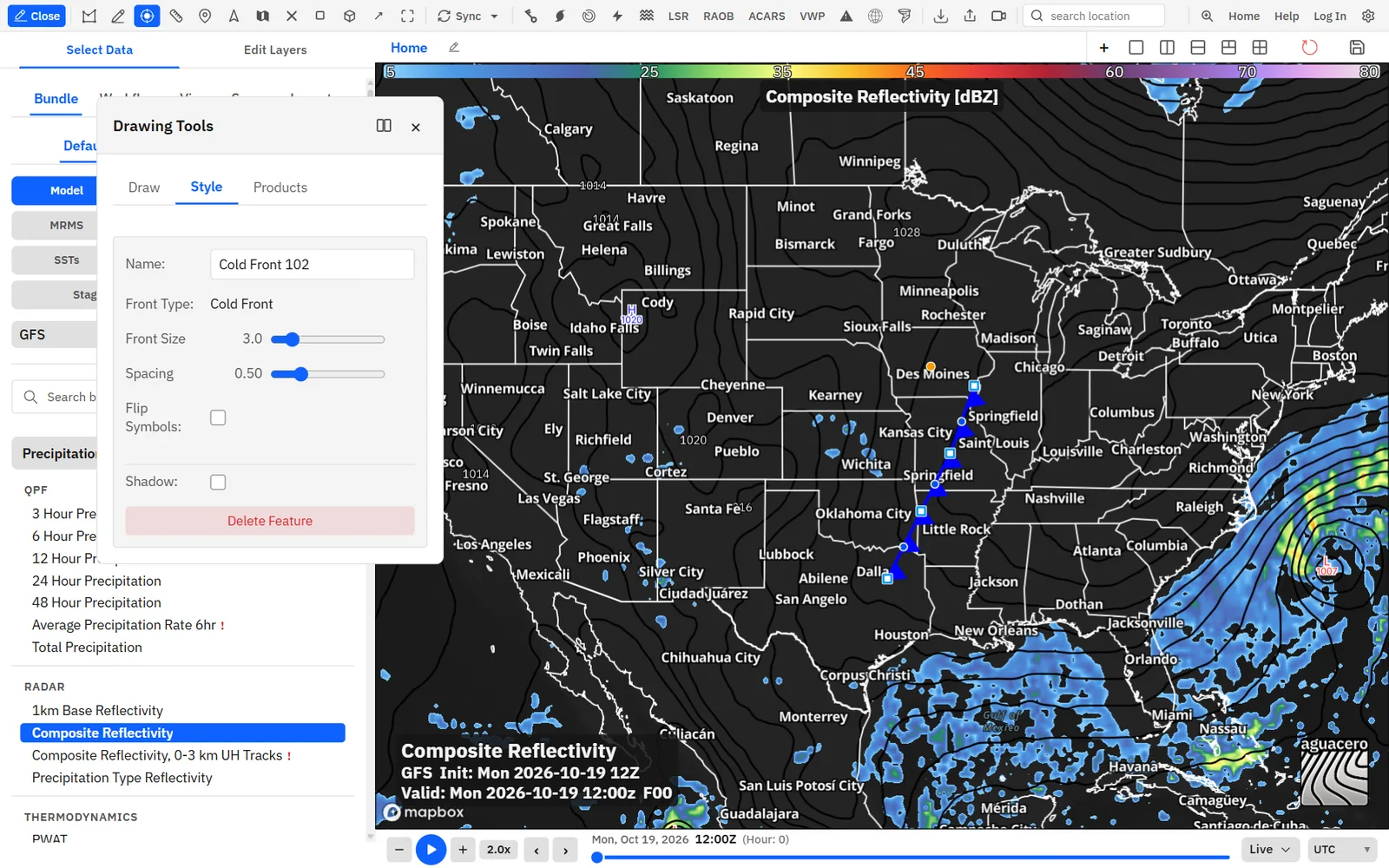
Select a line, arrow, polygon or front to drag its points, bend its segments, add points, rotate it or move it as a whole.
- With no tool on, click the line, front or polygon on the map, or click its row in the Layers list.
- Drag any white square to move that point.
- On a curved segment, drag the small white circle (its tooltip reads Drag to adjust curve) to change the bend.
- Click a blue dot in the middle of a segment to add a point there. On a straight segment, drag the blue dot instead to bend it into a curve.
- Drag the orange dot above the path (Drag to rotate) to turn the whole path around its center.
- Drag the line or area itself to move all of it. The pointer turns into a hand when you are over it.
Tips
- Front symbols are re-spaced along the new shape every time you edit it.
- There’s no way to delete a single point once a path is finished. To drop points, delete the feature and redraw it, or use Backspace while you are still drawing.
- Shapes (rectangle, circle, ellipse, triangle) don’t have points. See the shapes section for how to resize and rotate them.
Draw fronts, drylines and stream arrows
Draw standard weather fronts with evenly spaced symbols, or a path of arrows that can flow along it.
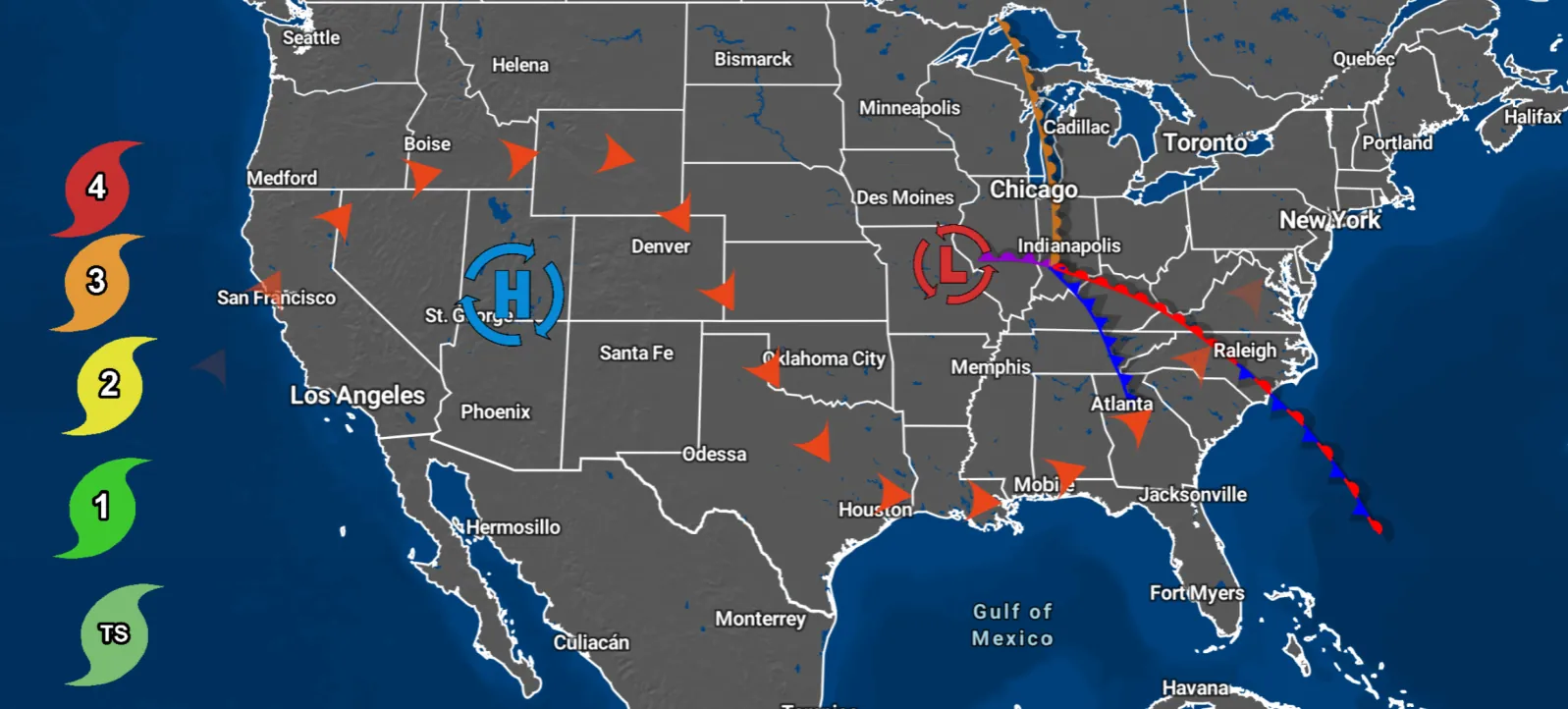
Fronts use standard NWS symbols and colors, and the colors are fixed. Cold Front draws blue triangles, Warm Front red half-circles, Stationary alternates red half-circles and blue triangles on opposite sides of a red and blue line, Occluded alternates purple triangles and half-circles on one side, and Dryline draws brown half-circles. Stream Arrows draws arrowheads spaced along the path, pointing the way you drew it.
- Under Fronts, click the front type.
- Click points along the front’s position and press Enter to finish.
- If the symbols are on the wrong side, turn on Flip Symbols on the Style tab.
- Set Front Size and Spacing to taste.
Tips
- Draw a cold front from the low outward toward the southwest, and a warm front from the low toward the east. The symbols then face southeast and north without flipping.
- Fronts can’t be recolored or made screen relative. For a front in another color, draw a Line and style it instead.
- Stream arrows work well for jet streams, moisture plumes and low-level jets. Turn on Animate to show motion in a GIF or MP4 export.
Place highs and lows
Drop NWS-style H and L centers with curved circulation arrows that can spin.
- Under Pressure, click High (H) or Low (L).
- Click the map at the pressure center. The symbol is placed and selected.
- Drag the blue box around it to move it.
- Drag the small blue square at the box’s bottom-right corner to make it bigger or smaller.
- On the Style tab, set the arrows, colors and outline.
Tips
- Highs and lows have no size slider. Use the corner handle.
- A new symbol starts at the same screen size at whatever zoom you place it. After that it keeps its size on the ground, so it grows as you zoom in.
- Add the central pressure with a Text label next to the symbol.
Add hurricane, fire and rotating storm symbols
Place tropical cyclone symbols with a category label, and fire or rotating storm icons, with optional spin.
- Click Hurricane under Tropical, or Fire or Rotating Storm under Hazards.
- Click the map. The symbol is placed and selected.
- Drag its box to move it, or drag the corner square to resize it. The Size slider sets the same value.
- Set the category, colors and spin on the Style tab.
Custom tropical icons needs Professional or above; below that the switch shows a lock and opens an upgrade dialog. It is one account-wide setting with slots for Invest, Potential Tropical Cyclone, Tropical Depression, Tropical Storm, Category 1–5 and Post-Tropical. PGEN uses the TD, TS and category slots; the others replace the symbol on current storms and forecast tracks.
Related guideTropicsSee the tropics guide for live storms, cones and forecast tracks.Stamp your own imagesProfessional
Upload logos, icons or graphics once and stamp them on any map, with recolor, outline, rotation and spin.
- On the Draw tab, find Images and click Upload.
- Pick a PNG, JPEG, WebP, SVG or GIF file. While it uploads the button reads Uploading….
- When it finishes, the image appears as a thumbnail and its tool is on. Click the map to stamp it.
- To stamp it again later, click its thumbnail, then click the map. Click a highlighted thumbnail to turn the tool off.
- Select the stamped image to set its size, rotation, color and spin on the Style tab.
- To delete an image from your library, click the × on its thumbnail (Remove from library) and confirm.
Images need Professional or above and a signed-in account. Below Professional, Images shows a lock and Upload opens an upgrade dialog. Files can be up to 8 MB; each one is scaled so its longest side is at most 512 pixels and stored as a PNG, so animated GIFs become still images. You can keep up to 40 images; Upload is greyed out at 40.
Tips
- Your image library is saved to your account and shows up on every device where you sign in.
- Removing an image from your library deletes the uploaded file, so maps and saved products that use it can no longer draw it.
- White or single-color logos with transparent backgrounds work best with Recolor as icon.
Draw rectangles, circles, ellipses and triangles
Drag out a ready-made shape, then move, resize and rotate it with its box.
- Under Shapes, click Rectangle, Circle, Ellipse or Triangle.
- Press on the map at one corner and drag to the opposite corner. Let go to finish. Press Esc while dragging to cancel.
- With the shape selected, drag its blue box to move it.
- Drag the blue square at the bottom-right corner to resize it.
- Drag the orange dot above the box to rotate it.
Tips
- Circle draws the largest circle that fits in the box you drag. Triangle points up, with its base along the bottom of the box.
- A drag smaller than about 8 pixels is ignored.
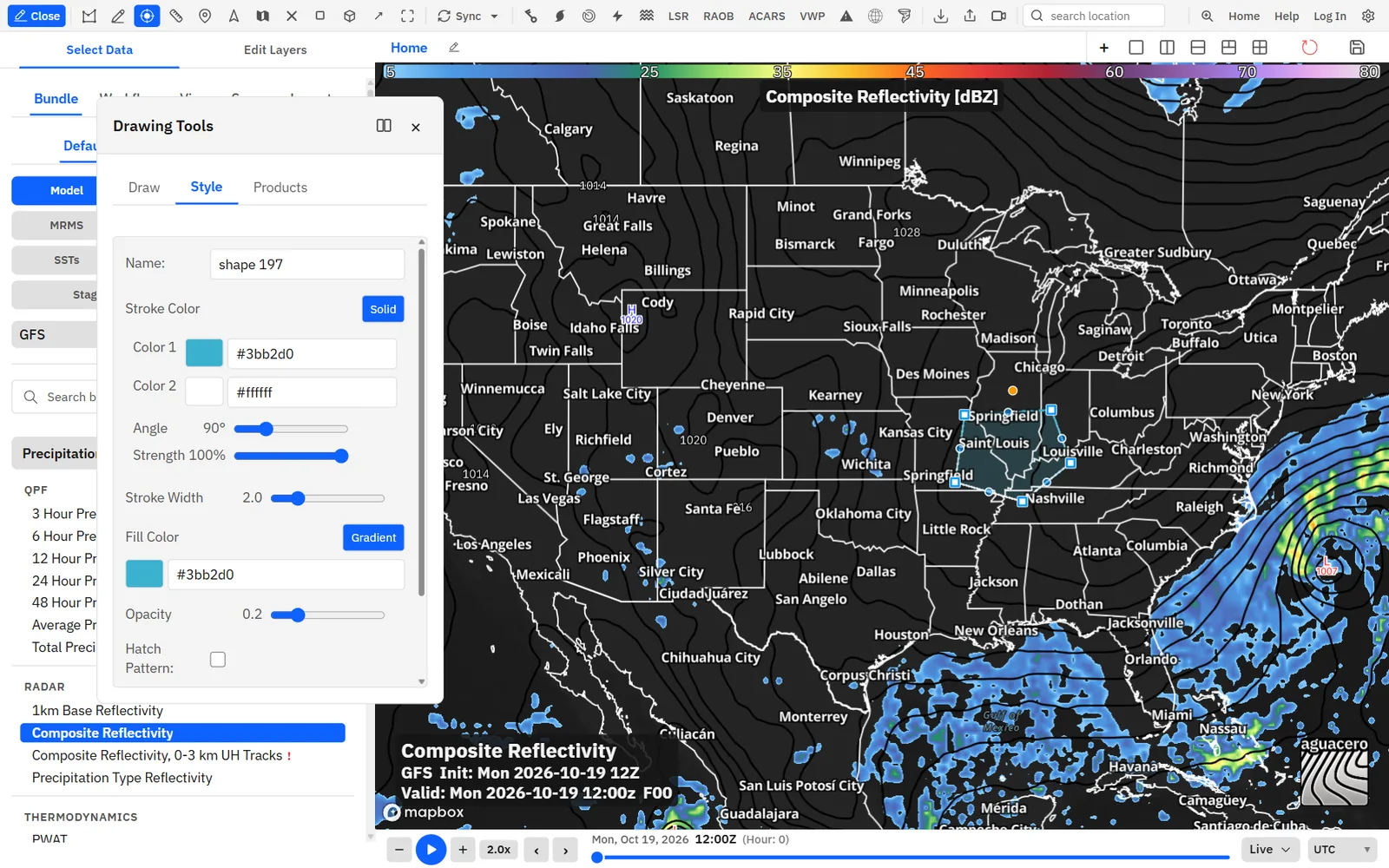
- New shapes have a 2-pixel light blue (#3bb2d0) outline and a light blue fill at 0.2 opacity.
- Shapes take the same line, fill, hatch, gradient and shadow settings as polygons, plus Screen Relative. The Shape row shows which shape it is.
Style lines, fills and hatching
Set the color, width and dash of lines and outlines, and the fill color, opacity and hatch pattern of areas.
These settings appear on the Style tab for lines, arrows, polygons and shapes. New lines, arrows and polygons use a 2-pixel light blue (#3bb2d0) stroke; polygons get a matching fill at 0.2 opacity.
Tips
- Hatch lines are always black and 1.5 pixels wide. Their spacing adapts to the zoom, with fewer lines when you zoom out.
- Hatching on a screen-relative shape is spaced in screen pixels, so it looks the same at every zoom.
- Type a hex code such as #F6F67F in the box next to any color swatch, or click the swatch to open the color picker.
Fill with a gradient
Most color settings can switch from a solid color to a two-color gradient with an angle and strength.
- Select a feature and find a color setting with a Gradient button next to it, such as Fill Color.
- Click Gradient. The setting expands to Color 1, Color 2, Angle and Strength.
- Pick Color 1 and Color 2.
- Drag Angle to set the direction of the blend.
- Drag Strength to set how far across the feature the blend runs before it reaches Color 2.
- To go back to one color, click Solid. The feature keeps Color 1.
Tips
- Gradients work on fills, strokes, text color, text backgrounds, stream arrows, highs and lows, hurricane symbols and their labels, fire and rotating storms, and recolored images.
- Shadow Color is always a solid color.
- Outlines on text and on text backgrounds draw best with a solid color.
Add and style text
Place labels with any font, size, color, outline, alignment and an optional rounded background box.
- Click Text, then click the map. A New Text label appears, selected.
- Double-click the label to edit it. Type your text. Press Enter for a new line.
- Click anywhere else on the map to finish editing. If you leave it empty, it goes back to New Text.
- To move it, click it once to select it, then press on it again and drag.
- Drag the blue square at its bottom-right corner to set a box size. The text wraps inside the box.
- Drag the orange dot above it to rotate it.
Tips
- The Style tab reminds you: Double-click text on map to edit. Drag corner to resize.
- Text anchored to the map scales with the zoom: it doubles in size for each zoom level in. Changing Font Size sets the size at the current zoom.
- The Layers list adds · box background to the name of a label with a box.
- Applying or resetting Default font in Settings → Appearance also changes the font of text already on your PGEN map.
Add a drop shadow
Give any feature an outer, inner or combined shadow with its own color, opacity, distance, angle, blur and spread.
- Select the feature.
- Near the bottom of the Style tab, turn on Shadow. Starting values that suit the feature are filled in.
- For text, lines, polygons and shapes, pick a Shadow Type.
- Adjust the color and sliders.
Fronts, stream arrows, highs and lows, hurricanes, fire, rotating storms, images and arrows get a crisp offset shadow, so they show only Shadow Color, Opacity, Distance and Angle. On all of these except arrows, the shadow’s distance grows and shrinks with the map along with the symbol.
Tips
- Starting values when you turn on Shadow, all with a black Shadow Color:
- Fronts, stream arrows, highs and lows, hurricanes, fire and rotating storms: Opacity 0.5, Distance 3, Angle 25.
- Arrows: Opacity 0.45, Distance 2, Angle 50.
- Images: Opacity 0.55, Distance 10, Angle 35.
- Text: Outer, Opacity 1, Distance 3, Angle 80, Blur 1, Spread 0.
- Lines, polygons and shapes: Outer, Opacity 1, Distance 48, Angle 360, Blur 48, Spread 0.
Pin features to the screen
Choose whether a feature stays on its spot on the map or stays fixed on the screen while you pan and zoom.
By default every feature is anchored to the map. It moves with the map when you pan. Fronts, highs and lows, storm symbols, images and text also keep their size on the ground, so they grow when you zoom in and shrink when you zoom out. Line and outline widths stay the same in pixels.
- Select a Text label, Line, Arrow, shape or image.
- Near the top of the Style tab, turn on Screen Relative (tooltip: Keep size and position fixed on screen when panning/zooming).
- Pan and zoom. The feature stays where it is on the screen at the same size.
- Turn Screen Relative off to drop the feature back onto the map at the spot it covers now.
Tips
- Use it for titles, legends, logos, timestamps and callout boxes that should stay put while the map moves underneath.
- Screen Relative isn’t offered for fronts, stream arrows, polygons, highs and lows, hurricanes, fire or rotating storms.
- You can still drag and resize a screen-relative feature.
Manage layers and drawing order
Use the Layers list to select, reorder and delete features, and Layer Position to set where filled areas sit among the map’s layers.
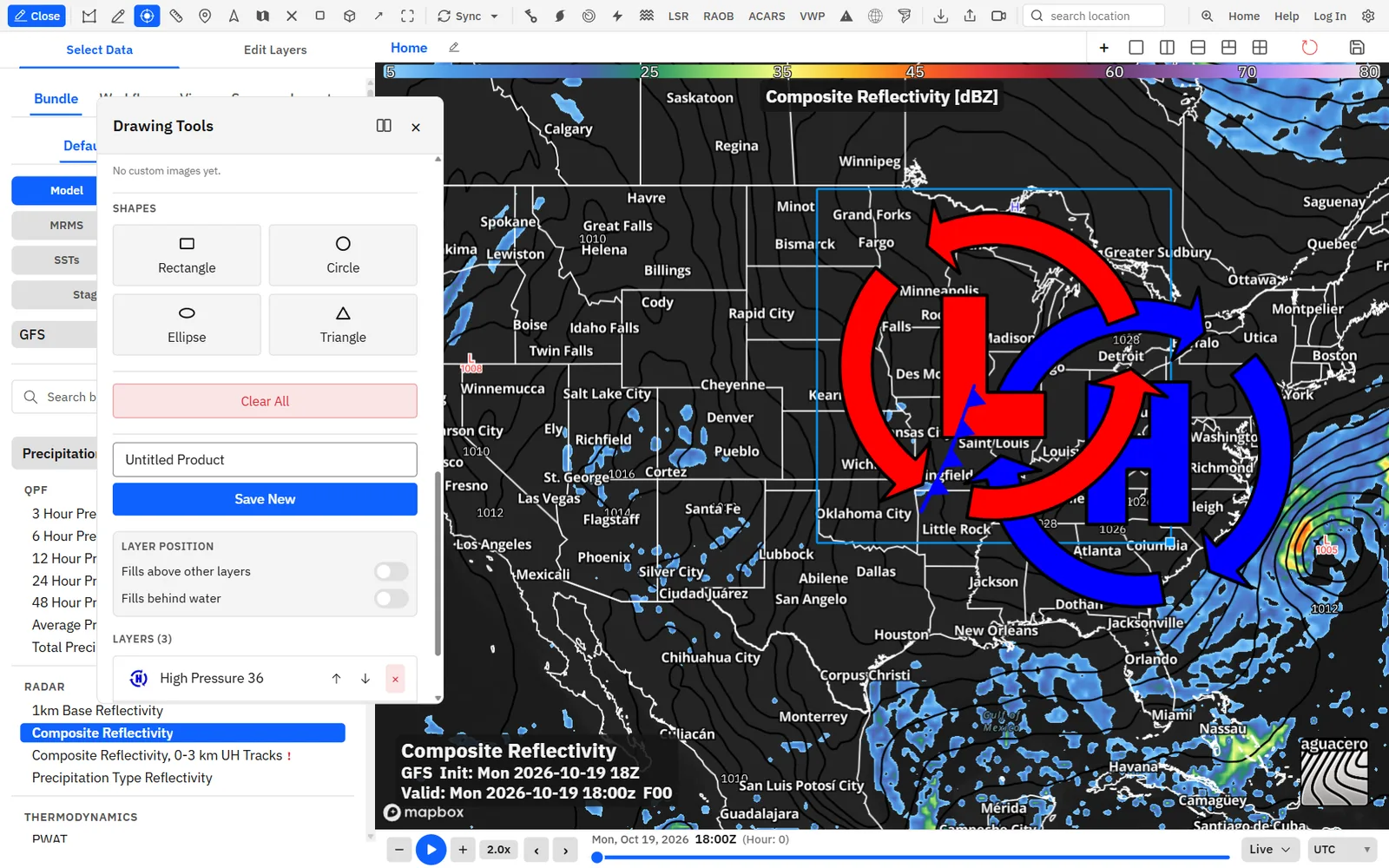
- On the Draw tab, scroll down to the Layers list. Each row shows a small preview and the feature’s name.
- Click a row to select that feature and open its Style tab.
- Click Move up or Move down (the arrows on the row) to change the order. Features higher in the list draw on top.
- Click × on a row to delete that feature.
- Under Layer Position, choose where filled areas draw.
Tips
- With both off, filled areas draw under your model, radar and satellite layers. If a fill seems to vanish under data, turn on Fills above other layers.
- Layer Position affects polygon and shape fills only. Lines draw under the map’s place labels, highs and lows, storm symbols and images draw above city labels, and text floats above the map.
- Order matters among features of the same kind, for example one polygon over another. Moving a polygon to the top of the list doesn’t lift its fill above a front or a label.
- New features go to the top of the list.
- With a feature selected and no text box focused, Delete or Backspace deletes it. The Delete Feature button at the bottom of the Style tab does the same. Closing the Drawing Tools window clears the selection, so the keys can’t delete anything then.
- Deleting and Clear All can’t be undone (Clear All asks first). Save the product first if you might want it back.
Save, update, load and delete products
A product is a saved PGEN map in your account. Save new ones, overwrite the current one, and load or delete them from the Products tab.
- Type a name in Product Name, on the Draw tab or the Products tab.
- Click Save New. If you aren’t signed in, the Sign in to Save Product dialog opens. The button area shows Saving... and then Saved!.
- After more changes, click Update to overwrite the same product. Update appears once you have saved or loaded a product.
- To open a saved map, click the Products tab and click its row. Rows read like Surface 12Z (14), where the number is the feature count; the product that is loaded now is highlighted.
- To delete a product, click × on its row and confirm.
A product keeps every feature with its position, shape, style, animation settings, text box size and screen-relative position, plus the Fills behind water setting. It doesn’t keep Fills above other layers, the map view, or the data layers, bundle or workflow you drew over. Products are stored in your account, private to you, and load on any device where you sign in.
Tips
- Loading a product replaces everything on the map without asking. Save what you have first.
- Deleting a product asks first, and it can’t be undone.
- Signed out, the Products tab asks you to sign in. With no products yet, it says No saved products yet.
- Save New always makes another product, even with the same name. To rename a product, load it, change Product Name and click Update.
- Clear All keeps the current product loaded. Click Save New for your next map, or Update will overwrite the old one.
- With nothing on the map, saving shows No features.
- There is no share link for products. To send a map to someone, export it as an image or video.
Use PGEN with panels, bundles, scenes and exports
How a PGEN drawing behaves across panels, time steps, saved workspaces and image or video exports.
Tips
- There is one PGEN drawing at a time. It shows on every map panel and every tab, at the same place on each map.
- PGEN features don’t change with time. They stay the same on every frame as you step or loop through the time bar.
- Bundles, workflows, layouts and scenes don’t store PGEN features, and loading them doesn’t clear your drawing. Save the map as a product and load it from the Products tab when you need it.
- Download board, Share board and Export animation include your PGEN features. Animated stream arrows, spinning symbols and turning high and low arrows move in GIF and MP4 exports, timed to the export’s frame rate.
- While the Drawing Tools window is open or a PGEN tool is on, clicking the map doesn’t pin a mouse readout.
- Turning on the Ruler turns off the active PGEN tool.
Recipe: a surface analysis with fronts, highs and lows
Trace a classic surface map over model pressure: a low with cold and warm fronts, a high, a dryline and pressure labels.
- Load a layer with mean sea level pressure so you can trace the features, then open PGEN.
- Click Low (L) and click the low center. Drag the corner handle until the symbol reads well at your zoom. Turn on Animate under Arrows if the map will be shown live or exported as a video.
- Click High (H) and place each high the same way.
- Click Cold Front. Start at the low and click southwest along the front, dragging on a point or two to curve it. Press Enter. The triangles face southeast.
- Click Warm Front. Start at the low and click east along the front, then press Enter. The half-circles face north. If either front’s symbols face the wrong way, turn on Flip Symbols.
- Add an Occluded front from the low to the triple point, a Stationary front where a boundary has stalled, and a Dryline across the southern Plains if there is one.
- For a bolder broadcast look, select each front and raise Front Size to 4 and Spacing to 0.7, then turn on Shadow (Opacity 0.5, Distance 3).
- Click Text and click beside the low. Double-click the label and type the central pressure, such as 996. Set Font Size to 28, turn on Bold, and keep the white Outline.
- Name it, for example Surface analysis 12Z, and click Save New.
Recipe: a severe outlook-style hatched risk map
Build nested risk areas with SPC-style colors, a hatched significant-severe area and labeled risk boxes.
- Open PGEN and click Polygon. Click around the outer risk area, dragging on points to round the edges, and click the first point to close it.
- On the Style tab, set Fill Color to a light green such as #7FC57F, Opacity to 0.6, Stroke Color to a darker green and Stroke Width to 2. Name it Marginal.
- Draw the next area inside it with Polygon, colored yellow (#F6F67F), then orange (#E6C27F) and red (#E67F7F) for higher risks. Each new area lands on top of the list, so the inner areas draw over the outer ones.
- For the significant-severe area, draw another polygon. Set Opacity to 0, turn on Hatch Pattern, pick Diagonal ↗ (45°) under Hatch Style, set Stroke Color to black and Line Type to Dashed.
- Under Layer Position, turn on Fills behind water for clean coastlines and lakes, or Fills above other layers if the map has radar or model data under it.
- Add labels: click Text, type SLGT, turn on Background, set Background Color to the area’s color, Opacity to 0.9 and Radius to 6, and set Text Color to black.
- Add a title such as Severe Weather Outlook – Thursday with Text, turn on Screen Relative and drag it to the top of the map.
- Click Save New, then Download board to share the image.
Recipe: a TV-style snowfall forecast map
Draw smooth snowfall bands with gradient fills, keep them off the water, and label each band.
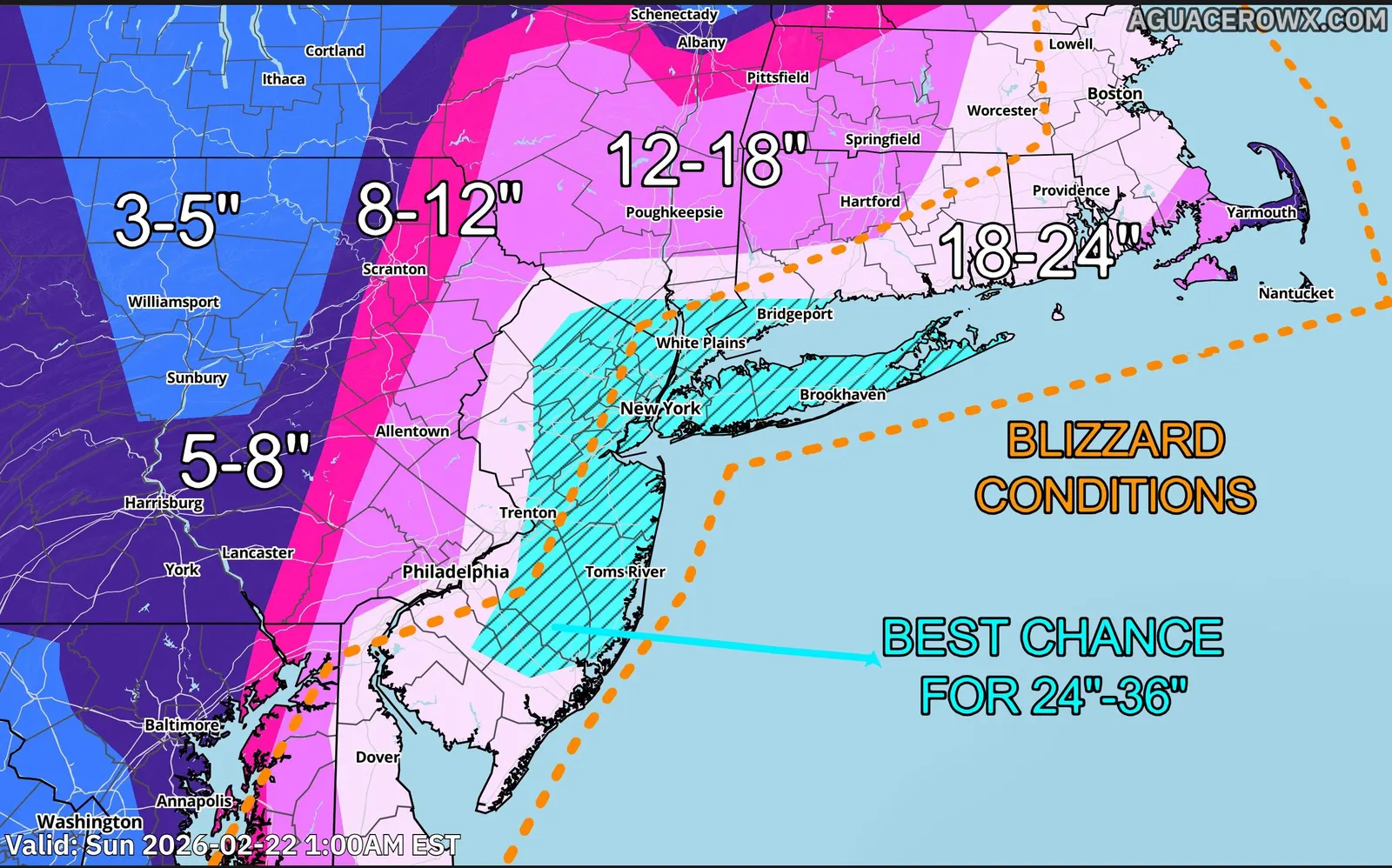
- Open PGEN and click Polygon. Outline the lightest band, such as 1–3 in, pressing and dragging on most points so the edges curve smoothly. Close it on the first point.
- Set Fill Color to a pale blue, click Gradient, and set Color 2 a little darker, Angle to 135° and Strength to 80%. Set Opacity to 0.8.
- Set Stroke Color to white and Stroke Width to 1.5 for a crisp edge.
- Draw each heavier band inside the last (3–6 in, 6–12 in, 12+ in), stepping the colors from blue to purple to pink. Reshape any edge by dragging its points or the blue midpoint dots.
- Under Layer Position, turn on Fills behind water so the Great Lakes and the ocean stay clear.
- On the heaviest band, turn on Shadow, set Shadow Type to Inner, Opacity to 0.4 and Blur to 12 for depth.
- Label each band with Text: type the amount, set Font Size to 24, turn on Bold and Background, and give the box Radius 8 and Opacity 0.75.
- Add a screen-relative title box at the top, and if you have Professional or above, stamp a snowflake or station logo under Images.
- Click Save New, then Download board or Export animation.
Recipe: a hurricane track and cone graphic
Combine a cone polygon, a dashed track and hurricane symbols at each forecast point, with time labels.
- Open PGEN and click Polygon. Draw the days 1–3 cone, narrow at the storm and widening along the track, dragging points to round the end. Set Fill Color to white, Opacity to 0.4, Stroke Color to white and Stroke Width to 2.
- Draw the days 4–5 part as a second polygon. Set Opacity to 0, turn on Hatch Pattern and pick Dashed ↗ (45°).
- Click Line and click through each forecast position. Set Stroke Color to black, Stroke Width to 2 and Line Type to Dashed. Or use Arrow for a track with a head at the end.
- Click Hurricane and click each forecast point. Set each one’s Category (TD, TS or 1–5) and Size. Turn on Shadow for depth.
- Turn on Animate under Spin on any one symbol to spin them all.
- Label the forecast times with Text (for example Thu 8 PM), with Background on and a dark Background Color.
- With Professional or above, turn on Custom tropical icons in a hurricane’s Style tab and upload your station’s own category icons.
- Click Save New. Use Export animation to capture the spinning symbols as an MP4 or GIF.
Common questions
Answers to the PGEN questions that come up most.
Why is the Style tab greyed out?
Nothing is selected. Click a feature on the map with no tool on, or click its row in the Layers list.
Why do I get a new symbol when I click a feature to select it?
A drawing tool is still on, so the click draws. Click the highlighted tool button to turn it off, then click the feature.
How do I undo?
PGEN has no undo. While drawing a path, Backspace removes the last point and Esc cancels it. Deleted features and Clear All can’t be brought back, so click Update often, or reload the saved product to go back to it.
My drawing disappeared after I reloaded. Can I get it back?
Only if you saved it. PGEN features live in the open window until you click Save New or Update. Saved products are on the Products tab.
Why can’t I change the color of a front?
Fronts use fixed NWS colors. You can change their size, spacing, side and shadow. For a custom-colored boundary, draw a Line and style it.
The triangles on my cold front face the wrong way.
Turn on Flip Symbols on the front’s Style tab. Symbols sit on the left of the direction you drew, so drawing the front the other way also flips them.
How do I resize a high or low?
Select it and drag the small blue square at the bottom-right of its box. Highs and lows have no size slider.
My filled areas disappear when I add radar or model data.
By default, fills draw under weather data layers. Turn on Fills above other layers under Layer Position.
Why does my text get tiny when I zoom out?
Text anchored to the map keeps its size on the ground. Turn on Screen Relative to keep it the same size on screen at every zoom.
Why is Upload locked or greyed out under Images?
Images need Professional or above and a signed-in account. Upload is also greyed out while a file uploads and once you have 40 images. Remove one to add another.
What image files can I upload?
PNG, JPEG, WebP, SVG or GIF, up to 8 MB. Images are scaled to at most 512 pixels on the longest side and saved as PNG, so GIFs don’t animate.
Do bundles, workflows or scenes save my PGEN map?
No. PGEN is separate: save it as a product and load it from the Products tab. Your drawing stays on the map when you switch bundles or workflows.
Can I share a product with someone else?
Products are private to your account and have no share link. Export the map with Download board, Share board or Export animation instead.
Is there a keyboard shortcut to open PGEN?
No. Inside PGEN, Enter finishes a path, Esc cancels a path or a shape you are dragging, Backspace removes the last point while drawing, and Delete or Backspace deletes the selected feature.
Why did the font of my PGEN text change?
Clicking Apply or Reset for Default font in Settings → Appearance updates text already on the PGEN map and the hurricane category labels too.