Open the Map Style window
The Map Style window has two tabs. Customize holds every basemap setting; Saved Styles holds your named styles, favorites and public styles.
Show me in the app- Click the Map style button on the toolbar. The Map Style window opens on the Customize tab.
- Click a basemap card: Light, Dark or Satellite.
- Click a section title such as Labels or Boundaries to open it, or type in the search box, for example “county” or “city”.
- Change a setting. The map updates as you go.
- To keep a named copy, click Save Style, type a Style Name and click Save Style again.
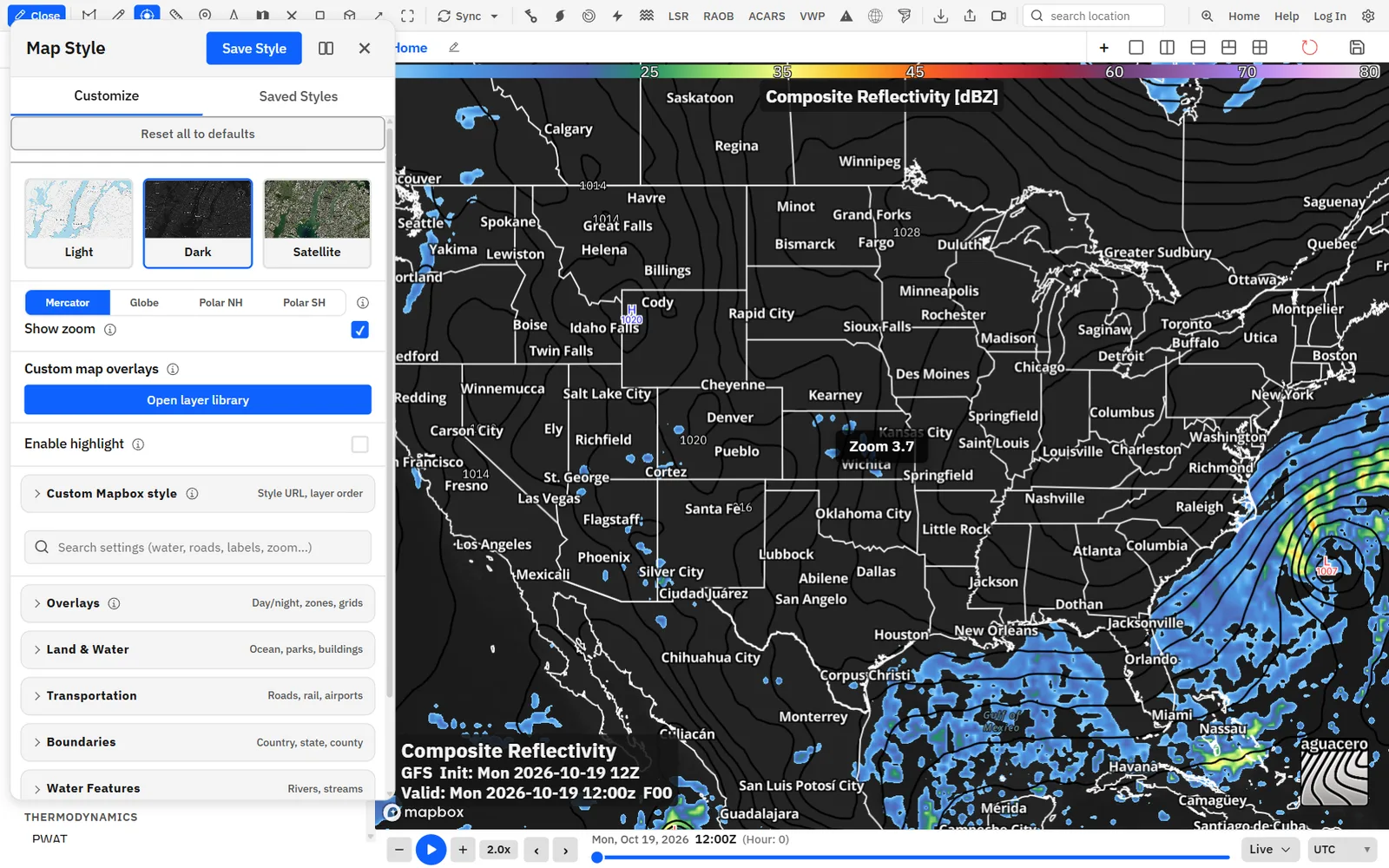
The Customize tab runs top to bottom: Reset all to defaults, the basemap cards, the projection buttons and Show zoom, Custom map overlays, Enable highlight, Custom Mapbox style, the search box, then the sections Overlays, Satellite imagery (Satellite basemap only), Land & Water, Transportation, Boundaries, Water Features, Labels and Terrain. Each section stays closed until you click its title.
Tips
- Search words that work well: “city”, “county”, “dots”, “cwa”, “fire”, “marine”, “grid”, “shadow”, “background”, “3d”, “hillshade”, “interstate” and “caps”.
- The search filters the projection buttons and the sections below the search box. Custom map overlays, Enable highlight and Custom Mapbox style always stay visible.
- On a desktop, drag the window by its title to move it. On a phone it opens as a sheet; tap the arrow in its header to expand it.
- You can bind a key to Map style settings in Settings → Keyboard shortcuts to open this window. It has no key by default.
Choose a basemap and tune satellite imagery
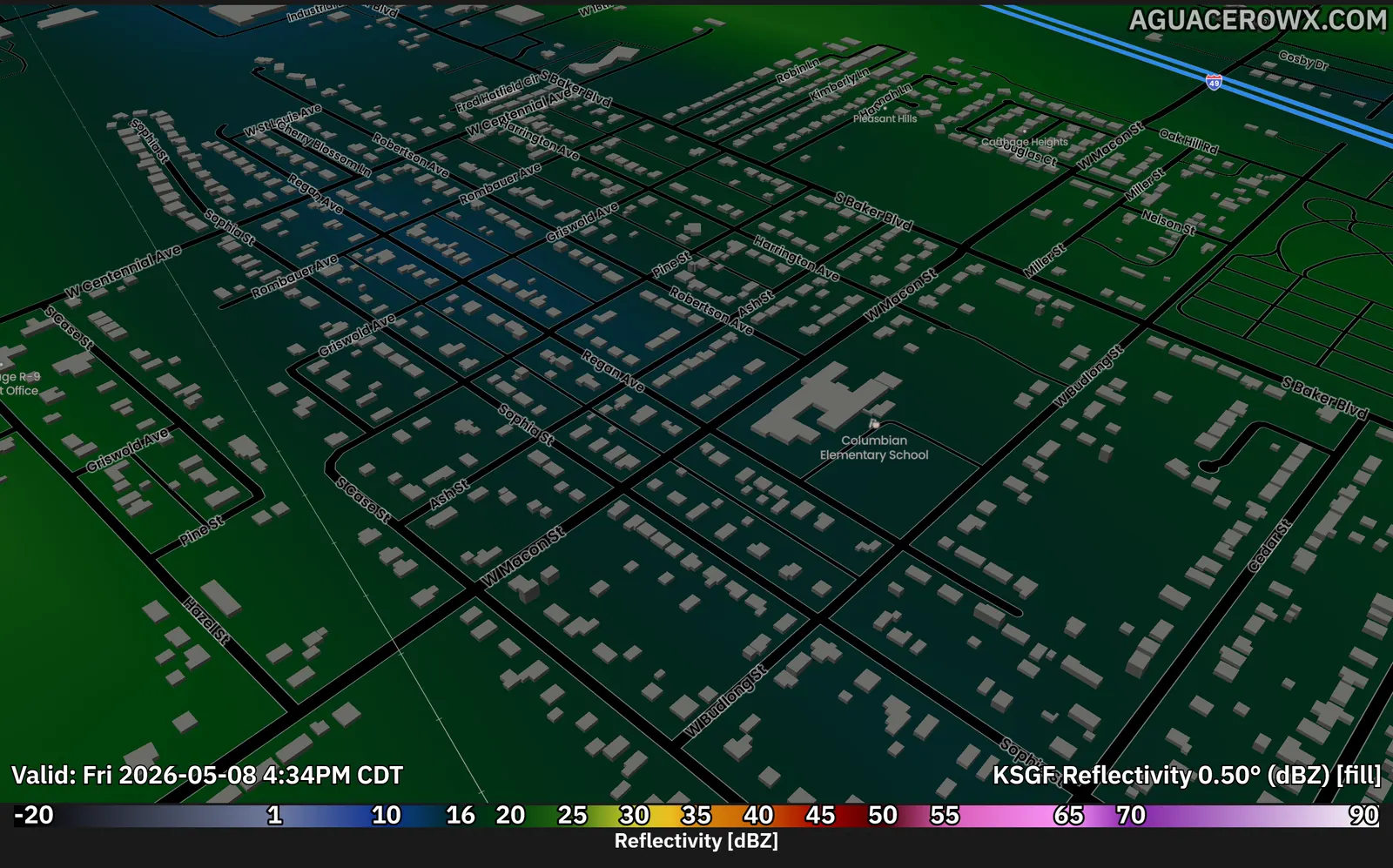
Start from the Light, Dark or Satellite basemap. Each has its own default colors, and Satellite adds sliders for the imagery.
Show me in the app- On the Customize tab, click Light, Dark or Satellite.
- For Satellite, open Satellite imagery and drag the sliders until your data stands out.
New accounts start on Dark. The basemaps differ in their defaults: Dark draws white borders and white names with black outlines; Light draws black borders and black names with white outlines; Satellite turns off road signs, road names, national parks and building footprints, and has no Land Color because the imagery is the land.
Switching basemaps resets labels, borders, roads, water, terrain and overlays to the new basemap’s defaults. Your custom map overlays, highlight area, satellite imagery sliders and projection carry over. Save a style first if you want to come back to your current look.
Satellite imagery only appears while the Satellite basemap is active and no custom Mapbox style is loaded.
Change the projection and the globe’s look
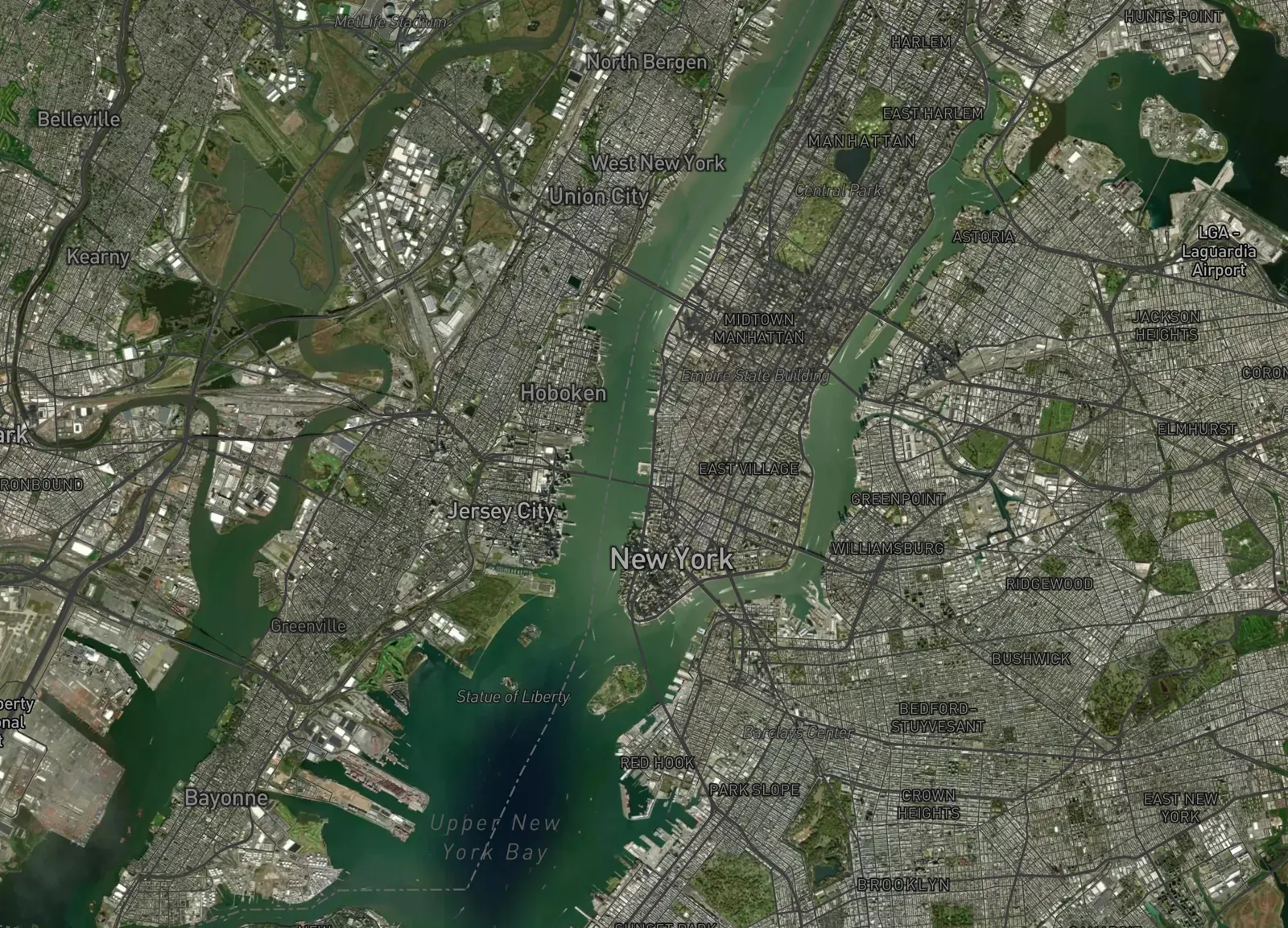
Show the map flat, as a 3D globe, or as a north or south polar chart, and give the globe an atmosphere and stars.
Show me in the app- Under the basemap cards, click Mercator, Globe, Polar NH or Polar SH.
- On Globe, open the Globe section and turn on Atmosphere or Stars.
Tips
- Bind a key to Toggle map projection in Settings → Keyboard shortcuts to switch projections without opening this window.
- The Globe section also appears when a custom Mapbox style is loaded.
Set zoom ranges and zoom-based line widths
Most features have a Zoom range, so they only draw between the zooms you pick. Line widths and opacities can also change as you zoom.
- Turn on Show zoom under the projection buttons, so the map shows its current zoom while you work.
- Under a feature, type a Min and a Max in its Zoom range row.
- For a line, tick By zoom next to Width or Opacity.
- Drag the slider on each zoom stop, or type a new zoom in the box beside it.
- Click + Add zoom to add a stop at the current map zoom.
Tips
- Click × on a stop to remove it. Going below 2 stops turns By zoom off and keeps the value at the current zoom.
- Fixed limits: County Labels 7–16, NWS forecast areas (CWA) 3–12, NWS public zones and NWS fire weather zones 4–16, NWS coastal marine zones 3–16 and Time zone boundaries 2–8.
- Road classes can start as low as zoom 3, so you can show Interstates on a national view.
- Typical use: thin county lines when zoomed out and thicker ones when zoomed in, or state borders that fade out as you zoom into a city.
Style city names and city dots
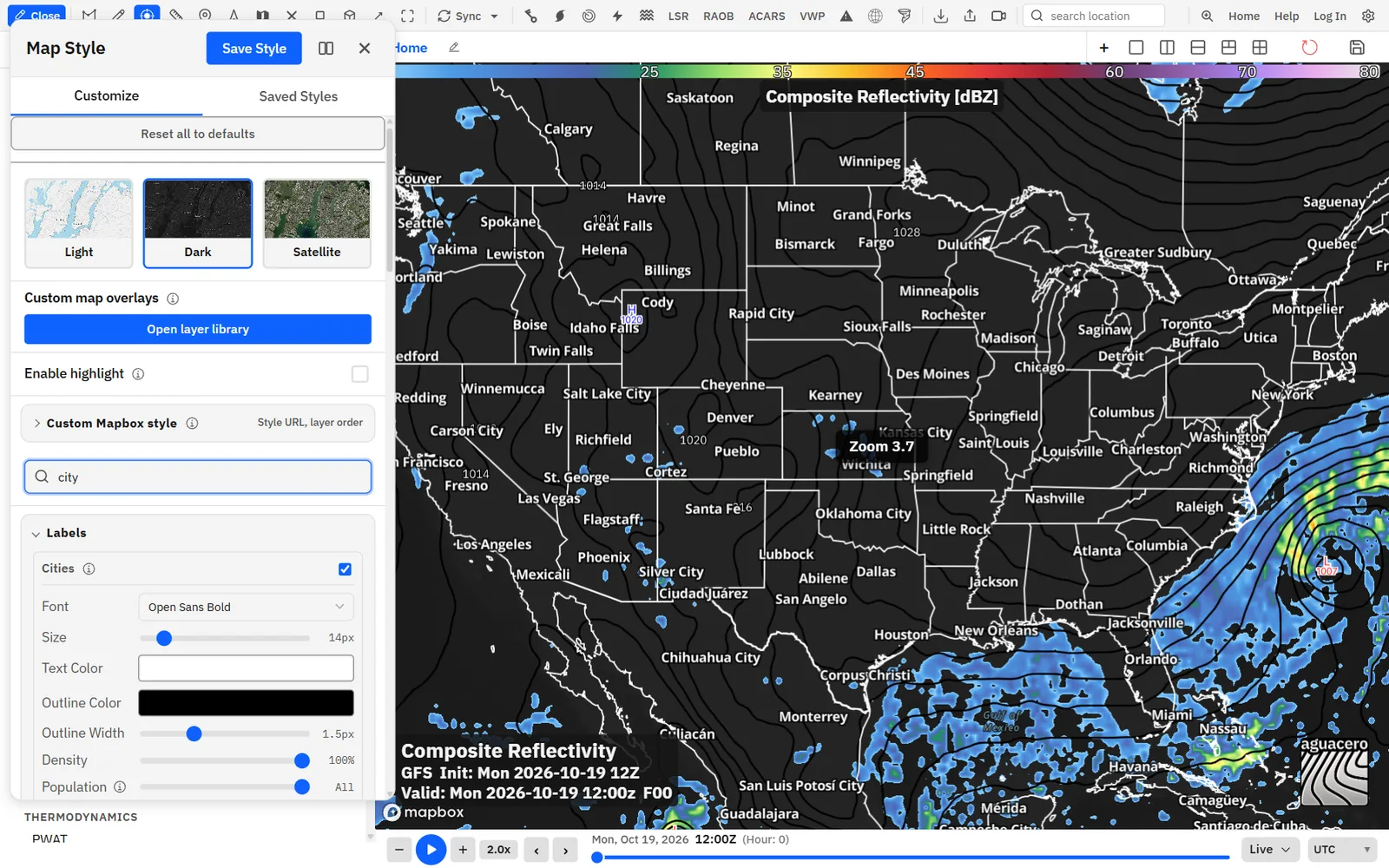
Place names come in four tiers: Cities, Towns, Villages and Hamlets. Each tier has its own font, size, colors, outline, background, shadow, density, population cutoff, zoom range and dots.
The tiers follow how prominent a place is in the Mapbox map data, not its legal status. Cities are the most prominent places, then Towns. Villages and Hamlets are small places; Hamlets also takes suburbs, quarters and isolated dwellings. Neighborhoods stay under Subdivision Labels.
- Open Labels, or type “city” in the search box.
- Find Cities, Towns, Villages or Hamlets. The checkbox beside the name shows or hides that whole tier.
- Pick a Font and drag Size.
- Set Text Color, Outline Color and Outline Width.
- Use Density and Population to control how many names show.
- Set the tier’s Zoom range, then tick City dots if you want a dot at each place.
Tips
- Give Cities bigger dots and type than Towns for a classic TV map. Each tier keeps its own settings.
- Hide all labels turns off names and dots together.
- Turn on All Caps (map labels) for uppercase names.
- To put one font on every map label at once, open Settings → Appearance, pick a Default font and click Apply.
- Your own name markers always draw above these labels.
Filter places with the Population sliders
Each tier’s Population slider decides which tier a place is drawn in. A place that misses one tier’s cutoff moves down to the next tier instead of vanishing.
Mapbox doesn’t include census headcounts, so Population is a prominence rank: 1 is the largest metros and 19 is every size. The value beside the slider reads All at 19, a cutoff such as ≤5 in between, and Rest when it is at 19 but a tier above it has a cutoff.
How the cascade works: Cities picks first. At All, every place Mapbox calls a city draws as a city. With a cutoff, only places ranked at or under it draw as cities, and that includes prominent towns and villages, which get promoted. Whatever Cities doesn’t take passes to Towns, then Villages, then Hamlets, and each tier can set its own cutoff. Every place is drawn by exactly one tier.
Unticking a tier hides every place it claims. That is how you trim the map: set a cutoff on Cities, then untick the tiers below, and the places that missed the cutoff land in a hidden tier.
- To show only the biggest cities, open Labels and find Cities.
- Drag Population to about 5. It reads ≤5.
- Drag Size up, for example to 20 px.
- Untick Towns, Villages and Hamlets.
- Pan around. Only the most prominent places stay, all in the Cities style.
Tips
- To give more places the city look, raise the Cities cutoff, for example to 10. Prominent towns move up into the Cities style.
- Leave a slider at All or Rest to keep whatever the tiers above didn’t take.
- Population only decides the tier. Whether a name fits still depends on Density, the tier’s Zoom range and the labels around it.
Label backgrounds and drop shadows
Put names on a rounded box with an outline, and add a soft drop shadow to text or boxes, so labels read over busy radar and satellite data.
Text background and Drop shadow: Road Names, Country Labels, State Labels, County Labels and the four place tiers. Drop shadow only: Continent Labels, Airport Labels, Points of Interest, Subdivision Labels, Water Labels and Natural Feature Labels. Road Signs have neither.
- Under a label group, tick Text background.
- Pick a Background color and drag Background opacity, Background size and Corner radius.
- Leave Background outline on for a border around the box, and set its Outline color and Outline width.
- Tick Background drop shadow and set the shadow. Without a background, the same switch reads Drop shadow and shades the text.
Tips
- With a background on, set Outline Width to 0 for a cleaner, TV-style label.
- The same shadow controls appear on city dots and on the highlight area’s outline.
Country, state, county, road and other labels
Show, hide and style every other kind of map label: continents, countries, states, counties, airports, points of interest, neighborhoods, water, natural features, road names and highway shields.
- Open Labels.
- Tick the box beside a label group to show it. Country Labels, State Labels and County Labels are off by default.
- Set Font, Size, Text Color, Outline Color and Outline Width.
- Set the group’s Zoom range.
Tips
- Every group except Road Signs has a Font picker, and every group has its own Zoom range.
- Lower Density on Road Signs to space shields out on busy interstates.
- With a custom Mapbox style loaded, the Labels section is gone. Fade labels in and out, County Labels and All Caps move under Overlays; the style’s other labels come from Mapbox Studio.
Draw borders, counties, CWAs and NWS zones
Country, state and county borders come with the basemap. NWS forecast areas, public, fire weather and marine zones, and time zone lines are overlays that also draw on a custom Mapbox style.
- Open Boundaries for country, state and county lines, or Overlays for NWS and time zone lines.
- Tick the box beside a boundary to show it.
- Pick a Color and a Line Type: Solid, Dashed or Dotted.
- Drag Width and Opacity, or tick By zoom to change them with zoom.
- Set a Zoom range if the lines should only show at some zooms.
Tips
- Overlay lines take Width from 0.5 to 4 px in steps of 0.1 and have the same Color, Line Type, Opacity and Zoom range controls.
- Dashed county lines under solid, thicker state lines read well on TV maps.
- To dim everything outside a state or a group of counties, use Enable highlight instead.
Add a lat/lon grid, edge coordinates and day/night shading
Draw meridians and parallels with coordinates along the edges, like a tropical chart, and shade the night side of the Earth.
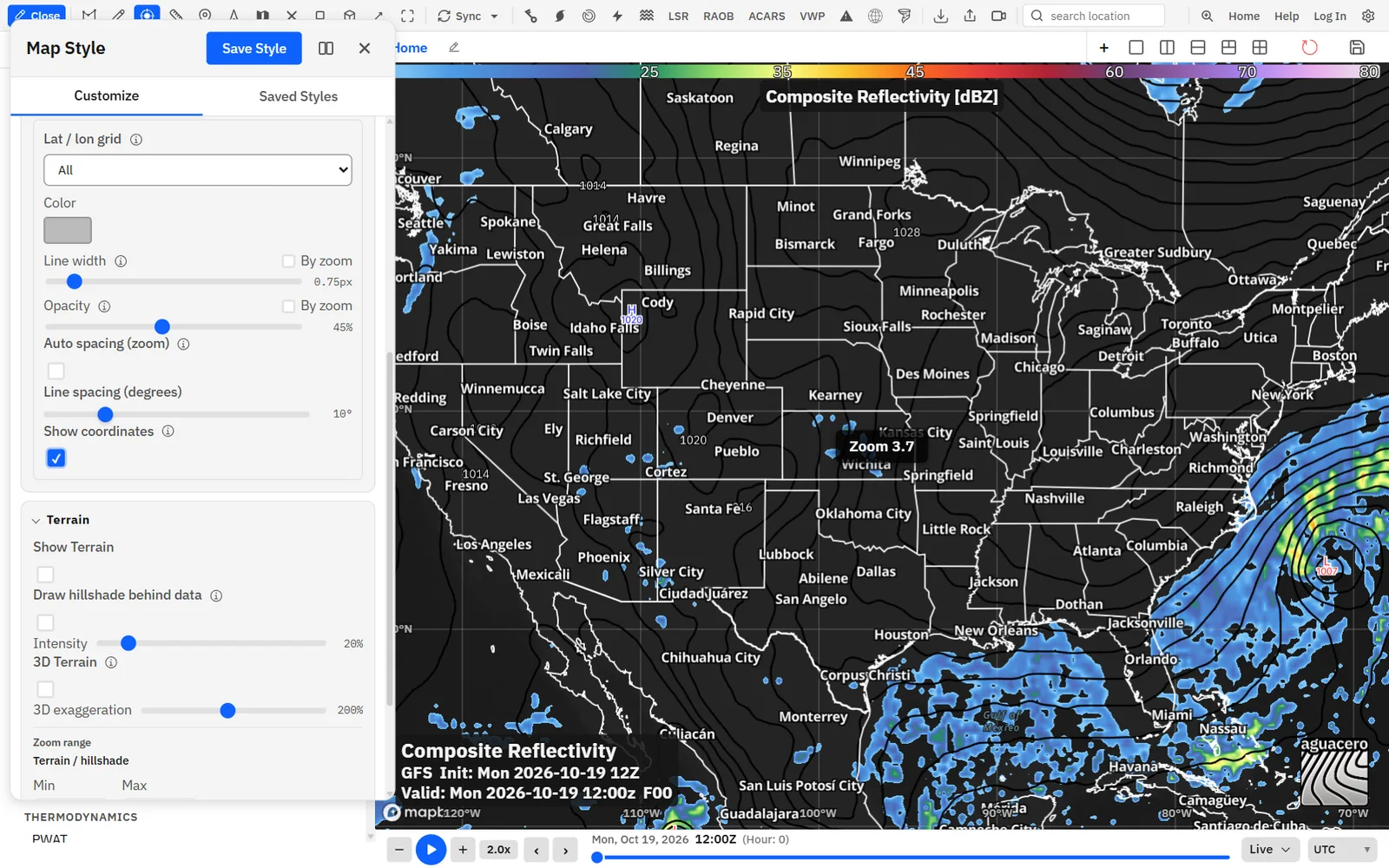
- Open Overlays, or type “grid” in the search box.
- Set Lat / lon grid to All or Ocean only.
- Pick a Color and drag Line width and Opacity.
- Leave Auto spacing (zoom) on, or untick it and set Line spacing (degrees).
- Tick Show coordinates to label the map edges.
- For day and night, tick Day / night cycle and set Night intensity.
Style roads, railroads and airports
Turn road classes on or off one at a time, from Interstates down to alleys, and give each its own color, width, opacity, casing and zoom range.
- Open Transportation, or type “road” in the search box.
- Leave Roads ticked; it is the master switch for every road class.
- Under Road styles, use each class’s color swatch and checkbox.
- Set Width and Opacity, and tick Outline for a casing along both sides.
- Set a Zoom range per class.
Tips
- A broadcast basemap often keeps only Interstates and Major Highways, a little brighter than the land.
- Road names and highway shields are under Labels → Road Names and Road Signs.
Land, water, buildings and terrain
Recolor land and water, clip data at the coastline, add parks and 3D buildings, and shade the terrain or raise it in 3D.
- Open Land & Water and set Land Color and Water Color.
- To clip a field at the coast, tick Put Ocean Over Added Layers or Put Land Over Added Layers, then choose what it covers under Apply overlay to.
- Open Terrain and tick Show Terrain for hillshade, or 3D Terrain for raised mountains.
- Tilt the map to see 3D terrain and 3D buildings.
Shortcuts
- Right-click + drag
- Tilt the map to see 3D terrain and buildings
- Two-finger drag
- Tilt the map on a touch screen
Land & Water, Transportation, Boundaries, Water Features, Labels and Terrain only show for the Light, Dark and Satellite basemaps. With a custom Mapbox style, those parts of the map come from your style.
Highlight an area and dim the restProfessional
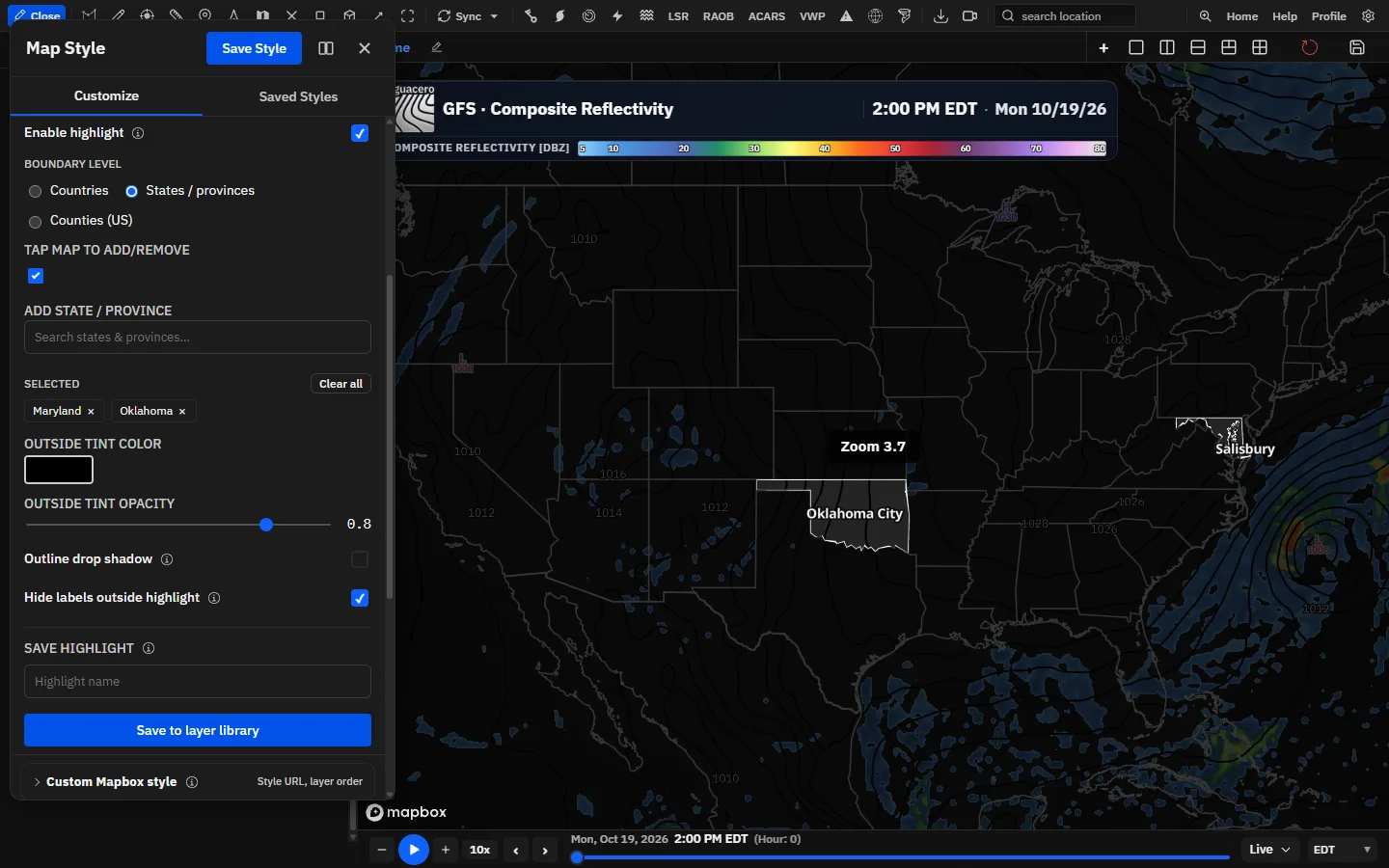
Pick countries, states and provinces, or US counties to keep clear, tint everything outside them, data included, add a drop shadow along the edge, and hide labels outside.
Show me in the app- Click the Map style button on the toolbar.
- Tick Enable highlight. Tap map to add/remove turns on with it.
- Under Boundary level, choose Countries, States / provinces or Counties (US).
- Click areas on the map to add them, and click again to remove them. Or type a name in the search field and click a match.
- Set Outside tint color and Outside tint opacity.
- Tick Outline drop shadow for a shadow along the edge.
- Tick Hide labels outside highlight to drop names, markers and readouts outside the area.
- Type a name under Save highlight and click Save to layer library to reuse it.
Professional and above, signed in. On other plans, ticking Enable highlight opens an upgrade dialog.
Tips
- To bring back a saved highlight, click Open layer library under Custom map overlays and click Load on it. Its areas, tint, shadow and Hide labels outside highlight setting come back as saved.
- To make a highlight part of one bundle instead of your map, add the saved preset with Add Layer → Custom Layer in that bundle.
- Scene steps can switch highlights as a scene plays.
Add your own shapes: custom map overlaysProfessional
Upload GeoJSON or shapefiles, or link to a file that keeps changing, and draw them as part of the map so they show under every bundle.
Show me in the appYou can use a custom layer in two places. Added under Custom map overlays here, it becomes part of your map style and shows on every bundle and panel until you remove it. Added with Add Layer → Custom Layer in the sidebar, it belongs to that bundle. Both use the same layer library.
- Under Custom map overlays, click Open layer library (Add from layer library once you have overlays). The Custom layer library opens.
- On Upload file, drop a file on the box or click it to choose one.
- Or open Live link, paste the file’s URL and click Continue.
- Type a name under Name this layer. For a live link, choose how often to Download again.
- Click Save & Load. Save only adds it to your library.
- Back in the Map Style window, pick it under Active overlay and style it.
Professional and above, signed in. Custom layers draw polygons and lines. An upload with point features fails with “Point data detected. Please use the Marker Manager on the toolbar for point datasets.” On live links, points are skipped and counted. KML isn’t supported; convert it to GeoJSON first.
Tips
- Shapefiles in other coordinate systems are reprojected from their .prj file. Without the .dbf there are no attribute fields, so labels aren’t available.
- A live overlay shows its link or watched file, its status and Refresh now (or Check now), and a Refresh menu for the interval.
- Rename or delete library files any time in Settings → Custom layers.
- Public styles never include your custom overlays.
- In a bundle, custom layers don’t count toward the limit of 8 data layers.
Load placefilesProfessional
Load GRLevelX-style placefiles, such as spotter feeds, from a file or a live URL, on the map style or in a bundle.
Show me in the app- Open the layer library: Open layer library under Custom map overlays, or Add Layer → Custom Layer in a bundle.
- Upload a .txt or .plr file on Upload file, or paste the placefile URL on Live link and click Continue.
- Check the summary under the name, for example the number of icons, labels, lines and shapes and how often it refreshes.
- Name it and click Save & Load.
- Pick it under Active overlay (or click Edit Layer on its bundle row) and set its look.
Tips
- Placefile servers that pick data by location get the current map center, the way GRLevelX sends its radar site.
- Timestamps in a placefile’s title are dropped from the suggested name.
- Saved placefiles carry a Placefile badge in the library.
- “File does not look like a valid GR Placefile.” means the upload isn’t a placefile; “No drawable items were found in this placefile.” means it parsed but had nothing to draw.
Use your own Mapbox styleProfessional
Load a style you designed in Mapbox Studio as the basemap, and choose where your weather layers slot into it.
Show me in the app- In Mapbox Studio, copy your style URL. It starts with mapbox://styles/ or https://api.mapbox.com/styles/v1/.
- In the Map Style window, open Custom Mapbox style and paste the URL.
- If the style is private or uses your own tilesets, add a Mapbox access token.
- Click Load style. The app reads the style’s layers, fills in the anchors and switches the map.
- If data draws above labels or under the land, change the anchors below.
- Click Save Style to keep it in a named style.
Shortcuts
- Enter or ,
- Add the typed layer id in a multi-select list
- Backspace
- Remove the last chip when the field is empty
- Esc
- Close the layer id list
Mapbox Standard styles (mapbox://styles/mapbox/standard and standard-satellite) are built from slots, so the anchor lists offer only roads for fills and poi-label for lines.
Professional and above, signed in. Map loads are billed to the token’s Mapbox account, which is why a style with a pk. token can’t be public. Only styles in Mercator, Globe or Lambert conformal conic projection work under weather overlays; others show “This style uses the … projection.”
Tips
- While a custom style is on, the preset basemap cards are dimmed. Click one to leave the custom style.
- On top of a custom style, your custom map overlays, the highlight area, Overlays and Globe still apply. Land, roads, borders, labels and terrain come from your style.
- “Style request failed (401)” or “(403)” usually means the style is private and needs your token.
Save, load and share map styles
Keep named versions of your map, switch between them, star favorites, and find other users’ public styles.
- Click Save Style at the top of the window.
- If you loaded one of your own styles, choose Update existing or Save as new under Save destination.
- Type a Style Name.
- Tick Private map style? to keep it to yourself. New styles start public.
- Click Save Style (or Update Style).
- Later, open Saved Styles, pick My, Favorites or Advanced, and click Load on a style. The window returns to Customize.
Saving needs an account. Free saves 1 map style; at the limit, Save Style opens an upgrade dialog unless you are updating a style you loaded. Enthusiast and up save as many as you like. A style with a custom Mapbox style, custom overlays or a highlight area needs Professional to load.
Tips
- Other users’ public styles never bring their custom overlays; the row says “Custom overlays not included”.
- Reset all to defaults forgets which style you loaded, so the next save is a new style.
Where your map style is saved
Your current map is an account setting. Saved styles, bundles, workflows and scene steps can each carry their own copy.
Your current map: signed in, your map saves to your account as you go: sliders when you let go, colors when the color picker closes, and everything again when you close the window. It loads on your other devices. Signed out, nothing is saved, and a reload brings back the Dark defaults.
Saved styles: named snapshots on the Saved Styles tab. Loading one replaces your current map, and that becomes your new current map.
Bundles and workflows: when you save a bundle with Include map (basemap, customizations, custom Mapbox style) on, opening that bundle applies its map. Workflows have the same switch, Include map (basemap, customizations, custom Mapbox style) in this workflow. Both are off by default, and then the bundle or workflow leaves your map alone.
Scenes: a scene step can switch to one of your saved map styles, and can apply custom overlays and highlights as it plays.
Boards, panels and layouts don’t store a map style. Every panel draws the same map.
Tips
- Switching between Light, Dark and Satellite resets most settings to that basemap’s defaults. Save a style before you switch.
- Secret sk. Mapbox tokens stay in the browser session and must be entered again in a new session.
Recipe: a clean broadcast basemap with big city names and county outlines
A dark, uncluttered map with large uppercase city names on dots, bold state lines and soft county outlines, ready for radar or a forecast field.
- Open Map style and click the Dark basemap card.
- In Transportation, untick every class under Road styles except Interstates, and untick Railroads and Airports.
- In Labels, untick Road Signs, Road Names, Points of Interest, Airport Labels and Subdivision Labels, and tick All Caps (map labels).
- In Cities, set Population to about 6, Size to 20 and Outline Width to 2, then tick City dots with Size 4 and Name offset 6.
- Untick Villages and Hamlets. Leave Towns on with Size 13 for smaller places, or untick it for the biggest cities only.
- For a box behind each city name, tick Text background under Cities, set Background opacity to 60% and Outline Width to 0.
- In Boundaries, set State Borders Width to 2.5. Leave County Borders on, set its Opacity to 50% and Line Type to Dashed.
- Tick County Labels if you will zoom in to zoom 7 or closer.
- Click Save Style, name it, for example “Broadcast Dark”, and save.
Tips
- Turn on By zoom for County Borders Width: 0.5 at zoom 5 and 1.5 at zoom 9 keeps the regional view clean.
- Add NWS forecast areas (CWA) in Overlays for a forecast-office view.
- Save your bundle with Include map (basemap, customizations, custom Mapbox style) to tie this look to it.
Recipe: highlight your viewing area and dim the restProfessional
Keep your market’s counties bright, darken everything else, and plot city names and readouts only inside the area.
- Open Map style and tick Enable highlight.
- Under Boundary level, choose Counties (US).
- Click each county in your viewing area on the map, or type county names in the Add county field.
- Leave Outside tint color black and set Outside tint opacity to 0.65.
- Tick Outline drop shadow and set Shadow blur to 6 and Shadow distance to 3 so the area lifts off the map.
- Tick Hide labels outside highlight.
- Under Save highlight, type “Viewing area” and click Save to layer library.
- Close the window to stop picking, then load your data. Readouts and city names only show inside the area.
- Click Save Style to keep the whole look as a named style.
Tips
- Turn on County Borders with a light color so the counties inside the area stay readable.
- For a state-wide view, choose States / provinces instead and click the state.
- Use a scene to switch between saved highlights for different regions.
Recipe: a tropical chart with lat/lon edge labels
A dark ocean chart with a 5° grid over water, coordinates along the edges and capitalized country names, for hurricane tracks and sea-surface data.
- Open Map style and click Dark.
- In Overlays, set Lat / lon grid to Ocean only.
- Untick Auto spacing (zoom) and set Line spacing (degrees) to 5°.
- Set the grid Color to white, Line width to 0.5 and Opacity to 35%.
- Tick Show coordinates. Latitudes appear on the left edge and longitudes along the bottom.
- In Land & Water, set Water Color to a deep navy and Land Color to a dark gray.
- In Labels, tick Country Labels and All Caps (map labels), and untick Road Signs, Road Names and Points of Interest.
- Click Save Style and name it, for example “Tropical Chart”.
Tips
- For sea-surface temperature, tick Put Land Over Added Layers so the field stops at the coast.
- Add NWS coastal marine zones in Overlays for a marine forecast view.
- Turn on Day / night cycle with Map only to see where it is night without darkening the data.
Common questions
Answers to the questions we hear most about map styles, city labels, highlights and custom layers.
Why isn’t a city showing?
Check, in order: that its tier (Cities, Towns, Villages or Hamlets) is ticked; that you are inside the tier’s Zoom range (Villages start at zoom 9 and Hamlets at 11); that a Population cutoff hasn’t moved it into a tier you turned off; that Density isn’t too low; and that Hide all labels and Hide labels outside highlight are off. On a custom Mapbox style, city labels come from your style.
Why do labels overlap, disappear or flicker as I zoom?
Map labels avoid each other, so a name drops out when it would collide with another label or a shield. Raise Density on the tier or group you care about, lower it on the others, or turn off groups you don’t need, such as Road Signs and Points of Interest. Untick Fade labels in and out if you want labels to pop in and out instead of fading.
Why won’t it let me set a lower minimum zoom?
The basemap only has data for each feature from a certain zoom, and the Zoom range can’t go below it. A message tells you the lowest zoom allowed. County names, for example, start at zoom 7, and NWS public zones at zoom 4. Road classes can go down to zoom 3.
I switched to Light or Satellite and lost my changes. Why?
Each basemap card loads that basemap’s defaults for labels, borders, roads, water, terrain and overlays. Only custom overlays, the highlight area, the satellite imagery sliders and the projection carry over. Load a saved style to get your look back.
Why didn’t my style save?
Signed out, nothing is saved and a reload resets the map. Signed in, your current map saves on its own, but a named style needs Save Style. On Free you can keep 1 named style; delete it or update it instead of saving a new one. A style with a custom Mapbox style needs Professional. If the server rejects the save, an error says it could not save the map style; try again.
My map changed when I opened a bundle. Why?
That bundle (or workflow) was saved with Include map (basemap, customizations, custom Mapbox style) on, so it brings its own basemap and settings. Load your saved style again, or re-save the bundle with the switch off.
How do map styles relate to bundles, boards and layouts?
One map style covers the whole app: every board and panel draws it, and layouts don’t store one. A bundle or workflow can carry a map if you save it with Include map (basemap, customizations, custom Mapbox style) on, and a scene step can switch to a saved style.
Why does Enable highlight, Custom Mapbox style or Open layer library show an upgrade dialog?
Highlight areas, custom overlays, placefiles and custom Mapbox styles are Professional features. Everything else in the window works on every plan.
Why don’t I see Land & Water, Labels or Terrain?
A custom Mapbox style is loaded, so those come from your style; only Overlays and Globe apply. Click a basemap card or Clear custom style to get them back. Also, Satellite imagery shows only on the Satellite basemap, Land Color is hidden on Satellite, and Globe shows only in Globe projection. If you typed in the search box, clear it.
Clicking the map doesn’t open popups while the Map Style window is open. Why?
Tap map to add/remove is on, so clicks add or remove highlight areas. Untick it, or close the window.
What files can I upload as a custom layer?
GeoJSON (.geojson or .json), a zipped shapefile, a .shp with its .dbf (and .prj), or a GRLevelX placefile (.txt or .plr), up to 50 MB. Shapes must be polygons or lines; for points, use name markers. KML isn’t supported.
Why must my style stay private?
It includes a public pk. Mapbox access token, which is saved with the style. If the style were public, other users’ map loads would be billed to your Mapbox account, so Private map style? is locked on. A secret sk. token is never saved with the style.
Why is someone’s public style missing their shapes?
Custom overlays are never shared with public styles. The row reads “Custom overlays not included”.
Hillshade is covering my radar. How do I fix it?
Open Terrain and tick Draw hillshade behind data, or lower Intensity.
What is the number in the middle of the map?
The current zoom, shown while the Map Style window is open so you can set zoom ranges. Untick Show zoom to hide it.