Quick start: load, change and save a bundle
Load a built-in bundle on a panel, change its layers, and save it to your own library in under a minute.
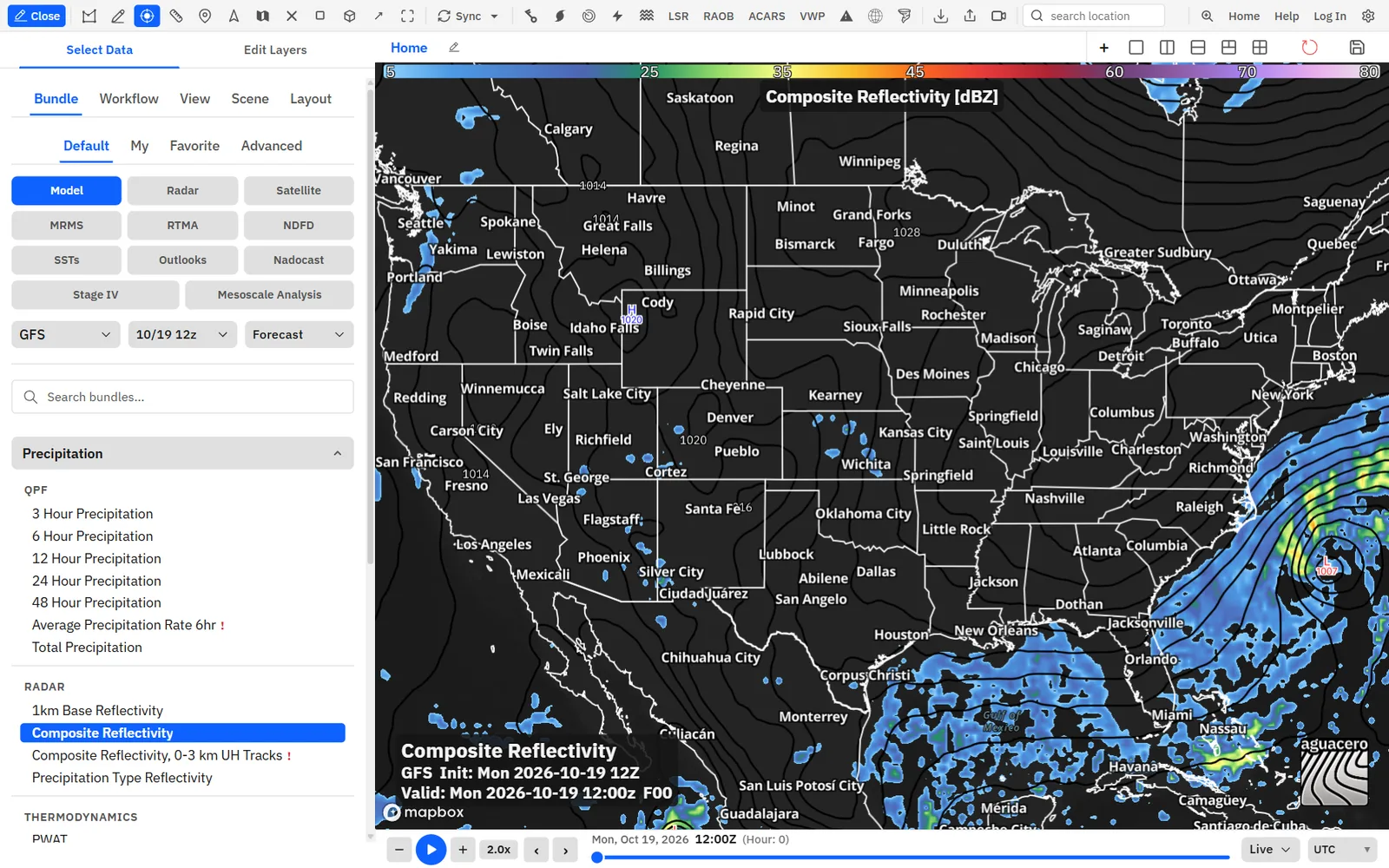
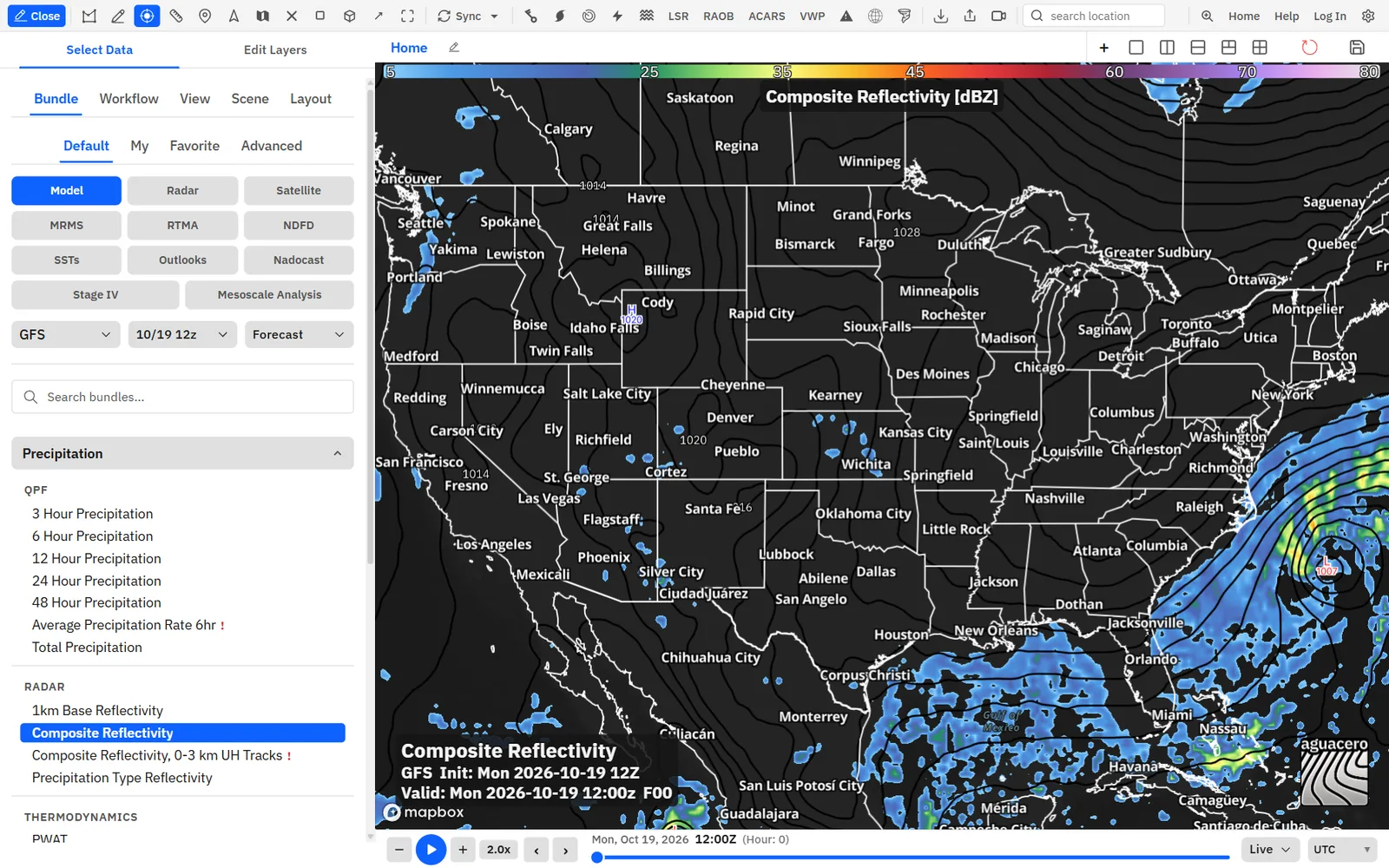
- Click Edit at the left end of the toolbar (it shows the name of the bundle on the active panel), or press F1, to open the sidebar.
- Click Select Data at the top of the sidebar, then the Bundle tab.
- Click the Default list. It holds the built-in bundles.
- Click a data type such as Model or Radar, open a category, and click a bundle. It loads on the active panel.
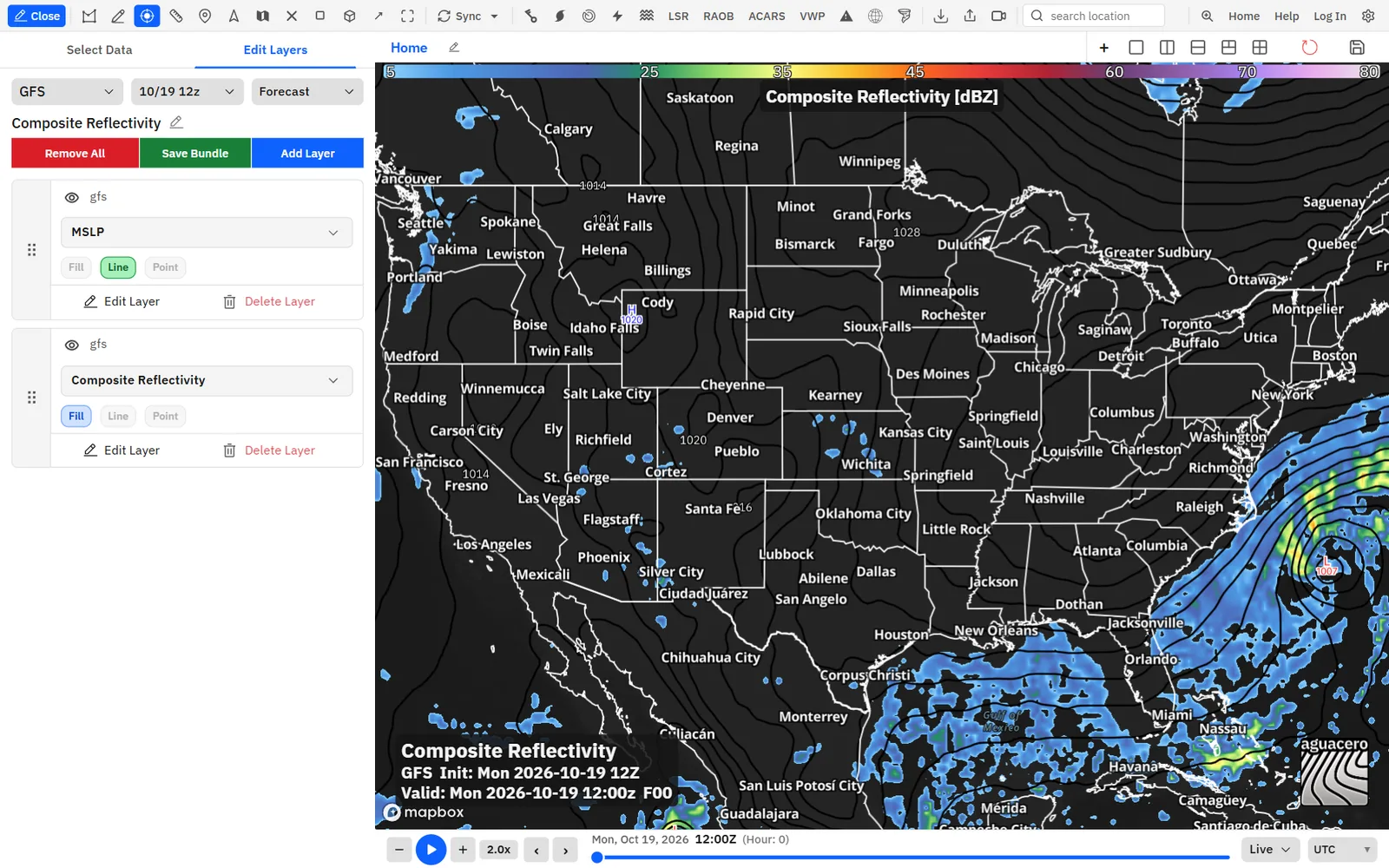
- Click Edit Layers. Click Add Layer to add a layer, drag a row’s handle to change the draw order, or click the eye to hide a layer.
- Click Save Bundle. Fill in Name, Category and Subcategory, then click Upload Bundle.
- Find your bundle later under Select Data → Bundle → My.
Tips
- Default bundles are starting points. Load one, change it, and save it as your own. Saving never changes the built-in bundle.
- Signed out, you can browse and load default bundles. My, Favorite and Save Bundle ask you to sign in.
Shortcuts
- F1
- Open or close the sidebar
- Shift + click
- Skip the confirmation on Remove All, Reset layout and deleting your own bundle or workflow
What a bundle saves
Know what is always in a bundle, what you can add when you save, and what is never part of it.
Show me in the appA bundle belongs to one map panel. Each panel on a board has its own bundle, and loading a bundle replaces the one on the active panel only.
Never in a bundle: the other panels and boards (save a workflow for that), your account settings such as units, time zone and mouse readouts, drawings and PGEN products, and archive time windows. In archive mode, save an event instead.
Tips
- Custom GeoJSON layers are stored once in your account. The bundle keeps a link to the file, not a copy.
- In Broadcast mode with a custom banner title, the title is saved with the bundle and comes back when you load it.
Browse the library in Select Data
Find any bundle, workflow, view, scene or layout by type, list, data type, category or name.
Show me in the app- Open the sidebar and click Select Data.
- Pick what to browse with the top row of tabs: Bundle, Workflow, View, Scene or Layout.
- Pick a list with the second row: Default, My, Favorite or Advanced.
- Click a data type button to narrow the list, then click a category header to open it.
- Type in Search bundles... to filter by name. Every matching category opens while you search.
- Click a row to load it. The row of the bundle on the active panel stays highlighted.
On the Model type, the model and run menus appear above the list, so you can pick the model before you pick a bundle. On Satellite, pick the satellite and sector first; bundles load on that satellite. On SSTs, pick the SST source. On NDFD, an NDFD run menu appears.
Tips
- A red ! after a name means some of the bundle’s layers aren’t available for the active model (or satellite, or archive date). Hover it to see why. Clicking still loads the layers that work. If none work, the click does nothing.
- If a list fails to load, the list says Could not load bundles with the reason. Click Retry.
- The sidebar remembers the tab, list, data type, open category and search for the rest of the session.
Search everyone’s public bundles with Advanced
Filter bundles and workflows by name, username, category and the layers they contain, including public bundles shared by other users.
- In Select Data, on the Bundle or Workflow tab, click Advanced. Bundle Filter Options (or Workflow Filter Options) opens.
- Pick a Filter Type. All searches every user’s public items.
- Fill in at least one more filter, such as Bundle Name or a layer under Layer Filters.
- Click Apply Filters. The results replace the list until you pick another list.
- To change the search, click Advanced again.
With All, the dialog shows “When filtering by "All", you must add at least one additional filter.” and Apply Filters stays disabled until you do. Private bundles never appear to other users.
Favorite, reorder, rename and delete
Star what you use most, drag the library into your own order, rename categories, edit an item’s details, and remove what you don’t need.
Signed in, each row shows its actions on the right. The star is on every bundle and workflow. Edit (the pencil) and Delete (the trash can) appear only on items you own.
- To reorder, press on a category header, subcategory header or row and drag it up or down. The drag starts after the pointer moves a few pixels.
- To rename a category or subcategory, double-click its header, type the new name and press Enter. Esc cancels.
Tips
- Each list (Default, My, Favorite, team) keeps its own order, saved to your account. Reordering is off while you search and on Advanced.
- Until you drag them, rows sort A–Z and subcategories with more items come first.
- Renaming a group renames it on every item you own in that group. Items owned by others keep their category, so you can only rename groups that hold at least one of your own items.
Deleting can’t be undone and there is no recycle bin. Workflows that used the bundle keep their own copy of its layers.
Edit the layers on a panel
Edit Layers is the bundle editor: pick the model and run, rename the bundle, and add, hide, reorder, restyle or remove layers.
Show me in the app- Click the panel you want to change, then click Edit Layers in the sidebar.
- Pick the model and run at the top. Dots next to each model show whether it has all (green), some (yellow) or none (red) of the bundle’s layers.
- Click the pencil next to the bundle name (Rename Bundle) to rename it. Enter saves, Esc cancels.
- Click Add Layer to add a layer.
- Click the eye on a row to hide the layer without removing it.
- Drag a row by its handle on the left to change the draw order. Rows higher in the list draw on top.
- Click Save Bundle to keep the result.
Tips
- Alerts, lightning, LSRs, damage reports, SiteWarn, fleet GPS, tropical ensembles and custom headers are pinned overlays. They sit at the top in a fixed order and have no drag handle.
- A row marked Not available for this model has a field the current model doesn’t produce. Pick another model or swap the field. Its controls are dimmed.
- Press the left or right bracket key to step to the previous or next model run.
- Changing the model or run applies to the active panel only, unless Sync Models or Sync Runs is on.
Shortcuts
- Shift + click
- Remove All without the confirmation
- Enter / Esc
- Save or cancel a bundle rename
Add and swap layers
Use the Add Layer menu to put any model field, radar product, satellite image or analysis on the panel, or search across all of them by name.
- In Edit Layers, click Add Layer.
- Hover a source, then a category, and click a field. Or type in Search variables... to search every source at once.
- Click the info icon next to a field to read what it shows.
- To replace a layer instead of adding one, click the field name on its row and pick the new field.
A bundle holds up to 8 data layers (model, radar, satellite, MRMS, RTMA, NDFD, SST, Stage IV and Mesoscale Analysis). Adding a ninth shows “Maximum of 8 data layers reached. Remove a layer to add this one.” Custom layers, custom headers, outlooks, alerts and other overlays don’t count.
Tips
- Fields already in the bundle are hidden from the menu, so you can’t add the same one twice.
- A lock next to a field means your plan doesn’t include it. Clicking it opens the upgrade dialog.
- If nothing matches your search, the menu says No variables found matching your text.
Save, update or copy a bundle
Every option in the Bundle Properties dialog: naming, privacy, what to include, pins, and how updating differs from saving a copy.
- Set up the panel the way you want it, then click Save Bundle in Edit Layers. Sign in if asked.
- In Bundle Properties, fill in Name, Category and Subcategory.
- Choose the switches you want (see below).
- To update a bundle you saved earlier, load it, make your changes and turn on Overwrite existing bundle?. Leave it off to save a new copy.
- Click Upload Bundle (or Update Bundle when overwriting). The dialog shows “Bundle uploaded successfully!” and closes.
The include switches start off for a new bundle. When you reopen the dialog on a saved bundle, they show what that bundle saved, so an update keeps the same extras unless you change them.
Tips
- Saving a default bundle always makes your own copy. The built-in one never changes.
- Overwrite is the way to fix a bundle without using another save slot. The quota note says “Updating your own bundle with overwrite enabled does not use a new save slot.”
- To change only the name, category or privacy, use the pencil on the row in the library instead. It doesn’t touch the layers.
Free saves up to 10 bundles, Enthusiast 20, and Professional, Creator and Commercial unlimited. Sign-in is required.
Split a board into panels
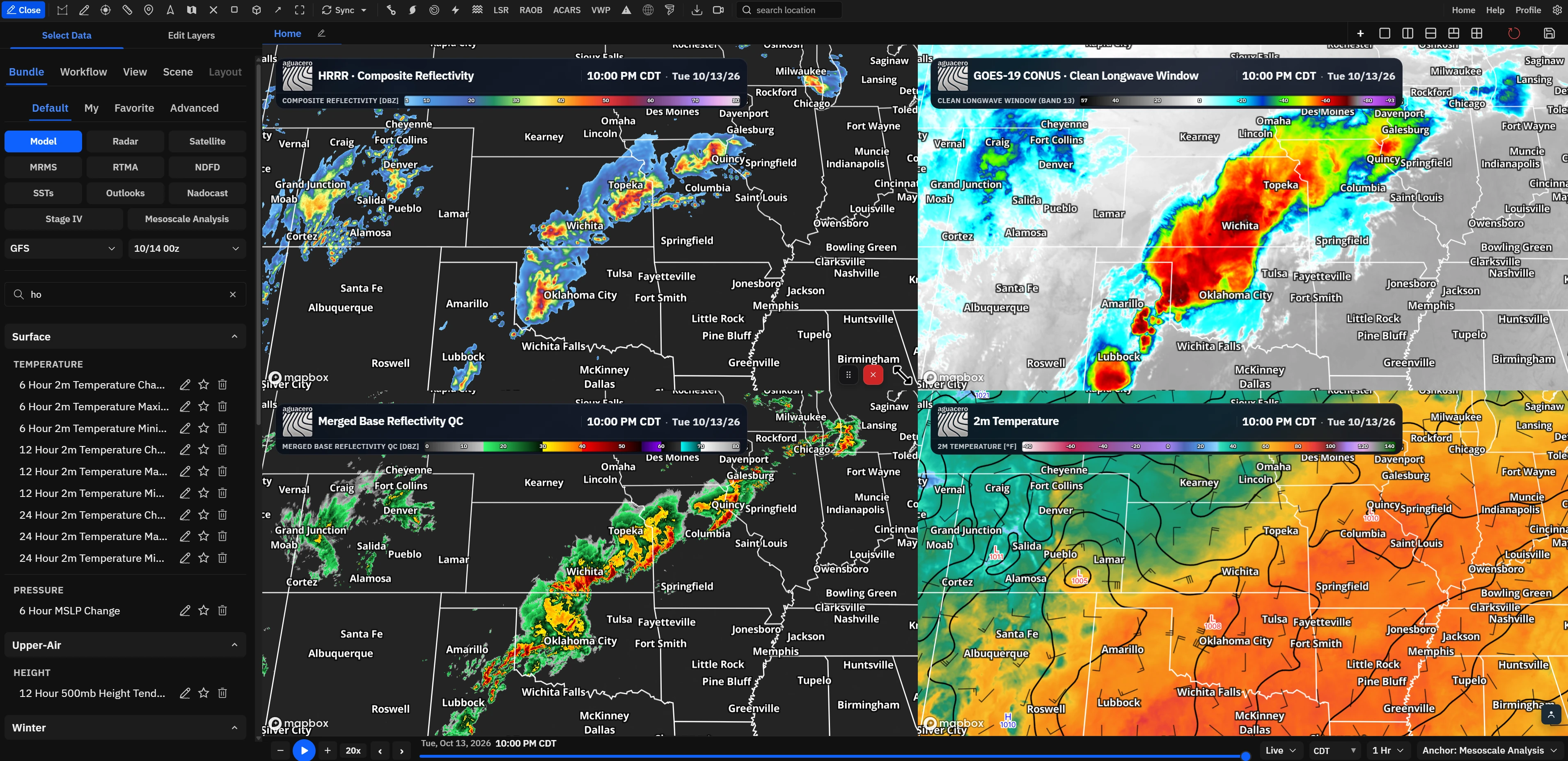
Put two to many maps side by side on one board, each with its own bundle, sharing time and (with Sync) pan, zoom and more.
Show me in the app- Click a layout icon to the right of the board tabs.
- Click a panel to make it active. The sidebar, Save Bundle and the time bar work on the active panel.
- Load a bundle from Select Data or build one in Edit Layers. It goes on the active panel.
- Hover a panel to show its controls at the lower right: drag the grip (Move panel) to move it, drag a corner to resize it, or click Remove panel.
- If moving or resizing leaves an empty space, hover it and click Add New Panel.
Tips
- Switching layouts keeps the panels you have, active panel first. A new panel starts on GFS and its latest run, or on the active panel’s model and run when Sync Models is on. Sync Runs copies that cycle when the new panel’s model has it, and Sync Model Layers copies model layers that model can draw. Going to fewer panels removes the extras.
- Remove panel is disabled when only one panel is left.
- Panels snap to a 12 × 12 grid on the board.
Free has 1 panel, Enthusiast 2, and Professional and up as many as fit. A layout or Add New Panel beyond your plan opens the upgrade dialog.
Use boards as tabsProfessional
Boards are tabs of separate workspaces, each with its own panels, bundles, view and time source. Keep one per part of the job.
Show me in the app- Click + (Add new board) to the right of the tabs. The new board is called New Board, starts with one empty panel, and copies the current board’s map view and sync choices.
- Click the pencil on the active tab, type a name, and press Enter. Esc cancels.
- With two or more boards, drag a tab left or right to reorder it.
- Click the trash icon on a tab and confirm Delete Board to remove it. The last board can’t be deleted.
- Click the circular arrow (Reset layout) to remove every board, panel and bundle and start over from the defaults. Shift + click skips the warning.
Tips
- Scroll the mouse wheel over the tabs to slide through many boards.
- Save the boards as a workflow (the save icon) to keep them. Without a workflow, boards last until you reload or reset.
Extra boards need Professional. On other plans + opens Unlock Multiple Boards. Delete Board and Reset layout can’t be undone.
Sync panels
Choose what stays the same across the panels on a board: the map view, model, run, layers, radar site and tilt, and overlays.
Show me in the app- Click Sync on the toolbar.
- Click an item to turn it on or off. A check mark shows what is on.
- Click outside the menu to close it.
- For the two extra choices (Sync SSTs and Sync NDFD) and a description of each, open Settings → Sync.
Tips
- Sync choices apply to every board and save to your account. A workflow saved with Save sync settings to this workflow brings its own choices; other workflows use your account’s.
- Layer syncs also work when you load a bundle: loading one on the active panel copies its layers of each synced kind to the other panels. Model layers are copied only to panels whose model has that field.
- All panels on a board share one time bar.
- To show different products from the same radar, keep Sync Radar Sites on and Sync Radar Layers off.
- With Sync Maps on, a place picked in the location search moves every panel.
Save and load workflowsEnthusiast
A workflow saves every board, panel and bundle, plus optional map style, views, alerts, markers, layout and sync choices, and restores them all in one click.
Show me in the app- Set up your boards and panels with the bundles you want.
- Click the save icon (Save Workflow) at the right end of the board bar.
- Fill in Name, Category and Subcategory (all required).
- Choose the switches you want (see below).
- Click Save Workflow. The dialog shows “Workflow saved successfully!” and closes.
- To load it, open Select Data → Workflow → My and click it. It replaces all your boards.
- To update it later, load it, change it, click the save icon, turn on Overwrite existing workflow? and click Update Workflow.
Always saved: every board (name and order), every panel’s position and size, the full bundle on each panel, the active board and panel, each board’s time source, loop lengths and playback speed. Never saved: your account settings (units, time zone, mouse readouts, toolbar), drawings, PGEN products and open tools such as cross sections or the ruler.
Tips
- A workflow keeps its own copy of each bundle. Changing or deleting a saved bundle later doesn’t change workflows that used it.
- When a workflow loads on a lower plan, loop lengths are cut to what the plan allows and Professional-only custom layers and map styles are left out.
- The dialog title reads Update Workflow whenever a saved workflow is loaded. Without Overwrite existing workflow? it still saves a new one.
- In archive mode the save icon saves an archive event instead (Save Event). Events are always private; Free keeps 1, Enthusiast 5.
Free has no saved workflows. Enthusiast saves up to 2; at the limit Save Workflow opens Unlimited workflows with Professional unless you overwrite your own. Professional and up save unlimited workflows. Extra boards need Professional.
Choose what opens when the app starts
Pick the bundle or workflow and map view that load each time you open AguaceroWx, and which Select Data tab and list open first.
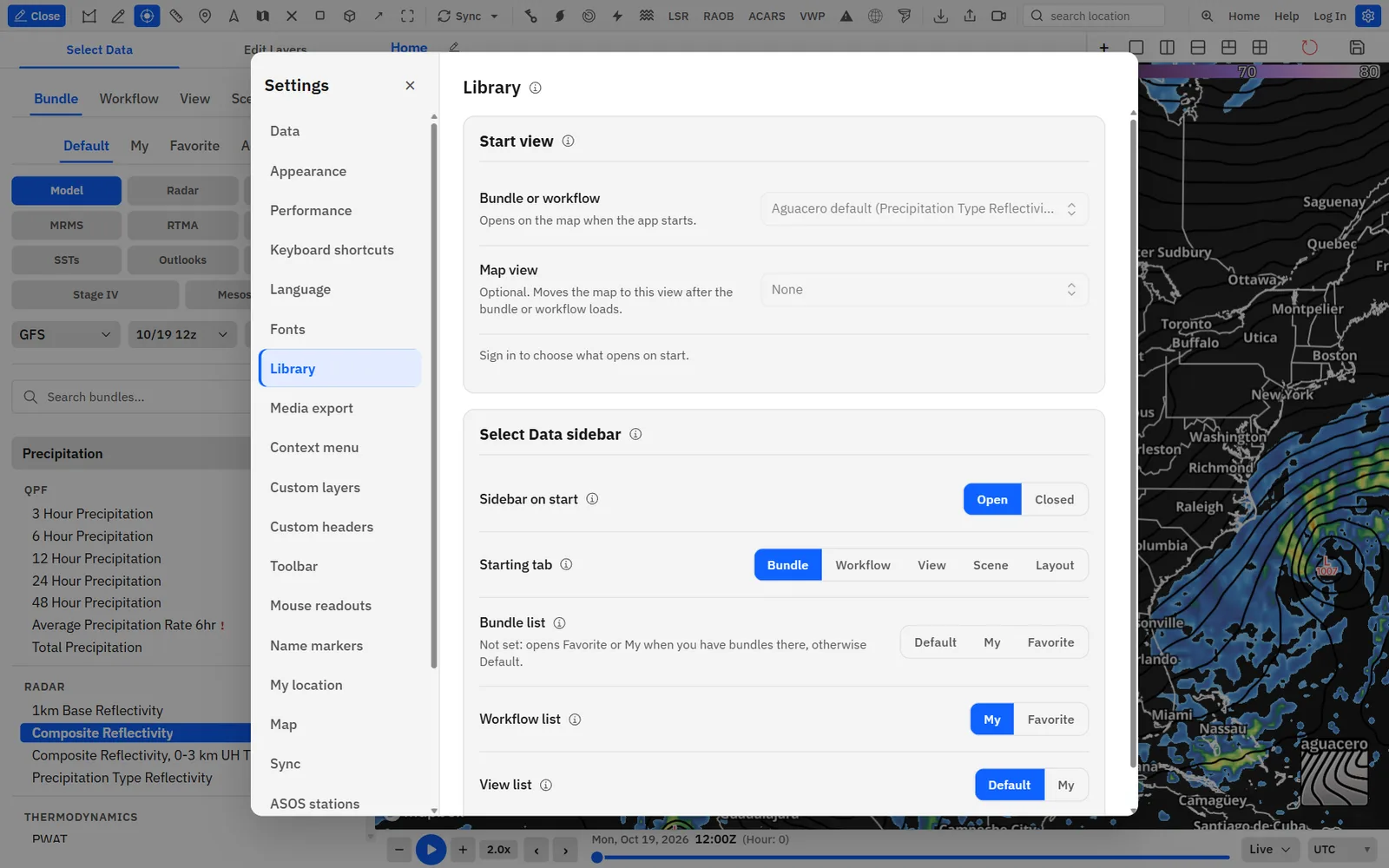
- Click Settings on the toolbar, then Library.
- Under Start view, pick a Bundle or workflow. Type to search; each entry shows its category and subcategory.
- Optionally pick a Map view to fly to after it loads.
- Under Select Data sidebar, choose Sidebar on start, Starting tab and the list each tab opens on.
- Click Reset next to Start view to go back to the Aguacero default.
Tips
- Faster: right-click any bundle, workflow or view in Select Data and click Set as default start view. Picking a view keeps your start bundle and adds the view to it.
- The save and edit dialogs have Open this bundle automatically when I sign in (and the workflow and viewpoint versions) too.
- The sidebar choices apply the next time you open Select Data in a new session.
- A shared link always wins over your start view for that visit.
- The mobile app can keep its own start view. If it does, this page says so; turn on Same as web and desktop in the app under Settings → Library to share one.
- If the saved item was deleted or made private, the page shows “Can’t find a saved item. It may have been deleted or made private.” Pick another or click Reset.
Sign in to choose a start view; signed out, the pickers are disabled and the app opens the Aguacero default.
Load and save with keyboard shortcuts
Bind a key to any of your bundles or workflows, and to library, sidebar and board actions.
- Click Settings on the toolbar, then Keyboard shortcuts.
- Open the Bundles or Workflows tab to see your library. Search with Search bundles… or Search workflows….
- Click Change next to an item and press the key or combination. Use up to 2 modifiers plus one key.
- Press that key anywhere in the app to load the item on the active panel.
Tips
- In archive mode, a shortcut for a live bundle or workflow asks Leave archive mode? first.
- Deleting a bundle or workflow removes its shortcut.
Recipe: a four-panel severe-weather workflowProfessional
Reflectivity, storm-relative velocity, instability and infrared satellite on one board, moving together, saved as a workflow that opens every time you sign in.
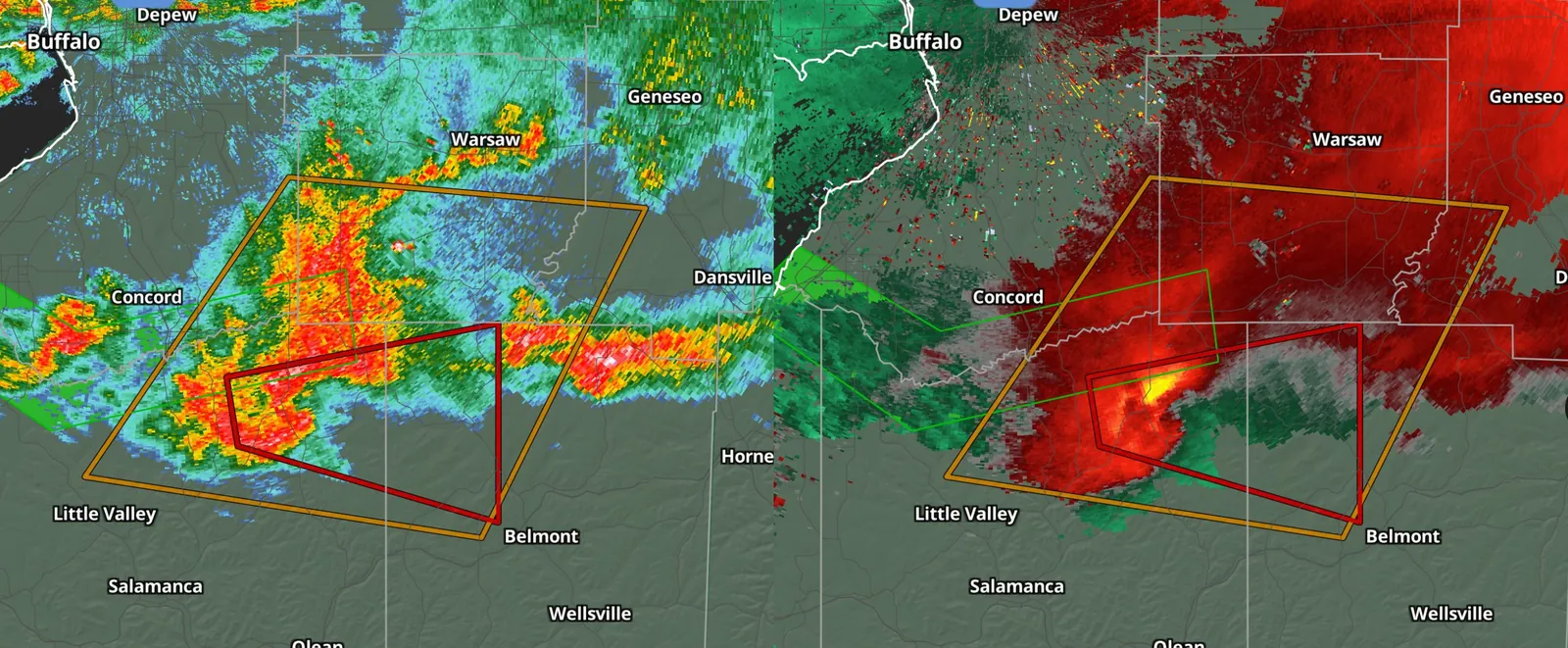
- Click Four panel grid next to the board tabs.
- Open Sync on the toolbar. Check that Sync Maps, Sync Radar Sites and Sync Radar Tilts are on, and that Sync Model Layers and Sync Radar Layers are off so each panel keeps its own layers.
- Click the top-left panel, open Edit Layers, click Remove All, then Add Layer → Radar and pick a reflectivity product.
- Click the top-right panel: Remove All, then Add Layer → Radar → Storm Relative Velocity.
- Click the bottom-left panel: Remove All, then Add Layer → Mesoscale Analysis and pick a CAPE field (or type CAPE in Search variables...).
- Click the bottom-right panel: Remove All, then Add Layer → Satellite and pick an infrared band such as Clean Longwave Window (Band 13).
- Search for your area in the location box. All four maps move together. Pick the radar site on one radar panel; the other follows.
- Optional: save each panel as its own bundle (Save Bundle, category Severe) so you can reuse it in other workflows.
- Click the save icon (Save Workflow). Name it, for example Severe ops, with category Severe. Turn on Save current map viewpoint(s) with this workflow, Save sync settings to this workflow and Open this workflow automatically when I sign in. Click Save Workflow.
Tips
- With radar, satellite and analysis layers on one board, the time bar shows an anchor menu. Pick which data the slider steps through.
- Click + to add a second board for the environment, such as model CAPE and shear, and save both boards in the same workflow.
- Turn on Always open to saved NEXRAD site(s) when you save the radar bundles if you always watch the same site.
Recipe: compare two models side by sideEnthusiast
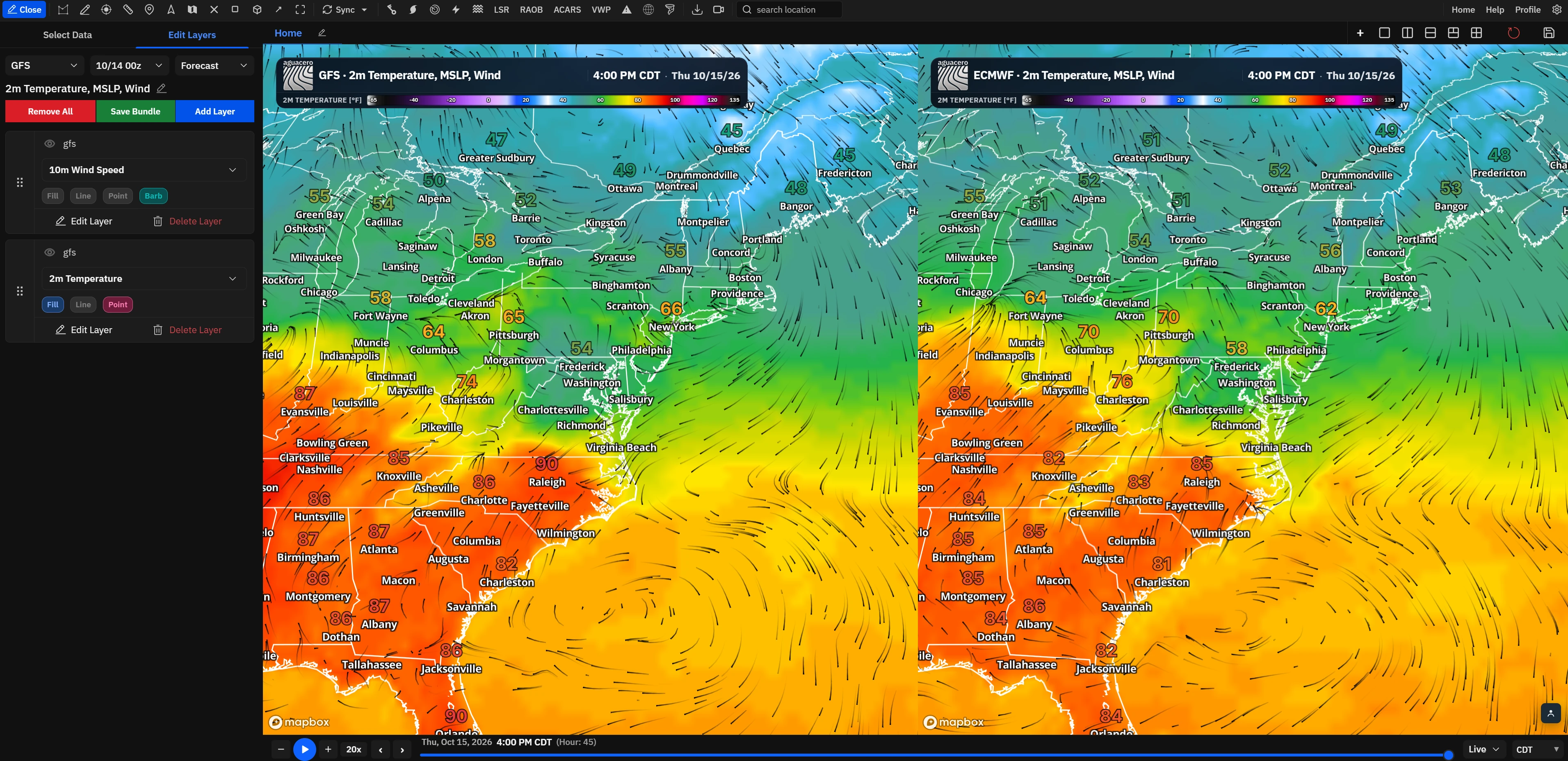
GFS and ECMWF on two synced panels, where adding a field to one adds it to both.
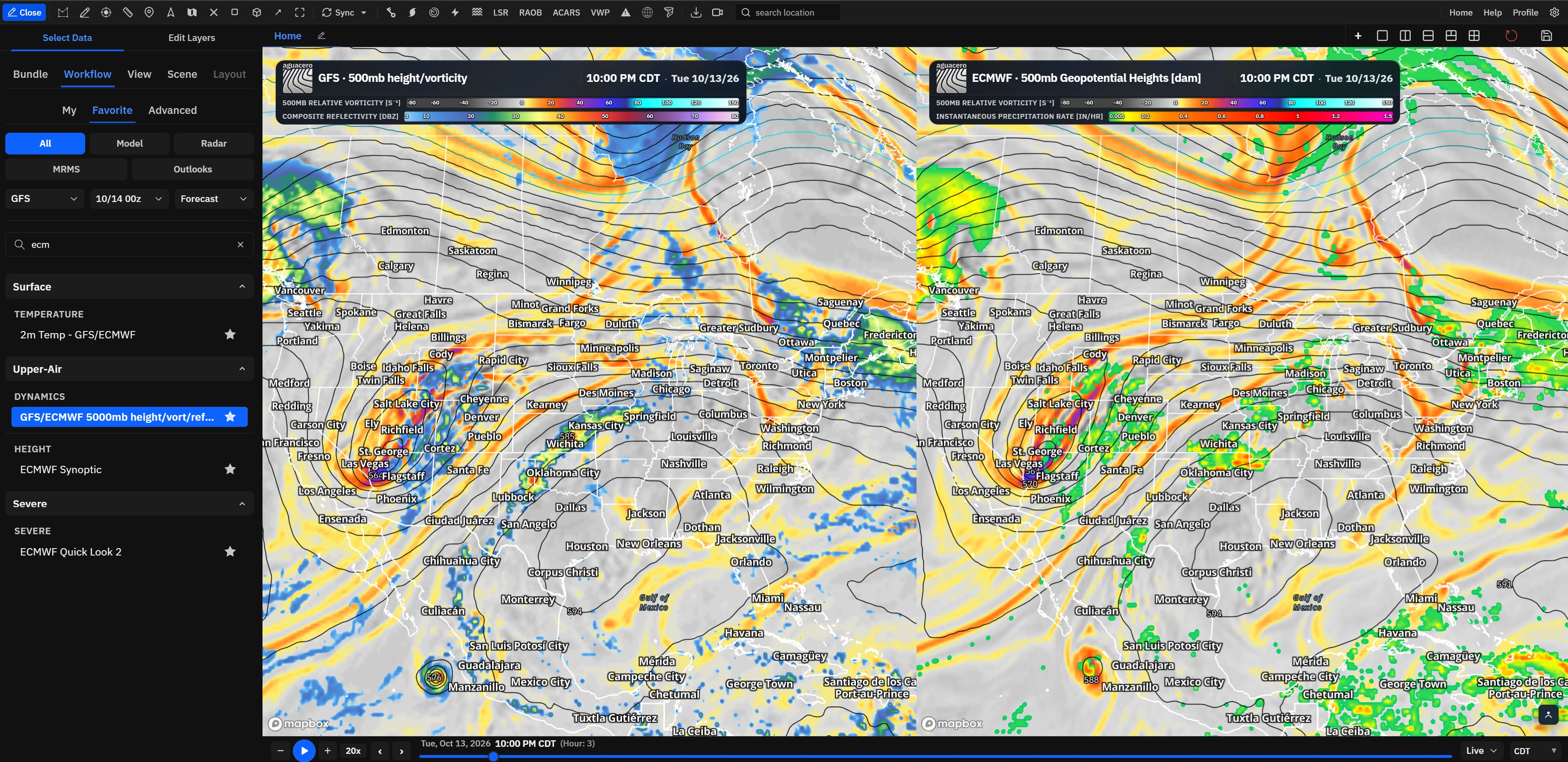
- Click Split into two vertical panels.
- Click the left panel. In Edit Layers, pick GFS in the model menu and the latest run.
- Open Sync and turn on Sync Model Layers and Sync Runs. Leave Sync Models off so each panel keeps its own model.
- Click the right panel and pick ECMWF in the model menu.
- Click either panel, click Add Layer, and type a field such as 500 mb height in Search variables.... It appears on both panels.
- Scrub the time bar to step both panels through the forecast together.
- Click the save icon and save it as a workflow (Enthusiast keeps 2, Professional unlimited).
Tips
- A field the other model doesn’t have isn’t copied to its panel. Add a similar field there by hand.
- For more than two models at once, the View Mode menu in Edit Layers has Compare.
Where your setup is saved
What lives in your account, what is stored inside a bundle or workflow, and what disappears on reload.
Tips
- Map style, alert, name marker and Sync settings are account-wide. A bundle or workflow only carries them when you switch them on while saving.
Common questions
Quick answers to the questions people ask most about bundles, workflows and the library.
Why can’t I save another bundle?
You are at your plan’s limit: 10 bundles on Free, 20 on Enthusiast, unlimited on Professional and up. Upload Bundle is disabled and the dialog shows an upgrade now link. To change a bundle without a new slot, load it and turn on Overwrite existing bundle?, or delete bundles you no longer need.
Why is the Workflow tab locked, or why does the save icon open an upgrade dialog?
Free has no saved workflows. Enthusiast saves up to 2; at the limit the save icon opens Unlimited workflows with Professional unless you are overwriting your own loaded workflow. Adding boards with + needs Professional.
Some of my bundles disappeared from My after my plan changed.
They are still saved. My lists up to 10 bundles on Free and 20 on Enthusiast (and 2 workflows on Enthusiast). Bundles you starred still show under Favorite, and Advanced with your own bundles as the filter type finds the rest. Upgrading lists them all again.
Why does my bundle look different on another device or for someone else?
Several things come from the viewer, not the bundle: a bundle opens on the panel’s current model unless Always open to saved model is on; radar opens on the viewer’s last-used site unless Always open to saved NEXRAD site(s) is on; the map style and viewpoint come along only if you switched them on when saving; units follow Settings → Data; and the viewer’s plan can swap a premium model or lock custom layers. Default bundles also take the viewer’s own default colormaps, while your saved bundles keep theirs unless Apply customizations to is set to all layers.
I deleted a bundle and it came back.
If the delete request fails (for example offline), the row returns because the bundle still exists. Try again. Deleting also doesn’t clear the panel: the layers stay on screen, and Save Bundle saves them again. Workflows keep their own copy of a bundle, so loading one shows its layers even after the bundle is deleted.
Why is a bundle marked with a red “!”, or why does clicking it do nothing?
Some of its layers aren’t available for the active model, the selected satellite or the archive date. It still loads the layers that work. If none of them work, the click does nothing. Change the model (green dots in the model menu mean all layers are available) and try again.
Why can’t I add another layer?
A bundle holds up to 8 data layers. Remove one first. Custom layers, custom headers, outlooks and overlays such as alerts and lightning don’t count. Items already in the bundle are hidden from the Add Layer menu.
Why are Edit and Delete missing on a bundle?
They appear only on items you own, and only when you are signed in. Default bundles and other users’ bundles show only the star. Load one and save it to make your own copy.
My share link says the bundle is not available.
The bundle is private, was deleted, or the link was cut off. Turn off Private Bundle? with the pencil in the library and copy the link again. The person must be signed in; workflow links also need a plan with workflows.
I turned off “Open this bundle automatically when I sign in” but it still opens.
Turning that switch off in a save or edit dialog doesn’t clear your start view. Open Settings → Library and click Reset, or pick another bundle or workflow.
My radar bundle opened on a different site and didn’t go to the saved view.
Without a pinned site, radar bundles open on your last-used site and skip the saved viewpoint so the map stays on that site. Save the bundle again with Always open to saved NEXRAD site(s) on.
I reloaded the page and my layers and boards are gone.
Boards, panels and layers on screen aren’t saved until you save a bundle or workflow. A reload opens your start view. Save your setup as a workflow and set it as your start view to get it back every time.
Why did turning on Sync Models or Sync Model Layers change my other panels?
Sync Models moves every panel to the active panel’s model and removes model layers that model doesn’t have. Sync Model Layers replaces the model layers on the other panels with the active panel’s. Turn them off before building panels with different fields.
Can I undo Reset layout, Delete Board or deleting a bundle?
No. Each one is permanent. Save a workflow first if you might want the layout back.
Who can see my bundles?
Private bundles and workflows are visible only to you. Public ones can be opened by any signed-in user with the link, found with Advanced → All, and starred into their Favorite list. Other users can’t change them; saving one makes their own copy.