
- In the sidebar, click the Edit Layers tab.
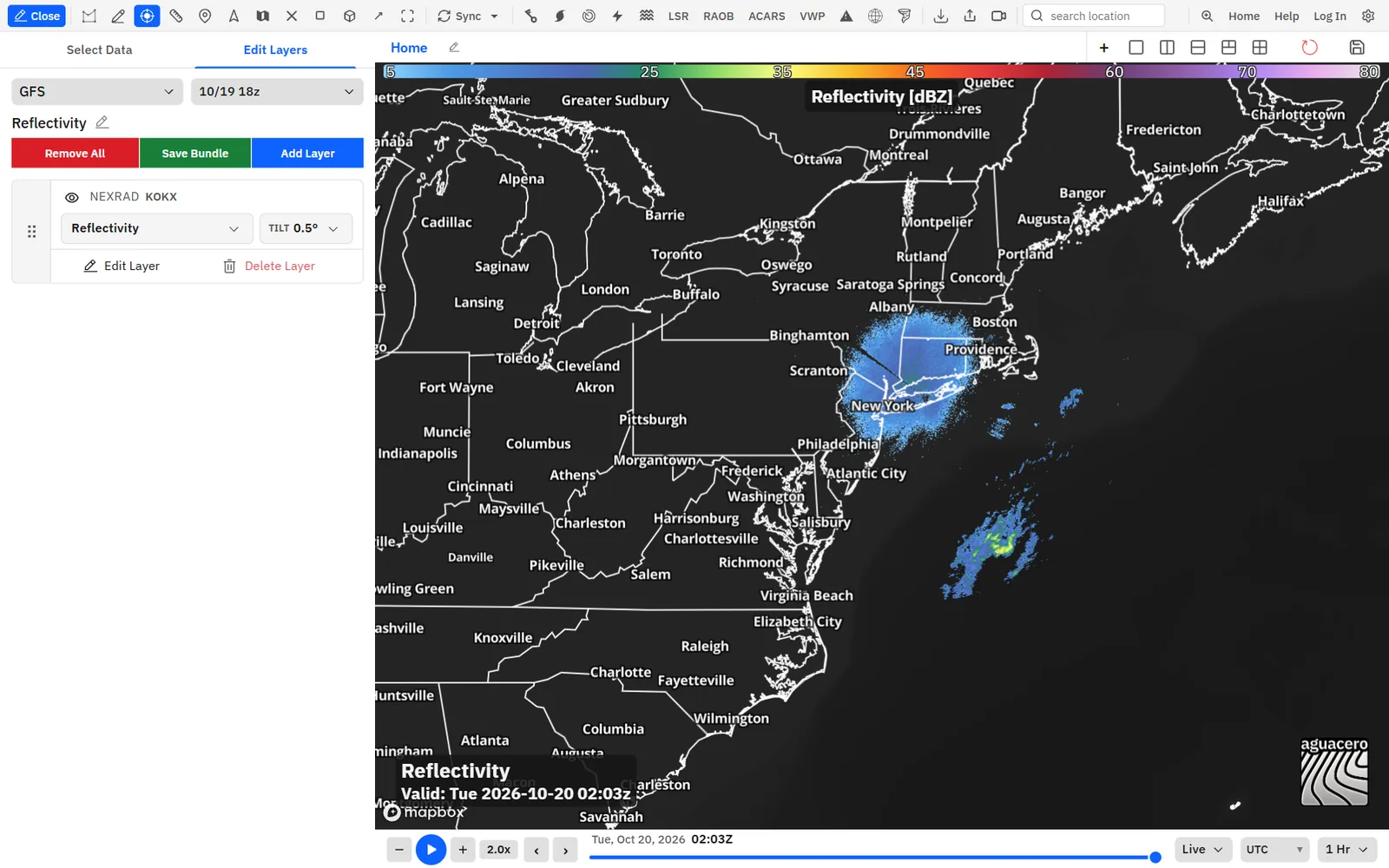
- Click Add Layer, then Radar, then a group such as Reflectivity, and click a product. The new layer uses the radar already on your board, else the last site you picked, else KOKX.
- Double-click NEXRAD sites on the toolbar. Each radar shows as a label on the map.
- Click a site to move the radar layer there. The newest scan draws first, then the rest of the loop fills in.
- Click Tilt on the radar layer row and pick an elevation angle, or press ↑ and ↓.
- Press Space to play the loop, or ← and → to step one scan at a time.
Tips
- With the sites showing and no radar layer on the panel, clicking a site adds a Reflectivity layer for you.
- Right-click the map and choose Nearest NEXRAD to load the closest working WSR-88D. Sites that are down are skipped. If the panel already has a radar layer, it moves to that site and keeps its product. In Settings → Context menu you can change its product or add more entries, such as Nearest NEXRAD · Velocity.
- Click Radar in the data type filter on Select Data to load a ready-made radar bundle.
- Click the product name on the layer row to switch products, or Edit Layer for colors, smoothing and the other settings in this guide.
Choose a product: Level II and Level III
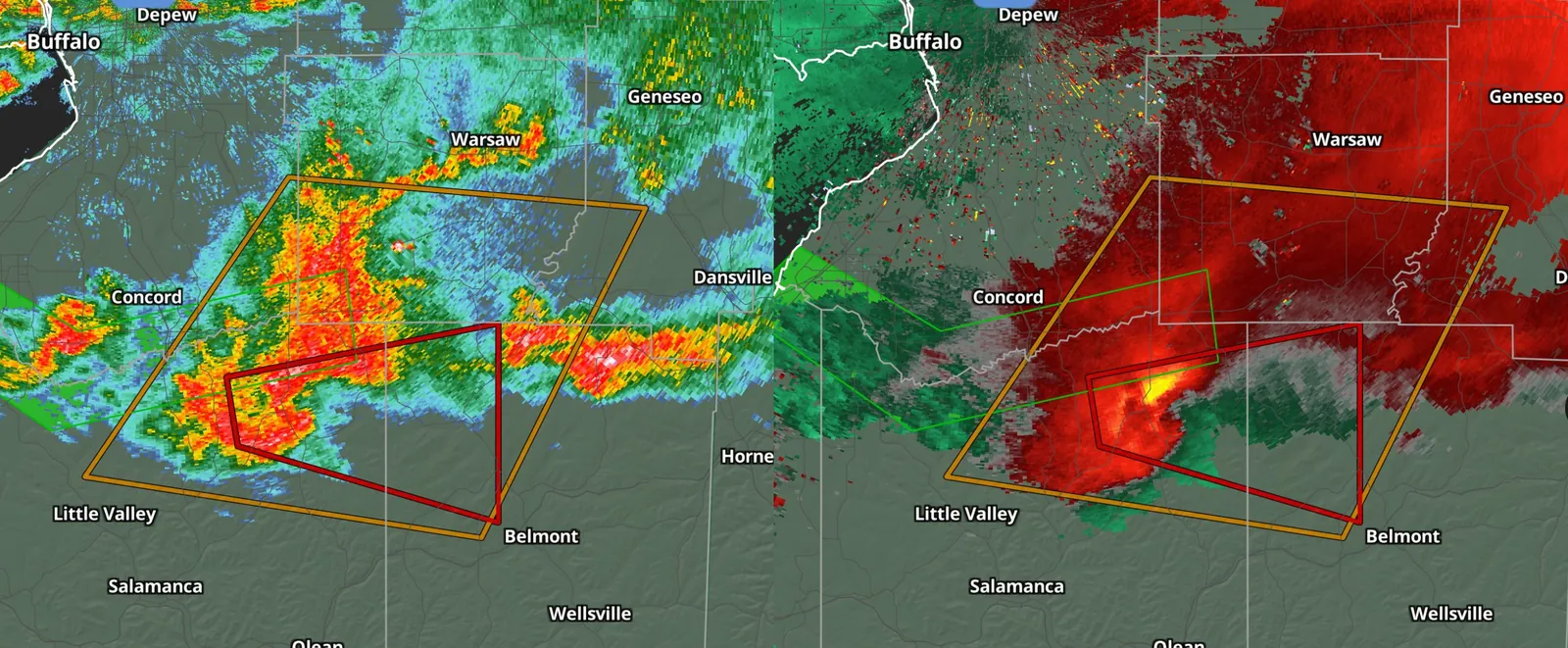
Level II is the radar’s full volume: reflectivity, velocity, spectrum width and dual-pol moments at every tilt. Level III adds NWS products such as storm-relative velocity, hydrometeor classes, echo tops, VIL and rainfall totals.
You don’t choose between Level II and Level III. Each product comes from the feed that has it. Reflectivity and velocity use the quick Level III images for the lowest tilts and Level II for the tilts above, so every tilt is available and the low tilts arrive fast.
- Click the product name on the radar layer row. In Edit Layer, the product name at the top opens the same list.
- Point at a group such as Velocity and click a product. The tilt moves to the closest one the new product has.
- Or press a product key while a NEXRAD layer is on the map (see the keys below).
Shortcuts
- R
- Reflectivity
- V
- Base velocity
- S
- Storm-relative velocity
- W
- Spectrum width
- Z
- Differential reflectivity (ZDR)
- C
- Correlation coefficient
- P
- Differential phase
- K
- Specific differential phase (KDP)
- E
- Echo tops
- L
- Vertically integrated liquid (VIL)
Tips
- The product keys work while a NEXRAD layer is on the map, and not while you type in a box, while a window such as the upgrade dialog is open, or while a sounding is open.
- Hydrometeor classification, the hybrid classification and the three rainfall totals have no key by default. Give them one in Settings → Keyboard shortcuts → NEXRAD radar, where you can also change the keys above.
- In the add menu the products sit under their groups. The product menu inside Edit Layer lists the same products in one list, in group order.
Change the tilt
Step up through the storm one elevation angle at a time. The angles listed are the ones that site is scanning right now.
- Click Tilt on the radar layer row and click an angle.
- Or click Edit Layer: the Fill tab lists the site’s angles as buttons under a heading named for the site, such as KTLX elevations.
- Or press ↑ for the next higher tilt and ↓ for the next lower one.
Shortcuts
- ↑ / ↓
- Raise or lower the tilt of the NEXRAD layer on the active panel
- ← / →
- Step back or forward one scan while a NEXRAD layer is on the map
Tips
- If you are on the newest scan when you change tilt or product, the map jumps to the newest scan of the new tilt instead of an older one at the same clock time.
- Specific Differential Phase and Hydrometeor Classification come only from Level III, which publishes the lowest few tilts. Higher angles aren’t listed for them.
- The tilt keys do nothing while the 3D volume or the radar cross section is open; those use the whole volume.
- With several map panels, Sync Radar Tilts in Sync keeps the same tilt on every panel.
TDWR, test-bed and European radars
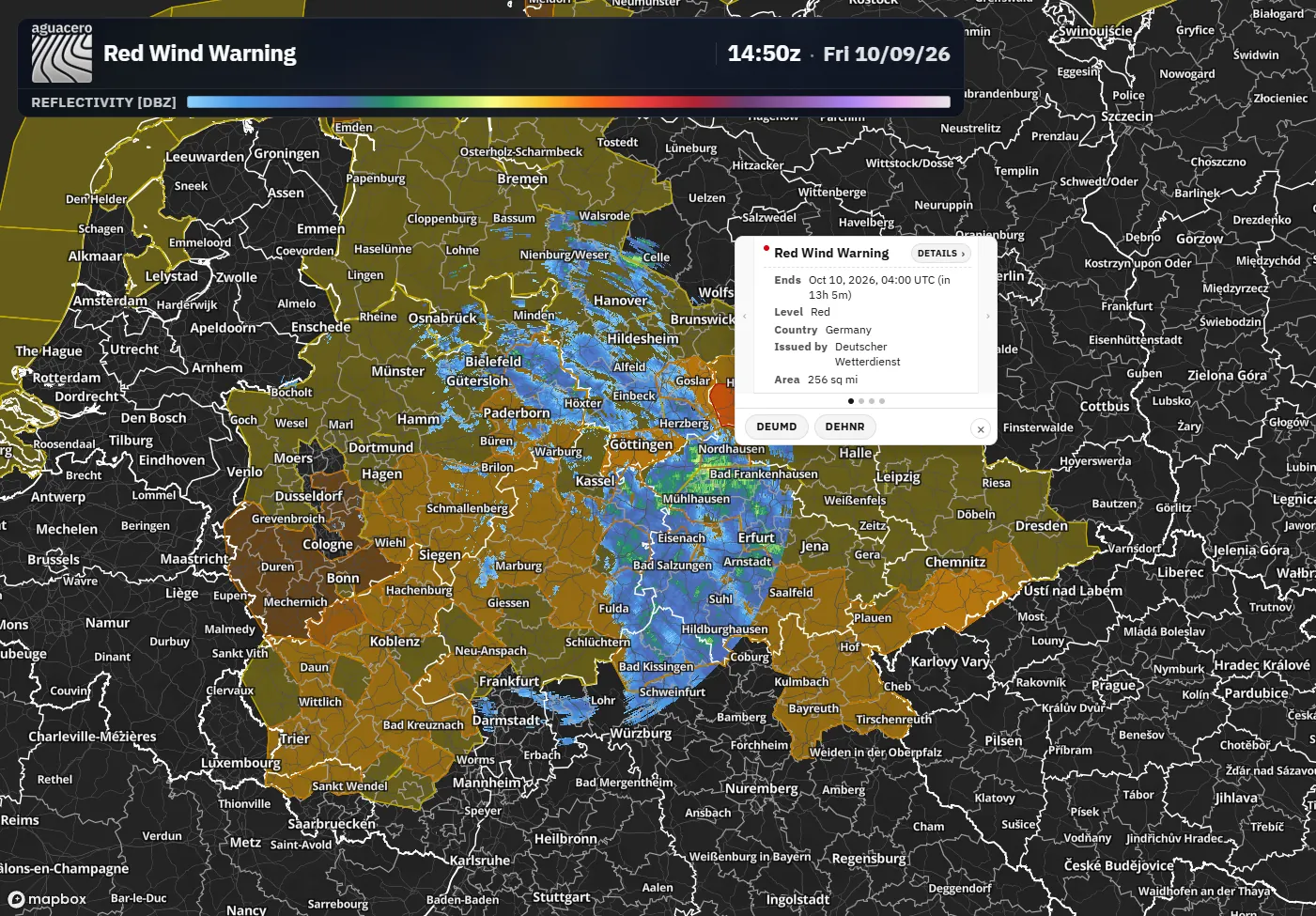
Terminal Doppler Weather Radars, a few test-bed sites and national radars across Europe load like any NEXRAD site, with the products their feeds carry.
Show me in the appTips
- If you click a site that doesn’t have the layer’s product, for example a TDWR while you are on Correlation Coefficient, the layer switches to Reflectivity.
- European velocity has three cleanup switches in Settings → Data → Radar: International radar dealiasing, Dual-PRF error filter and Velocity noise filter. All three are on by default.
- Pan the map to Europe with NEXRAD sites on to see the European radar labels.
Show and style the radar site markers
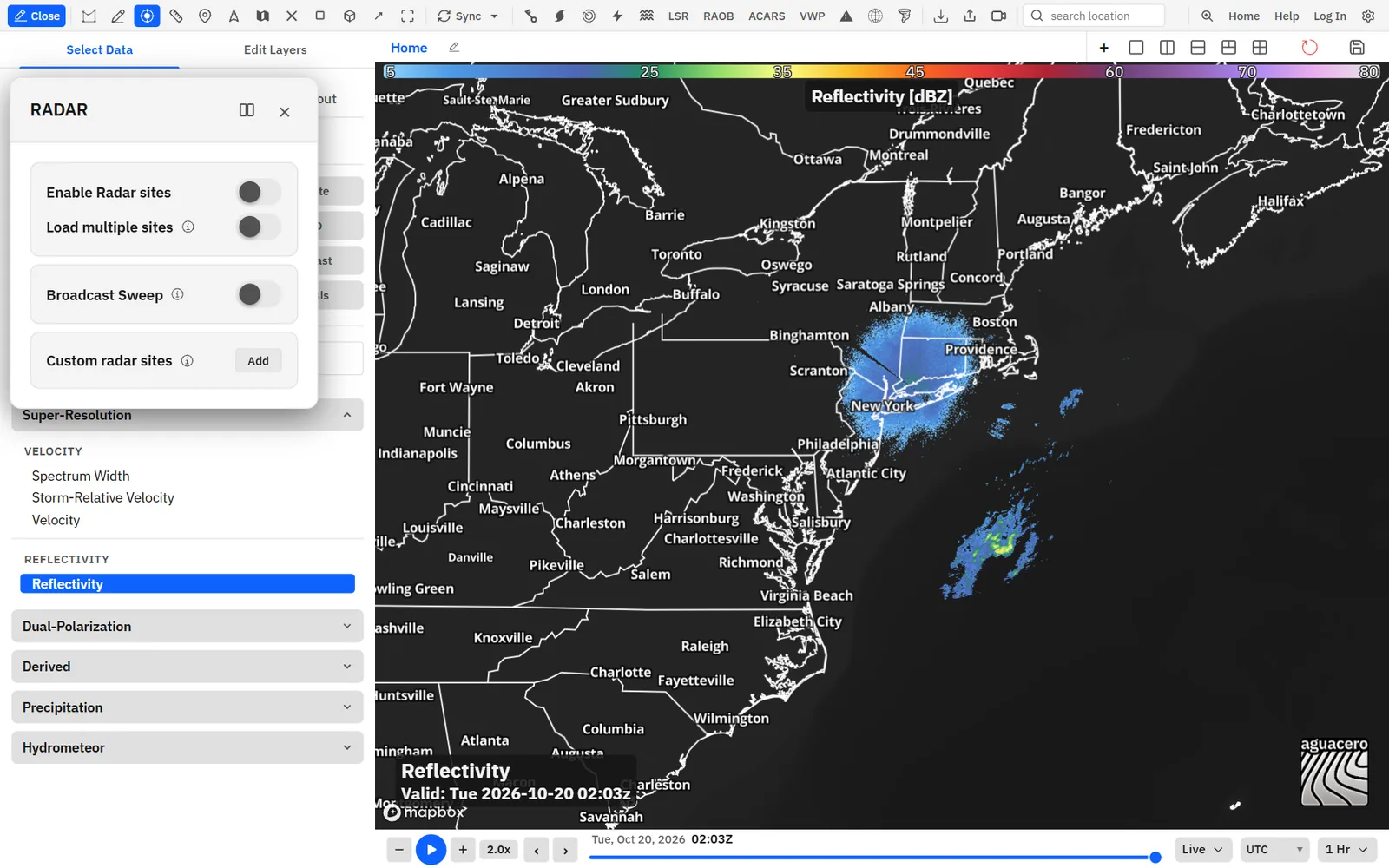
Choose how radar sites look on the map: text labels, circles or 3D domes, with your own colors and fonts, and a highlight for the site you are viewing.
- Single-click NEXRAD sites on the toolbar. The RADAR panel opens.
- Tick Enable Radar sites. The display settings appear below it.
- Under Display, click Text, Circle or Dome.
- Set the colors, font and sizes. The map updates as you go.
Tips
- A red site has sent no data for 20 minutes or more and is probably down. Nearest NEXRAD skips red sites.
- The same panel is in Settings → NEXRAD sites, where the display settings show even with the sites turned off.
- Click Mount in map UI in the panel header to dock the panel in the map area instead of floating it.
- You can give Toggle NEXRAD sites and NEXRAD sites (open the panel) their own keys in Settings → Keyboard shortcuts.
Load several sites on one layerProfessional
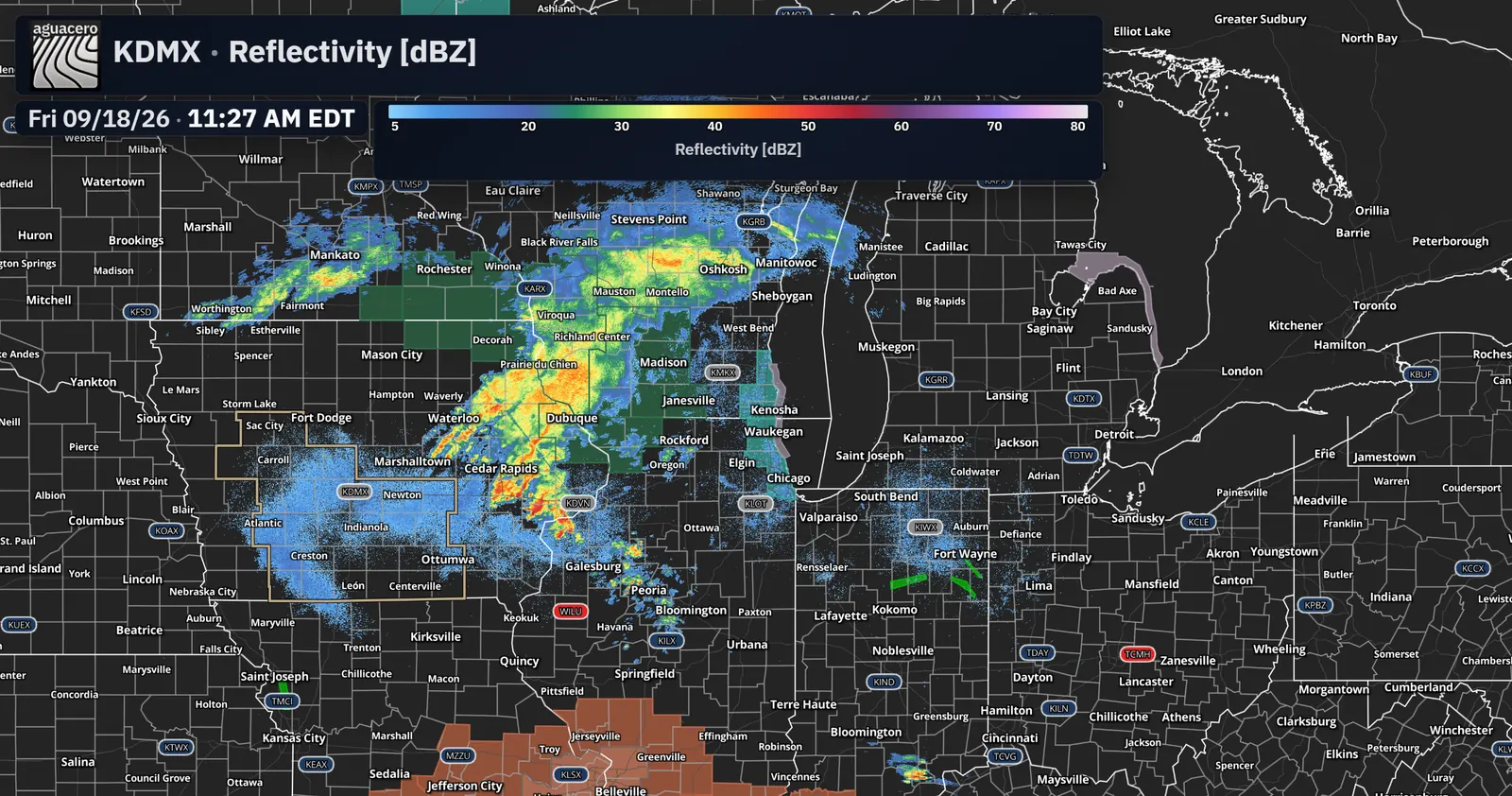
Show up to 5 radars on one layer with the same product, tilt and colors. Where their coverage overlaps, the closest site is drawn.
Show me in the app- Load a NEXRAD layer and show the sites (double-click NEXRAD sites).
- Single-click NEXRAD sites and turn on Load multiple sites.
- Click sites on the map to add them. Click a site again to remove it.
- Change the product or tilt as usual; every site follows.
Tips
- The layer row lists every site on the layer, such as KDMX, KDVN, KARX.
- Readouts use the closest site too, so the value under the cursor matches what you see.
- In Save Bundle, Always open to saved NEXRAD site(s) pins all the sites.
- On a downgrade to a plan below Professional, extra sites are dropped and the first site stays.
Add custom radar sitesProfessional
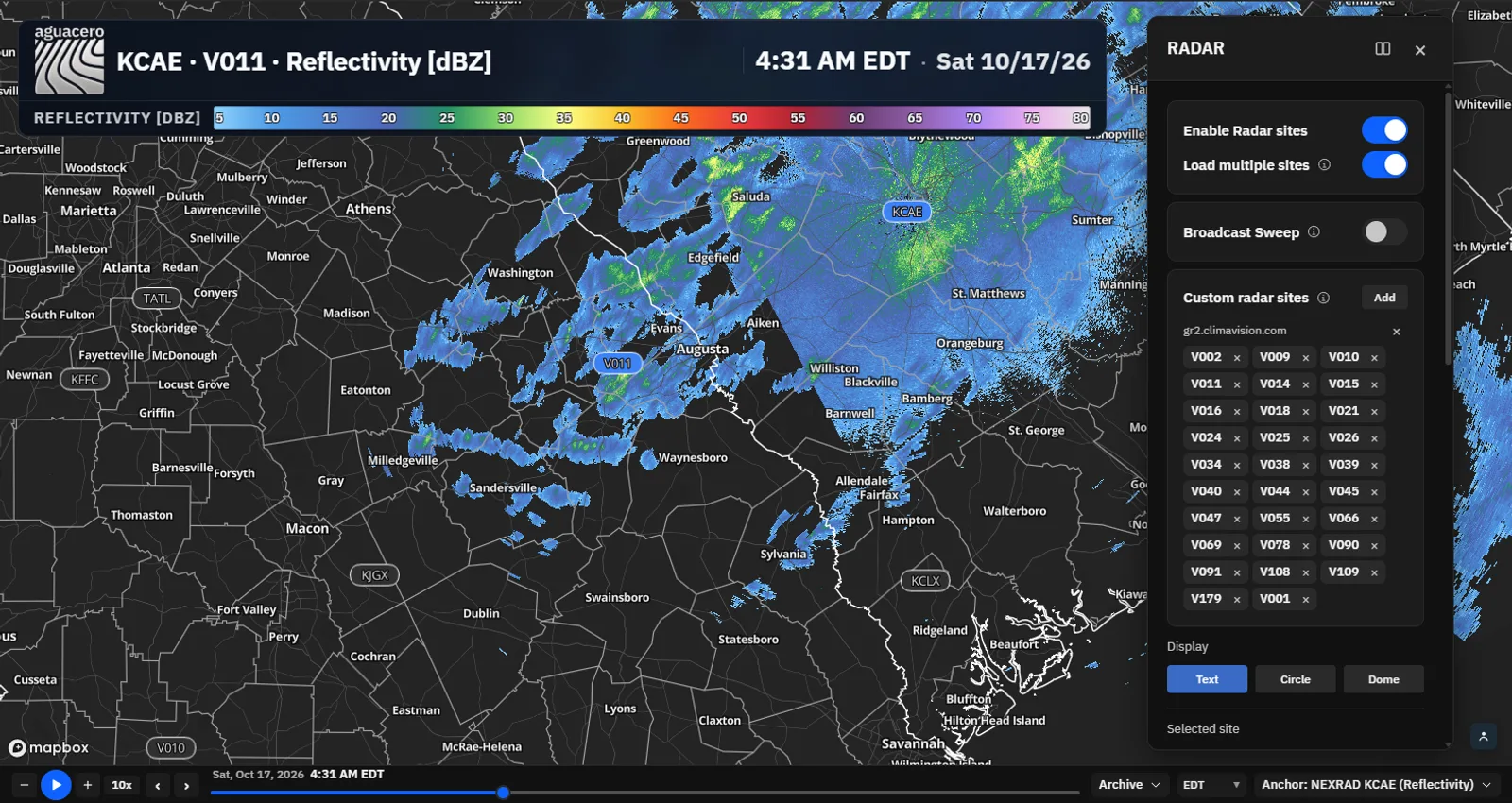
Add Level II radars from GR2Analyst-style polling servers, such as private X-band networks and research radars. They show and load like NEXRAD sites.
Show me in the app- Single-click NEXRAD sites on the toolbar to open the RADAR panel.
- Under Custom radar sites, click Add.
- Paste the server address into Polling URL, the same URL you would give GR2Analyst.
- Load a GR2Analyst site file: click Load GR2Analyst site file (.gis) and pick the file, or for the MRRL feed click Load MRRL site locations.
- Leave Site ID (optional) empty and click Show 233 sites on the map (the count matches the file). The sites appear as radar sites. Click one to load its data.
- Without a site file, click Find sites, pick the ones you want, and click Add 3 sites (the count matches your picks).
- To add one site, type its Site ID, optionally a Name (optional), and click Add site.
Tips
- A site file puts the radars on the map without asking the server for each volume. Click a site to load its latest scan. About once a minute the app checks for a newer scan. Load past scans also downloads earlier volumes in the radar loop.
- Without a site file, select the sites you want, then add them. Sites are checked one at a time. If the server limits requests, the ones still waiting stay selected so you can add them again.
- “has no grlevel2.cfg site list … Enter a site ID.” means the server can’t list its sites; type a site ID instead. “dir.list lists no radar volumes for this site.” means the site has no data yet.
- Custom sites save to your account and follow you to other browsers and the desktop app. On a plan below Professional, saved sites stay listed but don’t load, and Add opens the upgrade window.
Color tables for each product
Every product starts with a built-in color table. Edit it, load a saved or shared one, import a GR2Analyst or RadarScope palette, and make it your default.
- On the Edit Layers tab, click Edit Layer on the radar layer. The Fill tab opens.
- Pick Units if the product has more than one, before you change colors.
- Set Colormap Type to custom colormap to edit stops, or single color to paint every gate one color.
- Click a swatch to change a color, or click Load Colormap for saved colormaps and Import .pal file for GRLevelX, GR2Analyst, Wx Tools and RadarScope palettes.
- Click Set as default colormap so new layers of this product start with it.
Tips
- Some products share a built-in table with related data: Reflectivity with model and MRMS reflectivity, and Storm Relative Velocity with Velocity. Your default colormaps are kept per data type, so a radar default doesn’t change model layers.
- A .pal file’s values are used as written. Set Units to the palette’s units first (kts for most velocity tables).
- A Wx Tools color table link applies the table to every matching radar layer: reflectivity, base velocity, correlation coefficient or spectrum width.
- The three rainfall totals add a Point tab that prints values on the map.
Smooth the gates and blend framesProfessional
Show the raw radar gates or soften them, and cross-fade between scans so storms move smoothly in a loop.
Show me in the app- Open Edit Layer on the radar layer.
- Drag Smoothing right to soften the gates, or all the way left for Off.
- Tick Frame Blending, then press Space to play the loop.
Tips
- In Performance mode (Settings → Performance) Smoothing becomes a single checkbox that uses the 0.25 step. Switch back to get the slider.
- With smoothing on, mouse readouts read between gates like the image does.
- To set one smoothing amount or turn blending on for every radar product, use Settings → Data → Radar.
Velocity and storm-relative velocity
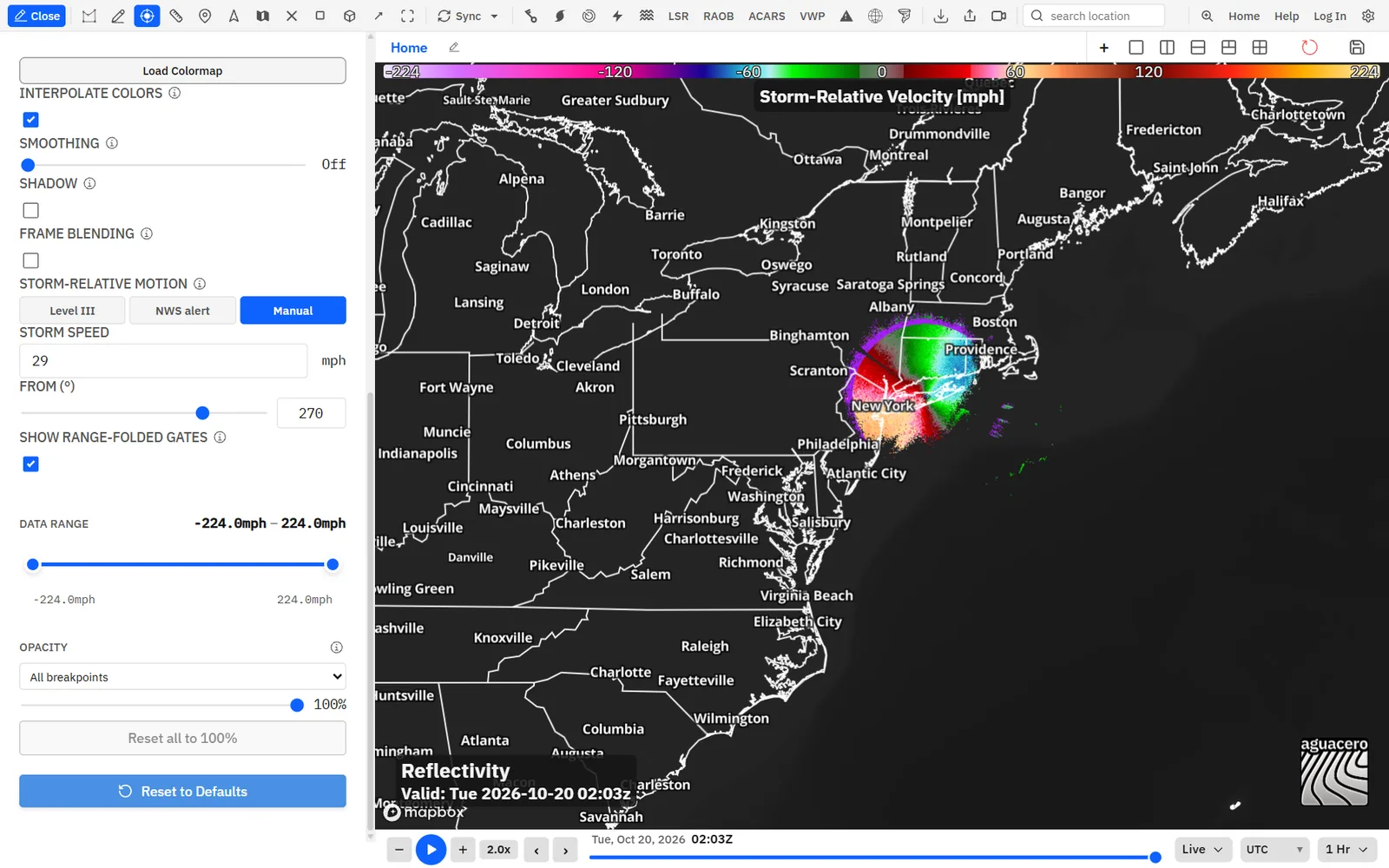
Storm-relative velocity removes the storm’s own motion so rotation stands out. Take the motion from the radar, from an NWS warning, or type it in.
Show me in the app- With a NEXRAD layer on the map, press S, or pick Storm Relative Velocity from the product menu.
- Open Edit Layer. Under Storm-relative motion, click Level III, NWS alert or Manual.
- For NWS alert, click a tornado warning, severe thunderstorm warning, special weather statement or marine warning on the map that lists storm motion. The hint reads “Using Tornado Warning motion.” (with that alert’s name).
- For Manual, type the Storm speed and set From (°), the direction the storm is coming from.
NEXRAD velocity is dealiased automatically when the scan carries its Nyquist velocity; there is no switch for it. Archived Level II velocity is dealiased too. European radars have their own International radar dealiasing switch in Settings → Data → Radar.
Storm Relative Velocity isn’t offered on TDWR, test-bed or European sites, or in an archive window older than the Level III record. Storm-relative motion only shows on a storm-relative velocity layer.
Add a drop shadow and broadcast sweepCreator
Give the radar depth with a hard drop shadow, and animate a rotating radar beam over the newest scan for on-air use.
Show me in the app- Open Edit Layer on the radar layer and tick Shadow.
- Drag Shadow direction to where the shadow should fall and Shadow size for how far.
- Single-click NEXRAD sites on the toolbar and turn on Broadcast Sweep in the RADAR panel.
- Set Seconds per rotation and Sweep color.
Tips
- The shadow is drawn only for Creator and Commercial accounts. A bundle saved with a shadow opens without it on other plans.
- Performance mode (Settings → Performance) turns the sweep off, and a hidden radar layer has no beam.
- Settings → Data → Radar has the sweep switches and a Shadow row that turns the shadow on or off for every radar product.
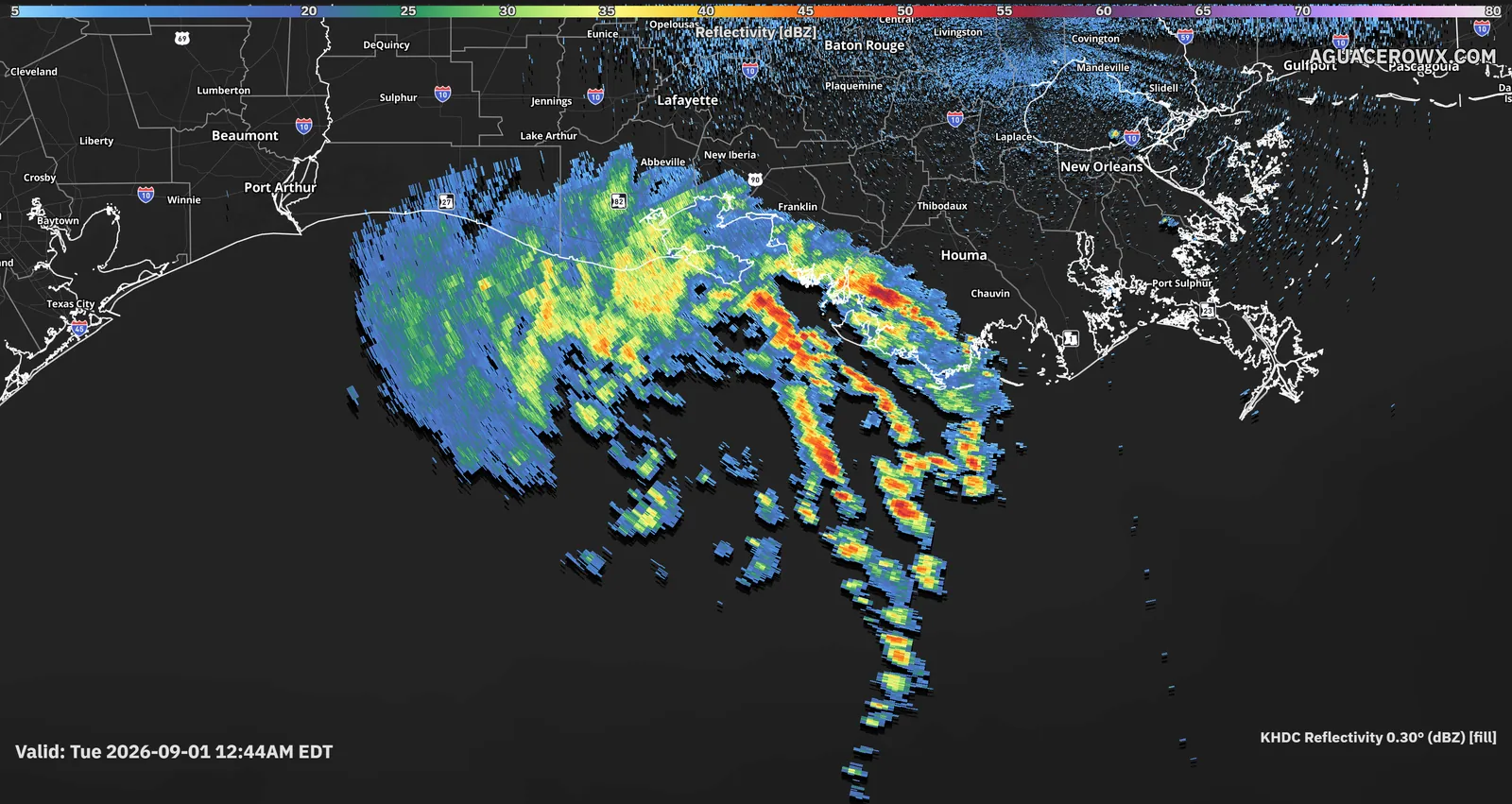
Loop length and the newest scan
Choose how far back the loop goes, and learn how new scans arrive and when the map moves to them.
- Open the duration menu on the time slider, next to the time zone. It reads the current length, such as 1 Hr.
- Pick a length. Locked lengths show a lock and open the upgrade window.
- Press Space to play. The thumb stays on parts of the track that are highlighted, which have data loaded.
The loop holds every scan the radar sent in that window. Level II scans arrive as each tilt finishes; Level III products are checked every 20 seconds. If the slider is on the newest frame when a scan arrives, it moves to the new one. If you are looking at an older frame, it stays put.
Tips
- With MRMS, satellite, RTMA or Mesoscale Analysis on the same board, one combined Duration menu lists only the lengths they all allow.
- When the board has several time sources, the anchor menu on the slider picks which one drives it. A radar layer anchors the slider to its own scans.
- While a loop plays, it waits up to 3 seconds on a frame that is still loading before moving on.
- The Live / Archive menu on the slider switches to past events. There is no duration menu in archive mode; the event window sets the loop.
Shortcuts
- Space
- Play or pause the loop
- ← / →
- Step one scan while a NEXRAD layer is on the map
- , / .
- Step the time back or forward
Read values, storm tracks and rotation
Hover the radar for the value under the cursor and the beam height, and turn on Level III storm tracks with hail, rotation and TVS details.
- Double-click Mouse readouts on the toolbar to turn readouts on.
- Hover the radar. The readout shows the product’s short name, the value and its unit, such as REF 52.5 dBZ, and Beam Height.
- Click the map to pin a readout there (with Pin on click on).
Storm tracks draws the radar’s Level III storm cells with their forecast tracks, mesocyclone and TVS markers. It is set per product in your account defaults and is off for every product to start.
- Open Settings → Data and click the Radar tab.
- Click a radar product in the list, such as Reflectivity.
- Tick Storm tracks. Every layer of that product now shows storm tracks.
- Click a storm cell on the map. Its popup lists Motion, Hail and POSH, Rotation and TVS when the radar reports them.
Tips
- Storm tracks needs you to be signed in. It works on WSR-88D sites, not on TDWR or European radars.
- Press Backspace to close the newest pinned readout or the storm-track popup, or click its ×.
- Mouse readouts pause while a sounding or meteogram covers the map. They keep working with the radar cross section open.
Track a storm and the towns in its path
Draw a storm’s motion to get its speed and direction, a cone or corridor ahead of it, and arrival times for the towns in the way. Keep one track or many.
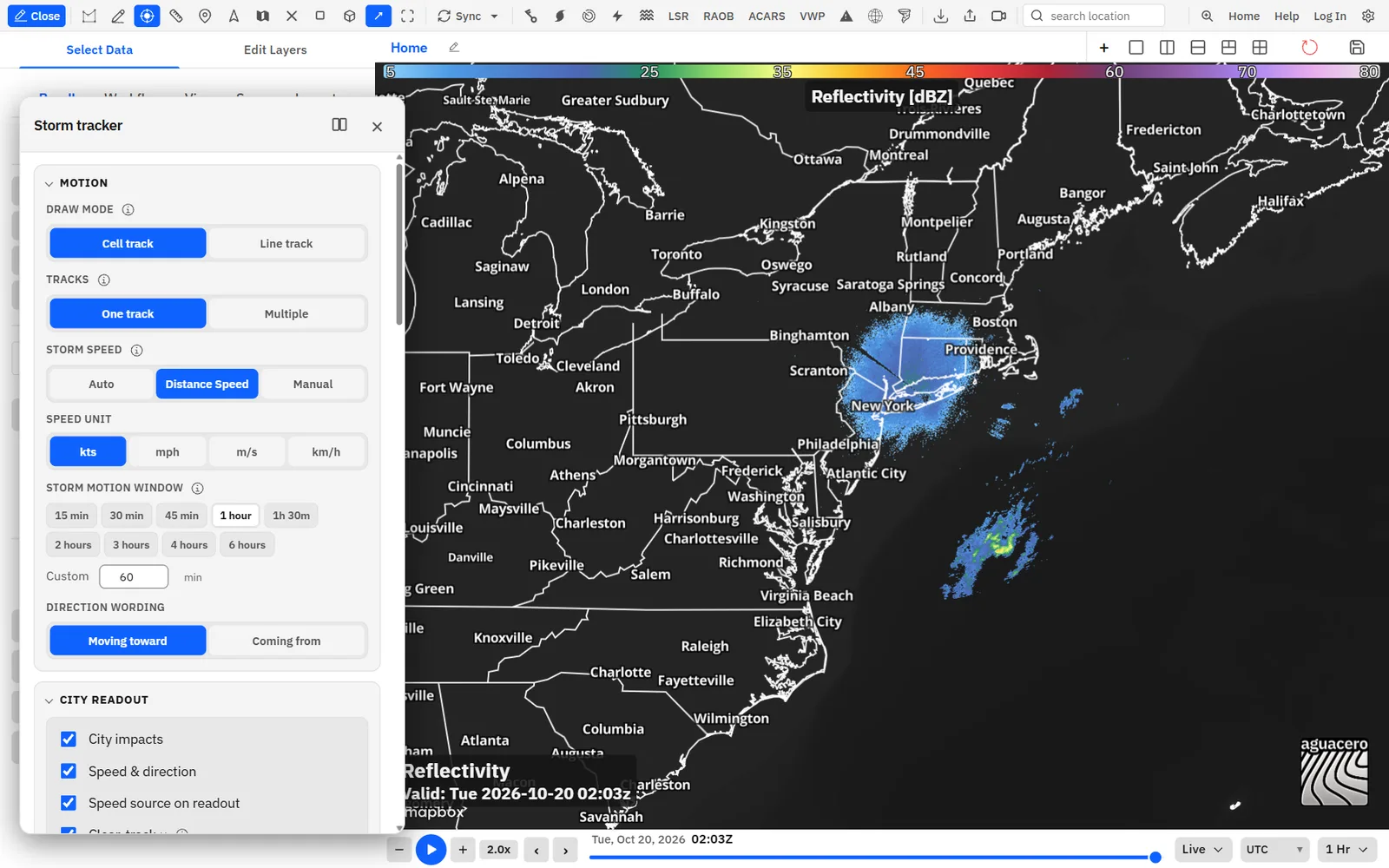
Show me in the app- Click Storm tracker on the toolbar. The tool turns on and its settings open. Closing the settings turns the tool off.
- Under Draw mode, click Cell track for one storm or Line track for a line of storms.
- Under Storm speed, choose Auto, Distance Speed or Manual.
- For a cell track, drag from the storm’s current position in the direction it is moving, or click twice. A longer drag gives a steadier speed and direction.
- For a line track, click each point along the line and double-click to finish (on a touch screen, tap Finish line). Move the mouse ahead of the line to set the corridor, then click. Speed and direction run from the line to the corridor edge.
- Read the speed, direction and town arrival times in the readout on the map. Drag the readout to move it.
Shortcuts
- T + drag
- Draw a storm track with your saved settings, without the toolbar
- Delete
- Remove the selected track
- Esc
- Cancel a line track you are drawing
Tips
- Drag a track’s handles to adjust it after drawing. The readout and arrival times update as you move it.
- The readout’s red × removes the track. In Multiple, the readout also has the track list and Add track.
- Towns come from a US places list inside the cone or corridor, not from the map labels.
- The storm tracker is on every plan. Its settings save to your account when you are signed in.
Style the storm track and its readout
Choose what the readout lists, how it looks, and how the cone, corridor, center line and time ticks are drawn.
Tips
- Cone, band and outline colors can be Solid or Gradient, with two colors and an angle.
- Tick time labels are white with a black outline, sized like your mouse readouts.
Radar defaults and where settings are saved
Settings → Data → Radar sets the sweep, the international velocity filters, smoothing, blending, shadow, storm tracks and color tables for every radar layer you open.
- Open Settings → Data and click the Radar tab.
- Set the switches in the Radar section at the top.
- Under Layer styles → Fill, set Smoothing, Frame blending and Shadow for every radar product.
- Click a product in the list to edit its colormap and layer settings, or click Colormap groups to edit a shared palette once.
Where each setting lives:
Tips
- In the bundle (save it to keep them): the radar layer’s product, site or sites, tilt, colors, units, data range, smoothing, shadow, frame blending and storm-relative motion, plus whether the sites and multiple sites are on for that panel.
- In your account when signed in, on every device: the site marker style, broadcast sweep, custom radar sites, your last site and multi-site choice, Show range-folded gates, storm tracks per product, the international velocity filters, storm tracker settings and everything in Settings → Data.
- Signed out, account settings last until you reload, and Settings → Data can’t save.
- Reloading the page opens your start view; unsaved layers are gone.
Recipe: a clean velocity couplet view with SRV
Set up storm-relative velocity on a warned storm so a rotation couplet reads clearly, with reflectivity beside it.
- Right-click near the storm and choose Nearest NEXRAD.
- Press S for Storm Relative Velocity, then ↓ until Tilt shows the lowest angle.
- Double-click Alerts on the toolbar so the warning polygons show, then open Edit Layer on the radar layer.
- Under Storm-relative motion, click NWS alert, then click the tornado or severe thunderstorm warning polygon. The hint names the warning whose motion is in use.
- Set Units to kts and Smoothing to Off so each gate stands on its own.
- Turn off Show range-folded gates if they clutter the view.
- Add a second map panel with the same site on Reflectivity; with Sync Radar Sites on, both panels stay on the same radar.
- Double-click Mouse readouts and hover each side of the couplet to read the inbound and outbound speeds and the beam height.
- Press ↑ to step up through the tilts and see how deep the rotation goes.
Tips
- If the warning has no storm motion, use Manual and type the speed and direction from a storm tracker readout set to Coming from.
- Compare with base velocity by pressing V, then S to come back.
Recipe: an on-air radar loopCreator
A polished reflectivity loop with a drop shadow, smooth frames, a sweeping beam and a storm track with arrival times.
- Load Reflectivity on your market’s radar and set the loop to 2 Hrs.
- In Edit Layer, set Smoothing to 0.50, tick Shadow with Shadow direction 135° and Shadow size 40, and tick Frame Blending.
- Drag the left Data Range handle up to 20 dBZ to drop light returns and clutter.
- In the RADAR panel, turn on Broadcast Sweep, set Seconds per rotation to 20 and turn on Different color on new scan.
- Set Display to Dome, or uncheck Enable Radar sites for a clean map.
- Click Storm tracker, choose Auto, and draw a cell track inside the warning. Set City impact time to Time of impact and Max places listed to 4.
- Click Save Bundle so the look comes back next time.
Shadow needs Creator, Frame Blending Professional and the 2-hour loop Enthusiast. The sweep and storm tracker are on every plan.
Related guideScenes, viewpoints and toursPlay the loop in a scene for your show.Related guideImages, animations and video exportExport the loop as a video.Recipe: follow a squall line across several radarsProfessional
Show a long line of storms from several radars at once and draw a corridor with arrival times along it.
- Load Reflectivity and double-click NEXRAD sites.
- Single-click NEXRAD sites and turn on Load multiple sites, then click three or four sites along the line.
- Keep the tilt at the lowest angle and set the loop to 4 Hrs.
- Click Storm tracker, choose Line track and Distance Speed, and set Storm motion window to 1 hour.
- Click points along the leading edge and double-click to finish. Move the mouse ahead of the line by the distance it covers in an hour, then click. The corridor width divided by the window gives the speed.
- Read arrival times for the towns in the corridor, and drag the readout clear of the storms.
- In Save Bundle, turn on Always open to saved NEXRAD site(s) to keep all the sites.
Common questions
Answers to the radar questions people ask most.
Why isn’t the newest scan showing?
If you moved the slider back, it stays where you put it; drag it to the right end and it follows new scans again. Level III products are checked every 20 seconds and Level II tilts arrive as the radar finishes them, so a scan can take a minute to appear. A red site label means that radar has sent nothing for 20 minutes.
Why is a tilt greyed out or missing?
The list comes from the angles the site is scanning now, so a radar in a clear-air mode lists fewer angles than one in a storm mode. A greyed-out angle has no scan inside your loop window. Specific Differential Phase and Hydrometeor Classification only have the low Level III tilts, and the rainfall totals, echo tops, VIL, hybrid classification and TDWR long-range reflectivity have one fixed elevation.
Why isn’t Storm Relative Velocity, or a dual-pol product, in the menu?
TDWR sites have no storm-relative velocity or dual-pol, test-bed sites and European radars have no storm-relative velocity, and an archive window shows only what existed then: dual-pol from 2011 and Level III from its own start dates.
Why does the radar look blocky?
New radar layers start with Smoothing Off, which draws each gate as measured. Raise it to 0.25 or 0.50 in Edit Layer. Level III rainfall totals and TDWR Long Range Reflectivity are coarser grids, and hydrometeor classes are never smoothed. In Performance mode smoothing is a single checkbox.
Why can I only loop back an hour?
Free loops go back 1 hour. Enthusiast adds 2 Hrs and 4 Hrs, Professional adds 12 Hrs. With other observed data on the board, the combined Duration menu shows only lengths that every dataset allows.
Why does Load multiple sites, Add or Frame Blending open an upgrade window?
Multiple sites, custom radar sites and frame blending need Professional, and Shadow needs Creator. A lock beside Load multiple sites and Custom radar sites marks them.
A shared bundle should have a radar shadow, but I don’t see it.
The shadow only draws for Creator and Commercial accounts. The setting stays on the layer and shows again for a Creator account.
Why don’t the R, V and S keys work?
They work only while a NEXRAD layer is on the map and the cursor isn’t in a text box. They are off while a sounding is open or a dialog has focus. Check Settings → Keyboard shortcuts → NEXRAD radar in case they were changed.
Why is there no radar value in my readout?
Turn readouts on by double-clicking Mouse readouts. There is no value beyond the radar’s range, outside the layer’s Data Range, or on a hidden or fully faded layer. With several radars, the closest one answers.
My imported velocity palette has the wrong colors.
Palette values are used as written. Set the layer’s Units to the palette’s units, usually kts, then import it again.
Why did my layer switch to Reflectivity when I clicked a site?
That site doesn’t have the product you were on, for example dual-pol on a TDWR or a Level III product on a test-bed site, so the layer falls back to Reflectivity.
Why did the other map panel change radar too?
Sync Radar Sites is on in Sync, so a site change on one panel applies to every panel. Turn it off to keep a different radar on each panel.
How do I get mesocyclone and TVS markers?
Open Settings → Data → Radar, click the product (for example Reflectivity or Velocity) and tick Storm tracks. Click a storm cell for its motion, hail, rotation and TVS.
The broadcast sweep doesn’t spin.
Check that Broadcast Sweep is on and Only on new scan is off, that the radar layer is visible, and that Performance mode is off in Settings → Performance.
Auto storm speed won’t start my track.
With Auto, the track has to start inside a warning polygon whose text gives storm motion. Show the alerts and start inside the warning, or switch Storm speed to Distance Speed or Manual to draw anywhere.