Open a layer’s style settings
Each layer has tabs for its drawing types: Fill, Line, Point and, on wind fields, Barb. Turn a type on, then style it on its tab.
- Open the sidebar with Edit on the toolbar, or press F1.
- Click Edit Layers. The bundle’s layers are listed.
- On a layer row, click Edit Layer. You can also click the small data-type label above the layer’s variable name.
- Click a tab such as Fill, Line, Point or Barb.
- If the switch at the top of the tab reads Disabled, click it so it reads Enabled. A tab’s settings only show while it is enabled.
- Change settings. The map updates as you go.
- Click Back to Bundle Editing to return to the layer list, then click Save Bundle to keep your changes.
Tips
- The first time you turn on a type, the layer copies the variable’s built-in colormap for that tab, so each tab starts with sensible colors.
- Each tab has its own colormap. The Point tab colors the printed numbers and the Barb tab colors the barbs, independent of the fill.
- A layer can show several types at once, for example a temperature fill with contours and city values on top.
Edit a colormap
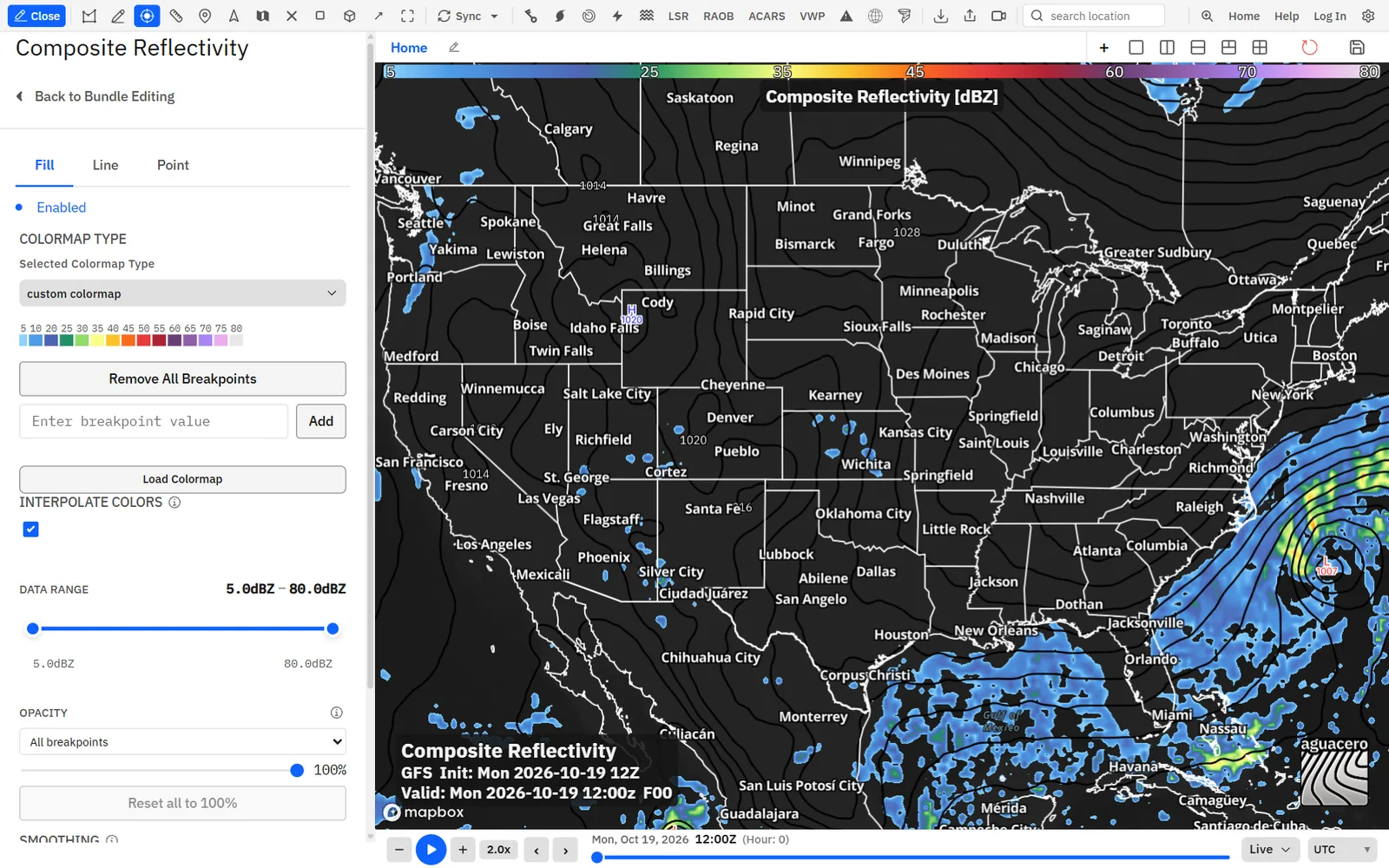
A colormap is a list of stops: a value and a color at each one. Add, move and recolor stops, and choose smooth blending or hard color bands.
Show me in the app- Open Edit Layer and click the tab you want to color: Fill, Line, Point or Barb.
- Set Colormap Type to custom colormap. The row of stops appears, each with its value above a color swatch.
- Click a swatch to open the color picker and choose a new color.
- Click a stop’s number for its menu: Edit Breakpoint, Remove Breakpoint, Add Breakpoint and Opacity.
- To add a stop, type a value in the box under the stops and click Add.
- Turn Interpolate Colors on for smooth blending between stops, or off for hard bands.
Shortcuts
- Enter
- Add or update a stop from the value box
- Esc
- Clear the value box or cancel an edit
Tips
- For a stepped scale such as precipitation totals, turn Interpolate Colors off and put a stop at each threshold.
- Very long colormaps, such as imported tables with hundreds of stops, scroll sideways under the stops box.
- To start over, set Colormap Type to single color and back to custom colormap, or click Reset to Defaults.
Show only part of the data
The Data Range slider hides values outside the range you pick, on fills, readouts, barbs and contours.
- Open Edit Layer and the tab you want to limit.
- Drag the left handle of Data Range up to hide low values, or the right handle down to hide high values.
- The values at each end show above the slider.
Tips
- Add a stop where you want a handle to stop, for example at 1 inch to show only heavier rain.
- Loading a saved colormap resets the range to that colormap’s first and last stop.
- If a layer seems to have holes or missing values, check this slider first.
Fade a layer or part of its colors
Fade a whole tab, or only values above, below or between thresholds, so the basemap or lower layers show through.
- Open Edit Layer and the Fill, Point or Barb tab.
- With a custom colormap, find the Opacity panel further down the tab. Leave it on All breakpoints and drag the slider to fade the whole tab.
- To fade only some values, choose At or above, At or below or Between, type the value (and Upper for Between), set the slider and click Apply.
- Click Reset all to 100% to clear every fade.
Tips
- The Line tab has no fade slider. To fade contours, click each stop’s number and lower its Opacity.
- Drag a layer’s handle in the layer list to change which layer draws on top.
- Frame Blending on the Fill tab of gridded layers cross-fades between times as a loop plays. It needs Professional, and Performance mode in Settings → Performance turns it off.
Save, load and share colormaps
Save a colormap to your library, load your own or other users’ public colormaps, and make one the default for a variable.
- Edit the colormap on a tab, then click Save Colormap.
- Type a Colormap Name. Leave Public on to let other users find and use it, or turn it off to keep it private.
- Click Save Colormap.
- To use a saved colormap, click Load Colormap and click a card. It applies at once.
- To make the current colormap your default for this variable, click Set as default colormap. The button reads Saved as default for a moment.
Sign in to see Save Colormap and Set as default colormap. Load Colormap works signed out.
Tips
- Saved colormaps belong to a variable’s colormap group, so a CAPE colormap shows up for surface-based, mixed-layer and most-unstable CAPE alike.
- Each card shows the units it was saved in. Values convert to your layer’s units when you apply it.
- To make one colormap the default for a whole group of variables, use Colormap groups in Settings → Data.
- On a computer you can drag the Load Colormap window by its title. It opens in the same place next time.
Import .pal palettes and Wx Tools color tables
Paste or open a GRLevelX-style .pal file, or open a color table shared from Wx Tools, and apply it to a layer.
- Open Edit Layer, then the tab to color, and set Colormap Type to custom colormap.
- Click Load Colormap and open Import .pal file.
- Paste the palette text into the box and click Apply .pal, or click Choose .pal file. You can also drop a .pal or .txt file on the section.
- Check the colors on the map, then click Save Colormap if you want to keep it in your library.
These formats import:
Tips
- “value R G B”, one stop per line with 0–255 color numbers. A fifth number is alpha (0 hidden, 255 opaque) and sets the stop’s opacity.
- “value #RRGGBB”, one stop per line with a hex color.
- GRLevelX, Wx Tools and RadarScope “Color:” and “Color4:” lines, which ramp to the next stop. Color4 carries alpha, and a second color on the line sets the end of the ramp.
- “SolidColor:” and “SolidColor4:” lines, which hold one color from that value up to the next, for hard bands.
- JASC-PAL paint-program palettes. Their colors land on stops 0, 1, 2 and so on.
- Lines starting with ;, # or ! are skipped. Very dense, evenly spaced tables (512 stops or more) are thinned to fewer stops with no visible change.
A Wx Tools color table link opens the app at /palette. The app switches to the matching radar product (Reflectivity, Base Velocity (BV), Correlation Coefficient (CC) or Spectrum Width (SW)) and applies the table to every matching layer. If you are signed in, it also becomes your default for that product on radar, MRMS and model layers. The desktop app opens the same links.
Tips
- .pal values are used as written. Switch the layer’s Units to the palette’s units before you import.
- If a Wx Tools link can’t download or read its table, a window opens where you can paste the table and click Parse paste, click Retry download, or click Choose file.
Import .pal file isn’t shown on phones. If the text can’t be read you see “Could not parse .pal format”; a dropped file must end in .pal or .txt.
Change units
Switch a layer between units such as °F and °C, or inches and millimeters. The colormap converts with it.
- Open Edit Layer on the layer.
- Open Units at the top of the tab and choose a unit.
Tips
- To set Imperial or Metric for every variable at once, use Settings → Data → Units.
Smooth a blocky field
Blend between grid points so a coarse model fill looks smooth, or turn smoothing off to see each grid cell.
- Open Edit Layer and the Fill tab (or the Satellite tab).
- Drag Smoothing to the right for a smoother field, or all the way left for Off.
Tips
- In Performance mode (Settings → Performance), Smoothing becomes a single checkbox that uses the 0.25 step.
- Contour lines are smoothed for each model on their own. There is no per-layer contour smoothing control.
- Radar layers have their own Smoothing slider for the radar gates. See the NEXRAD guide.
- Settings → Data → Layer styles → Fill → Smoothing sets one amount for every variable of a data type.
Draw contours
Draw any field as contour lines, at the built-in spacing, every N units or at exact values you type, with your own width, dash and colors.
Show me in the app- Turn on the Line pill on the layer row, or open Edit Layer, click Line and set it to Enabled.
- Choose Contour intervals: Field defaults, Uniform step or Custom levels.
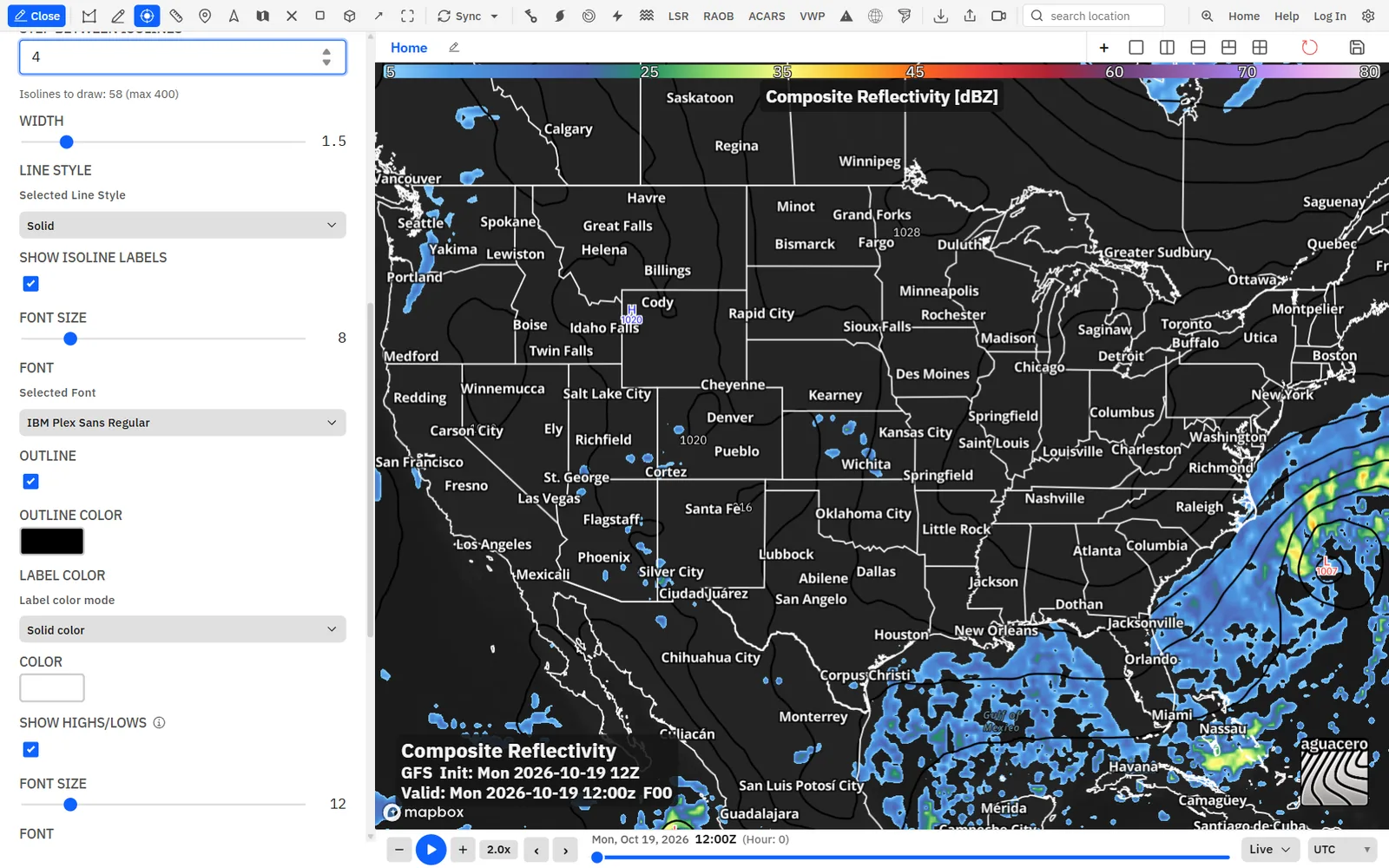
- For Uniform step, type the spacing in Step between isolines, in the layer’s units.
- For Custom levels, type values in Isoline values, separated by commas, and click Apply.
- Check the line under it: Isolines to draw shows how many contours will draw, up to 400.
- Set Width and Line Style, and the colors with Colormap Type.
To make one value stand out, such as the 540 dam line or the freezing line, give it its own color and width. Use a custom colormap, add stops at that value and at the next contour above it, click the value’s number and raise Width, and turn Interpolate Colors off so the width and color stop at the next stop.
Tips
- “Too many contour levels” means more than 400 lines. Raise the step or narrow Data Range.
- Line-only products such as the 850 mb 0 °C isotherm have no Fill tab.
- Contours have no fade slider. Lower a stop’s Opacity in its menu instead.
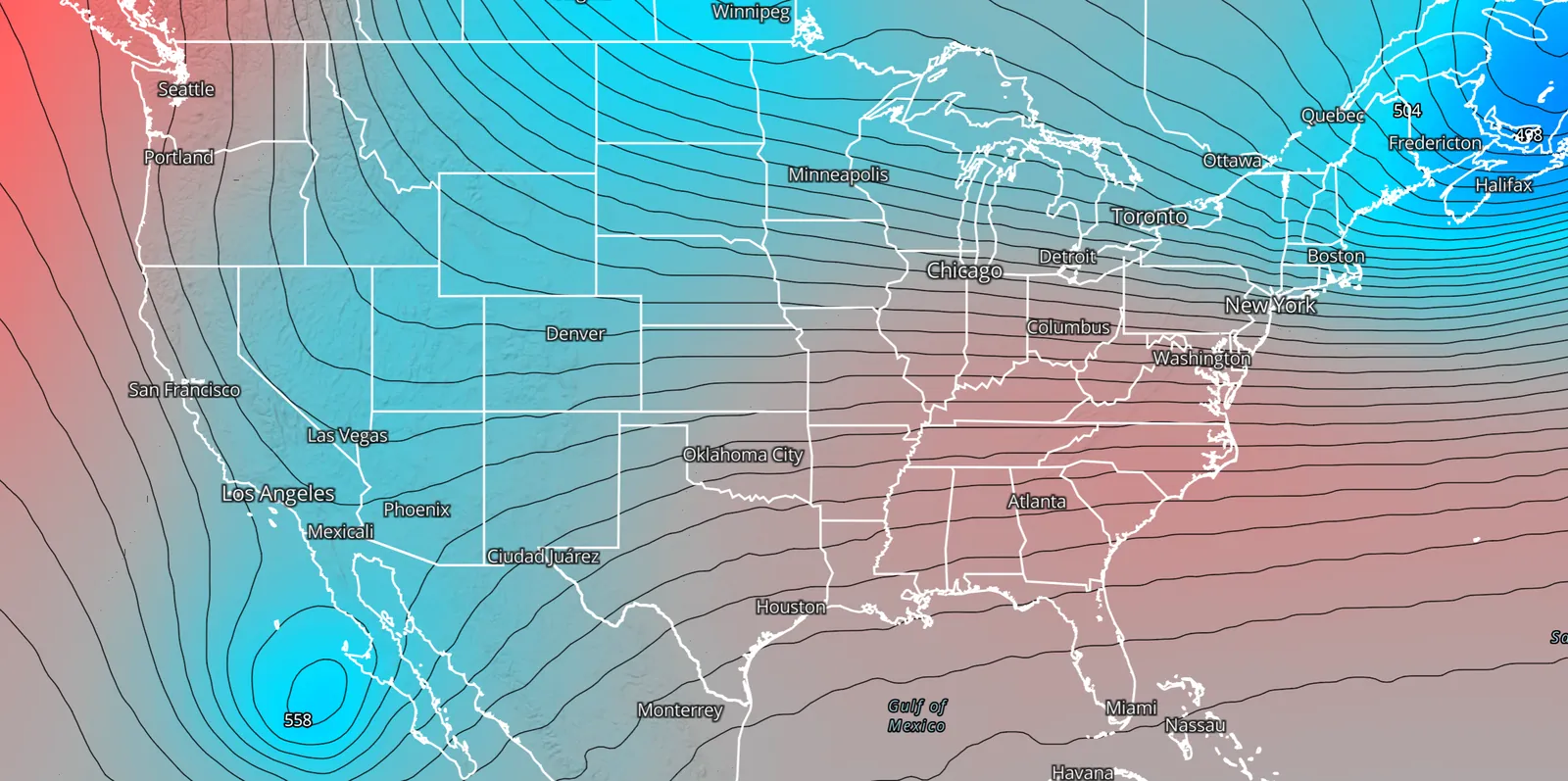
Style contour labels and highs and lows
Choose the font, size, outline and color of contour labels, and style the H and L centers on sea-level pressure.
- Open Edit Layer and the Line tab.
- Leave Show isoline labels on, then set Font Size, Font and Outline.
- Under Label color, choose Solid color and pick a Color, or Follow colormap to match each line.
- On sea-level pressure, use Show Highs/Lows and the settings under it.
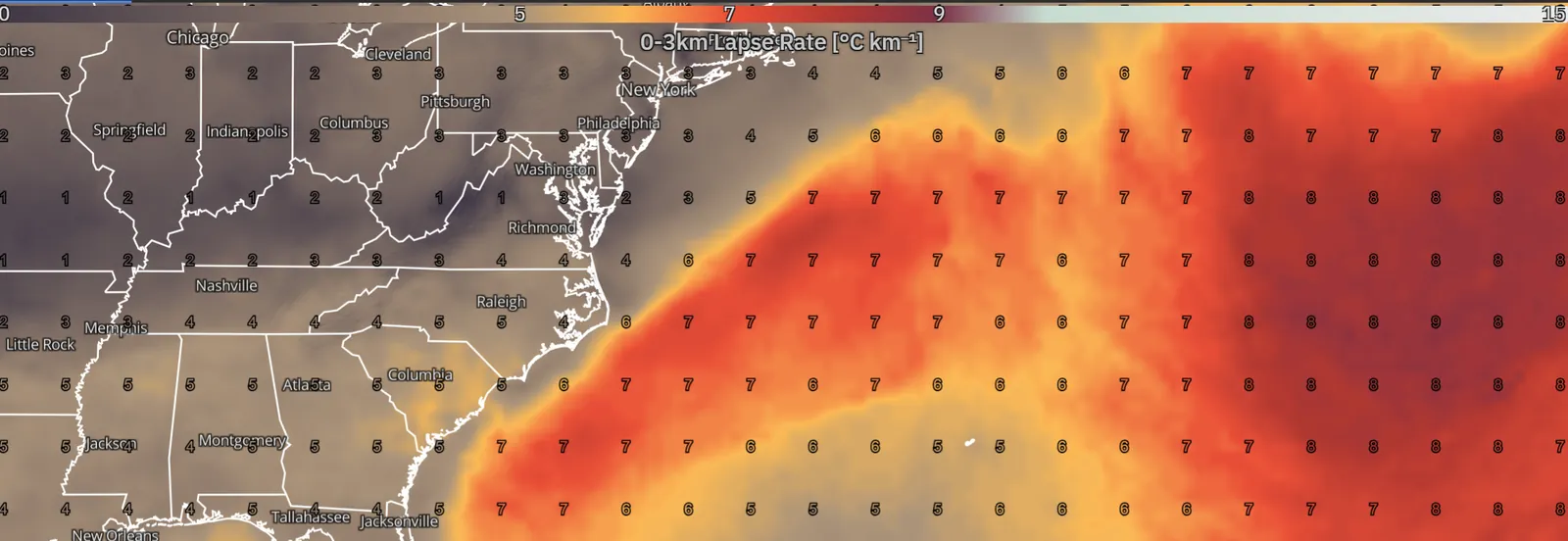
Plot values on the map
Print the field’s values on a regular grid or at cities, with the decimals, units and spacing you want.
Show me in the app- Turn on the Point pill on the layer row.
- Click Edit Layer, then the Point tab.
- Under Readout Type, click Switch to City to print values at cities, or leave it on grid and set Point Distance.
- Set Font Size, Decimal Places and, if you want them, Show units on readouts.
- Color the numbers with the tab’s colormap, or set Colormap Type to single color for one color.
Tips
- City values follow the basemap’s labels. Show more places under Map style → Labels → Cities, or zoom in.
- To print the highest and lowest value in view, open Select Data → Layout → On-map text and turn on Show viewport min/max.
- A highlight area (Professional) with Hide labels outside highlight drops values outside the area.
- Radar precipitation estimates and WPC QPF can also print values. WPC QPF starts in inches with 2 decimals.
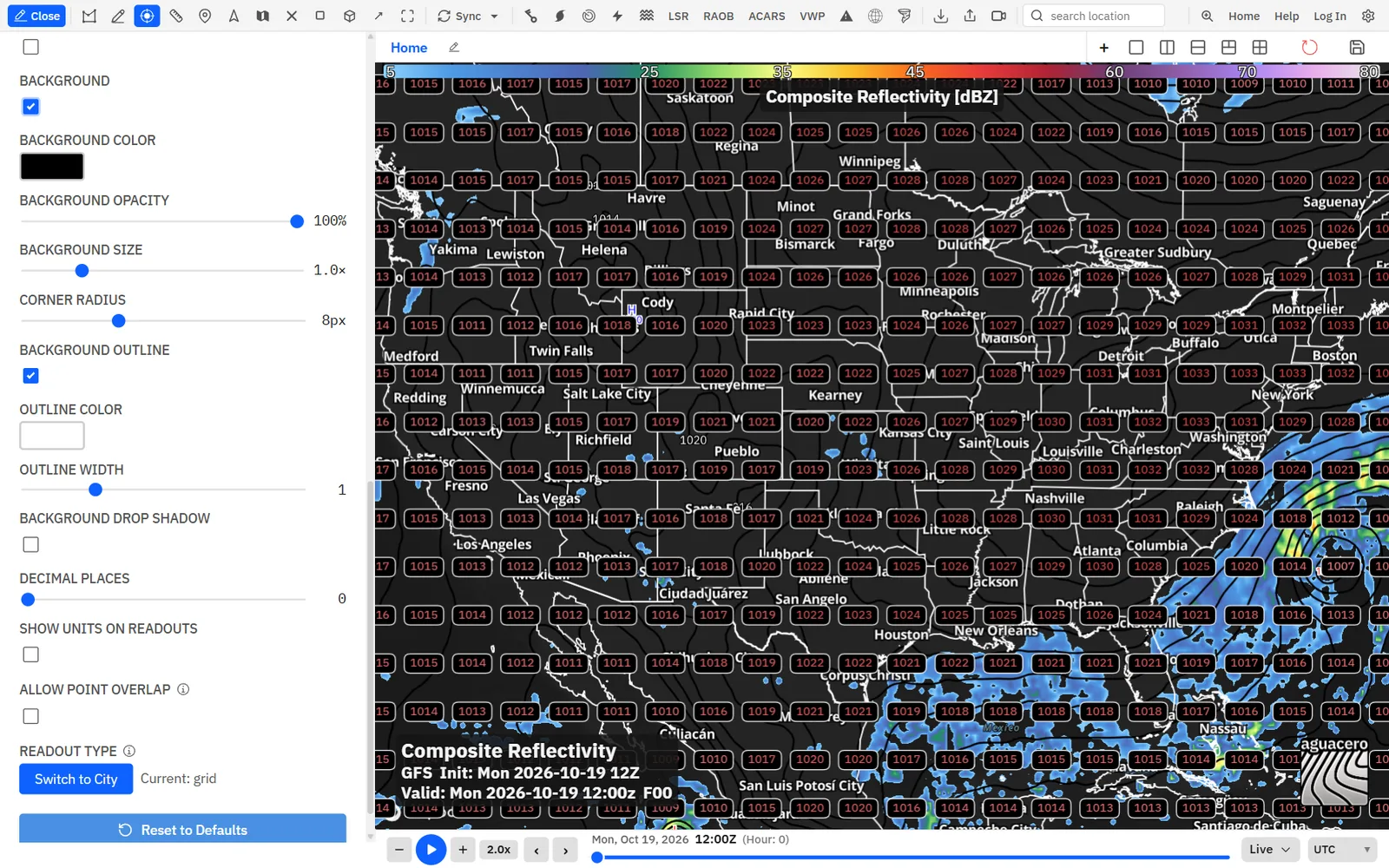
Style the printed values
Give values a font, weight, outline, background box and drop shadow so they read on any basemap.
- Open Edit Layer and the Point tab.
- Pick a Font and tick BOLD if you want it heavier.
- Leave Stroke on for a halo, or tick Background for a box behind each value.
- Tick Drop shadow to lift the text or box off the map.
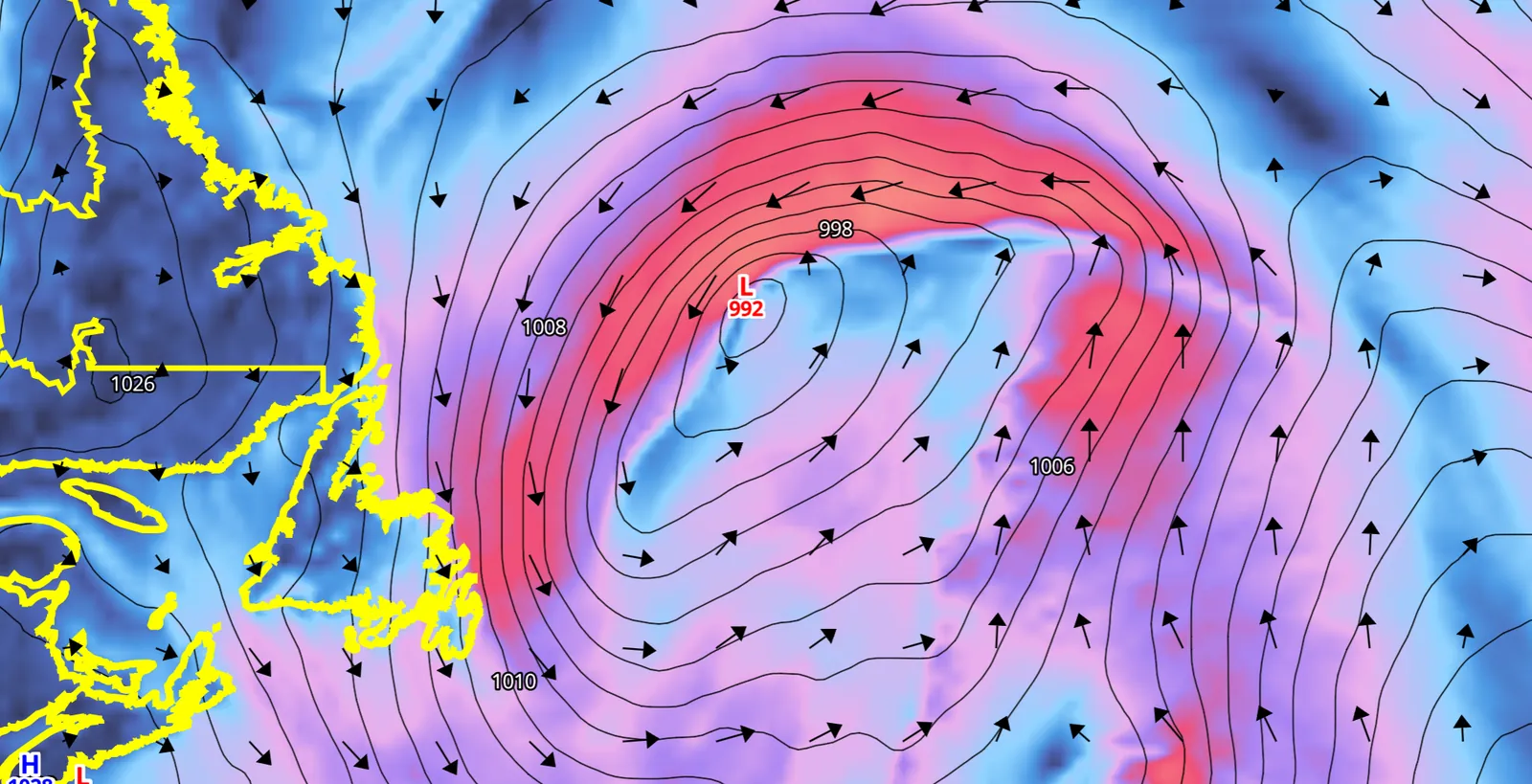
Barbs, vectors, streamlines and particles
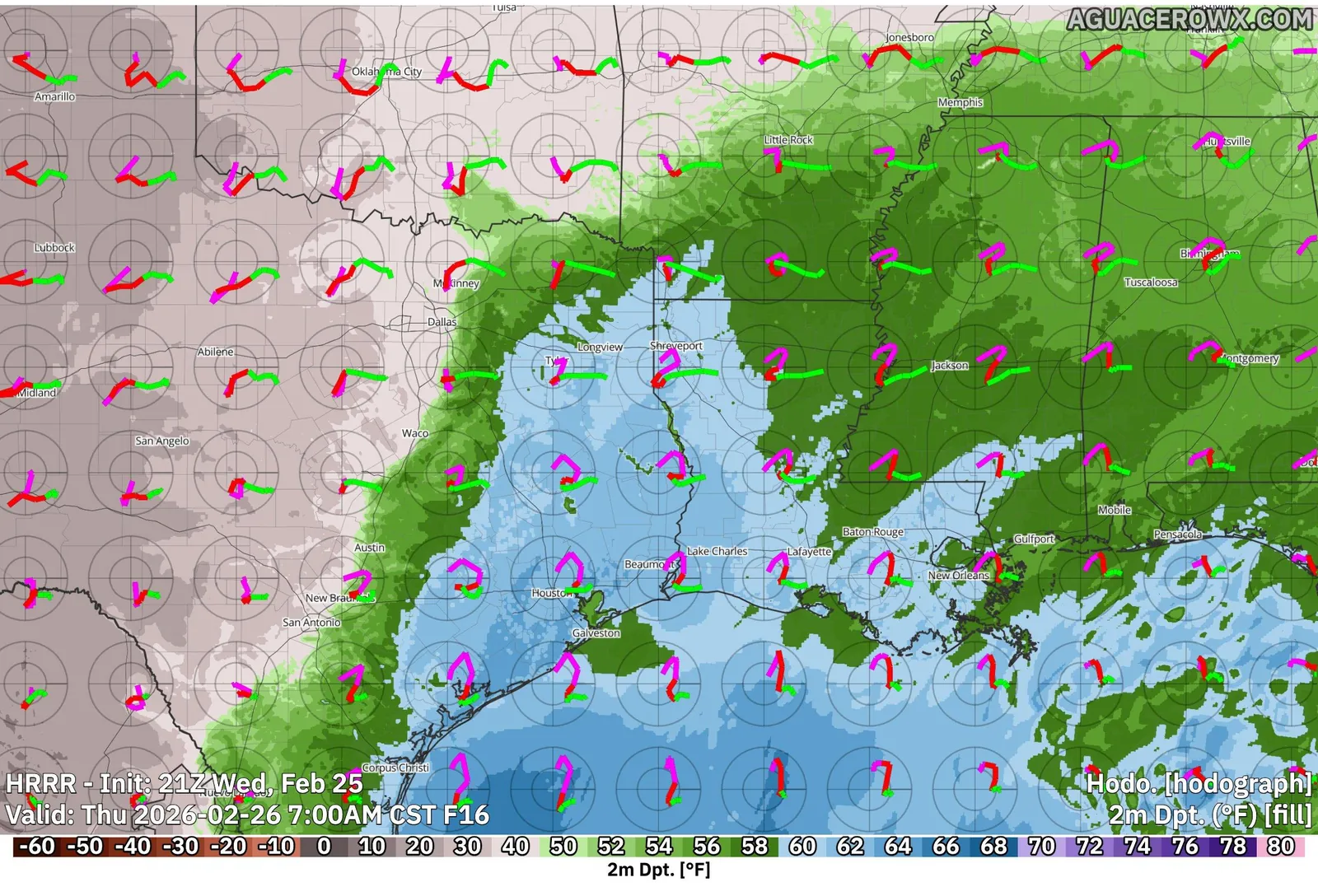
Draw wind as barbs or arrows on a grid or at cities, as static flow lines, or as animated particles, colored by speed if you like.
Show me in the app- Turn on the Barb pill on a wind layer.
- Click Edit Layer, then the Barb tab.
- Choose Wind display: Barbs, Vectors, Streamlines or Particles.
- For barbs and vectors, set Barb Size, Barb Distance and Width, and the Readout Type.
- For particles, set Particle density, Particle length, Particle speed and Speed exaggeration.
- To color by speed, set Colormap Type to custom colormap.
Tips
- In Performance mode (Settings → Performance), particles draw as still streamlines.
- Settings → Data → Layer styles → Wind barbs & vectors → Wind sets one display for every wind layer of a data type.
- A wind field can show its speed as a fill and barbs at once: turn on both its Fill and Barb pills. To put barbs over another field, add the wind as its own layer above it and turn its Fill pill off.
Precipitation type, map plots, radar and other layers
Some layers swap the usual tabs for their own controls. Here is what changes and where each is covered.
Tips
- Radar layers add the site’s elevation buttons, gate Smoothing, Shadow (Creator) and Frame Blending (Professional). Velocity products add Show range-folded gates, and storm-relative velocity adds Storm-relative motion. Radar has no Line tab.
- Satellite layers have one Satellite tab with recipes, a colormap on infrared and water vapor bands, Smoothing (default Off) and 3D cloud tops (Professional).
- SPC, WPC, CPC and similar outlook layers replace the Fill and Line tabs with their own color editor. Their colors also live in Settings → Data → NOAA.
- Custom shape layers have their own colors, outline and labels, plus Enable Reverse Mask to dim everything outside the shape.
- Ensemble layers add Field Options for the statistic, probability and members. See the Models guide.
Set a style for every layer of a variable
Settings → Data holds your default style for each variable. Every new layer of that variable starts with it, and you choose whether bundles you load use it too.
- Click Settings (gear) on the toolbar. The Settings window opens on Data.
- Pick a data type tab, such as Model, Radar, MRMS or Satellite.
- Search for a variable and click its card.
- Style it on the same Fill, Line, Point and Barb tabs as Edit Layer.
- Changes save to your account a moment after you stop, and matching layers already on the map update.
- Click the back arrow (Back to all variables) to return to the list.
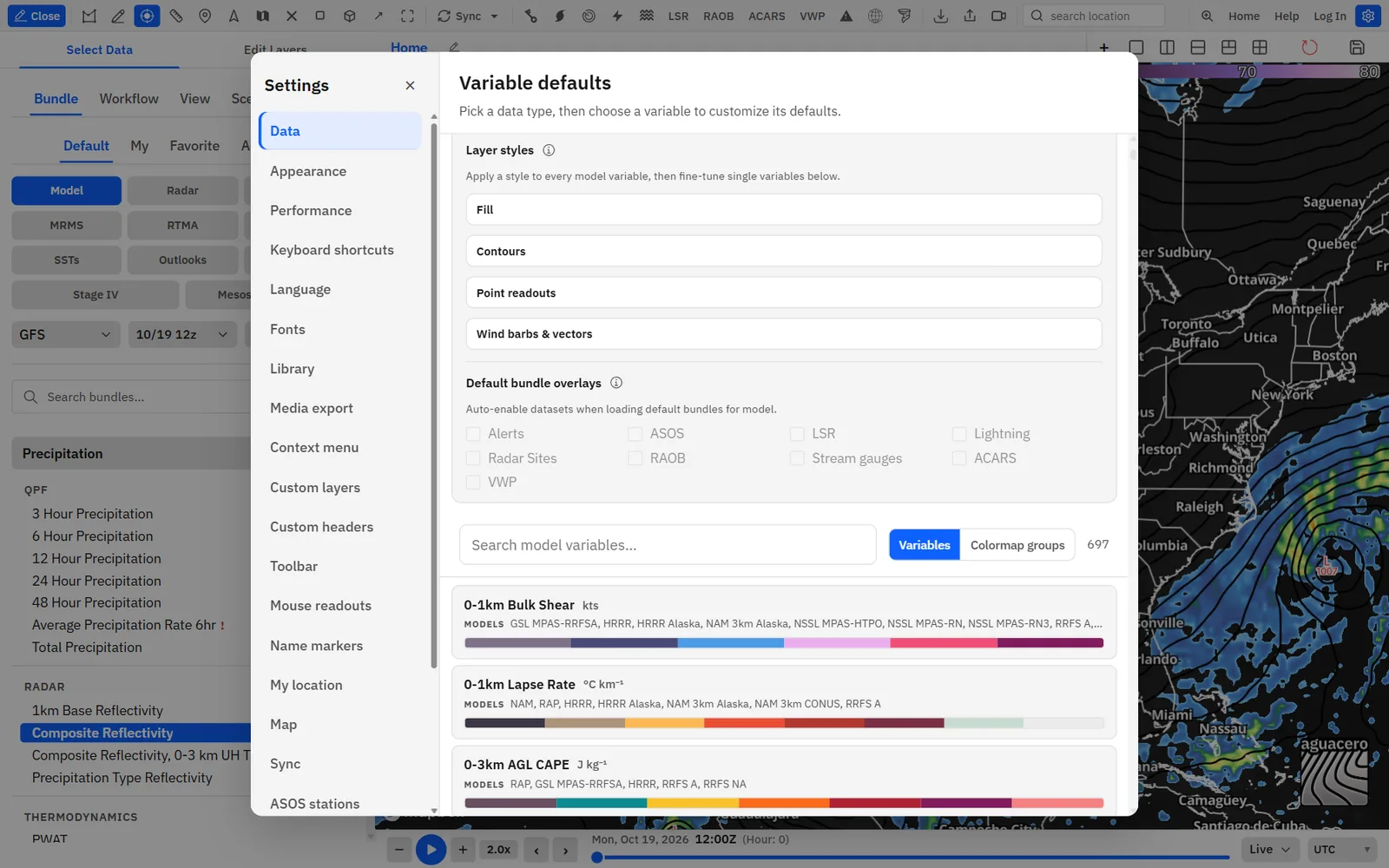
The data type tabs are Model, Radar, MRMS, RTMA, Mesoscale Analysis, Stage IV, NDFD, CRW, CDAS, ARMOR3D and Satellite, each with its variable count. Each data type keeps its own defaults, so MSLP on Model and MSLP on RTMA are set separately. NOAA, Tropical, Nadocast and DAT open their own color settings.
Sign in to use Data Defaults. Signed out, the controls are disabled and a variable shows “Log in to save variable defaults to your account.”
Apply one style to a whole data type
Set units, smoothing, wind display, readout style and contour style for every variable of a data type at once, and choose which bundles your defaults reach.
- Open Settings → Data and pick a data type tab.
- Under All datasets, choose Units and Apply customizations to.
- Open Layer styles, then a group such as Contours or Point readouts, and change a setting. It saves into every variable of the data type.
- Open a single variable afterwards to set it differently.
Tips
- Smoothing, wind display, frame blending, shadow and point settings always apply when you load a bundle. Pick Bundle/Variable on those to leave layers as they are.
- Colormaps, data ranges, contour levels and decimal places stay per variable. Use Colormap groups or a variable’s own colormap for those.
- If a bundle you saved “keeps changing colors” when you load it, check Apply customizations to.
- Default bundle overlays on the same page picks which toolbar overlays turn on with built-in bundles of each data type.
Where your styles are saved
Layer edits live in the bundle; colormaps, defaults and units live on your account.
Tips
- Edit Layer changes are stored on the layer, in the bundle on that panel. They last until you load another bundle or reload the app. Click Save Bundle to keep them. Saving bundles needs an account: Free saves 10, Enthusiast 20, Professional and up unlimited.
- Saved colormaps go to the colormap library on your account, per variable group. Public ones are visible to every user.
- Set as default colormap, Data Defaults, Save as wind display default and colormap favorites are stored on your account and follow you to every device you sign in on. Data Defaults save as you edit.
- Changing a layer’s Units while signed in also saves your default unit for that variable on your account.
Reset to Defaults uses the app’s built-in style, not your Data Defaults, and keeps the layer’s units. To start from your own defaults, delete the layer and add it again.
Related guideBundles, workflows and your librarySave, share and organize bundles.Recipe: a broadcast-style temperature map with smooth colors and city values
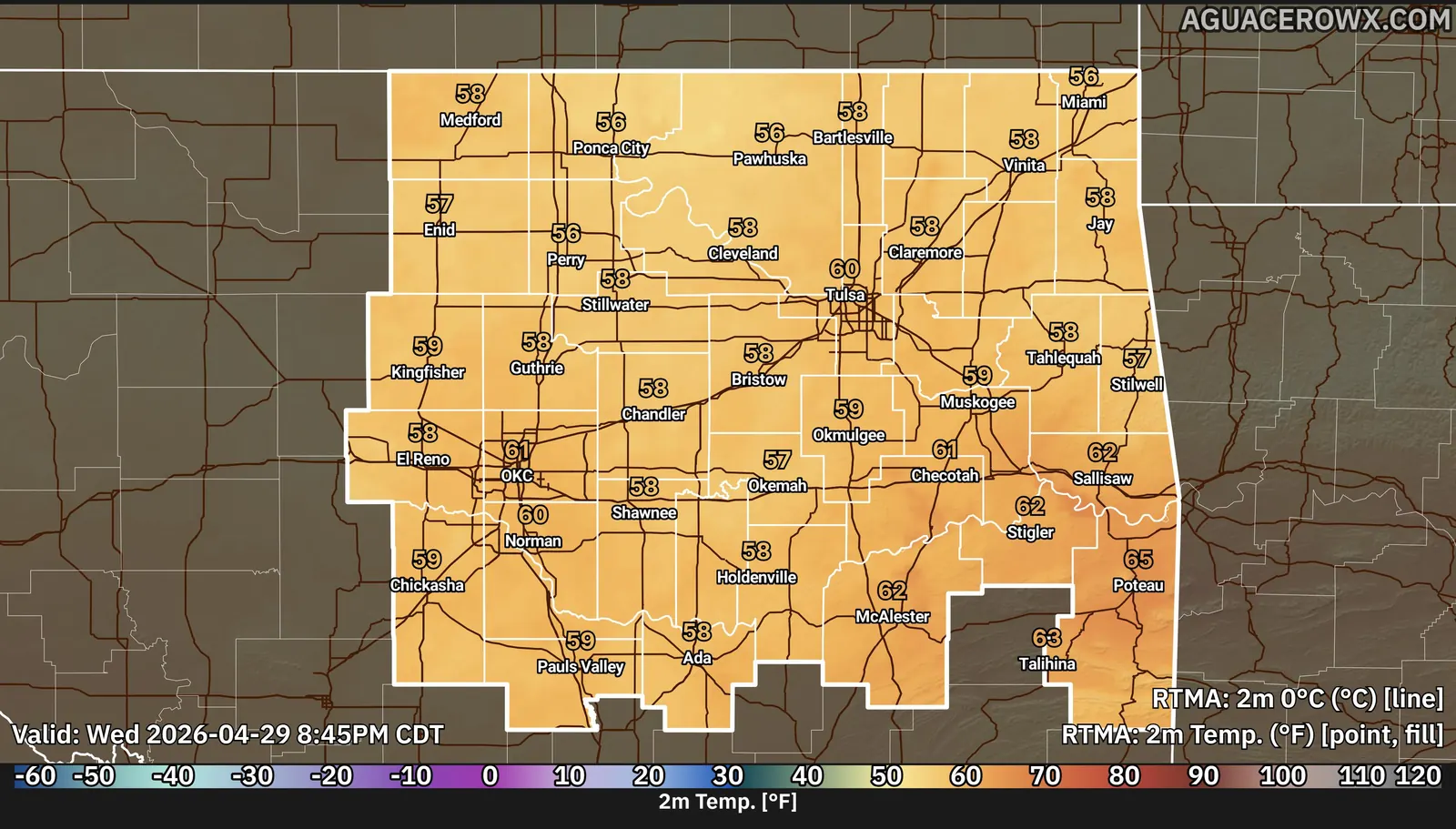
A smooth 2 m temperature fill with bold, outlined city temperatures, ready for air.
- In Edit Layers, click Add Layer and add 2m Temperature from a model such as the HRRR.
- Click Edit Layer. On the Fill tab, leave Colormap Type on custom colormap and Interpolate Colors on, and set Smoothing to 0.75.
- Optional: load a TV-style palette with Load Colormap, or import your station’s .pal file.
- Turn on the Point pill and open the Point tab.
- Set Colormap Type to single color and pick white.
- Click Switch to City. Set Font Size to 18, pick your station Font and tick BOLD.
- Leave Stroke on and set Stroke Width to 3, then tick Drop shadow.
- Tick Show units on readouts and Degree symbol only (hide °C / °F / K). Leave Decimal Places at 0.
- If too few cities show, open Map style → Labels → Cities and show more places, or zoom in.
- Click Save Bundle to keep the look.
Tips
- Use a highlight area (Professional) with Hide labels outside highlight to keep values inside your market.
- Prefer a box look? Tick Background, set Background Opacity to 60% and Corner Radius to 4 px, and turn Stroke off.
Recipe: contour-only 500 mb heights over a satellite basemap
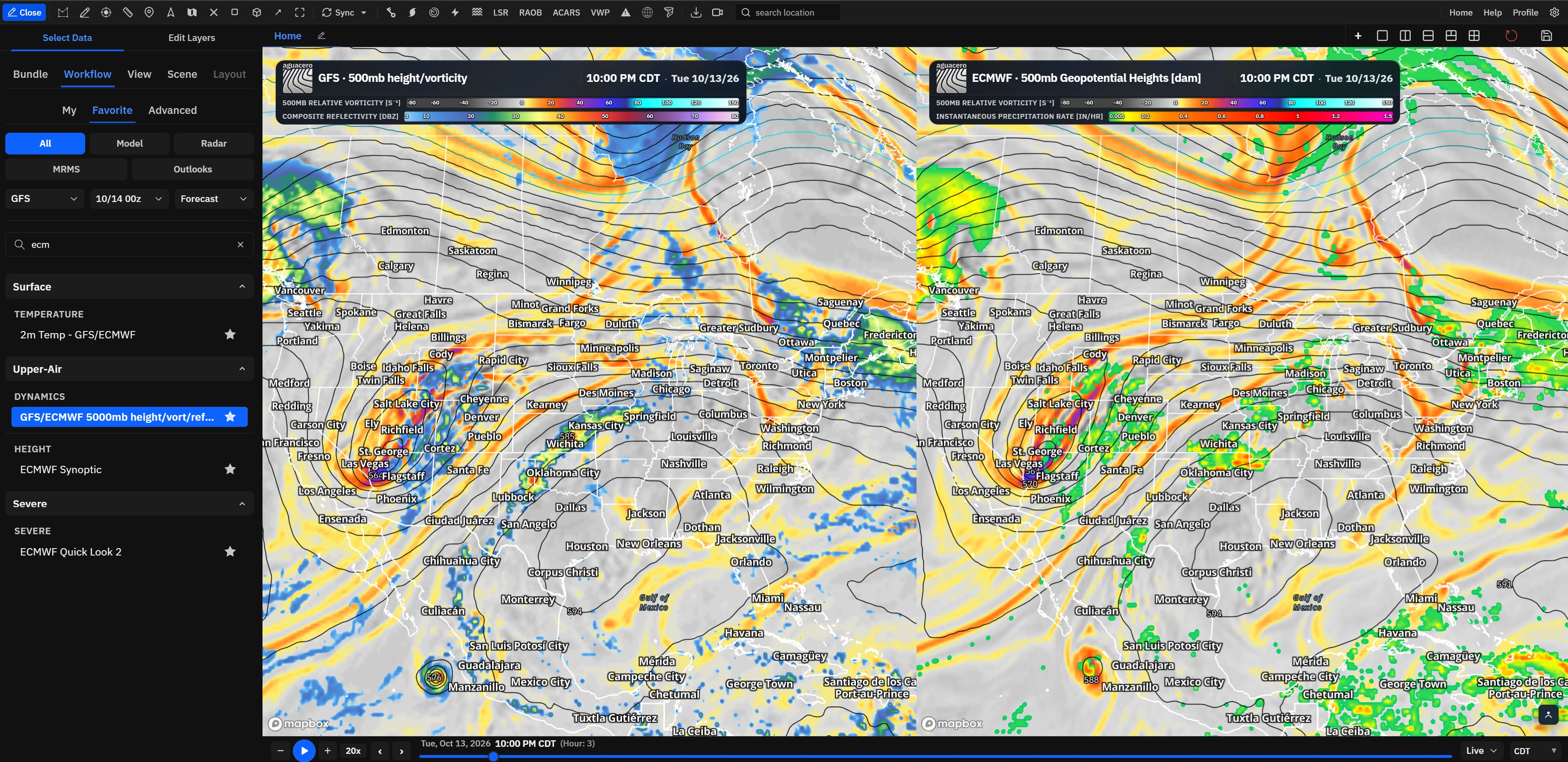
White 500 mb height contours every 6 dam over satellite imagery, with the 540 dam line picked out.
- Click Map style on the toolbar and choose the Satellite basemap card.
- In Edit Layers, click Add Layer and add 500mb Geopotential Heights. It starts with only the Line pill on; leave Fill off.
- Click Edit Layer, then the Line tab.
- Set Contour intervals to Uniform step and type 6 in Step between isolines. Units are dam.
- Set Colormap Type to single color and pick white. Set Width to 1.5.
- Leave Show isoline labels on. Set Font Size to 11, keep Outline on with black, and set Label color to Solid color white.
- To pick out 540 dam: set Colormap Type to custom colormap, add stops at 540 and 546, set every swatch to white except 540 (yellow), click 540 and set Width to 3, then turn Interpolate Colors off.
- Click Save Bundle.
Tips
- In Map style → Satellite imagery, lower Saturation so the white lines stand out.
- Add MSLP as a second layer with Show Highs/Lows for a classic surface-and-aloft chart.
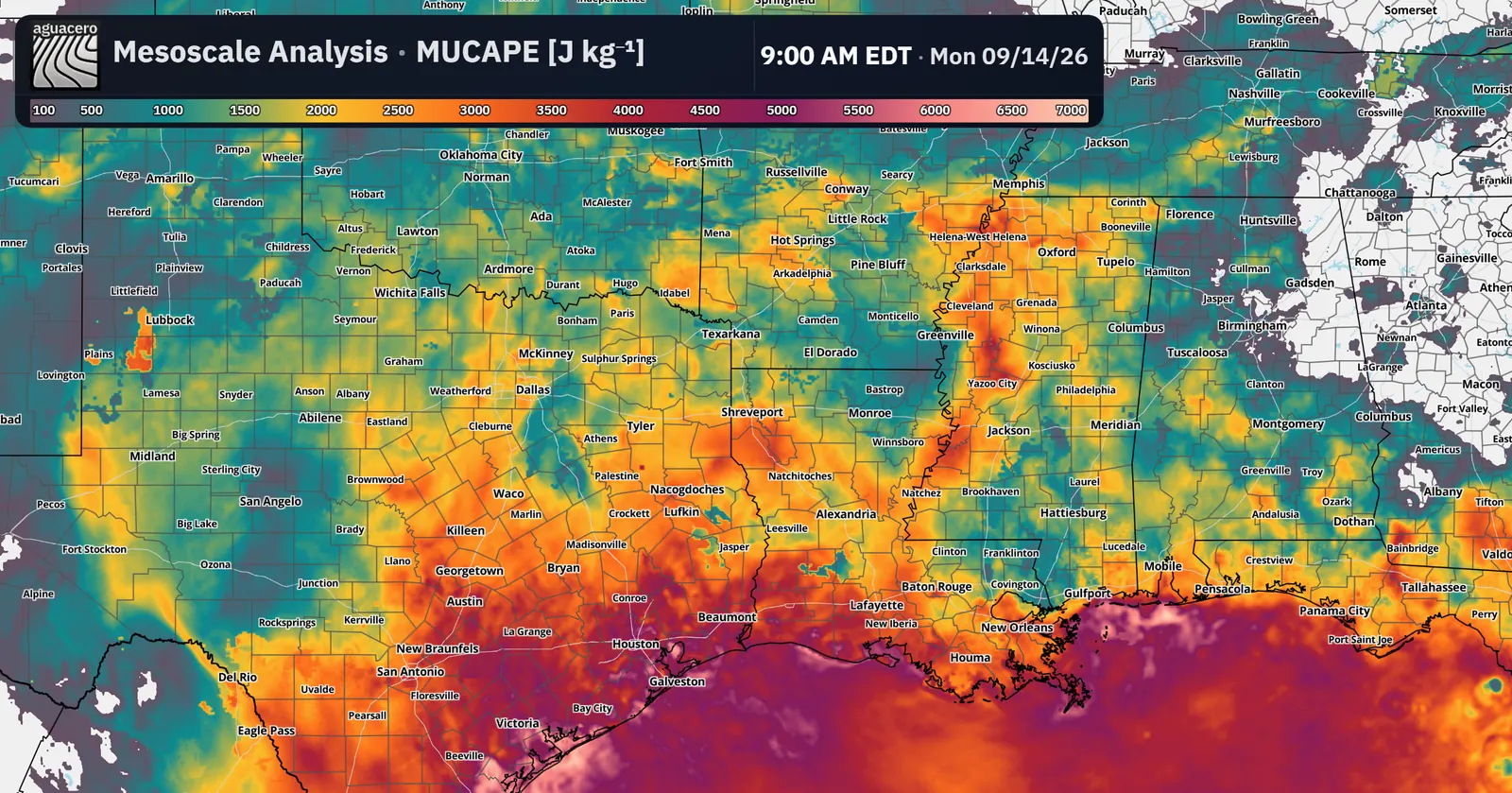
Recipe: make every CAPE layer use your colormap
Build one CAPE colormap and make it the default for surface-based, mixed-layer and most-unstable CAPE, in every bundle.
- Add Surface Based CAPE to a panel and click Edit Layer.
- On the Fill tab, build the colormap: set stops and colors, and turn Interpolate Colors on or off.
- Click Save Colormap, name it and save. The dialog lists the other CAPE variables that can use it.
- Open Settings → Data, stay on Model and click Colormap groups.
- Search for CAPE and click Choose colormap… on the CAPE group card, the one whose key reads cape_0.
- Click Mine and click your colormap. It becomes the default for every variable in the group, and CAPE layers on the map update.
- Under Apply customizations to, choose All layers/bundles (colormaps only) so your saved bundles use it too.
Tips
- Shortcut: open the CAPE variable in Settings → Data, edit its Fill colormap there and click Apply colormap to group.
- Colormap groups are per data type. Repeat on Mesoscale Analysis for the SPC mesoanalysis CAPE fields.
- Click Reset colormap on the group card to go back to the built-in colors.
Common questions
Missing tabs, empty layers, defaults that don’t apply and other snags.
Why can’t I see any settings on a tab?
The tab is turned off. Click the switch at the top so it reads Enabled, or turn on that type’s pill on the layer row.
Why is there no Fill, Point or Barb tab?
Tabs depend on the data. Line-only products such as isotherms have no Fill tab. Point is missing on line-only, outlook, warning and custom layers and on most radar products. Barb only shows on wind fields, and not on ensemble statistics or fields with no direction such as NBM 10 m wind speed. Radar has no Line tab.
Part of my layer is missing. Why?
Check Data Range: values outside it are not drawn. Also check the Opacity panel and each stop’s Opacity for stops faded to 5%.
Why don’t I see Save Colormap or Set as default colormap?
They need an account. Sign in and they appear. Load Colormap works signed out, with All Colormaps only.
I set a default colormap, but my saved bundle still uses its old colors.
By default your colormaps only apply to built-in bundles. In Settings → Data, set Apply customizations to to All layers/bundles or All layers/bundles (colormaps only). The same setting explains a bundle that “changes colors” on load.
Why are there no city values?
City readouts sit at the place names the basemap shows and at your name markers. If Map style has Hide all labels on, or you are zoomed far out, there are few or none. Show more places under Map style → Labels → Cities, turn on Allow point overlap, or switch to grid readouts.
My .pal file imported with the wrong colors in the wrong places.
Import uses the values as written. Set the layer’s Units to the palette’s units first, then import again. Colormaps you load from the library convert units for you.
Why does Smoothing show a checkbox instead of a slider?
Performance mode is on in Settings → Performance. It uses one basic smoothing level. Switch to Auto to get the slider back. Smoothing shows n/a on class-code grids and radar hydrometeor classification.
Turning on Frame Blending or Shadow opens an upgrade window.
Frame Blending and 3D cloud tops need Professional. The radar Shadow needs Creator.
My particles stopped moving.
Performance mode draws particles as still streamlines. Turn it off in Settings → Performance.
Contours show “Too many contour levels”.
A layer draws at most 400 contours. Raise Step between isolines, remove custom levels or narrow Data Range.
How do I fade contours? The Line tab has no Opacity slider.
Click each stop’s number and lower its Opacity. With a single color colormap, switch to custom colormap first.
Are my layer changes saved automatically?
No. Edit Layer changes stay on the panel until you load another bundle or reload. Click Save Bundle to keep them. Data Defaults, default colormaps and saved colormaps save to your account right away.
Reset to Defaults didn’t bring back my default colormap.
Reset to Defaults restores the app’s built-in style. To start from your Data Defaults, delete the layer and add it again, or click Load Colormap and pick your colormap.