Quick start: add your first marker
Go from nothing to a labeled marker on the map in about a minute.
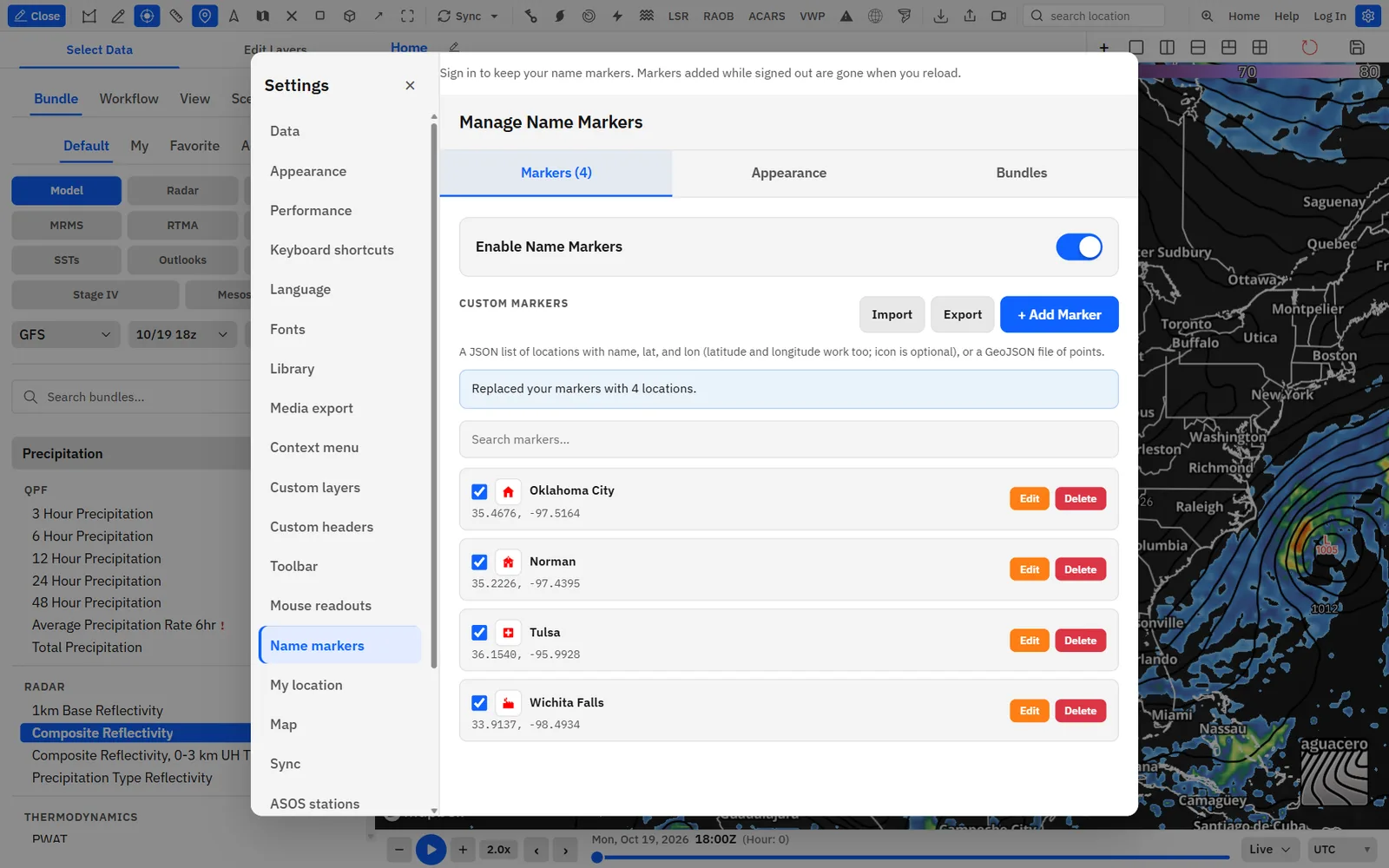
- Sign in. Then single-click Name markers on the toolbar. Manage Name Markers opens on the Markers tab.
- Turn on Enable Name Markers at the top. The + Add Marker button appears.
- Click + Add Marker.
- In Location, type an address or place, such as Norman, OK, and pick it from the list. Or type coordinates, such as 35.2226, -97.4395.
- Check Name. If it was empty, picking an address fills in the first part of that address. Type your own name if you want.
- Under Icon for this marker, pick an icon, or leave Dot.
- Click Add Marker. The marker appears on every map panel, and its row appears in the list below.
- Click the marker’s row in the list to fly the active panel to it.
Tips
- To add many places at once, use Import instead. See “Import a list of places” below.
- Your markers draw on top of the map’s own city labels, and nearby city labels step aside so the two never overlap.
Open the manager and turn markers on or off
Where to find Manage Name Markers on desktop and phone, and the ways to show or hide every marker at once.
Show me in the appThe Name markers toolbar button does two jobs. A single click opens Manage Name Markers. A double-click turns all markers on or off without opening anything. The button is highlighted while markers are on.
Tips
- Desktop: single-click Name markers on the toolbar. If you are not signed in, it opens Sign in to add map markers instead. A double-click shows or hides all markers, signed in or not.
- Phone: open the menu and tap Manage Markers. The panel opens as a sheet from the bottom. Tap the arrow in its header to expand it to nearly full height.
- Anywhere: Settings → Name markers holds the same panel. Use it when you have hidden the toolbar button. Sign in first: markers added while signed out are gone when you reload.
- On desktop, drag the window by its header to move it.
The tab name counts your markers, for example Markers (12). Unchecked markers count too. To hide only some markers, leave Enable Name Markers on and uncheck them in the list.
Tips
- Bind keys in Settings → Keyboard shortcuts. Toggle name markers (under Map & tools) shows or hides all markers. Name markers settings (under Toolbar modals, desktop only) opens this panel. Both start unbound.
Add a marker by address or coordinates
The add form takes a place name, a street address or plain latitude and longitude, and lets you pick the icon before you save.
- On the Markers tab, click + Add Marker. The button changes to Cancel while the form is open.
- Type in Location. After 3 characters the app searches for matching places and shows up to 5 suggestions.
- Click a suggestion, or use ↑ and ↓ and press Enter. Press Esc to close the list. A line under the field confirms the spot: ✓ Address resolved: and the coordinates.
- Or type coordinates as latitude, comma, longitude, such as 40.7128, -74.0060. The line reads ✓ Coordinates detected: and the coordinates as soon as they are valid.
- Fill in Name and pick an icon, then click Add Marker.
If you type an address but don’t pick a suggestion, the marker has no coordinates yet, and Add Marker shows Please ensure all fields are valid. Pick a suggestion or type coordinates. While you type fewer than 3 characters that aren’t coordinates, the form says Type more characters to search addresses or enter coordinates like "40.7128, -74.0060".
Edit, hide, delete and fly to markers
Each row in the list shows the marker’s icon, name and coordinates, with controls to hide it, change its icon, edit it or delete it.
Each row starts with a checkbox that shows or hides that one marker on the map. Hidden markers stay in your list, in exports and in presets. Next comes the marker’s icon, its name, and its coordinates to 4 decimal places. Click anywhere else on the row, or focus it and press Enter, to fly the active panel to the marker at zoom 10.
Edits check each value and tell you what is wrong: Please enter a name for the marker, Please provide valid coordinates, Latitude must be between -90 and 90 or Longitude must be between -180 and 180.
Tips
- List order matters. When two marker names would overlap on the map, the one higher in the list wins. New markers go to the end. The panel has no way to reorder, so to change the order, export the list, reorder it in the file and import it with Replace all.
- Your markers also come up first in the toolbar’s search location box, and in the location search of meteograms and soundings, while Enable Name Markers is on. Only checked markers are listed, up to 3 at a time.
Choose an icon
Pick from 77 built-in icons in eight groups, or upload up to 24 of your own images.
The icon picker appears in the add and edit form and under a row when you click its icon button. The chips at the top filter the grid: All, the eight groups below, and Custom. Built-in icons take their fill and outline from Marker color and Marker outline on the Appearance tab, so the previews match your map.
Tips
- You can keep up to 24 custom icons. At 24, Upload custom icon is greyed out; remove one to make room.
- Custom uploads keep their original colors. Marker color and Marker outline don’t change them, but Icon size does scale them.
- Use a transparent PNG or an SVG for a clean edge on the map.
- Custom icons are saved with your marker appearance, in your account.
Import a list of places
Load up to 2,000 places at once from a JSON or GeoJSON file, and choose whether they add to your list or replace it.
- On the Markers tab, click Import and choose your file.
- If your list is empty, the places go straight in.
- Otherwise the panel asks This file has N locations. Add them to your list, or replace your current markers? Click Add to list to keep your markers and add the new ones, Replace all to swap your whole list for the file, or Cancel.
- Read the note under the buttons. It says how many were added and why any rows were skipped.
The file can be a JSON array of places, or an object that holds the array under "locations", "markers" or "nameMarkers". A single place object also works. It can also be GeoJSON: a FeatureCollection, or a single Feature, of Point features. GeoJSON coordinates come from the geometry (longitude first), and name, icon and enabled come from each feature’s properties. A feature without a Point geometry can carry lat and lon in its properties instead.
A minimal file looks like this: [{ "name": "Plant 1", "lat": 35.4676, "lon": -97.5164, "icon": "factory" }, { "name": "Warehouse B", "latitude": 35.2226, "longitude": -97.4395 }]. Coordinates are rounded to 6 decimal places on import.
Tips
- Duplicates: two places match when their names match (ignoring case) and their coordinates match to 5 decimal places. A repeat inside the file is skipped. With Add to list, a place already in your list is not added again.
- Bad rows: rows without a name, with missing or out-of-range coordinates, or repeated in the file are skipped and counted in the note. The rest still import.
- Unknown icons: rows whose icon isn’t recognized still import with the default icon, and the note counts them.
- Limits: only the first 2,000 usable places in a file are imported, and files over about 2 million characters are refused. Split bigger lists into several files and import them with Add to list.
The file chooser lists .json and .geojson files. The importer reads JSON only, so convert a CSV, KML or spreadsheet to JSON or GeoJSON first.
Export and share your list
Download your markers as a JSON file you can back up, edit or send to someone else.
- On the Markers tab, click Export. It is greyed out while your list is empty.
- Your browser or the desktop app saves name-markers.json.
- To load it on another account, sign in there and use Import.
Each entry has name, lat and lon. icon is included when it isn’t Dot, and "enabled": false is included for unchecked markers. The file keeps your list order. It does not include appearance settings; save those in a preset on the Bundles tab.
A marker with one of your uploaded icons exports its icon as "custom:" followed by an id. That id only exists in your account, so on another account the marker imports with the default icon. Built-in icons always carry over.
Style the names
Set the font, size, color and outline of every marker name. These settings apply to all markers at once.
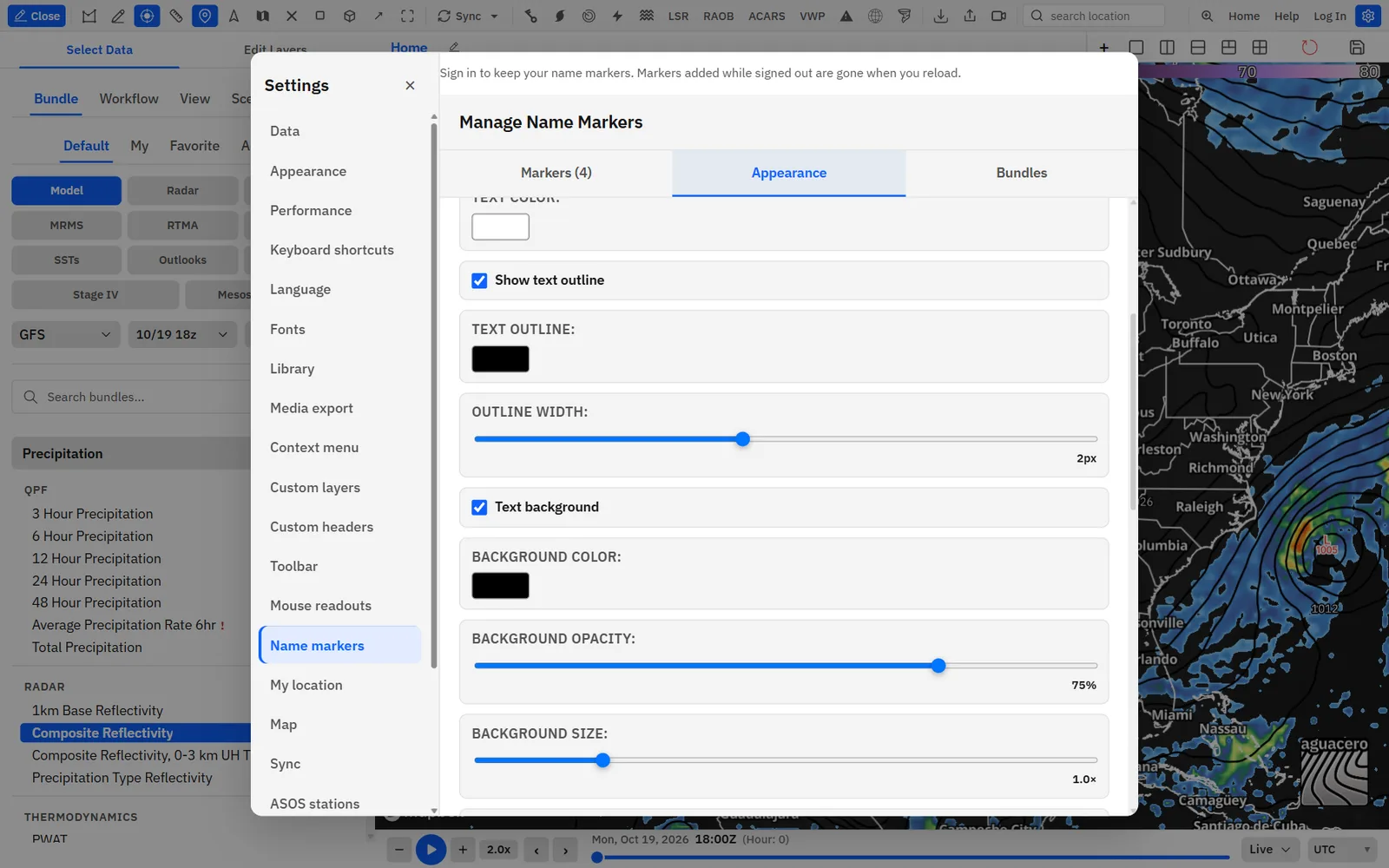
Open the Appearance tab. Its heading is Marker Appearance. Every change shows on the map right away and saves to your account. Color swatches open a color picker, and the color saves when you close the picker.
Tips
- For big on-air labels, try Text Size 20–28 with Bold text on and an Outline Width of 2.5–3.
- With a text background (next section), you can often turn Show text outline off for a flatter look.
Put a box behind the names
Draw a rounded box behind every name, with its own color, opacity, size and outline, like a TV map tag.
Tips
- A bigger box takes more room, so more names may hide where markers are close together. Lower Background size if names start dropping out.
Add a drop shadow
Cast a soft shadow from the names, or from their background boxes, to lift them off the map.
The checkbox is named Drop shadow when Text background is off, and the shadow falls from the letters. With Text background on it is named Background drop shadow, and the shadow falls from the box instead.
Style the dot and icons
Set the color, outline and size of the dots and built-in icons under the names, or hide them to show names only.
The hint at the top of the Appearance tab says it: you pick each marker’s icon on the Markers tab, and the color, outline and size here apply to all of them.
Tips
- Names sit right above their dot or icon. Pins and flags lift the name higher so it clears the pin.
- Mix icons to show kinds of places, for example Hospital, School and Shelter, while one Marker color keeps the map consistent.
Show names only when you point at a marker
Keep a busy map clean by showing only the dots or icons until you move the mouse over one.
Hover needs a mouse, so on a touch screen the names stay hidden. The names also need something to hover over: keep Show marker on, or no name will ever appear.
Show live data values at your markers
Put a layer’s value, such as the current temperature or forecast snowfall, right above each marker’s name. The values update as you step through time.
Readouts at markers are a layer’s point readouts placed at cities. Any layer that has point readouts set to city places them at the map’s city labels and at your name markers. Show data readouts at markers decides whether your markers take part.
- On the Appearance tab, make sure Show data readouts at markers is on. It is on by default.
- Open the bundle editor and add the layer you want, such as a model’s 2 m temperature.
- In the layer list, turn on the Point pill on the layer’s row.
- Click Edit Layer and open the Point tab. Under Readout Type, click Switch to City. It then reads Current: city.
- Values appear above your marker names and above the map’s city labels. Step the time slider and they update.
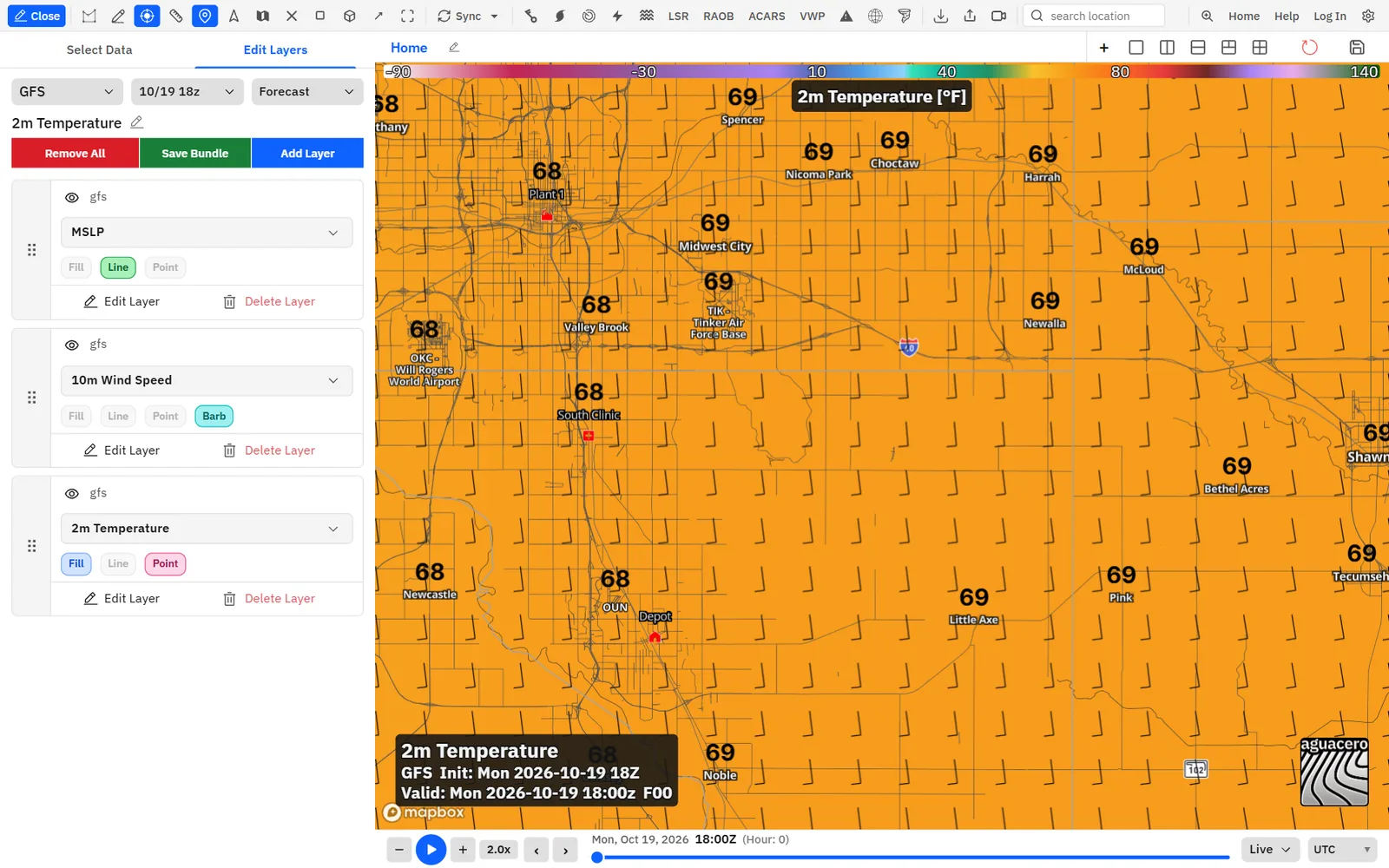
When values collide, the biggest cities keep theirs first, then your name markers, then towns and villages. A marker whose name is hidden, unchecked, or outside a highlight area gets no value. Markers use the value colors, font size, decimals and units of the layer’s Point tab, so style them there.
Related guideLayer styles: colors, contours, wind and readoutsPoint readout colors, font size, units and decimals are covered in the layer styling guide.How markers share the map with city labels
Name markers always win over the map’s own place labels, and they follow the highlight area when you hide labels outside it.
Your markers draw above the map’s city labels. The app also hides the map’s city, town, village and point-of-interest labels where they would sit on or right next to a marker, so a marker named Norman never fights the map’s own Norman label. Country, state, water, road and airport labels are left alone.
Tips
- Marker against marker: when two marker names would overlap, the one higher in your list stays and the other hides until you zoom in far enough to separate them.
- Marker against city label: the marker stays and the city label hides.
- Marker against radar site: marker names still draw when they land on a NEXRAD site label.
Tips
- Want only your own places on the map? Turn the map’s city labels off in the Map Style window (toolbar button Customize Map Style). Your markers are not affected.
- Markers show on every panel. In a four-panel layout, all four maps show the same markers.
Save marker presets on the Bundles tab
Keep several marker sets, such as clients, schools and chase targets, and switch between them in one click.
A marker preset, called a name marker bundle, holds your whole marker list, every Appearance setting (including your custom icons) and whether markers are on. It is separate from layer bundles.
- Set up your markers and their look.
- Open the Bundles tab. Under Name marker bundles, type a name in Name this preset… and click Save current (or press Enter).
- To switch later, click a preset’s name. Your current list and appearance are replaced by the preset’s.
Applying a preset replaces your current marker list and appearance, and that becomes what is saved in your account. Your custom icons are kept: the preset’s icons are added back, and icons you uploaded since stay. Save your current markers as a preset first if you want to come back to them. Presets are listed A to Z.
Tips
- Give each preset a key: Settings → Keyboard shortcuts → Name marker bundles lists every preset, ready to bind.
- Scenes (Creator) can switch marker presets per scene or per step under Name markers → Choose name markers.
Save markers with a bundle or workflow
Store a marker set inside a layer bundle or a workflow, so opening it brings its markers along.
When you open a bundle on the active panel, or a workflow, that has saved markers, its markers and appearance replace yours, and that becomes your saved list. Bundles and workflows saved without markers leave your markers alone.
Related guideBundles, workflows and your librarySaving and opening bundles and workflows is covered in the bundles guide.Where markers and settings are saved
What lives in your account, what travels with bundles and presets, and what is lost when you sign out.
Tips
- Your account: the marker list, every Appearance setting, your custom icons, the Enable Name Markers state and your marker presets. They save as you change them and load on any device where you sign in.
- Presets, bundles and workflows: copies of the list and appearance at the moment you saved. Later edits to your markers don’t change them until you click Update or save again.
- Export file: names, coordinates, icons and on/off state only. No appearance settings.
- Not signed in: anything you add without an account lasts only until you reload or close the app.
Recipe: client sites with live temperature readouts
Import a list of client locations and show the current or forecast temperature above each one, styled like a broadcast map.
- Make a JSON file of your sites, for example [{ "name": "Plant 1", "lat": 35.4676, "lon": -97.5164, "icon": "factory" }, { "name": "Depot", "lat": 35.2226, "lon": -97.4395, "icon": "warehouse" }]. Put the most important sites first; they win when names crowd together.
- Open Manage Name Markers, click Import, choose the file and click Replace all (or Add to list to keep your other markers).
- On the Appearance tab, turn on Bold text, set Text Size to 15, and turn on Text background with a dark Background color, Background opacity 85% and Corner radius 6 px. Turn on Background drop shadow with the defaults.
- Set Marker color to your brand color and Icon size to 24 px.
- In the bundle editor, add a 2 m temperature layer from the model you use. Turn on its Point pill, click Edit Layer, open the Point tab and click Switch to City under Readout Type. Turn its Fill pill off if you want a clean map with values only.
- Check that Show data readouts at markers is on. Each site now shows the temperature above its name, and the values update as you step through time.
- Optional (Professional): in the Map Style window, tick Enable highlight, set Boundary level to Counties (US), click your service counties and tick Hide labels outside highlight so only sites inside your area show.
- On the Bundles tab, save a preset named Clients. Then save the layer bundle with Save name markers to bundle on, so one click brings back the layer, the sites and their look.
Tips
- If a few values are missing where sites sit close together, turn on Allow point overlap on the layer’s Point tab, or zoom in.
- Swap the temperature layer for wind gusts, snowfall or precipitation to brief the same clients on another hazard.
Recipe: a chase-target map
Mark your target, home base and stops for the day, then check distances and conditions at a glance.
- Add your target by typing its coordinates in Location, for example 37.75, -100.02, name it Target 1 and give it the Crosshairs or Target icon.
- Add home base with the Home icon, and your stops with Gas, Hotel and Restaurant.
- On the Appearance tab, set Marker color to bright yellow, Icon size to 28 px and Text Size to 14, and turn on Text background so names read over radar.
- Add the layers you chase with, such as CAPE or a severe outlook, and turn on city point readouts for one of them so values appear at your target.
- Double-click Ruler on the toolbar and drag from home to the target to see the straight-line distance and bearing.
- Save the set as a preset named for the date on the Bundles tab. Next chase day, save a new preset instead of editing this one.
- During the day, uncheck stops you have passed and use the search location box to jump to a marker by name.
Common questions
Answers to the questions people ask most about name markers.
Why does clicking Name markers ask me to sign in?
Markers save to your account, so the toolbar button opens Sign in to add map markers until you sign in. Name markers are free on every plan.
Where is the + Add Marker button?
It only shows while Enable Name Markers is on. Turn it on at the top of the Markers tab.
My markers disappeared. What happened?
Check, in order: markers turned off by a double-click on the toolbar button (it is highlighted when on); markers unchecked in the list; opening a bundle, workflow or preset that had its own saved markers, which replaces your list; or adding markers while signed out, which aren’t kept after a reload. If you saved a preset, apply it to get your list back.
Why do some marker names vanish when I zoom out?
Names that would overlap hide, and the marker higher in your list wins. Zoom in to see them all, lower Text Size or Background size, or reorder your list by exporting, editing and importing with Replace all.
A city label near my marker disappeared. Is that a bug?
No. The map hides its own place labels where they would sit on your marker, so your marker always reads clearly.
Why don’t I see values at my markers?
Values come from a layer with point readouts set to city. Turn on the layer’s Point pill, then on its Point tab click Switch to City under Readout Type, and keep Show data readouts at markers on. A value can also hide when it collides with a bigger city’s; turn on Allow point overlap to show all of them.
Can I undo a delete?
No. Delete asks first, then removes the marker for good. Add it again, or apply a preset or import a file that has it.
Can I import a CSV, KML or shapefile?
Not directly. Import reads JSON and GeoJSON. Convert your file to JSON or GeoJSON with name, lat and lon, and import that. Custom layer uploads of point data also point you here.
Why did my imported markers all get the default icon?
Their icon values didn’t match a built-in icon id or name, or one of your custom icon names. The import note counts them. Custom icons exported from another account never match; reassign them after importing.
How many markers can I have?
One import file can bring in up to 2,000 places, and you can import more than one file with Add to list. You can upload up to 24 custom icons.
Names on hover only doesn’t show any names.
Hover needs a mouse over the marker’s dot or icon, so it can’t work on a touch screen. With Show marker off the setting is greyed out and names always show.
What coordinate format does Location accept?
Decimal degrees, latitude first, separated by a comma, such as 39.7392, -104.9903. Use minus signs for south and west. Degrees-minutes-seconds and N/S/E/W letters aren’t read.
Do markers show in exported images and videos?
Yes. Markers are part of the map, so they appear in image, GIF and video exports, along with any readouts at them.
Do different panels or boards have different markers?
No. There is one list, shown on every panel and board. Use presets to switch whole sets.