
Quick start: an image and a loop
Save a board image and an MP4 loop with the default settings in under a minute.
- Load the data you want and set up the map: zoom, layers, legend and any headers.
- Click Download board on the toolbar. A 1920-pixel-wide PNG of the board downloads.
- Let the time bar load its frames, then click Export animation. The Customize Animation dialog opens with 20 frames already picked: the newest 20 for radar and other observed data, or the first 20 of a model run.
- Click Generate MP4 and keep the window open while it works.
- When MP4 ready appears, click Save to keep the file or Share to send it to another app.
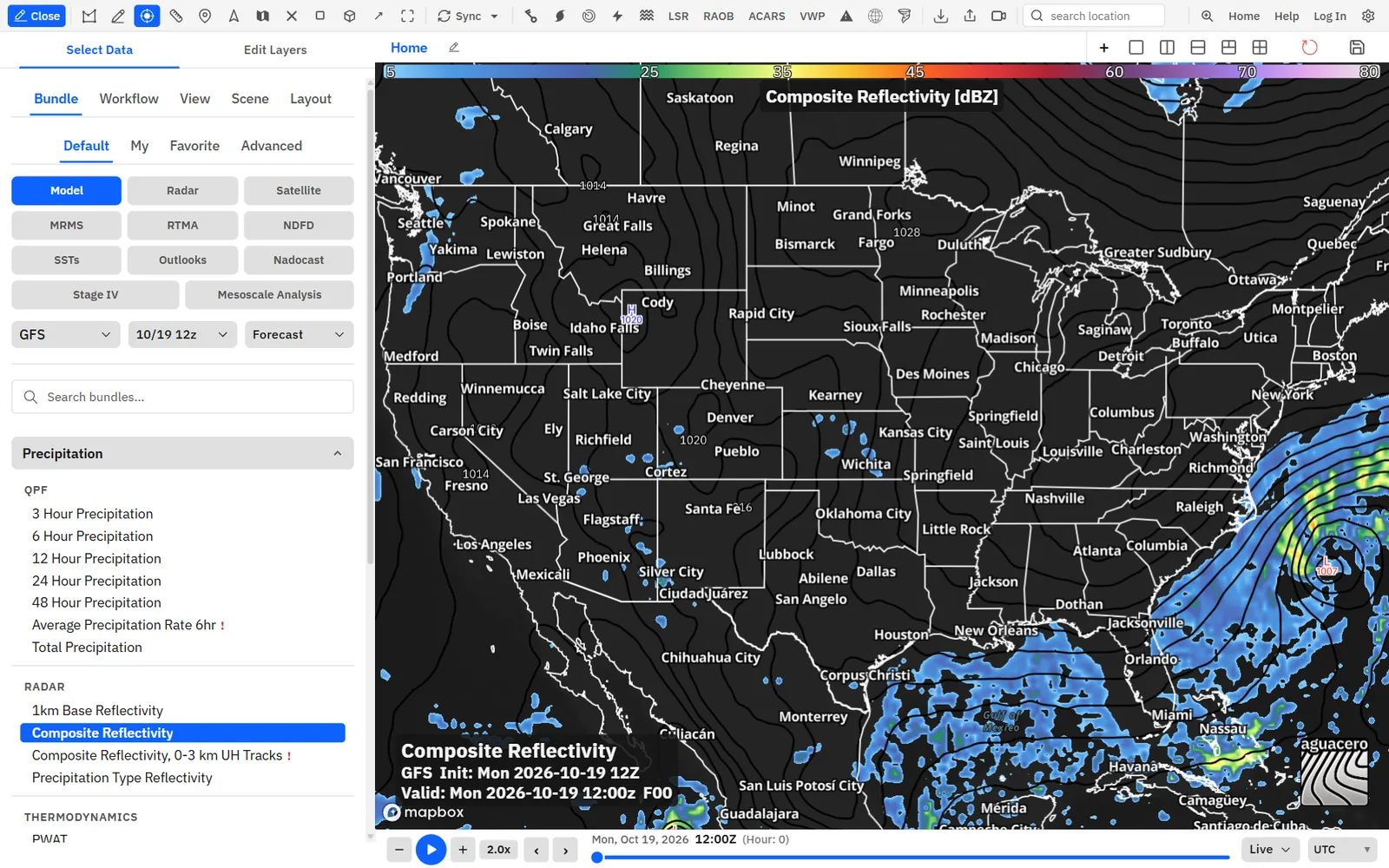
Where the export tools are
Every export starts from the toolbar, the map’s right-click menu or a keyboard shortcut, and always works on the active board.
Shortcuts
- Ctrl + Shift + D
- Download the board image
- Ctrl + Shift + C
- Copy the board image
- Ctrl + Shift + S
- Share the board image
- Ctrl + Shift + G
- Open the animation export dialog
Tips
- Hide the three toolbar buttons in Settings → Toolbar, and turn the right-click items on or off in Settings → Context menu.
- Change the shortcuts in Settings → Keyboard shortcuts under Board export.
- Soundings and cross sections have their own animation export, which uses the same settings.
Download, copy or share the board image
Save a still of the board, put it on the clipboard for a quick paste, or hand it straight to Messages, X, Discord or email.
Show me in the app- Set the time bar to the frame you want. Any open popups and pinned readouts are included.
- To save a file, click Download board or press Ctrl + Shift + D. The board shows Saving image... while it works.
- To paste it somewhere, press Ctrl + Shift + C or right-click the map and choose Copy image, then paste.
- To send it, click Share board. The Image ready sheet shows a preview, the file name and its size. Click Share to pick an app, or Save to keep a copy.
Tips
- Files are named from your workflow or bundle name (when you’ve named it), the model and run, and the valid time.
- Copy always makes a PNG, because the clipboard only takes PNG, but it uses the resolution from Images.
- On Android, Chrome can’t copy images, so Copy image and Download board open the sheet instead. Long-press the preview to copy it.
What ends up in the export
Images and animations show the board as you see it, minus the app around it, redrawn at your export size.
Every export includes:
Tips
- Every map panel on the board, arranged as on screen. A four-panel board exports as one four-panel image or video.
- The legend, valid time, titles, layer labels and other on-map text from the board’s layout.
- The AguaceroWx watermark, where the layout places it.
- Custom headers in the Default appearance, or the broadcast banner in Broadcast appearance, plus alert headers.
- Open feature popups with their leader lines, readouts you pinned by clicking, and the storm tracker readout.
- PGEN forecast drawings.
Exports leave out:
Tips
- The readout that follows your mouse. It’s live-only; click to pin a readout if you want it in the export.
- The scrolling alerts ticker, which is live-only.
- The toolbar, sidebar, time bar and dialogs.
Turning off the watermark (Layout tab → Watermark → Show watermark) needs Commercial. On other plans, unchecking it opens Commercial feature with an Email us button.
Related guideLayouts and on-map textPlace the watermark, and style the legend and on-map text that exports include.Image settings: format, resolution, quality and size cap
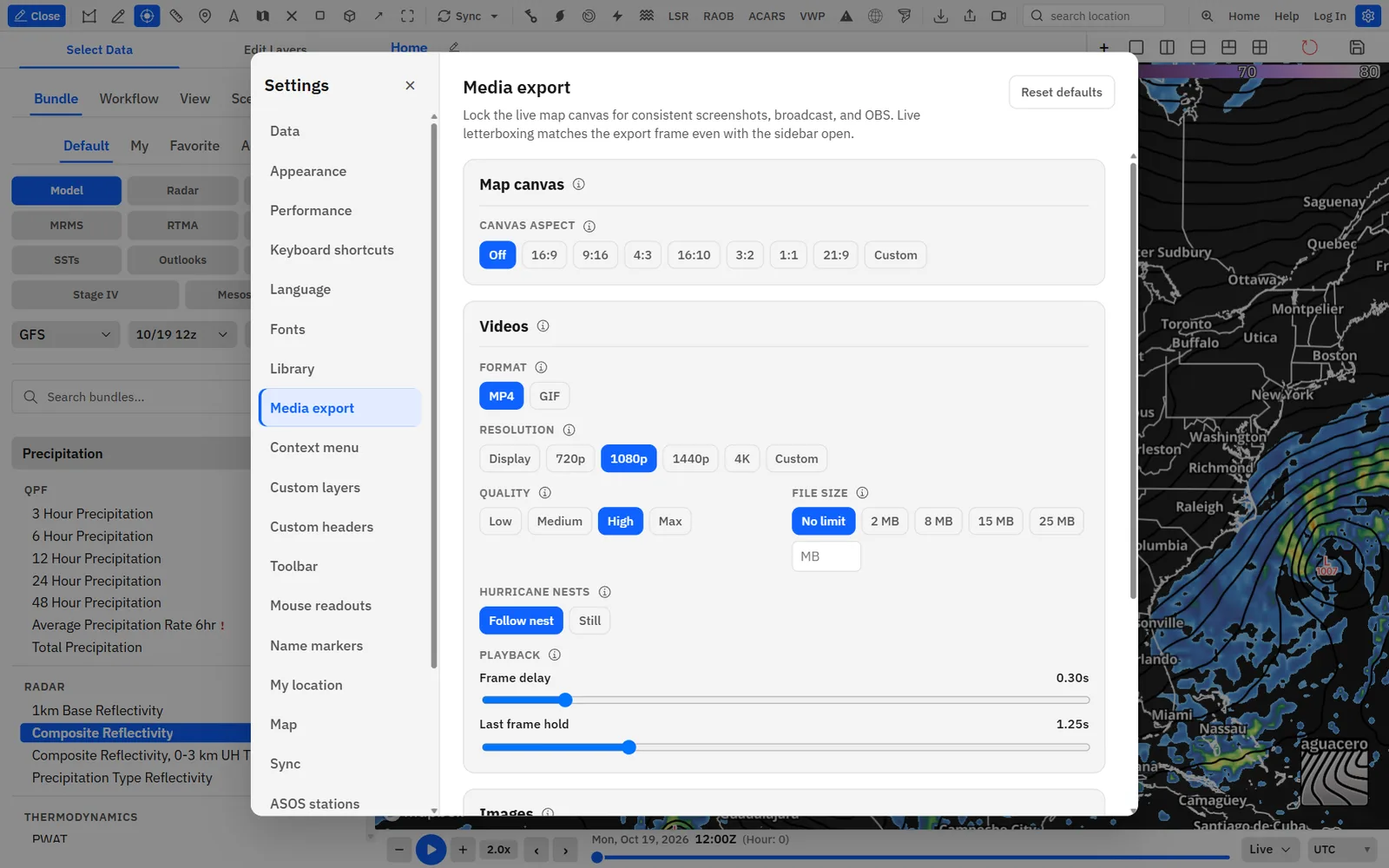
The Images group in Settings → Media export controls every still you download, share or copy.
- Click Settings on the toolbar and choose Media export.
- Scroll to Images and pick a Format, Resolution, Quality and File size.
- Check the line under the controls for the output size and an estimated file size.
Tips
- Reset defaults at the top of the panel puts every Media export setting back: MP4, 1080p, High, no size cap, and PNG for images.
Export an animation (MP4 or GIF)
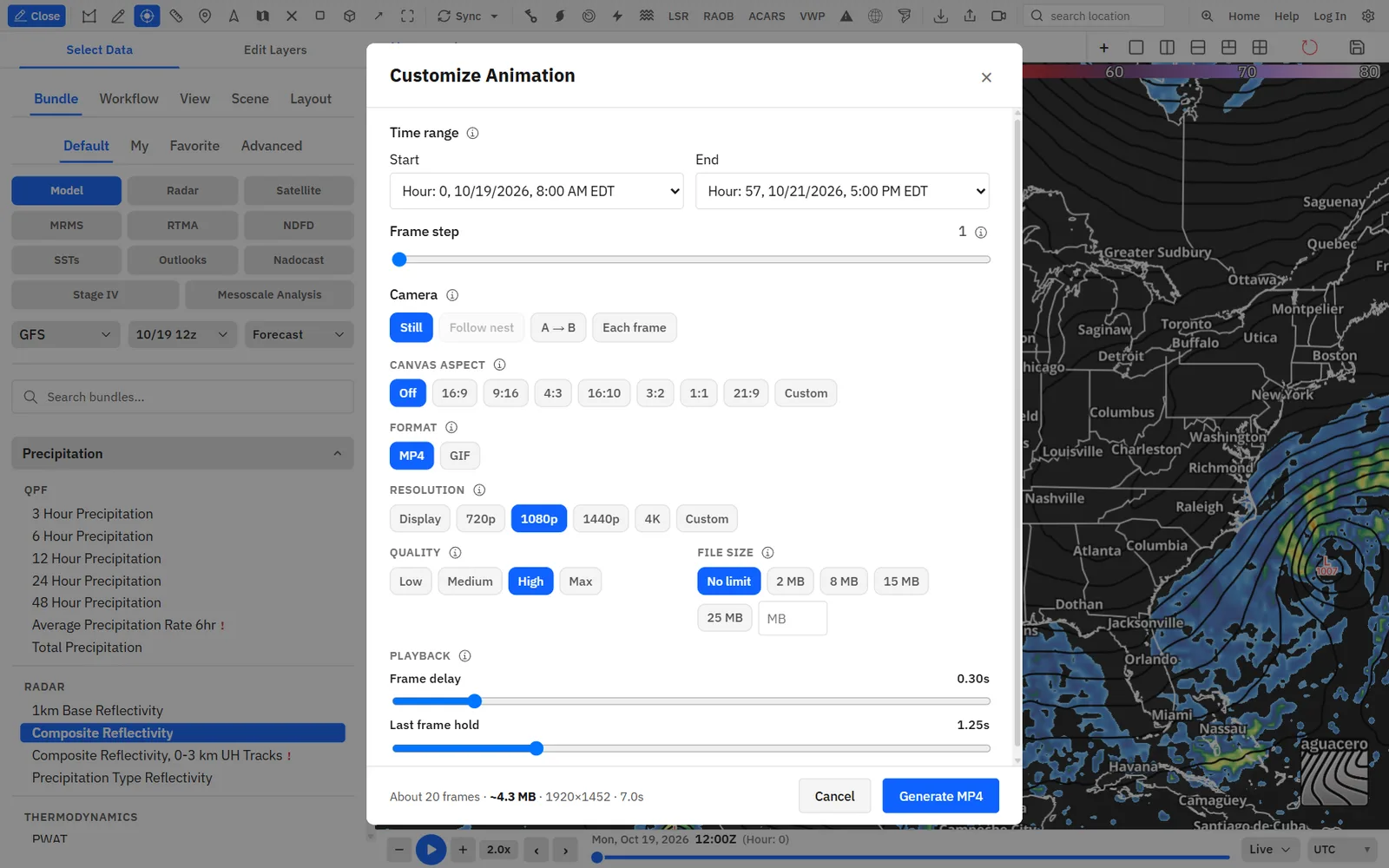
Customize Animation turns the frames on the time bar into a video or GIF. Pick the range, skip frames, and check the size before you generate.
Show me in the app- Load the data and wait until the time bar has its frames. With no frames, the app says No data available for GIF creation.
- Click Export animation, press Ctrl + Shift + G, or right-click the map and choose Generate video.
- Under Time range, pick the Start and End frames.
- Drag Frame step to use every frame (1) or skip some (2 = every other frame).
- Check the Format, Resolution, Quality, File size and Playback settings, and the estimate at the bottom.
- Click Generate MP4 (or Generate GIF). A progress bar shows each frame being captured. Keep the window open.
- On the MP4 ready or GIF ready screen, click Save or Share. Done closes it without saving.
Tips
- When the export finishes, the map goes back to the time and camera it had before.
- With the controls popped out into their own window, the video is made in the map window; keep both windows open.
Video settings: format, resolution, quality and file size
These controls appear in Settings → Media export → Videos and in the animation dialog. Changing them in one place changes both.
Tips
- MP4 adds extra keyframes on weather loops so each new radar or model frame stays sharp.
- Typical upload limits: Discord 8–10 MB, autoplay on X about 15 MB, Instagram about 100 MB.
- In the desktop app, a very large MP4 may be encoded a little smaller to avoid running out of memory. The progress text says so when it happens.
Frame delay and last-frame hold
Two sliders under Playback set how fast the animation plays and how long it pauses on the last frame before it starts over.
Length = (frames − 1) × Frame delay + Last frame hold. Twenty frames at the defaults run about 7 seconds. The estimate at the bottom of the dialog shows the length.
Tips
- GIFs repeat forever; there’s no loop count setting. MP4 files have no loop setting either: whether they repeat is up to the player or site.
- For fast-changing radar, try 0.10–0.15 s. For model loops you want people to read, try 0.40–0.60 s.
- Frame delay and Last frame hold don’t apply to scene and tour exports, which record in real time.
Storm-following and camera-path video
Make the camera move during an animation: keep a hurricane model’s nest centered, glide along a line you draw, or set the center of every frame by hand.
Show me in the app- Set the zoom and bearing you want; the camera keeps them as it moves.
- Click Export animation and set the time range.
- Under Camera, choose A → B or Each frame. The button changes to Set camera · MP4 (or Set camera · GIF).
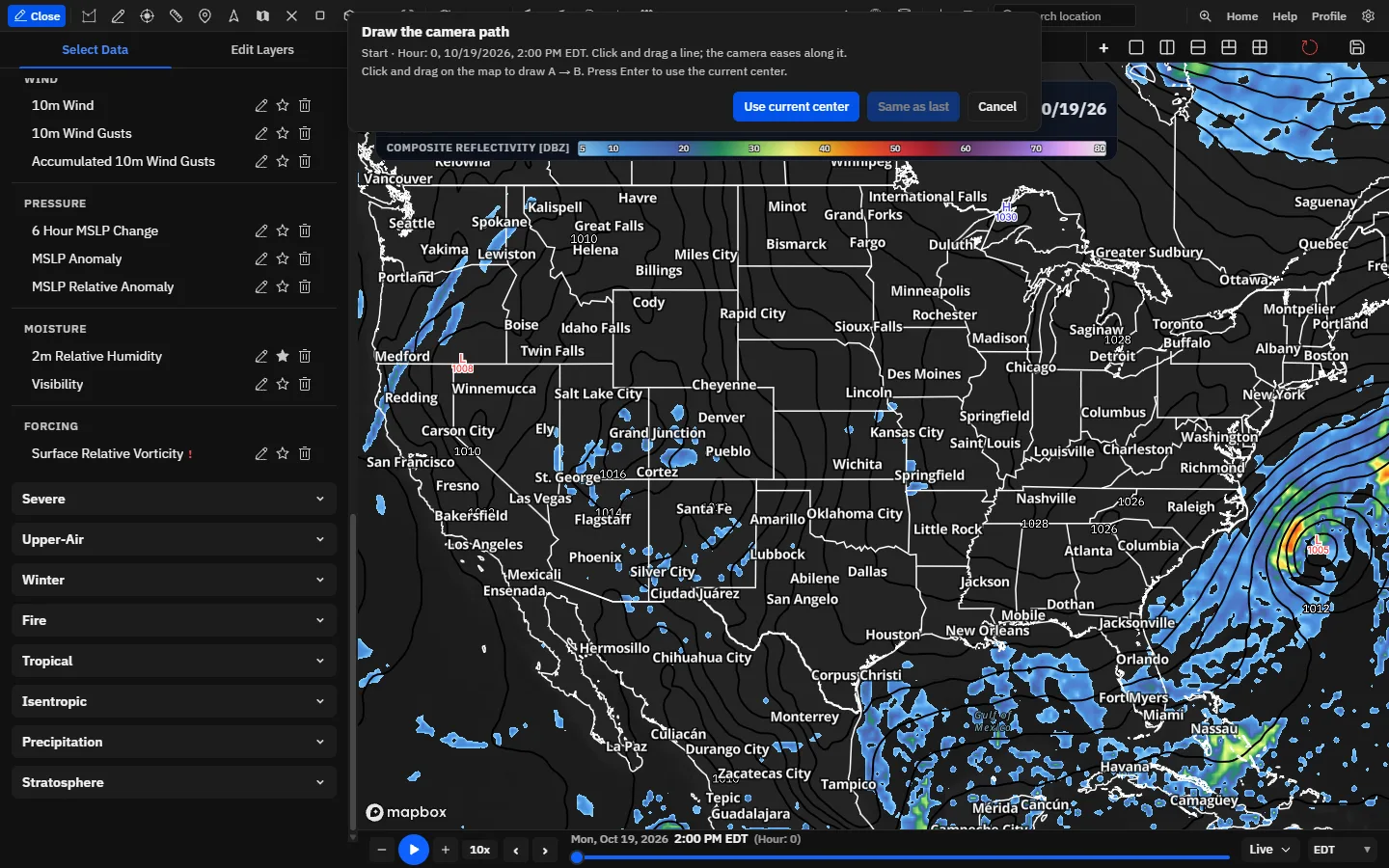
- Click Set camera · MP4. The dialog hides and a bar at the top of the screen guides you.
- For A → B, press on the map where the camera should start and drag to where it should end, then release. Or pan the map and press Enter to use its center.
- For Each frame, the map steps through your frames. Click the map to set each frame’s center, or use Use current center and Same as last.
- The export starts as soon as the path is set.
Tips
- Choosing Follow nest or Still in the dialog also changes Hurricane nests in Settings → Media export.
- A camera path you draw overrides nest following for that export.
The Camera row is hidden in Compare view and when the controls are popped out into their own window, because the path is set on the live map.
Lock the map to 16:9, 9:16 or another frame
The canvas lock letterboxes the live map to a fixed shape, so what you see, what OBS captures and what you export all share one frame, even with the sidebar open.
- Open Settings → Media export. Under Map canvas, click a shape under Canvas aspect, such as 16:9.
- The map shrinks to that shape with bars around it. The line under the controls shows the live canvas size.
- For OBS or another capture tool, pick a Resolution lock such as 1080p to pin the canvas to exact pixels.
- Click Off to let the map fill the window again.
Tips
- Wide shapes keep the preset’s width (1920 at 1080p) and set the height from the shape. Tall shapes use that number as the height (1080×1920 for 9:16 at 1080p), and 1:1 uses the preset’s height (1080×1080).
- If the window is smaller than the locked size, the canvas scales down to fit and the line says “window is smaller than …”.
- The resolution lock sets the live canvas. The file size is still set by Resolution under Videos and Images.
- The same controls are in the animation dialog and on the Layout tab under Canvas aspect. Layouts saved while an aspect is set switch the map back to it when you load them.
- In the mobile layout, the lock isn’t applied to the live map, so exports made there use the full map.
Read the size estimate and warnings
Before you generate, the dialog estimates the frame count, file size, pixel size and length, and warns when a file is likely too big for where you’re posting it.
The estimate at the bottom of the animation and scene export dialogs reads like “About 20 frames · ~6.2 MB · 1920×1080 · 7.0s”. “(held to your limit)” after the size means the File size cap is holding it down. It’s an estimate; the real size shows next to the file name when the file is ready.
A warning appears under the estimate when the file is likely to be too big:
Tips
- GIF over 8 MB: “Some apps (Discord, iMessage) cap GIFs around 8–10 MB.”
- GIF over 15 MB: “GIFs over ~15 MB often fail on Discord, Slack, or X. Try MP4, fewer frames, or a smaller size.”
- GIF over 100 MB: “This GIF will be too large for most social platforms. Prefer MP4 or lower resolution.”
- MP4 over 10 MB: “Discord’s free upload limit is 10 MB; 8 MB is a safer target.”
- MP4 over 25 MB: “Videos over 25 MB may not autoplay on X or upload on Discord without Nitro.”
- MP4 over 100 MB: “Over 100 MB — Instagram and Facebook may compress this heavily.”
- MP4 over 512 MB: “Over the 512 MB X/Twitter video limit. Lower resolution, quality, or duration.”
Scene and tour exportsCreator
Scenes and viewpoint tours export from their own Export button and record the live map as it plays, with transitions and camera moves.
Scene and tour exports use Format, Resolution, Quality and File size from these settings, but record in real time: MP4 at 30 frames per second and GIF at 20. Frame delay and Last frame hold don’t apply. The file downloads straight away, named after the scene or tour.
Related guideScenes, viewpoints and toursExport a scene or tour as video.Recipe: a radar loop for Discord and X under 8 MB
A crisp two-hour radar loop that uploads anywhere without being recompressed.
- Load a radar bundle and set the time bar’s loop length to 2 hours. Zoom to the storms and pin any readouts you want shown.
- Open Settings → Media export. Under Videos, pick MP4, 1080p, High and 8 MB. Set Frame delay to 0.15 s and Last frame hold to 1.50 s.
- Click Export animation. The range already ends at the newest scan. Leave Frame step at 1.
- Check the estimate at the bottom. If it says “(held to your limit)” and you want more sharpness, switch to 720p or raise Frame step to 2.
- Click Generate MP4, then Share on the MP4 ready screen, or Save and upload the file.
Recipe: a 9:16 vertical clip for Shorts, Reels and TikTok
Frame the map for a phone screen while you work, then export a 1080×1920 video.
- In Settings → Media export → Map canvas, click 9:16. The map becomes a tall frame in the middle of the window.
- Pan and zoom so the area you’re covering fills the tall frame. Leave room at the top and bottom for the platform’s captions and buttons.
- Under Videos, pick MP4 and Custom, then type 1080 for Width. The height follows the 9:16 frame (1920).
- Click Export animation, set the range and Frame delay, and click Generate MP4.
- Set Canvas aspect back to Off when you’re done.
Tips
- With 9:16 locked, 1080p means 1920 pixels wide, which would make a 1920×3413 file. Use Custom width 1080 for standard vertical video.
Recipe: a hurricane model loop that follows the storm
Keep the storm centered through a whole HAFS or HWRF run while the map stays at your zoom and angle.
- Load a HAFS, HWRF or HMON bundle for the storm and zoom in to the inner core. Tilt or rotate the map if you like.
- Click Export animation. Camera shows Follow nest selected, as long as Hurricane nests in Settings → Media export is on Follow nest (the default).
- Set Start and End to the hours you want. Raise Frame step to skip hours on a long run.
- Click Generate MP4. Each frame pans to that hour’s nest center.
Tips
- For a radar loop or a model without a nest, use A → B and drag along the storm’s path, or Each frame to click its center on every frame.
Where export settings are saved
Media export settings save as you change them, with no save button.
Tips
- Every setting in Settings → Media export, including changes you make in the animation and scene export dialogs, is saved in this browser right away, and to your account when you’re signed in, so it follows you to other devices.
- The watermark is part of the board’s layout, on the Layout tab.
- A → B and Each frame camera paths are used for one export and not saved. Hurricane nests is saved.
- Exported files go where your browser saves downloads, or where you choose in the desktop app. Nothing is kept online.
- Share links point to the saved bundle, workflow or map style in your library.
Common questions
Answers to the export questions we get most.
Why does my export look different from the screen?
Exports are drawn again at your Resolution (1920 px wide by default) instead of copying the screen, so they’re sharper, and the shape matches the board. A Custom height that doesn’t match the board adds black bars. Hover readouts and the alerts ticker are live-only and left out. To make the screen and the file match exactly, lock the shape under Map canvas.
Why is my GIF so big?
GIF stores every frame as a full picture with no video compression, so it grows fast with size and frame count. Use MP4 if you can. Otherwise pick 720p, a lower Quality, a File size cap such as 8 MB, a higher Frame step, or a shorter range. The estimate warns you before you generate.
My MP4 export failed or says “Try GIF instead”. What can I do?
MP4s are made with your browser’s built-in H.264 video encoder. “Video encoding is not supported in this browser” means the browser has none; update it, use the desktop app, or export a GIF. “Browser refuses to encode at …” means the size is too large for it; pick a lower Resolution.
The MP4 plays on my computer but not on an older phone or player. Why?
Very large videos, such as 4K or custom sizes, can be beyond what older devices decode. 1080p or 720p plays almost everywhere.
I clicked Done and nothing saved. Where’s my file?
On the MP4 ready, GIF ready or Image ready screen, the file is saved only when you click Save or share it. Done closes the screen. Export it again and click Save.
Why don’t I see a Share button?
Share shows only when your browser or device can share files, which most phones and some desktop browsers can. Elsewhere, use Save and attach the file.
Copy to clipboard failed. Why?
Some browsers block image copying, and Chrome on Android can’t copy images at all (the app opens the save sheet instead). If you see “Could not copy to clipboard”, use Download board.
Can I remove the AguaceroWx watermark?
On Commercial, yes: uncheck Show watermark under Watermark on the Layout tab. On other plans it stays on exports, and you can move it with the layout’s position settings.
Is there a limit on how long an export can be?
Exports have no plan limit of their own. An animation can use every frame on the time bar. How far back radar, satellite and MRMS loops go depends on your plan: 1-hour loops on Free, up to 24 hours (NEXRAD 4 h) on Enthusiast, and 12–24 hours on Professional and up.
Why are Follow nest or A → B greyed out, or the Camera row missing?
Follow nest needs an HWRF, HAFS or HMON layer on the board. A → B needs at least two frames. The whole Camera row is hidden in Compare view and when the controls are popped out into their own window.
Can I export WebM, a transparent video, or set a loop count?
No. Animations export as MP4 or GIF, and stills as PNG, JPG or WebP. WebM is an upload format for custom headers and scene media. GIFs always loop forever.
I set 9:16 on my phone, but the export isn’t vertical. Why?
The canvas lock isn’t applied in the mobile layout, so exports made there use the full map. Make vertical exports on a computer or a larger screen.
Someone says my shared link doesn’t open. What should I check?
Make sure the item is saved and not private, and that they’re signed in. Workflow links also need Professional on their account. If you made the item private, make it public again and the same link works. If you deleted it, save it again and send the new link.
Does a multi-panel board export as one image?
Yes. Every map panel on the board is drawn into one image or video, in the same arrangement as on screen.