
Quick start: a two-step sceneCreator
Go from nothing to a scene that plays two maps in a row. The rest of this guide covers every option.
- Click Edit bundle on the toolbar, or press F1, to open the sidebar.
- Click the Scene tab at the top of the sidebar.
- Click + New scene. A scene named Scene 1 appears with Step 1 open.
- In Step 1, click Add bundle and pick a radar bundle, such as a reflectivity loop.
- Click + Add step. In Step 2, click Add bundle and pick a model bundle, such as a simulated radar forecast.
- Click Play. The scene loads Step 1, waits 10 seconds and loads Step 2. Ten seconds later playback stops with Step 2 still on the board.
- To run it as a loop instead, set Loop to On under Global settings.
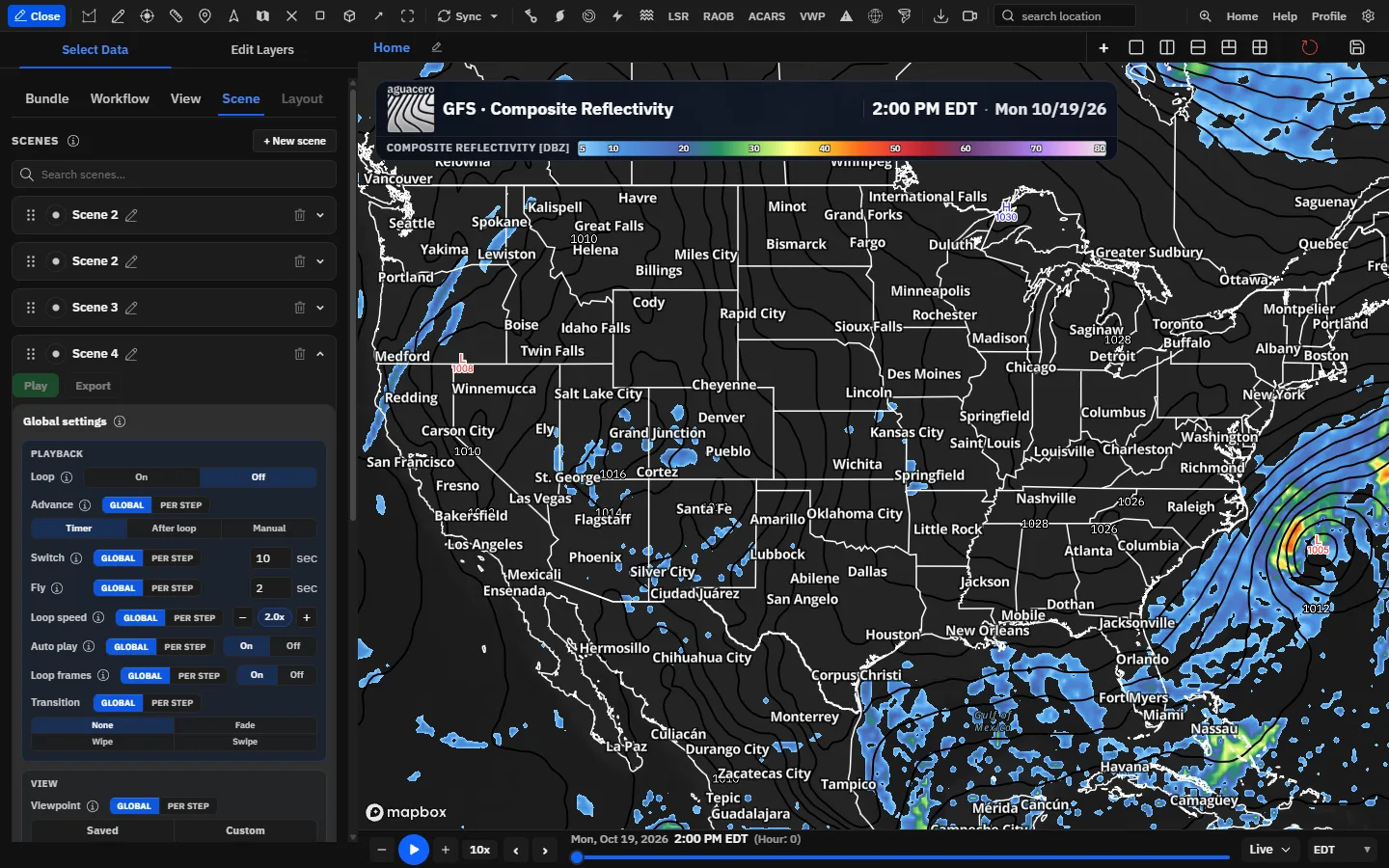
Viewpoints, tours and scenes build on each other. A viewpoint is one saved camera: center, zoom, pitch and bearing. A tour flies through a list of viewpoints and changes nothing else. A scene is a full rundown: each step can change the data, the camera, the graphics and the timing.
Save, edit and delete viewpoints
A viewpoint stores the map’s center, zoom, pitch and bearing under a name. Click it later to fly back, use it in tours and scenes, or open it when you sign in.
- Move the map to the view you want, including tilt and rotation.
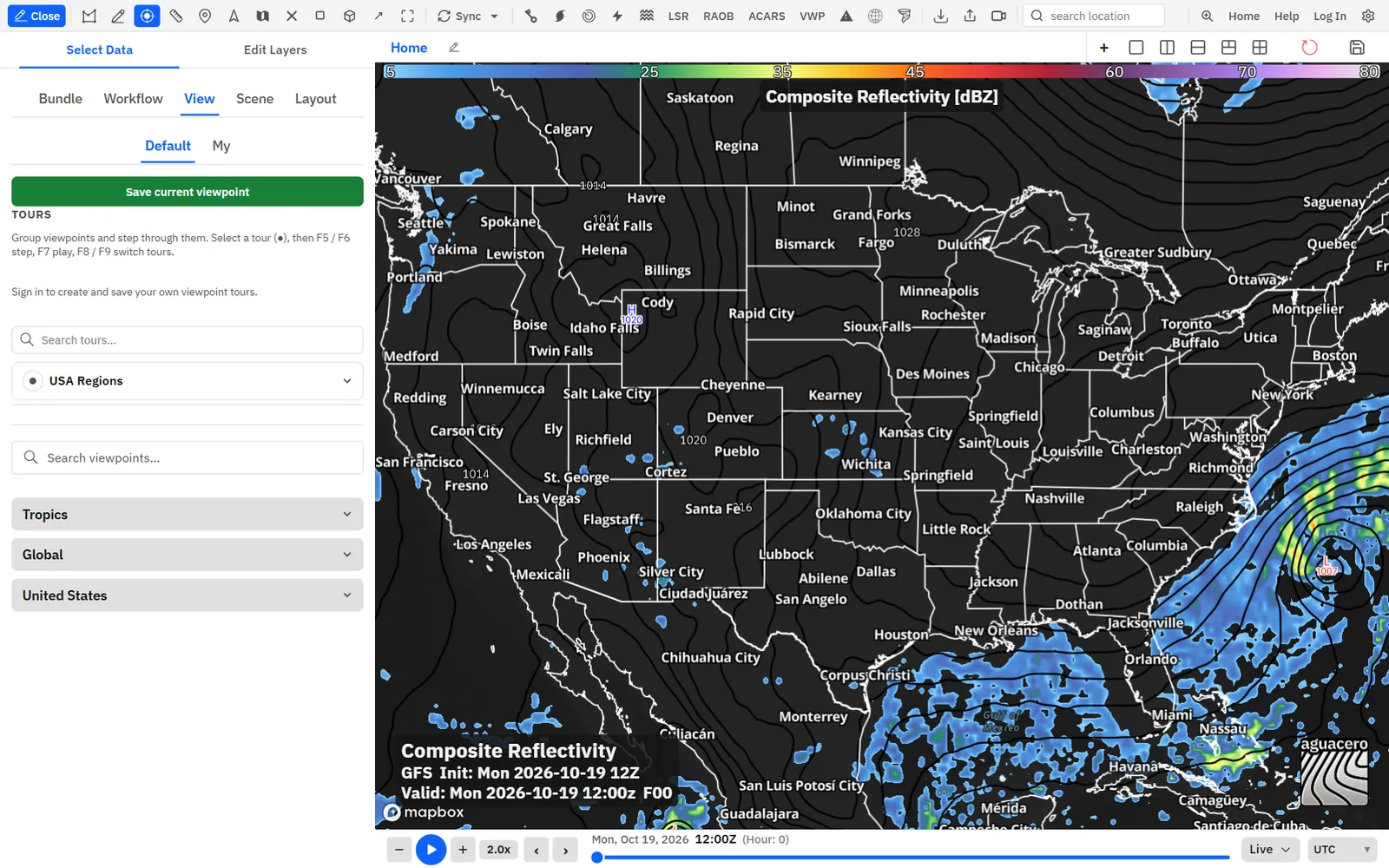
- Open the sidebar and click the View tab.
- Click Save current viewpoint. The Viewpoint properties dialog opens with the current camera filled in.
- Type a Name, a Category and a Subcategory. All three are required.
- Fine-tune the camera with the sliders under Camera if you like. The map moves as you drag.
- Click Save Viewpoint. The button shows Saved ✓ and the dialog closes.
Tips
- To move an existing viewpoint, click it in the My list so the map flies there, adjust the map, click Save current viewpoint, turn on Overwrite existing viewpoint? and click Update Viewpoint.
- Click any viewpoint in the list to fly the map to it.
- Scenes can also hold a camera of their own (Custom) without saving a viewpoint. See “Scene-wide view and overlays” below.
Saving a viewpoint needs a signed-in account on any plan. If you’re signed out, Save current viewpoint opens the sign-in window.
Build a viewpoint tourCreator
A tour flies the map from one saved viewpoint to the next on a timer. It changes only the camera, so the data on the map keeps playing underneath.
Show me in the app- Save the viewpoints you want to visit first (see above).
- On the View tab, under Tours, click + New tour. A tour named Tour 1 (or the next number) opens in edit mode.
- Click the pencil next to the name to rename it. Press Enter to keep the name or Esc to cancel.
- With the tour in Add steps mode, click + (Add to tour) on each viewpoint in the list below, in the order you want to visit them.
- Click Done adding.
- Set Fly duration and Switch to next step after, then click Play.
Tips
- Click a step in the tour to fly straight to that viewpoint. The current step is highlighted.
- Hold and drag a step, or its dotted handle, to change the order.
- Click × (Remove) to take a viewpoint out of the tour. The viewpoint stays in your library.
- The built-in USA Regions tour visits CONUS, the U.S. regions and Alaska, switching every 8 seconds. Anyone can play it, even signed out, but it can’t be edited or deleted.
- A viewpoint can appear only once in a tour. Clicking + on a viewpoint that’s already in the tour does nothing.
- Hold and drag a tour card by its handle to reorder tours. Reordering needs you to be signed in, with the search box empty.
+ New tour and Add steps need Creator; without it they open Upgrade to Creator. Tours save to your account.
Play a tour liveCreator
Run a tour on its timer, or step through it by hand with the function keys while you talk.
- Click the dot (●) on the tour. The map flies to step 1 and the tour is selected for the keyboard.
- Press F6 to fly to the next viewpoint and F5 to go back. Both wrap around at the ends.
- Press F7 to start or stop timed playback.
- Press F8 or F9 to jump to the previous or next tour. If a tour was playing, the new one starts playing.
Shortcuts
- F5
- Previous step
- F6
- Next step
- F7
- Play or pause the selected tour
- F8 / F9
- Previous or next tour
Tips
- Changing Switch to next step after while a tour plays restarts the timer with the new value.
- Change these keys in Settings → Keyboard shortcuts under Viewpoint tours & scenes.
How a scene worksCreator
A scene is an ordered list of steps with one set of Global settings. Each step is either a map or a full-panel image or video.
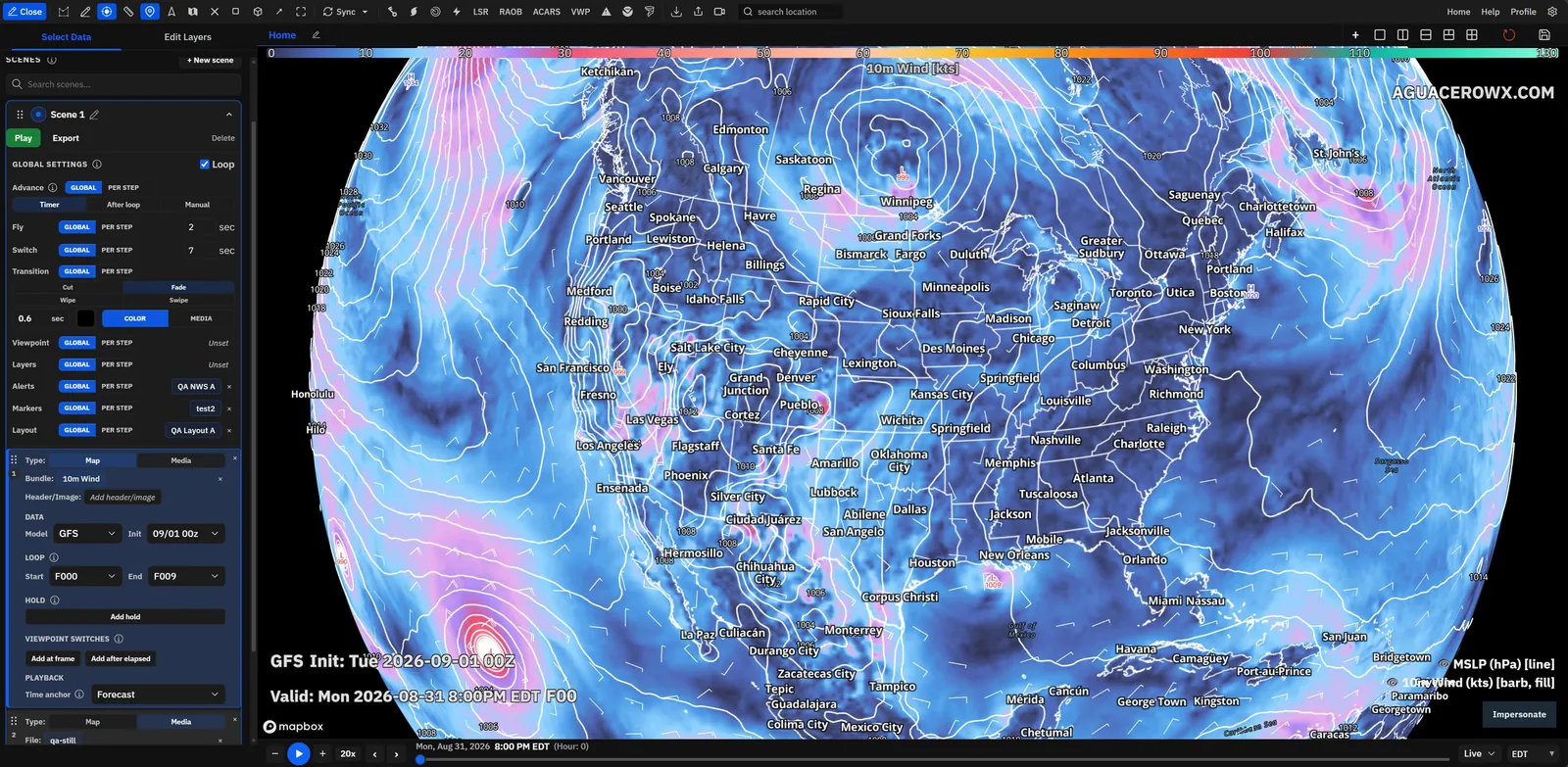
Show me in the appEvery scene has a card in the Scene tab. Expand it to see Play, Export, Global settings and the steps. Each step has a Type: Map loads data, a camera and graphics on the board; Media covers the panel with an image or video you upload.
Each row in Global settings has a Global / Per step switch. Global applies one value to the whole scene. Per step hides the row from Global settings and adds it to every step, so each step can have its own value. A step that leaves a Per step value empty uses the scene value.
When a step doesn’t set something, it falls back in this order: the step’s own value, then the scene’s, then what’s saved in the step’s bundle or workflow. The step shows where a value comes from, for example Using bundle viewpoint or Using scene · My layout.
The Scene tab needs Creator; without it the tab shows a lock and opens Upgrade to Creator. Scenes also need a signed-in account.
Fill a map stepCreator
A map step loads a bundle or workflow, adds headers and images on top, and can override the camera, map style, alerts, name markers, layout and custom layers.
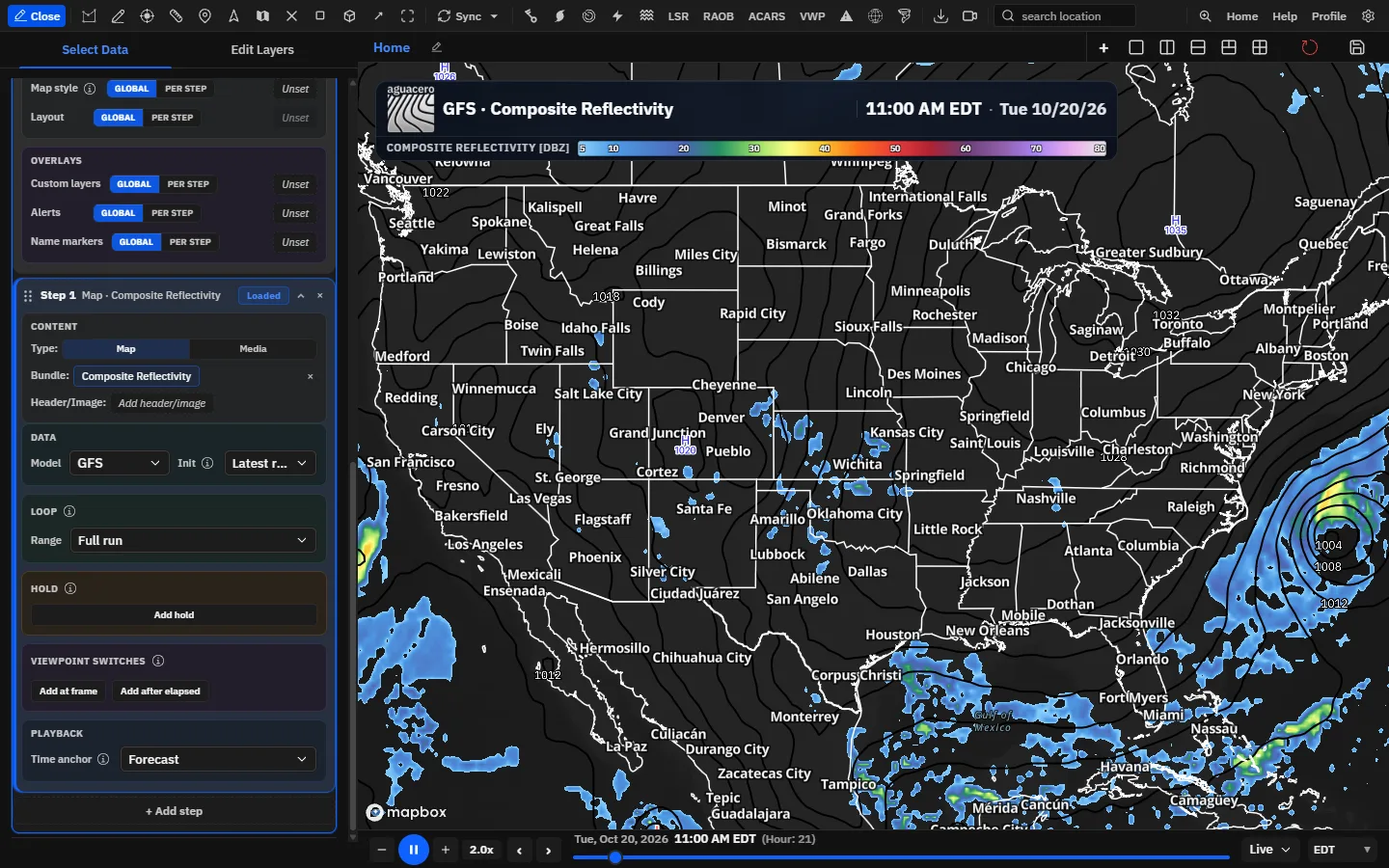
- Open the step and check that Type: is Map.
- Click Add bundle to pick a saved bundle, or Add workflow to load a saved multi-panel workflow. A step holds one or the other.
- Click Add header/image to put a custom header, logo or upper third on the map for this step. Click Add another for more.
- To give this step its own camera, map style, alerts, name markers, layout or custom layers, switch that row to Per step under Global settings. The row then appears in each step.
- Click Load to check the step on the board.
Tips
- A gray Using bundle … or Using scene … label means the step inherits that value. Pick a value on the step to override it.
- A step counts as having content once it has a bundle, workflow, viewpoint, header, media file, layout, map style, alerts, name markers or custom layer. Timing and transitions alone don’t count.
Pin a model run, radar sites or satelliteCreator
The Data section of a map step decides which run, radar sites and satellite sector load, so the step shows the same thing every time, or always the newest.
The Data section appears once the step’s bundle has model, radar or satellite layers. Each control shows only for the kind of data the bundle has.
Set a step’s time rangeCreator
The Loop section sets which frames a map step plays: a whole model run, a few forecast hours, a time of day, or the last hour of radar.
The choices depend on the step’s data. Model steps count in forecast hours. Radar, satellite and other observed data count back from the newest frame.
Tips
- If Forecast hours appear once this model run is listed or Available times show after this step’s data is loaded appears, click Load on the step, wait for the data, and open the menu again.
- Long observed ranges are limited by how much history your plan loads.
Pause the loop and move the camera mid-stepCreator
Holds pause the loop on a frame for a few seconds or until you click. Viewpoint switches fly the camera somewhere else partway through a step without stopping the data.
- Open a map step whose Range plays more than one frame.
- Under Hold, click Add hold.
- Set At to the frame to stop on, choose Duration or Until click under Wait, and optionally pick a viewpoint under Fly to.
- Under Viewpoint switches, click Add at frame or Add after elapsed, then click Choose viewpoint.
Holds and At frame switches need a range of more than one frame. If you set Range to One time, the step’s holds and At frame switches are cleared when the step loads.
Show an image or video (Media steps)Creator
A Media step covers the map panel with a graphic you upload: a title card, a forecast graphic, a sponsor spot or a video clip.
- Open a step and set Type: to Media. The Step media dialog opens.
- Drop files on the dialog or click to browse. One upload is selected for the step right away; with several, click the one you want under Uploaded.
- Or pick a file you already uploaded as a custom header under From headers.
- Set Fit, Play, Speed, Audio and Hold under Media.
Tips
- To wait for a GIF or video to finish, set the scene’s Advance to After loop, or the step’s own Advance to After playback. See “Global settings: advance, timing and looping”.
- A Media step sits on a black background. Transparent areas of the file and the bars from Contain show black, not the map.
Global settings: advance, timing and loopingCreator
The Playback rows decide when the scene moves to the next step, how fast the camera flies and how the time bar plays on map steps.
Tips
- A still image step can only use Switch timer or Manual; there’s nothing to play through.
- As a safety net, a Manual, After loop or After playback step moves on by itself after 30 minutes.
Transitions and video stingersCreator
A transition covers the outgoing step, swaps in the next one underneath, then reveals it. Cover with a color, an image, or a video stinger that plays start to finish.
- Under Global settings, find Transition. Switch it to Per step to give each step its own exit.
- Pick Fade, Wipe or Swipe.
- For a wipe or swipe, pick the direction with the arrows.
- Set the duration in seconds, then choose Color and click the swatch, or choose Media and click Upload overlay.
A WebM or MP4 under Media becomes a stinger. It plays once, start to finish, as the whole transition. The step switches once the video covers the map, and transparent areas of a WebM show the map underneath. Direction and duration don’t apply to a stinger.
Tips
- With Per step, each step’s transition plays when leaving that step, and the next step is revealed with the same animation.
- Export a stinger as WebM with an alpha channel (VP9) if you want the map to show around your logo.
Scene-wide view and overlaysCreator
The View and Overlays sections of Global settings set the camera, map style, layout, custom layers, alerts and name markers for the whole scene, or per step.
Tips
- Leave a row on Global and empty to let each step’s bundle or workflow bring its own saved viewpoint, alerts, map or layout.
- A new scene starts with the saved layout you applied last, if any.
Play a scene liveCreator
Select a scene, then drive it from the keyboard: step, play, pause, continue past holds and jump between scenes without touching the sidebar.
- Click the dot (●) on the scene. Its first step with content loads, and the scene starts preloading the data for its steps.
- Press F7 or click Play to run it on its Advance settings.
- When a pill reads Waiting — click or press Space for next step, click the map or press Space or Enter to go on.
- Press F6 or F5 to step forward or back at any time, playing or not.
- Press F8 or F9 to switch to the previous or next scene.
Shortcuts
- F5
- Previous step (stops at the first step)
- F6
- Next step (wraps to the first only when Loop is On)
- F7
- Play or pause the selected scene
- F8 / F9
- Previous or next scene; keeps playing if one was playing
- Space / Enter / click
- Continue past an Until click hold, or go on from a Manual step
Tips
- Steps with no content are skipped by Play and the function keys.
- Selecting a scene can change the time bar’s loop length and time anchor to fit each step. Deselect the scene (click its dot again) to put them back.
- Steps set to Latest run check for a newer run each time they play, so a scene left looping picks up new runs on its own.
- With nothing selected, F8 and F9 still pick a scene or tour, but F5 to F7 do nothing in the app.
The F-key shortcuts are for computer keyboards and can be changed in Settings → Keyboard shortcuts.
Export a scene or tour as videoCreator
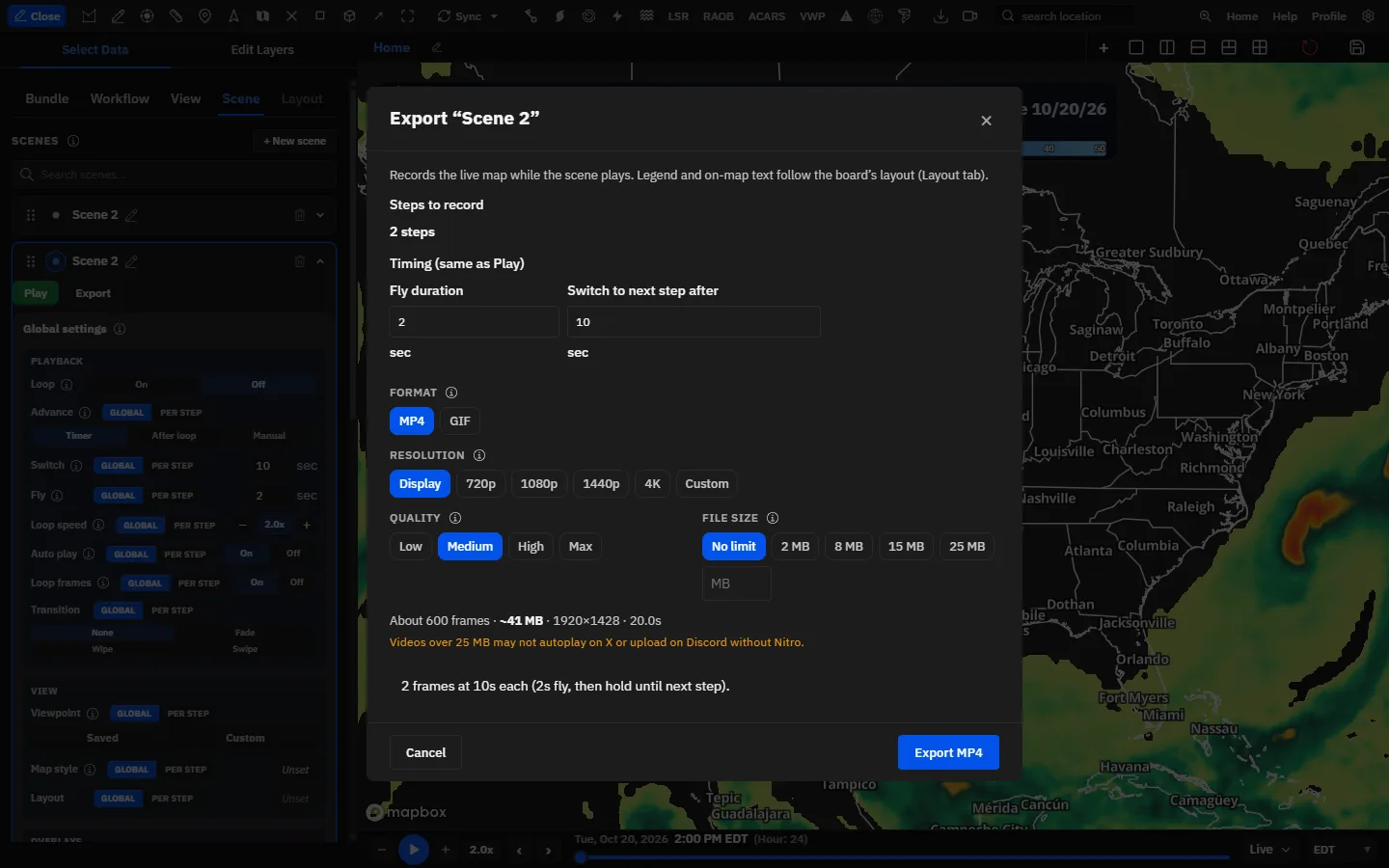
Export records the live board while the scene or tour plays, with its transitions, headers, legend and on-map text, and saves an MP4 or GIF.
- Set the board up the way you want the video to look: panel size, layout and canvas aspect.
- Expand the scene or tour and click Export. If it was playing, it stops.
- Check Timing (same as Play): Fly duration and Switch to next step after. Changes here are saved to the scene or tour.
- Pick the Format (MP4 or GIF), Resolution, Quality and File size.
- Click Export MP4 (or Export GIF). Keep the board visible and the window open while it records.
- When it finishes, the file downloads; the desktop app asks where to save it. It’s named after the scene or tour.
Tips
- The export runs in real time, so a scene of six 10-second steps takes about a minute to record.
- Steps on After loop or After playback are recorded until the loop or clip finishes. Manual steps can’t wait for a click in a recording, so they’re recorded for their Switch time.
- MP4 records at 30 frames per second. GIF records 20 frames per second, so GIFs of long scenes get big fast. Use MP4 where you can.
- Exports have no sound, even when a video step is set to Sound.
Recipe: a 60-second severe weather segmentCreator
Five steps that go from a branded open to the outlook, the warned storm and the forecast, with a pause you control on air.
- Save three viewpoints first: a regional view, a close-up of the area at risk, and a tight view of the storm.
- Click + New scene and rename it “Severe 6pm”. Under Global settings, set Switch to 12 sec, Fly to 2.5 sec, and Transition to Wipe, From left, with Color set to your station color.
- Switch Advance and Viewpoint to Per step, so each step sets its own advance and camera.
- Step 1: set Type: to Media and upload a 3-second title card video. Under Playback, set Advance to After playback.
- Step 2: click Add bundle and pick your SPC outlook bundle. Under Viewpoint:, choose Saved and pick the regional view. Set Advance to Switch timer.
- Step 3: add a radar reflectivity bundle and pick the close-up viewpoint. Set Range to 1 hour and Advance to Manual. Under Viewpoint switches, click Add after elapsed, set After to 4 sec and choose the storm viewpoint.
- Step 4: add a radar bundle with your warnings, then Add header/image for a lower third. Under Radar sites, pick the two nearest sites. Set Advance to Switch timer.
- Step 5: add an HRRR simulated radar bundle. Set Init to Latest run, Range to Custom hours from Today 4:00 PM to Today 11:00 PM, and Advance to Switch timer.
- Select the scene with its dot (●). On air, press F7 to start. On step 3, talk through the storm while the camera moves in, then press Space to go on. Press F6 to skip ahead if you run short on time.
Tips
- Click Load on each step once before air so its data is already loaded.
- With Init on Latest run and a time-of-day range, the same scene works for every newscast without editing.
- A step with no Advance of its own shows and plays the scene’s Advance. Click a choice on the step to give it its own.
Recipe: a hands-free loop for a stream or lobby screenCreator
A scene that cycles forever and picks up the newest radar scans and model runs on every pass.
- Create a scene. Under Global settings, set Loop to On, Switch to 8 sec, and Transition to Fade with a duration of 1 sec.
- Switch Advance to Per step.
- Step 1: a national radar mosaic bundle with Range 2 hours and Advance After loop.
- Step 2: a regional radar bundle with Range 1 hour and Advance After loop. Under Viewpoint switches, click Add after elapsed, set After to 6 sec and pick a closer viewpoint.
- Step 3: a satellite bundle with Satellite and Sector pinned and Advance After loop.
- Step 4: a model bundle with Init Latest fully completed run, Range Full run and Advance After loop.
- Step 5: a Media step with a sponsor slide, Fit Cover, and Advance Switch timer, so it shows for the 8-second Switch time.
- Lock the map to 16:9 in Settings → Media export → Map canvas, select the scene and press F7.
Tips
- Radar ranges such as 2 hours slide forward as new scans arrive, and Latest runs check for a new run on every pass, so nothing goes stale.
Where scenes, tours and viewpoints are saved
Everything here saves to your account as you edit; there’s no separate save button.
Tips
- Viewpoints save to your account library. They show under My on the View tab and in every scene and tour picker, on every device you sign in on.
- Tours save to your account as you edit them, and so does the order of the tour list.
- Scenes save to your account as you edit them, with every step and setting. Steps with nothing assigned stay while you work but aren’t saved, so they’re gone after a reload.
- Files you upload for Media steps and transition overlays are stored in your account and listed under Uploaded in the Step media dialog.
- Steps store links to your bundles, workflows, viewpoints, layouts and other saved items. Editing a bundle changes every step that uses it. If you delete it, the step can’t load it anymore.
- Scenes and tours can’t be shared by link. To show one to someone else, export it as a video.
Common questions
Answers to the questions we get most about viewpoints, tours and scenes.
Why does the Scene tab have a lock?
Scenes need Creator (Commercial includes it). Clicking the tab opens Upgrade to Creator. On the View tab, saving viewpoints works on any plan, and anyone can play the built-in USA Regions tour, but + New tour and Add steps need Creator.
Why are Play and Export greyed out?
A scene needs at least two steps with content; empty steps don’t count. A tour needs at least two viewpoints. Hover the button to see which is missing.
I pressed F5 and the page reloaded. Why?
F5 to F7 only work while a tour or scene is selected with its dot (●). With nothing selected, the browser’s own F5 (reload) runs. Select the scene first, or move these shortcuts to other keys in Settings → Keyboard shortcuts.
Space stopped my loop instead of continuing the scene. Why?
Space continues the scene only while the Paused or Waiting pill is on the map. At other times, Space plays or pauses the time bar. Use F6 to go to the next step.
My scene stops after the last step. How do I make it repeat?
Set Loop to On under Global settings → Playback. Tours always repeat.
Where’s the Viewpoint row on my steps?
Viewpoint, Map style, Layout, Custom layers, Alerts and Name markers show on steps only when you switch that row to Per step under Global settings. On Global, set them once for the whole scene.
A step says “Using bundle viewpoint”. How do I change it?
The step is using the camera saved in its bundle. With Viewpoint on Per step, choose Saved or Custom on the step to override it. A scene-wide viewpoint on Global also overrides it.
My empty step disappeared after I reloaded. Why?
Steps with nothing assigned aren’t saved. Add a bundle, workflow, viewpoint, header or media file to keep the step.
Why did my media upload fail?
Scene media must be PNG, JPEG, WebP, GIF, WebM or MP4 and 8 MB or smaller. The dialog lists skipped files with the reason, such as “over 8MB” or “unsupported type”. You also need to be signed in.
Why is the Layout row greyed out?
Layouts don’t apply in Broadcast appearance mode, which draws its own banner. Switch Settings → Appearance back to Default to use scene layouts.
Some of my scenes vanished in archive mode. Where did they go?
In archive mode, the list shows only scenes with archived NEXRAD or MRMS bundles or workflows. Scenes that use only live data come back when you leave archive mode.
A tour step shows a long code instead of a name. What happened?
The viewpoint for that step was deleted. Remove the step with × and add a viewpoint again.
Can I share a scene or tour with another account?
Not by link. Scenes and tours are saved to your own account. Export the scene as an MP4 or GIF to share it, or share the bundles it uses.
Why doesn’t the export wait at my Manual step?
A recording can’t wait for a click, so Manual steps are recorded for their Switch time. Set a Switch time that fits what you want on screen.