Put your first header on the mapCreator
Upload a graphic, add it to the map as a layer and drag it into place.
Show me in the app- Sign in with a Creator or Commercial account.
- Open the sidebar with the Edit button on the toolbar (it reads Edit: and the bundle’s name) or F1, then click Edit Layers.
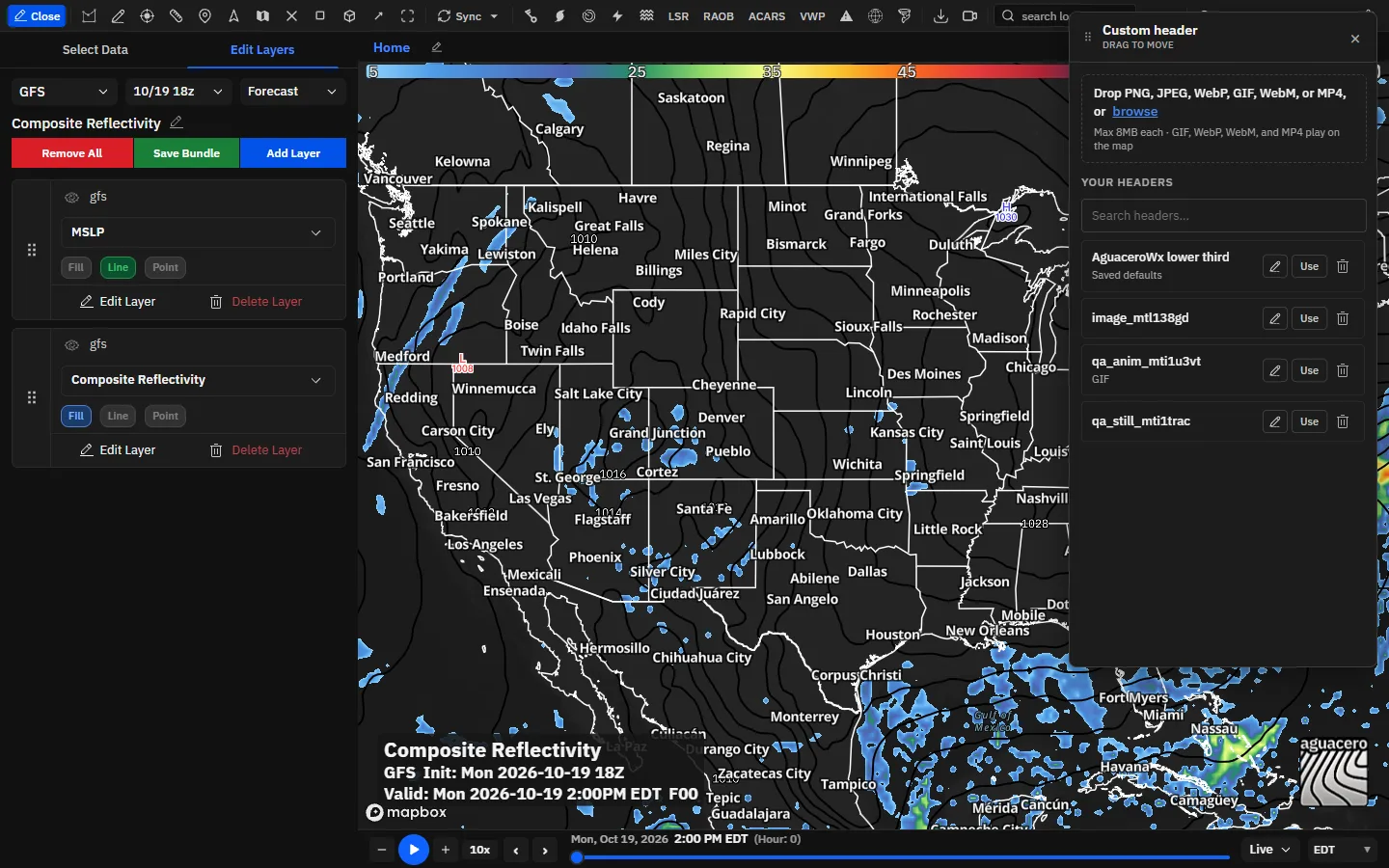
- Click Add Layer and choose Custom Header. The Custom header picker opens at the top right of the window.
- Drop a PNG, JPEG, WebP, GIF, WebM or MP4 file on the drop area, or click browse. Each file can be up to 8 MB.
- Check the name under Name this header and click Save to library.
- Click Use next to the header. It appears at the top center of the map at 90% of the panel width, and the picker closes.
- In the layer list, click Edit Layer on the header’s row. A dashed frame with handles appears around the header.
- Drag the header to move it, or drag a handle to resize it. Click Back to Bundle Editing when it sits where you want it.
- Save the bundle to keep the header with it.
Tips
- The Custom Header entry is in the Add Layer menu only when you are signed in.
- The picker is a floating window. Drag its title bar to move it, and click × to close it.
- Want the same header on every bundle you load? Put it in a layout instead of a bundle (see Headers in layouts).
Upload headers to your libraryCreator
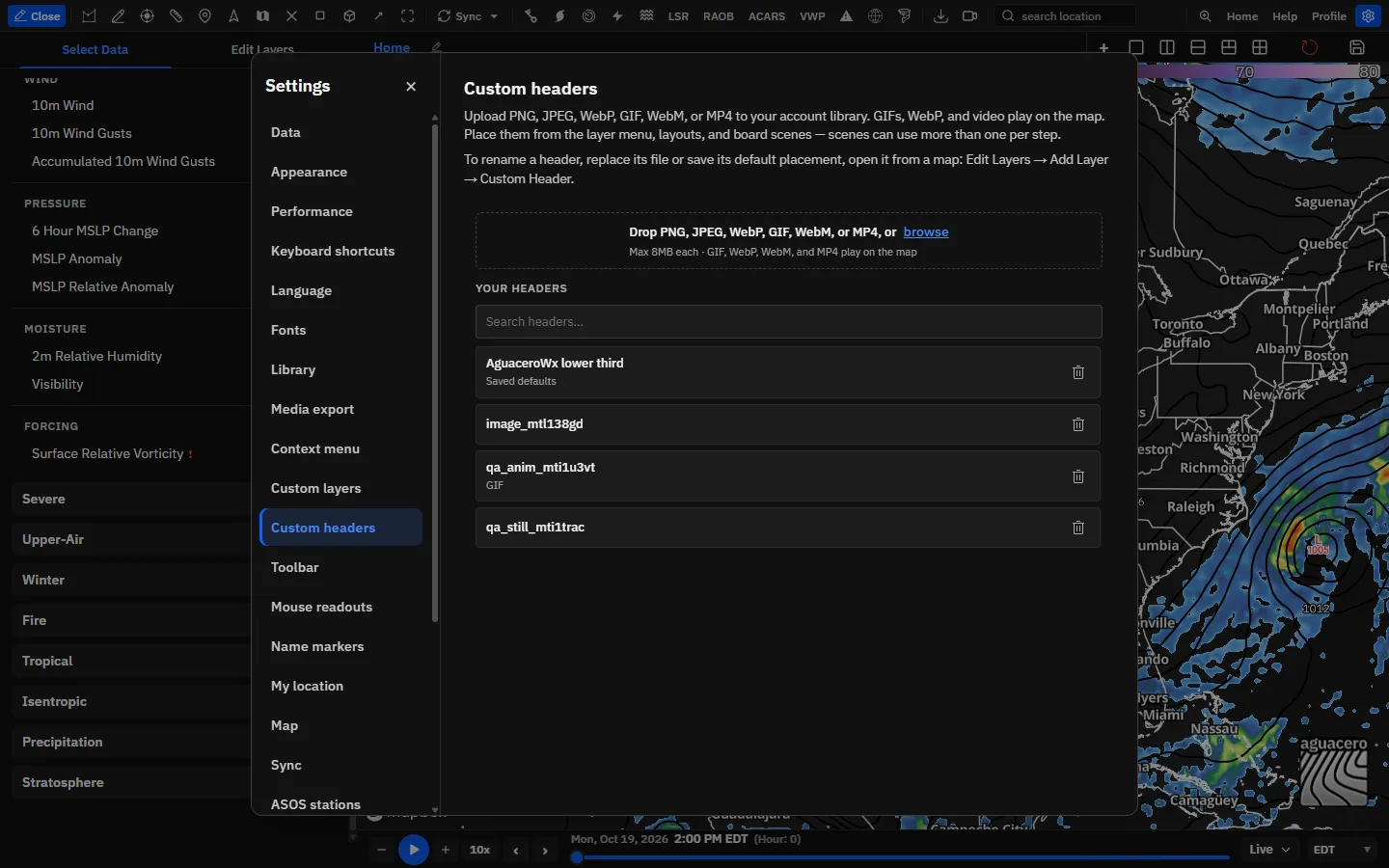
Your header library holds every graphic you upload. Add files from Settings or from any header picker.
- Click Settings on the toolbar, then Custom headers. Any header picker on the map works too.
- Drop one file on the area that reads Drop PNG, JPEG, WebP, GIF, WebM, or MP4, or browse, or click browse and pick it. A preview appears.
- Type a name under Name this header. It starts as the file name without its extension.
- Click Save to library. The button reads Uploading… until the file is stored, then the header appears under Your headers.
Drop or pick several files at once to upload them in one go. Each one is named after its file, with no naming step, and the window shows Uploading 1 of 3… and so on. Files that break the rules are skipped and listed after Skipped:.
Tips
- Make a lower third at the width you’ll show it, for example 1920 px wide for a 1080p frame, with a transparent background.
- For long animations, WebM and MP4 are usually far smaller than a GIF of the same length.
In Settings → Custom headers you can upload, search and delete headers. To rename a header, give it defaults or replace its file, open the picker from the map (Add Layer → Custom Header, the Layout tab or a scene step).
Find, rename, replace and delete headersCreator
Your headers lists your library by name. Each row has buttons to set its defaults, place it or delete it.
- To rename a header, open a picker from the map and click its pencil (Edit defaults).
- Change Header name (up to 120 characters) and press Enter or click away. The library name changes at once.
- To swap the graphic but keep the name and defaults, click Change file next to Header file and pick the new file. The same type and size rules apply.
Change file replaces the file everywhere the header is used: maps, layouts and scenes all show the new graphic. Renaming a header from its layer or layout controls renames it in the library too.
Deleting a header can’t be undone. It is removed from your library, from maps that are open and from your board scenes. Saved bundles and workflows that still use it drop the image the next time they load, and layouts that used it no longer show it.
Tips
- Headers have no folders or categories, and the list is sorted by name. Use names that sort together, for example “WXYZ – Lower third” and “WXYZ – Corner bug”.
Save a header’s default position and textCreator
Defaults are the position, size, opacity and text a header gets each time you place it. Set them once and every new copy lands in the same spot.
- Open a picker from the map: Add Layer → Custom Header, Add custom header in the Layout tab, or Add header/image on a scene step.
- Click the pencil (Edit defaults) on the header. A panel titled Defaults for and the header’s name opens beside the list.
- Set the position, size, opacity and text. These are the same controls a placed header has, described in the next sections.
- Click Save defaults. The row now shows Saved defaults.
- Click Use to place the header with these settings.
When you stage a single new file in a map picker, a Defaults for new header panel opens with the same controls, so the header is saved with defaults on its first upload.
Tips
- Defaults apply to new placements only. Headers already on a map, in a layout or in a scene keep their own settings.
- Use places the header with what the panel shows now, even if you didn’t click Save defaults. Save them when you want the same setup next time.
- Without saved defaults, a header lands at the top center at 90% of the panel width, fully opaque, with no text.
Add a header to a bundle as a layerCreator
A header layer belongs to one map panel’s bundle. It saves and loads with that bundle, with its position, size and text.
- Click the map panel you want, open the sidebar and click Edit Layers.
- Click Add Layer → Custom Header.
- Click Use on a header. Repeat to add more; each header is its own layer.
Tips
- Header layers have no drag handle in the layer list. When headers overlap, the one added later draws on top.
- Headers work in archive mode too. There, the Add Layer button’s tooltip reads “Add a custom layer or custom header”.
- A layout with headers of its own hides the bundle’s header layers. See Headers in layouts.
Move, resize and anchor a headerCreator
Drag on the map for quick placement, or type exact numbers. Either way the header keeps its image’s aspect ratio.
- Click Edit Layer on the header’s row (or Edit on a layout header). The header gets a dashed frame with handles on its four corners and its left and right sides.
- Drag inside the frame to move the header.
- Drag a handle to change the width. The height follows the image.
- For exact placement, type X and Y, pick an Anchor and set the width.
- Click Back to Bundle Editing (or Done in the Layout tab) when you’re finished.
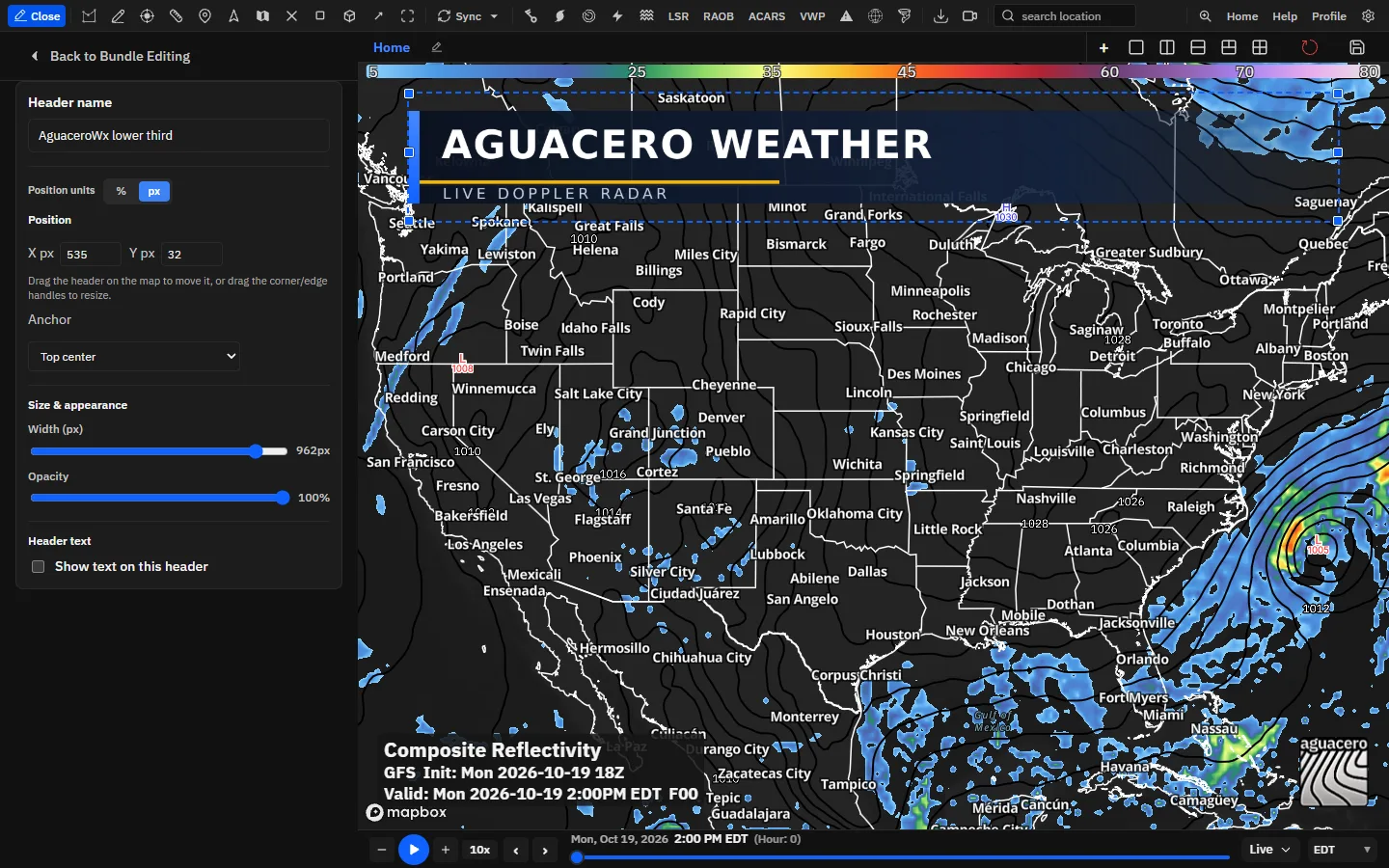
While a header’s controls are open, you can’t pan or zoom that map panel, so drags land on the header. Close the controls to move the map again.
Both units keep a header in proportion on other screens. In px mode the header remembers the size of the panel it was placed on and scales from it, so a bar across the bottom fifth of a laptop panel covers the bottom fifth of a 4K monitor too. Use px when you think in pixels of a fixed frame, such as a 1920 × 1080 OBS scene.
Tips
- Lower thirds: anchor Bottom center, X 50 and Y 100 put the header’s bottom edge on the bottom of the map.
- Full-width bars: set Width (% of panel) to 100 and X to 50 with a center anchor.
- Corner bugs: anchor Top right at X 98, Y 2 keeps a small logo tucked into the corner at any width.
Shortcuts
- Drag
- Move the header (controls open)
- Drag a handle
- Resize from a corner or side
- Enter
- Apply a typed X, Y or name
Put text on a headerCreator
Each header can carry one text box: your own words or the loaded bundle’s name. The text is part of the header, so it moves and scales with it.
- Open the header’s controls: Edit Layer on its row, Edit in the Layout tab, or the pencil in a picker.
- Under Header text, tick Show text on this header.
- Choose Custom text and type in Text, or choose Bundle name.
- Drag the text on the map to place it, or set Text position and Text anchor.
- Style it with the font, size, color, outline and background controls (next section).
You can edit custom text right on the map: double-click it, type, and press Enter. This works whenever the text is showing. While the controls are open and the text is empty, the header shows Double-click to edit where the text will go, and you can drag the text around inside the header.
Shortcuts
- Double-click
- Edit custom text on the map
- Enter
- Save the text you typed on the map
- Shift + Enter
- New line while editing on the map
- Esc
- Cancel editing on the map
Tips
- Header text can’t hold live values such as the valid time. Put those on the header by anchoring the layout’s text items to it (see Attach the valid time, legend and watermark to a header).
- Need two lines in different sizes? Use one header for the bar and anchor layout text items for the second line, or add a second header with its own text.
Style the header textCreator
Header text has its own font, size, spacing, color or gradient, outline and background plate.
Tips
- On a graphic that already has a colored bar, turn Background off and keep a light Outline so the text stays sharp.
- Outline colors are solid only; the text and background colors can be gradients.
Attach the valid time, legend and watermark to a header
Layout items can ride on a header: their position and size are measured from the header box instead of the panel. This is how you put a live valid time or the legend inside a lower third.
- Place the header, as a bundle layer or in the layout.
- Open the sidebar’s Layout tab and expand On-map text, then the item you want, for example Valid time.
- Tick Anchor position and size to custom header.
- Set X and Y. They now measure from the header’s top-left corner, as % (or px) of the header. Pick an Anchor.
- Adjust Font size. Anchored items scale with the header, so they stay in proportion when you resize it.
The checkbox is on the legend, the watermark and every on-map text item: bundle name, valid time, forecast hour, model name, init time, layer labels, viewport min/max and the lightning counter. When no header is showing, anchored items fall back to the panel.
Tips
- With several headers, anchored items use the first visible one: the first header in the layout, or, when the layout has none, the first header layer in the bundle.
- Anchored items keep their own style. Turn off their background plate (Custom color, outline & background → Background) so they sit cleanly on your graphic.
Headers in layoutsCreator
A layout can carry its own headers. They show on every panel of the board, stay put when you load other bundles, and travel with the layout.
- Open the sidebar, click the Layout tab and expand Custom headers under Customization.
- Click Add custom header (it reads Add another custom header once there is one) and click Use on a header in the picker.
- The new header’s controls open below its row, and you can drag and resize it on the map. Click Done to close them, and Edit to open them again.
- Save the layout with Save layout, or Update active layout with current settings if you are editing a saved one.
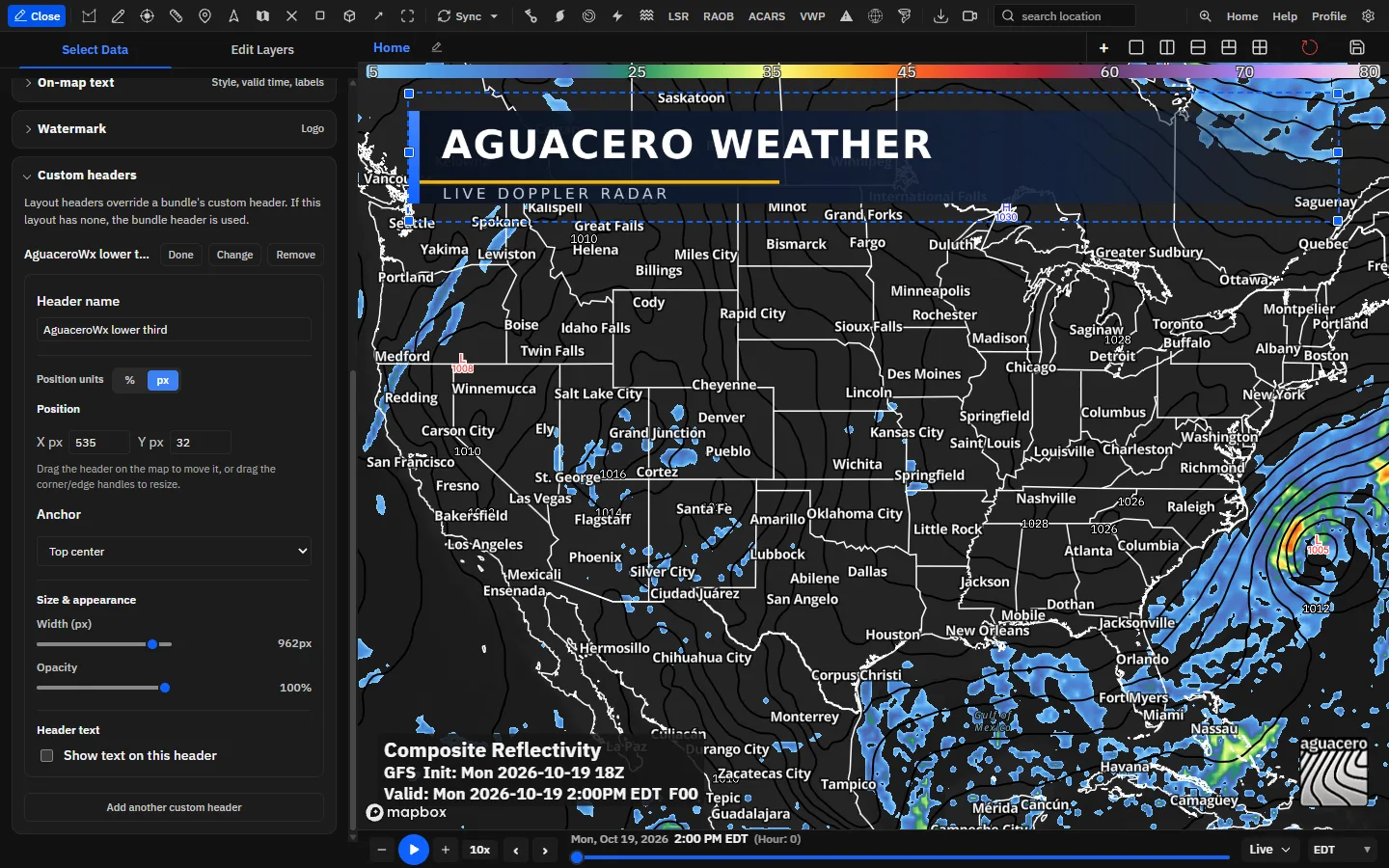
Layout headers override bundle headers. When the layout has any, the bundle’s own header layers (and scene-step headers) are hidden. When it has none, the bundle’s headers show. The section’s hint, Layout first, then bundle, is the reminder.
Tips
- A layout holds each header once. Adding a header that is already in the layout replaces the earlier copy.
- Reset to defaults in the Layout tab clears the working layout’s headers along with everything else.
- Without Creator, Add custom header opens an upgrade window.
Headers in scene stepsCreator
Each scene step can add one or more headers on top of its map, so a show can change graphics from step to step.
- Open the sidebar’s Scene tab and expand a step.
- On the Header/Image: row, click Add header/image.
- In the picker, click the pencil to set the header’s position and text if you like, then click Use. The step plays right away so you can see it.
- Click Add another on the next Header/Image: row for more headers on the same step.
- Click a header’s name to swap it, or × (Remove header/image) to take it off the step.
The step keeps the position and text the header had when you clicked Use: its saved defaults, or what you set in the picker. A step with headers but no bundle or workflow shows them over a map with no data layers.
Tips
- A step holds each header once. Picking a header that is already on the step replaces it.
- For a full-screen picture or video between map steps, set the step’s Type: to Media and pick the file under File:. That picker lists your headers under From headers.
- Step headers are added to the step’s map as header layers, so a layout with its own headers hides them. Give the scene a layout without headers.
Scenes need Creator. Deleting a header from your library also removes it from your scenes.
Related guideScenes, viewpoints and toursBuilding and playing scenesHeaders in screenshots and exports
Copying, saving and downloading the board, and GIF and MP4 exports, include your headers and their text.
Exports draw each header where it sits on the map, at its opacity, with its text. Layout items anchored to a header, such as a valid time or the legend, land in the same places they show live. A still image captures an animated header at the frame it shows at that moment.
Tips
- Lock the map to your output frame before you place headers: Settings → Media export → Map canvas, or Canvas aspect in the Layout tab. The live map then shows the same frame the export uses.
- Format, resolution, quality and file size come from Settings → Media export.
- On a board with several panels, each panel’s headers are drawn on that panel in the export.
In Broadcast mode, exports carry the broadcast banner and no custom headers.
Related guideImages, animations and video exportExport settings for images, GIF and MP4Custom headers and Broadcast mode
Custom headers and the broadcast banner don’t mix. While the banner is in Broadcast mode, headers are hidden and can’t be added.
Tips
- The Custom Header entry in Add Layer is greyed out, with the tooltip “Custom headers are unavailable in Broadcast mode”.
- Header layers already in a bundle stay in the bundle but aren’t drawn.
- For signed-in users the Layout tab, where layout headers live, is unavailable.
- To bring headers back, open Settings → Appearance, and on the Banner tab switch from Broadcast to Default.
Where headers are saved
The files live in your account. Each placement is saved with the bundle, layout or scene that holds it.
Recipe: a lower third with your logo and a live valid timeCreator
A station-style bar along the bottom of a 16:9 frame, with your logo, a title and a valid time that ticks along with the loop.
- Make a 1920 × 216 px PNG with a transparent background: your logo at the left and a colored bar to its right.
- Lock the frame: Settings → Media export → Map canvas, click 16:9, and under Resolution lock pick 1080p if you capture with OBS.
- Open the sidebar’s Layout tab, expand Custom headers, click Add custom header, drop the PNG in the picker, click Save to library, then Use.
- The header’s controls open in the Layout tab (click Edit if they don’t). Set Position units to %, Anchor to Bottom center, X to 50, Y to 100 and Width (% of panel) to 100.
- Under Header text, tick Show text on this header, choose Custom text and type a title such as “FUTURE RADAR”. Set Text anchor to Center left, Text position X 22 and Y 35, Font size 28 and Letter spacing 0.05. Click Done.
- Expand On-map text → Valid time. Tick Anchor position and size to custom header, set Anchor to Center left, X 22, Y 72 and Font size 18.
- Pick your Time zone and a Date format such as Month name. Tick Custom color, outline & background and clear Background so the time sits on your bar.
- Clear Show bundle name, Model name and Show init time if you don’t want them, and keep the legend at the top of the map (the default, Y 0) so it stays clear of the bar.
- Optional: under Watermark, tick Anchor position and size to custom header, set Anchor to Center right, X 98 and Y 50 to tuck the mark into the bar.
- Click Save layout and name it, for example “Lower third 16:9” in category “TV”, subcategory “Radar”. Leave Switch map canvas to 16:9 when loaded on.
Tips
- Because the header lives in the layout, it stays on screen as you load other bundles on the board. Load another layout to change looks between segments.
- Want the title to follow the bundle? Choose Bundle name instead of Custom text, and name your bundles the way they should read on air.
Recipe: an animated intro graphic in a sceneCreator
Open a show with an animated title card over the first map, then move on to the data.
- Export your intro as a short WebM or MP4 (8 MB or less) at 16:9, and upload it in Settings → Custom headers.
- Open the sidebar’s Scene tab, click + New scene and expand the first step.
- Click Add bundle and pick the bundle for your opening map. Skip this for a map with no data under the intro.
- On Header/Image:, click Add header/image. In the picker, click the pencil on your intro and set Anchor to Center, X 50, Y 50 and Width (% of panel) 100. Click Use.
- Click + Add step and add the bundle for the next part of the show, with no header.
- Under Global settings, set Advance to Timer, set Switch to the intro’s length (0.5–120 seconds) and pick a Transition.
- Select the scene with its dot (●) and click Play, or press F7. Click Export to record the scene as a GIF or MP4.
Shortcuts
- F5 / F6
- Previous or next step
- F7
- Play or pause the selected scene
If the board’s layout has custom headers of its own, they hide step headers. Set the scene’s Layout to one without headers, or remove them from the layout.
Related guideScenes, viewpoints and toursScene timing, holds and transitionsCommon questions
Answers to the questions we hear most about custom headers.
Why isn’t Custom Header in my Add Layer menu?
It shows only when you are signed in. It is greyed out while the banner is in Broadcast mode. On plans below Creator it is there, but opens an upgrade window.
Why can’t I drag my header?
Dragging and resizing work only while the header’s controls are open: click Edit Layer on its row, or Edit in the Layout tab. The dashed frame shows when it is ready to move.
Why can’t I pan or zoom the map?
A header’s controls are open on that panel. Map gestures pause so drags move the header. Click Back to Bundle Editing or Done to get them back.
My header disappeared when I loaded a layout. Where did it go?
Layout headers override bundle headers. If the layout you loaded has headers, the bundle’s header layers (and scene-step headers) are hidden. Load a layout without headers, or add your header to the layout.
Why was my file rejected?
Headers must be PNG, JPEG, WebP, GIF, WebM or MP4, and 8 MB or less. Convert other formats, or shorten and compress animations, before you upload.
How do I rename a header or replace its file?
Open a picker from the map (Add Layer → Custom Header), click the pencil on the header, then change Header name or click Change file. Settings → Custom headers only uploads, searches and deletes.
Can header text show the valid time or forecast hour?
Not inside the header’s own text, which is either custom text or the bundle name. Instead, turn on the layout’s Valid time or Forecast hour and tick Anchor position and size to custom header so it sits on the header.
Does a header show on every panel?
A header layer shows only on the panel whose bundle holds it. Headers in a layout show on every panel of that board.
Why does my header look different on another screen?
Headers scale with the panel, so they keep their share of the map but the map’s shape can differ. Lock the canvas to a fixed aspect, such as 16:9, in Settings → Media export or the Layout tab to get the same frame everywhere.
Why don’t I see headers on my phone?
The mobile layout doesn’t draw custom headers or layout text. Use a desktop-sized window or the desktop app.
What happens to bundles and scenes when I delete a header?
It is removed from your library, open maps and board scenes at once. Saved bundles and workflows that use it drop the image the next time they load. This can’t be undone.
Do headers appear in exports?
Yes. Copy, save and download, and GIF and MP4 exports, all include headers and their text. In Broadcast mode the export carries the banner instead.
Can I use the same header in more than one place?
Yes. Place it in as many bundles, layouts and scenes as you like. Each placement keeps its own position and text, and Change file in the picker updates the graphic in all of them at once.