Turn on the broadcast bannerCreator
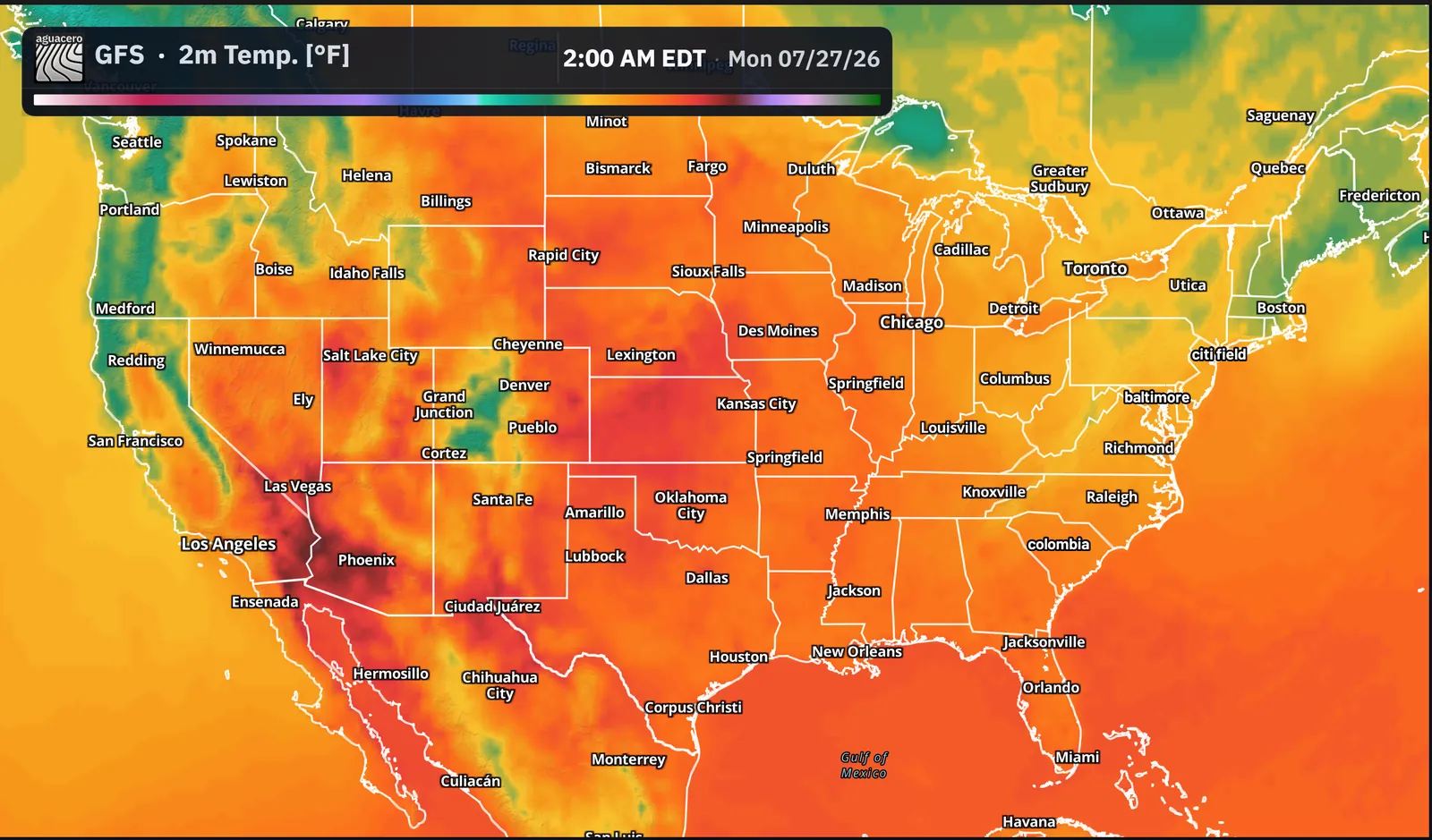
Switch the banner from Default to Broadcast and every map panel gets an on-air header with a title, the valid time and the legend.
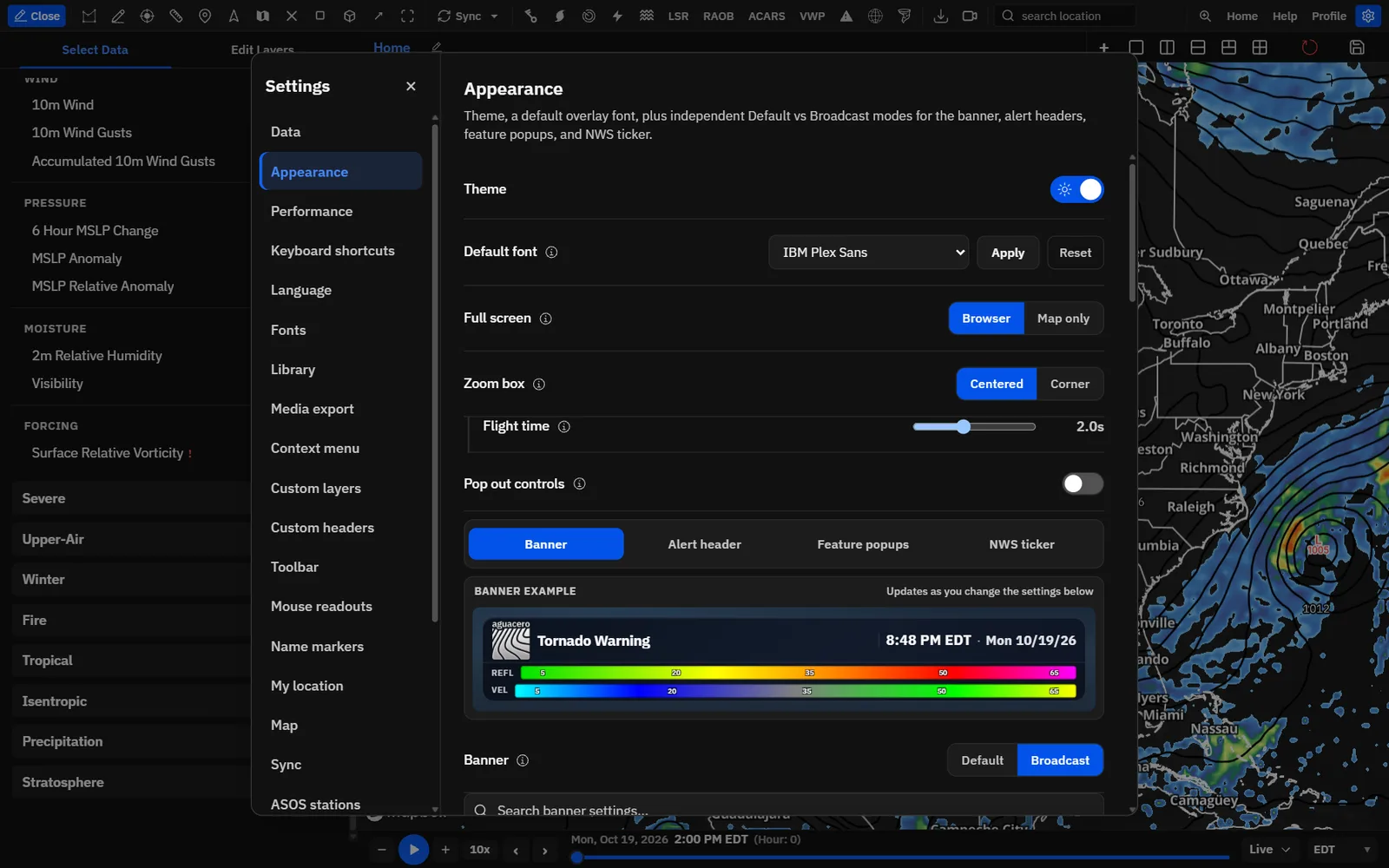
Show me in the app- Click Settings on the toolbar.
- Click Appearance in the list on the left. The Banner tab is open.
- Next to Banner, click Broadcast. Each map panel now shows the banner in its top-left corner.
- Pick a Title: Default title, Custom title or Bundle title.
- Scroll down to set the Font, Text color, Background color and Header layout. The map and the example at the top update as you go.
- Close Settings. Your banner stays on until you switch back to Default.
Tips
- Banner mode is separate from the Alert header, Feature popups and NWS ticker tabs. You can use those in either mode.
- In Default mode the Banner tab shows only the mode switch and Hidden legends. Every other banner setting appears once you pick Broadcast.
- The example at the top says Switch Banner to Broadcast to show this on maps while you are still in Default mode.
What Broadcast mode changes on the map
The banner takes over the map text, so several Default-mode overlays step aside while it is on.
Each map panel draws its own banner in its top-left corner, 18 px in from the edges. At 100% size the banner is 72% of the panel’s width, and it shrinks to stay inside small panels. It shows that panel’s own layers, valid time and legends.
While the banner is on, these Default-mode overlays are hidden: the layout legend, the model and valid-time text, layer labels, the layout watermark, custom header layers, the viewport min/max readout and the standalone lightning counter.
Tips
- The sidebar Layout tab is greyed out with Layout is unavailable in Broadcast mode. Layouts saved with bundles, workflows and scene steps are not applied either.
- Add Layer → Custom Header says Custom headers are unavailable in Broadcast mode. Your custom header layers come back when you switch to Default.
- The banner hides while a scene step is showing an image or video, and comes back on the next map step.
- Switching back to Default restores everything. Your banner settings are kept for next time.
Type a custom title on the map
With Custom title, double-click the banner title and type anything, such as “Futurecast: Saturday Morning”.
- In Settings → Appearance → Banner, set Title to Custom title.
- Close Settings. An empty custom title shows Double-click to edit title on the banner.
- Double-click the title on the banner. A text box opens with the current text selected.
- Type your title and press Enter, or click anywhere else, to save it. Press Escape to cancel.
- To keep the title with your data, save the bundle or workflow while the custom title is showing.
Shortcuts
- Double-click
- Edit the custom title on the banner
- Enter
- Save the title
- Shift + Enter
- Start a new line
- Escape
- Cancel without saving
Tips
- Titles can be up to 160 characters. Long titles wrap to two lines.
- Each panel keeps its own custom title, so a four-panel board can label each panel. A panel that has no title yet shows the last title you typed.
- When you save a bundle or workflow in Broadcast mode with Custom title selected, the title is saved with it and comes back when you load it.
- You can’t edit the title while an alert name is replacing it. Close the alert’s popup first.
Put alert names in the title
Click a warning, hurricane cone or outlook and its name becomes the banner title until you close it.
For more control, turn on the Alert header tab and choose Replace banner title. That keeps the banner and swaps its text for the warning name, with your choice of custom text, severity tags and capitals, and it can hide the legend while the alert shows.
Style the title and text
Pick the font, alignment, weight and color for the banner text.
Tips
- Hex fields take #rgb or #rrggbb. Anything else resets that color to its default, so paste a full code.
- Settings → Appearance → Default font → Apply pushes one font onto the banner, ticker, alert headers and popups at once.
- Time and date styling has its own row under Date/time style.
Set the size, padding and corners
Scale the whole banner, then fine-tune its padding, rounded corners and outline.
Tips
- Sliders preview on the map while you drag and save when you let go.
- The banner never grows past the panel. On small panels it is capped to the panel width minus 36 px.
Color the background and gradient
Use a solid fill or a three-color gradient at any angle.
Tips
- On the live map the fill is slightly see-through (about 94%) with a blur behind it. Exported images and videos paint it fully solid.
- With Separate boxes on, every box uses this fill unless you turn off Use banner fill for that box.
Arrange the time, legend and boxes
Keep the time in the header row, or move it into its own box under the title and choose where the legend goes.
A preset sets several of the rows below at once. Change any row afterwards to make your own mix.
Tips
- Pair Below header with Separate boxes for the classic “title card over time card” look.
- With Time position set to In header, the time has no box of its own, so Time align, Time width and Legend row are hidden.
Style each card on its own
With Separate boxes, give the header, time, legend and lightning cards their own fill, outline, corners, size and drop shadow.
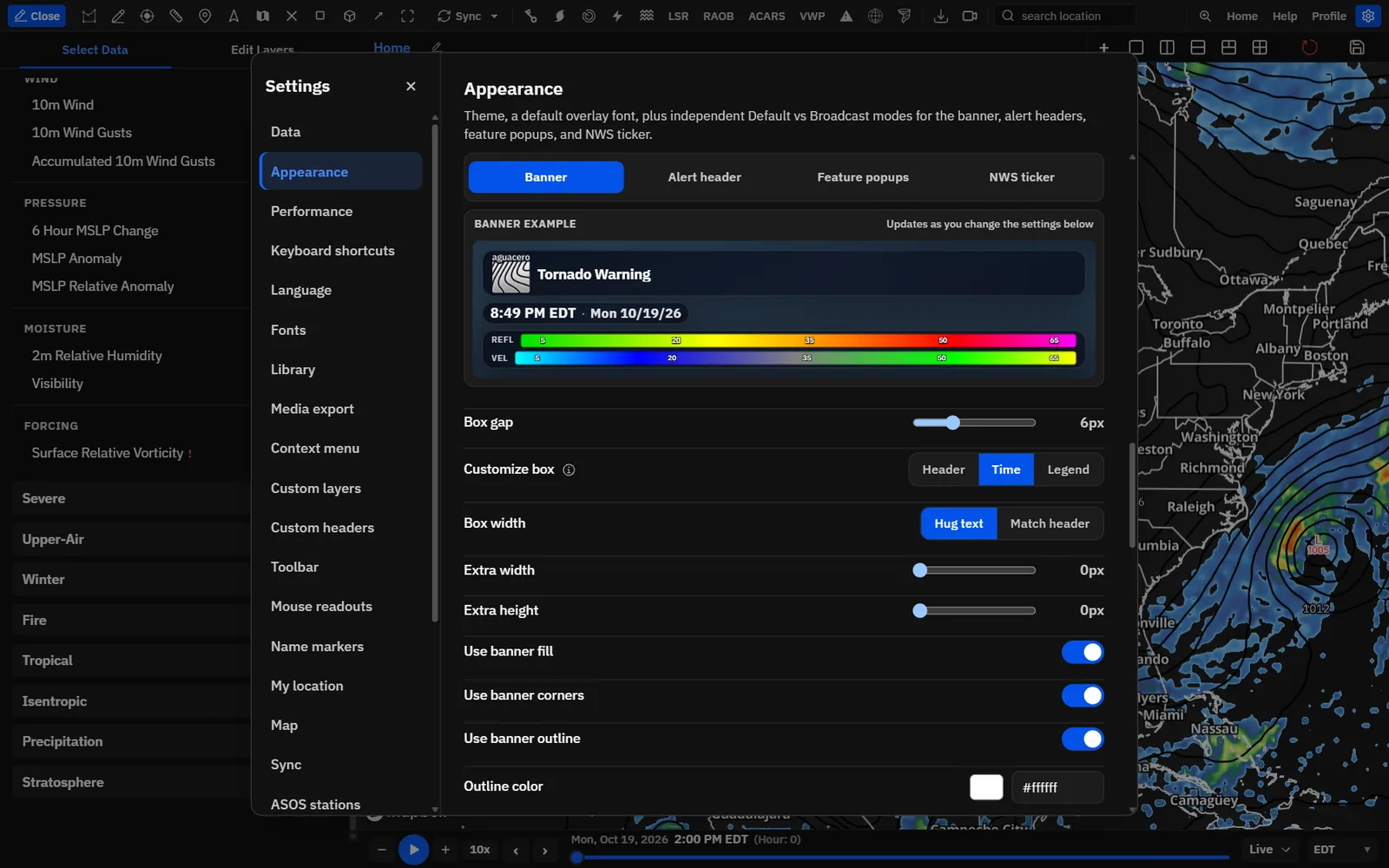
- Set Boxes to Separate boxes. The Box gap and Customize box rows appear.
- Under Customize box, pick Header, Time, Legend or Lightning.
- Change that card’s settings. Each card keeps its own values.
- Pick another card and repeat.
Tips
- A hard, offset shadow (blur 0, offset X 6, offset Y 6) gives a flat TV-graphics look.
- Give only the Time card a bright Box color to make the clock pop under a dark header.
Show the valid time and date
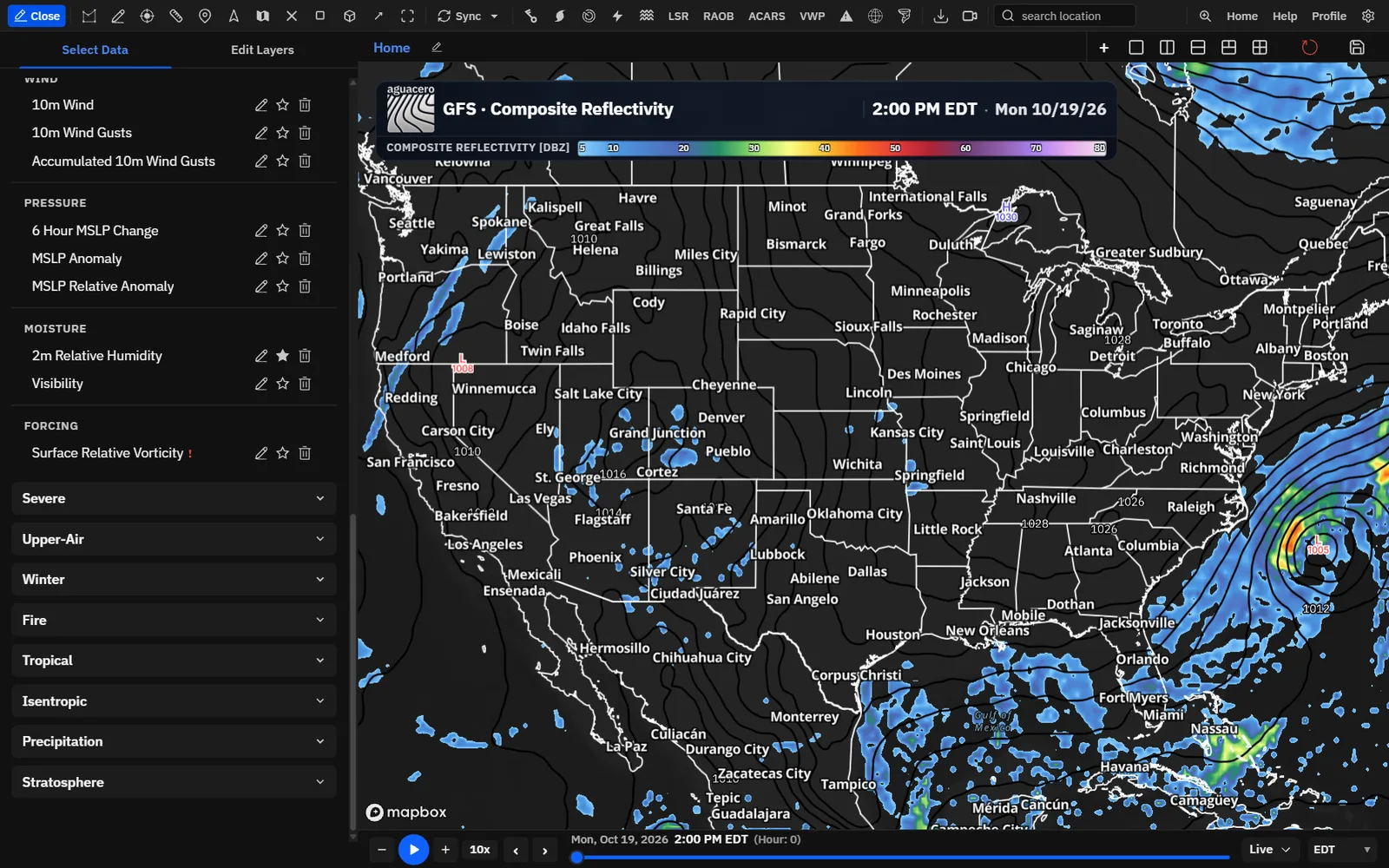
The banner clock shows the valid time of the frame on screen. Choose the date format, 12 or 24 hours, and which parts appear.
The clock follows the time slider, so it changes as the loop plays. It uses the time zone picked in the time bar; UTC times end in “z”. When only SPC outlooks are on the map, the banner shows the date without a time, because those are daily products. Monthly climate models show the lead month instead of a clock.
Tips
- Change the time zone from the time bar at the bottom of the screen. The banner, the ticker clock and alert-header times in My timezone all follow it.
- For a model run where only the forecast day matters, click Date only.
Show legends on the banner
The banner draws a color bar for each product on the map. Choose labels, names and placement, or hide some products’ bars entirely.
Tips
- Hide the legend for a reference layer, such as a temperature contour under radar, so the banner shows only the main product’s bar.
- Untick a product under the Hidden filter to bring its legend back.
Add a lightning counter
Show a running strike count on the banner, styled to match, whenever lightning is on the map.
- Add a lightning layer to the panel and make sure it is visible.
- In Settings → Appearance → Banner, turn on Lightning counter.
- Pick a Position, Layout and Parts, then style the colors.
In Broadcast mode the standalone on-map lightning counter is hidden. Turn on this banner counter to keep a strike count on screen.
Related guideSatellite and lightningGLM lightning: load lightning and set the time window the counter uses.Add your own logoCreator
Replace the Aguacero logo at the left of the banner with your station or channel logo.
- In Settings → Appearance → Banner, find Broadcast banner logo.
- Click Upload logo and choose a PNG file.
- The logo shows in the preview and on every banner. Click Change logo to replace it or Remove to go back to the Aguacero logo.
Tips
- The logo’s height is fixed at 6.5% of the banner’s width and its width follows the image, so crop away empty space around it. A transparent background looks best.
- With your own logo, the banner adds AGUACEROWX.COM next to the date and time. See the next section.
- The NWS ticker uses this logo too unless you give the ticker its own.
- On some organization accounts, teammates share one logo. Uploading it updates it for the whole team.
- If the logo can’t load, the banner shows the Aguacero logo instead of an empty space.
Remove the Aguacero logo or watermarkCommercial
Commercial accounts can run a clean banner with no Aguacero branding. Other plans keep the logo or the AGUACEROWX.COM watermark.
Show me in the app- On a Commercial account, open Settings → Appearance → Banner.
- Turn off Show Aguacero logo, or Show AguaceroWx watermark if you uploaded a logo.
- In Default mode the watermark comes from your layout: open the sidebar Layout tab, then Watermark, and turn off Show watermark.
On other plans these switches open a Commercial feature notice. Click Email us to ask about a commercial account, or Cancel.
Related guideLayouts and on-map textLayouts: the Default-mode watermark and on-map text.Banners on boards, exports and alerts
How the banner behaves with multi-panel boards, image and video exports, alert headers and scenes.
Tips
- Boards: every map panel gets its own banner with its own title, time and legend. The look is shared across all panels and boards.
- Exports: images, GIFs, MP4s, scene and tour exports draw the banner as you see it, fully solid, with the same title, time and legend. The layout watermark is not drawn in Broadcast mode.
- Alert headers: with a Separate header and Hide broadcast banner on, the banner hides while an alert is selected, live and in exports. Replace banner title keeps the banner and swaps only its title.
- Ticker: the NWS ticker runs across the whole board. Set its Position to Bottom so it doesn’t cover the banners at the top.
- Canvas aspect: lock the map to 16:9 or 9:16 in Settings → Media export so the banner sits in the same place in every export.
Recipe: a TV-style forecast banner with stacked cards
A bold custom title card, a bright time card underneath and a full-width legend, like a station’s forecast graphic.
- Load a model bundle, for example GFS 2 m temperature.
- Open Settings → Appearance → Banner and click Broadcast.
- Set Title to Custom title, Title style to Bold and All caps, and Title size to 120%.
- Under Header layout, click Time below left.
- Turn off Background gradient and set Background color to #0b2545.
- Set Corner radius to 4 px and Box gap to 4 px.
- Under Customize box, pick Time, turn off Use banner fill and Box gradient, and set Box color to #c2410c, a dark orange that keeps white text readable.
- Pick Header, then set Shadow blur to 0, Shadow offset X to 6 and Shadow offset Y to 6 for a hard shadow. Repeat for Time and Legend.
- Under Show in display, untick Year and set Weekday to Full.
- Turn on Legend labels and set Legend numbers to Below legend.
- Close Settings, double-click the title and type “7-DAY TEMPERATURE OUTLOOK”.
- Back in Saved banners, name it “Forecast cards” and click Save current.
Recipe: a live radar banner with a strike count
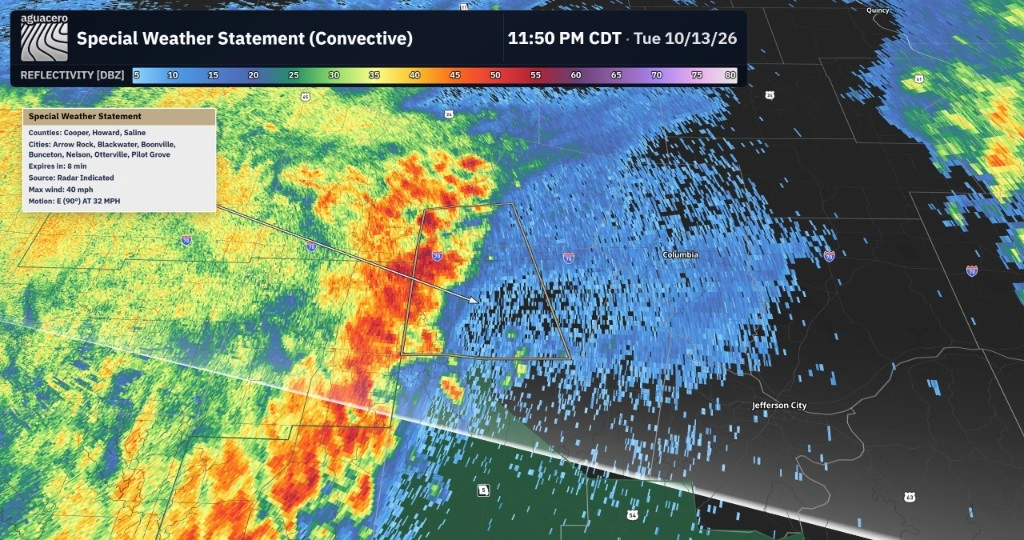
A compact severe-weather banner: radar site and product in the title, time and legend on one row, and a running lightning count.
- Load a NEXRAD reflectivity layer and add a lightning layer to the same panel.
- In Settings → Appearance → Banner, click Broadcast and keep Title on Default title. The title shows the radar site and product.
- Under Header layout, click Time + legend.
- Turn on Lightning counter, set Position to In header and Layout to Inline.
- Under Show in display, click Time only, so the banner reads like “10:13 PM CDT”.
- Set Banner size to 85% so the banner leaves room for the storm.
- Open the Alert header tab, turn it on and choose Replace banner title, so clicking a warning puts its name in the title.
- Save it under Saved banners as “Severe radar”.
Common questions
Answers to the questions we hear most about the broadcast banner.
Why does clicking Broadcast open an upgrade window?
Broadcast mode needs Creator. Commercial, Lifetime, Partner and University accounts include it. If your plan lapses, the banner switches back to Default until you renew; your settings are kept.
I turned on Broadcast but I don’t see a banner. Why?
Check that you are on a desktop-sized screen; phones don’t draw the banner. It also hides while a scene step shows an image or video, and while a separate alert header is showing with Hide broadcast banner on. Close the alert’s popup to bring it back.
Why is the Layout tab greyed out?
The banner replaces the layout’s map text in Broadcast mode, so the tab shows Layout is unavailable in Broadcast mode. Switch Banner back to Default to edit layouts.
Where did my custom headers, legend and valid-time text go?
Broadcast mode hides custom header layers, the layout legend, map text, layer labels and the layout watermark. They come back when you switch to Default.
Why does my banner say “No data”?
Nothing visible is on that panel, or every visible layer is set to Not in title. Turn a layer on, or click Not in title on its card to include it again.
Why can’t I double-click the title to edit it?
Editing works only with Title set to Custom title, and not while an alert name is replacing the title. Close the alert popup and try again.
My custom title changed when I loaded a bundle. Why?
Custom titles are saved per bundle and workflow. Load the bundle, type its title, and save the bundle again with Custom title on. Bundles without a saved title show the last title you typed.
Why can’t I turn off the Aguacero logo or the watermark?
Removing Aguacero branding needs a Commercial account. On other plans the switch opens a Commercial feature notice with an Email us button.
What logo files can I upload?
PNG only, 8 MB or smaller. Other files show Only PNG images are supported. and larger ones show PNG must be 8MB or smaller. You must be signed in.
Why isn’t the lightning counter showing?
The counter appears only on panels with a visible lightning layer, and only after you turn on Lightning counter on the Banner tab. The standalone map counter is hidden in Broadcast mode.
Why is Beside time greyed out?
The legend can sit beside the clock only when the time box hugs its text. Set Time width to Hug text.
Why is there no time on my banner?
Check that Date and time is on and Time is ticked under Show in display. When only SPC outlooks are on the map, the banner shows the date only.
I typed a color and it jumped back to the default. Why?
The color boxes take hex codes only, such as #1e3a8a or #fff. Anything else resets that color. Click the swatch to use the color picker instead.
Why does the banner look more solid in my exported video?
On screen the banner is slightly see-through with a blur behind it. Exports paint it fully solid so it reads cleanly on any background.