
Set up the on-air alert tools
Turn on the alert header, the ticker and broadcast popups in a minute, then fine-tune each one.
- Turn on the alerts you want from the Alerts button on the toolbar, so warnings show on the map.
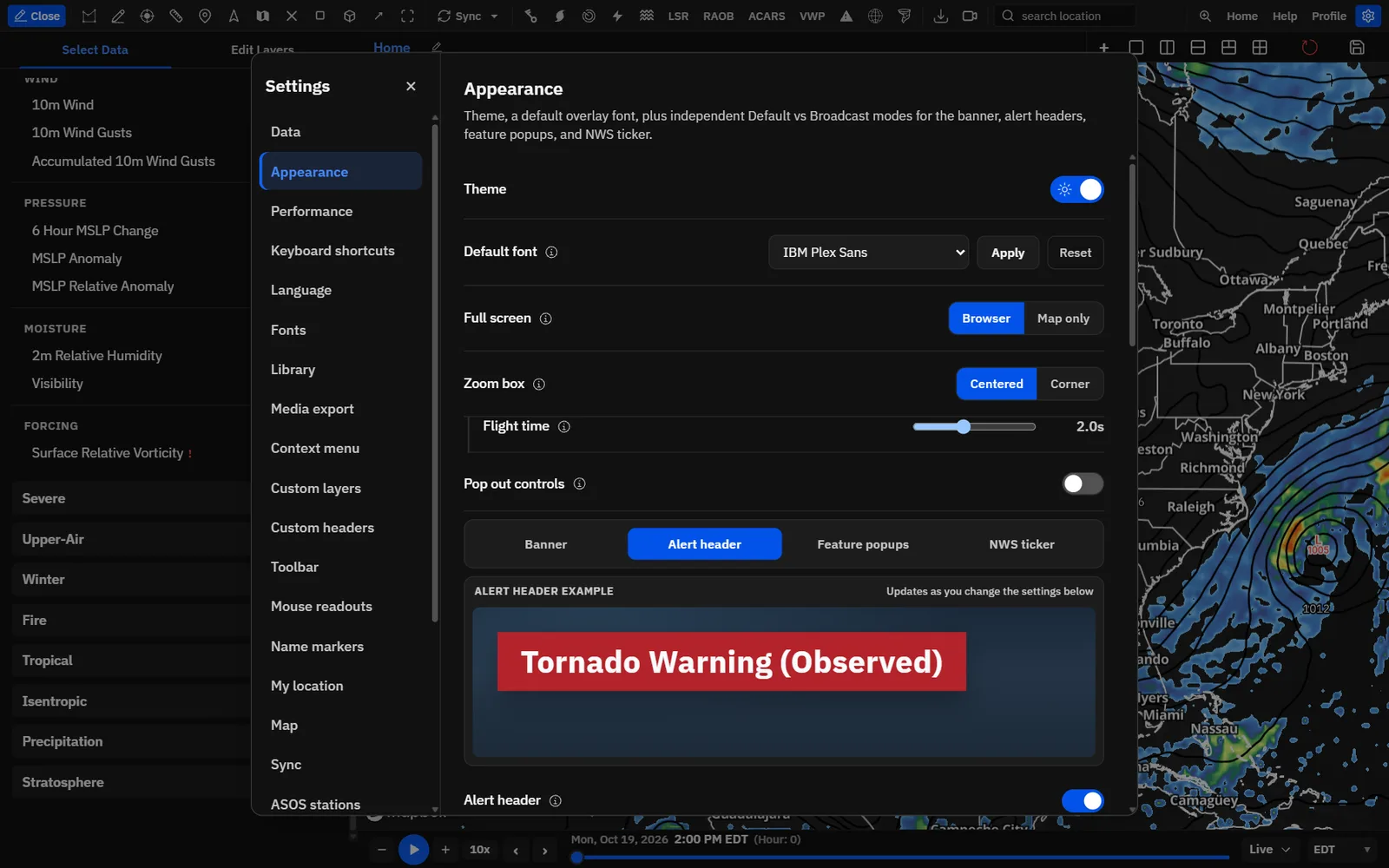
- Click Settings on the toolbar, then Appearance.
- Click the Alert header tab and turn on Alert header.
- Click the Feature popups tab and pick Broadcast or Broadcast (Simple).
- Click the NWS ticker tab and turn on NWS ticker. The crawl starts along the bottom of the board.
- Close Settings and click a warning on the map. Its popup opens and its name shows as the alert header.
Tips
- On plans without Creator, these switches open an Upgrade to Creator window.
- The example at the top of each tab says Turn on to show this on maps until you switch that tool on.
Show an alert header when you click a warningCreator
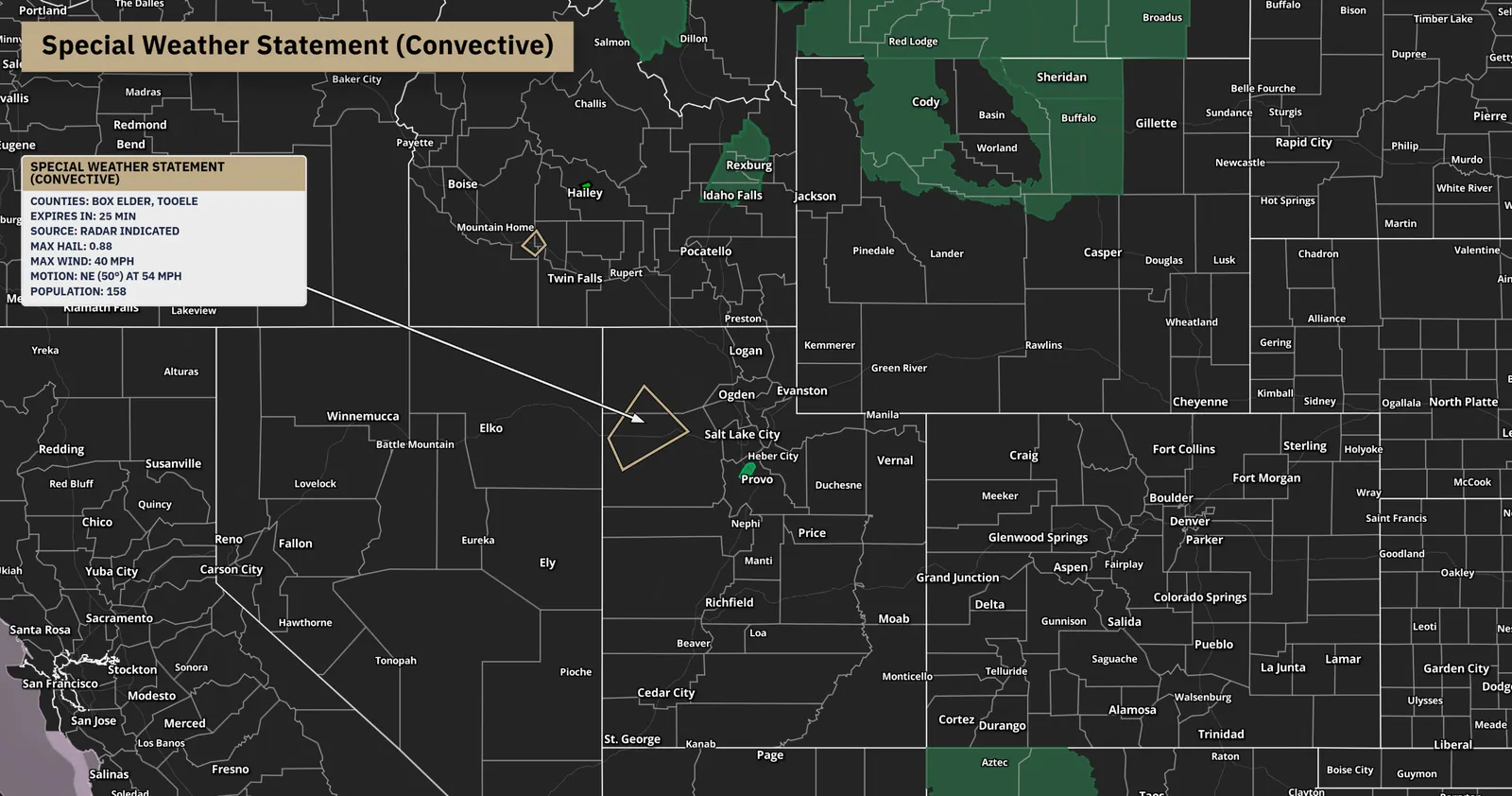
Click a warning, hurricane cone or outlook and its name appears as a TV-style title, as its own pill or in place of the banner title.
Show me in the appThe header follows the popup you open. It works for NWS watches, warnings and advisories, SPC, WPC and CPC outlooks, NADOCAST, NHC cones and forecast points, active tropical storms and SiteWarn alerts. Storm reports, recon, damage points and ECCC or ESTOFEX outlooks open popups but don’t show a header. Close the popup and the header goes away.
Tips
- With several popups open, the header follows the one in front. Press on a popup’s header to bring it forward.
- Cycling overlapping features with PageUp and PageDown changes the header too.
- Each map panel shows the header for its own popup.
Set the alert header text
Use the alert’s own name, with or without severity tags, or your own words such as “Tornado Emergency”.
Tips
- Turn off Show severity for a short “Tornado Warning” and let the popup’s Threat field carry the detail.
- In Replace banner title mode, these four settings are the only header options; the banner’s own font and colors style the text.
Style the alert header pill
Font, size, colors, outline, corners, shadow and padding for the separate header.
Tips
- Hex color boxes take #rgb or #rrggbb. Anything else resets that color to its default; click the swatch for a picker.
- Reset alert header → Reset to defaults restores every header setting and leaves the header on.
Add an icon, the time and the issuing office
Pin your logo on the pill, and add the alert’s expiry time or a live clock and the NWS office as matching chips.
Tips
- A white or black icon recolors with Auto contrast so it stays readable on yellow and red fills. Upload a colored logo if you want its colors kept.
- The header icon is uploaded separately from the banner logo, so it can be a smaller badge or bug.
Place and drag the alert header
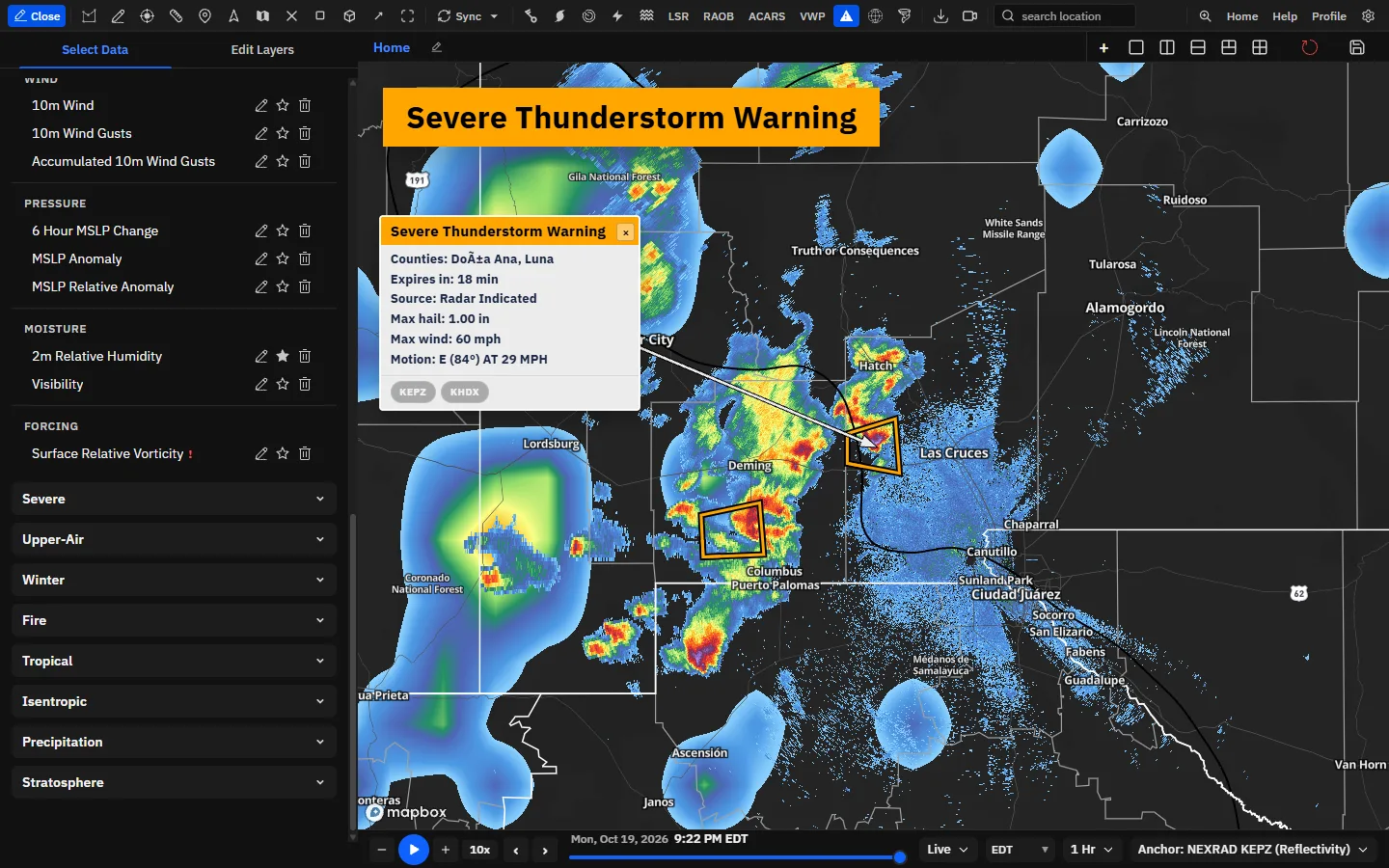
Pin the header to any corner or the top or bottom center, then nudge it with offsets or drag it on the map.
- Click a warning so the header shows.
- Point at the header; the cursor turns to a hand and the tooltip says Drag to reposition.
- Drag it where you want it. The new offsets save to your account when you let go.
Tips
- The default spot, top left, is where the broadcast banner sits. That is why Hide broadcast banner is on by default. To show both, turn it off and move the header to Bottom left or Top right.
- Use Bottom center with the ticker at Top for a lower-third look.
Run the NWS alerts tickerCreator
A TV-style crawl of active NWS alerts across the top or bottom of the board. Click an alert in it to fly there.
Show me in the app- Open Settings → Appearance and click the NWS ticker tab.
- Turn on NWS ticker.
- Set Position to Bottom or Top.
- Close Settings. Point at an alert in the crawl to pause it, and click it to fly to that alert.
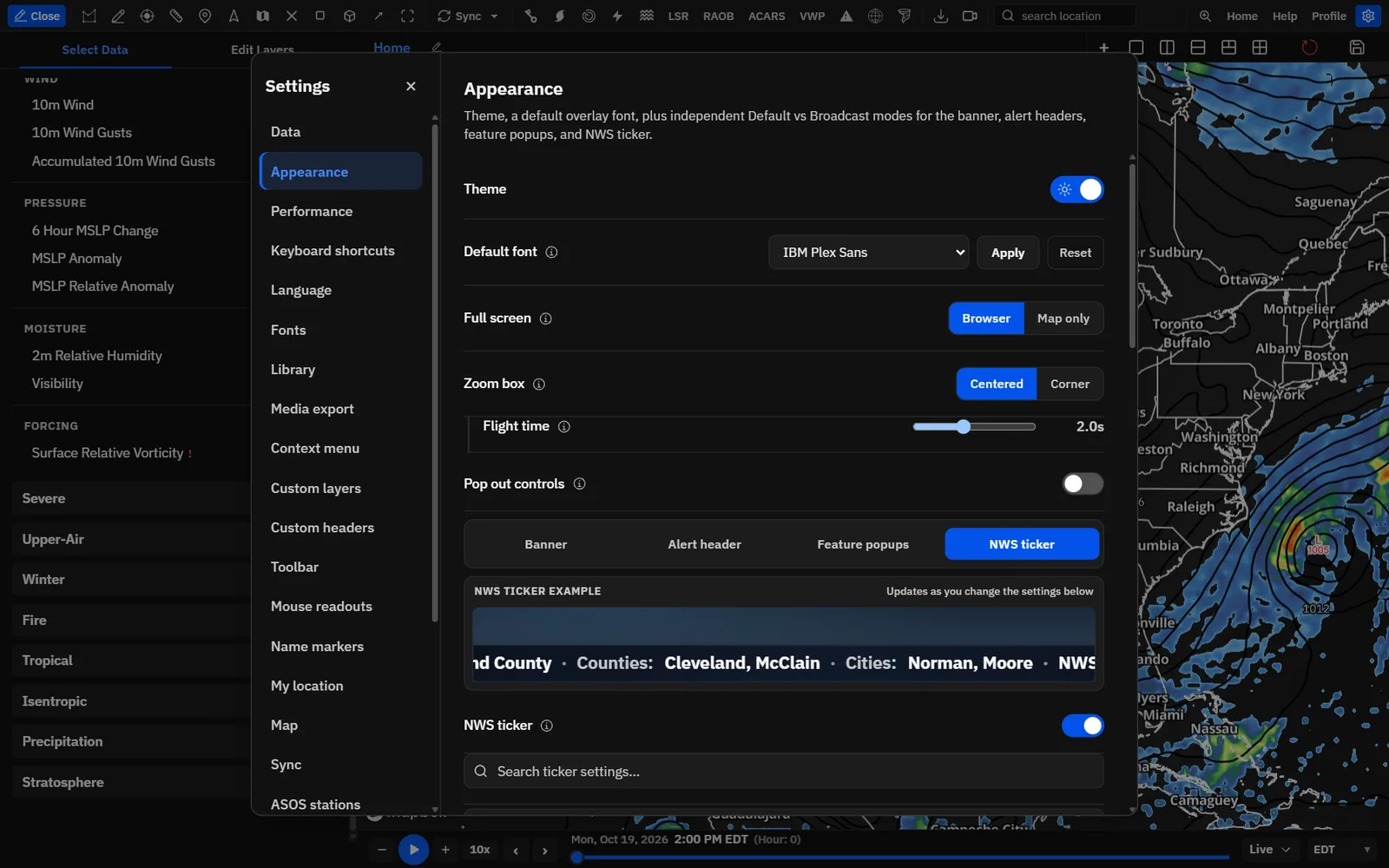
What the ticker shows: alerts that are active right now. It ignores the time slider, so scrubbing or looping doesn’t change it. Each alert’s name is drawn in its alert type’s color. Alert types are mixed so tornado and severe thunderstorm warnings don’t fill the whole loop when advisories and watches are also on. New alerts jump to the next slot with a NEW badge on their first pass; otherwise the crawl loops the current mix.
Tips
- Clicking an alert in the crawl flies the active panel to it and turns on the nearest radar (tooltip Fly to this alert and enable the nearest radar). Enter or Space does the same on a focused alert.
- With a broadcast banner on, keep the ticker at Bottom so it doesn’t cover the banners at the top of each panel.
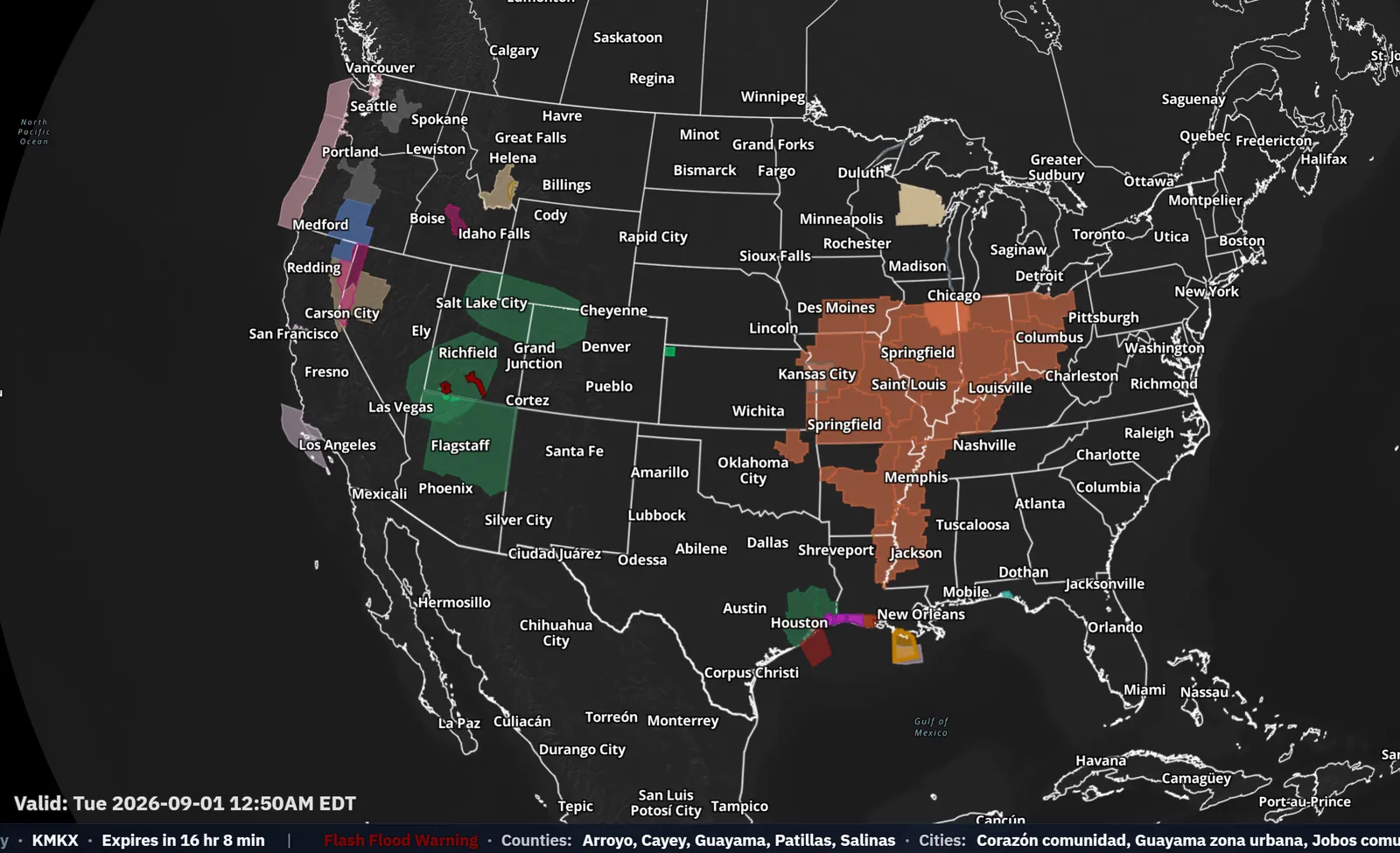
Choose which alerts crawl
Match the map, or give the ticker its own mix of alert types and offices from a saved alert bundle.
- To make a bundle for the ticker, click Alerts on the toolbar and set which alert types and offices you want on the Customize tab.
- Open the Bundles tab, name the setup under Alert bundles and click Save current.
- Set the map’s alerts back the way you want them on the map.
- In Settings → Appearance → NWS ticker, turn off Sync with map and pick your bundle under NWS alert bundle.
With Sync with map off and no bundle picked, the ticker stays empty; it never falls back to the map. If the bundle is deleted, the tab says Selected bundle was deleted. Pick another one.
Related guideWatches, warnings and alert settingsWatches, warnings and alert settings: alert types, colors, office filters and alert bundles.Choose what each alert in the ticker shows
Turn each piece of an alert on or off, add labels such as “Counties:” and set the order.
Tips
- Every field is on by default. Turn one off with its switch.
- Drag a row by its handle to reorder it, or focus the handle and press ArrowUp or ArrowDown.
- The Label box is greyed out for fields that have no label.
Style the ticker and add a clock or logo
Font, colors, outlines, background, speed and hover behavior, plus a live clock and your logo at either end of the crawl.
Tips
- Turn off Pause during hover for a live show where the pointer might rest on the crawl.
- With the clock and logo on the same side, the logo sits at the screen edge and the clock sits next to the crawl.
- Reset ticker → Reset to defaults restores every ticker setting and leaves it on.
Pick a popup styleCreator
Choose how warning and feature popups look, whether several stay open, and whether clicks inside a polygon open them.
Show me in the appBroadcast and Broadcast (Simple) each keep their own colors, fields and toggles, so you can set up both and switch. Popups open for warnings, watches and advisories, outlooks, storm reports, damage survey points, recon and tropical storms.
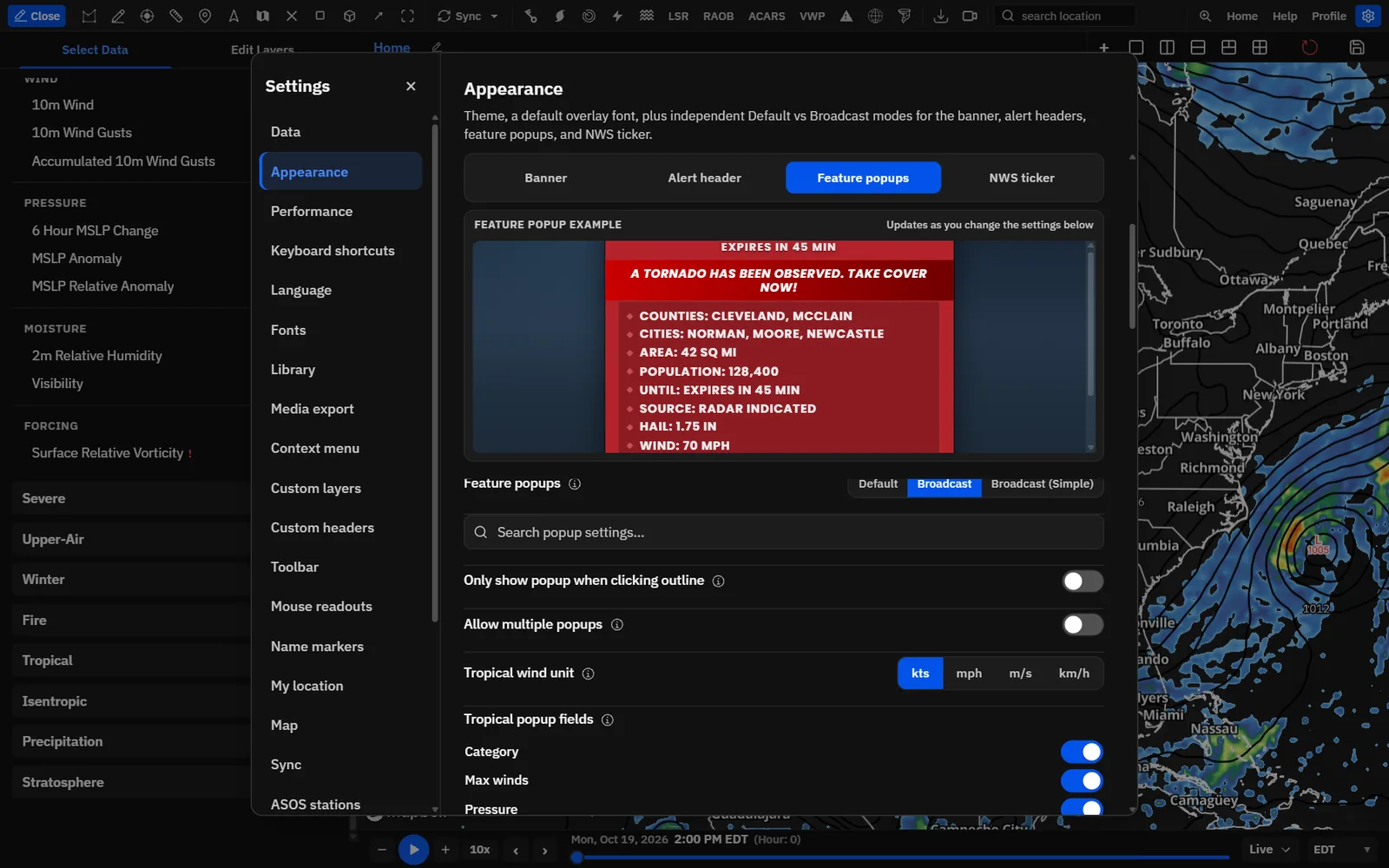
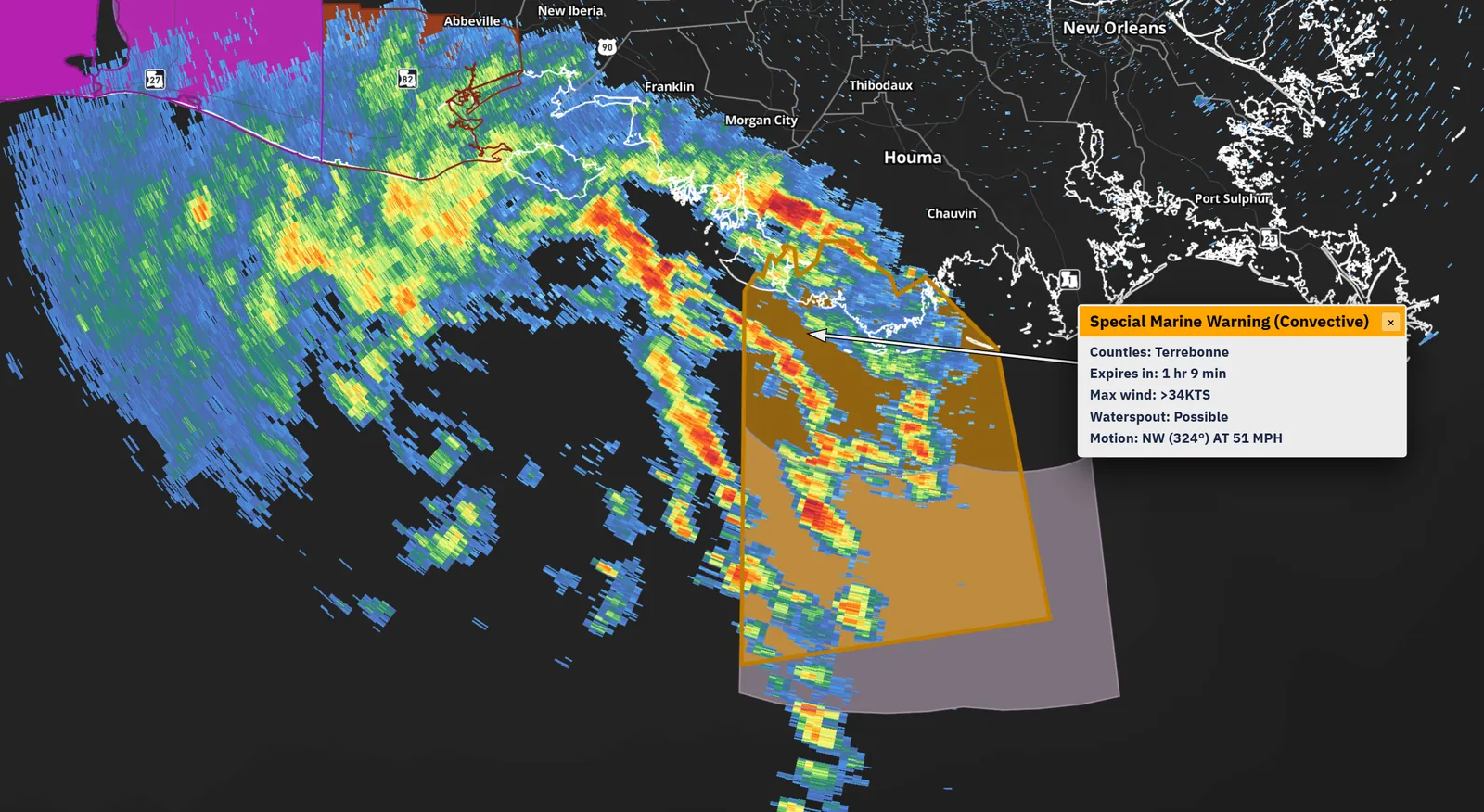
Work with popups on air
Step through overlapping warnings, move popups and close them from the keyboard.
Shortcuts
- PageUp / PageDown
- Previous or next feature at the clicked spot, for example a tornado warning inside a watch (Broadcast styles)
- Backspace
- Close the latest popup on the active panel (it also removes the latest pinned readout)
- Shift + Backspace
- Close every popup and pinned readout on the active panel (Shift + Delete does the same)
Tips
- PageUp and PageDown work when the clicked spot has two or more features, on the popup in front, on the active board. Holding the key doesn’t race through them.
- On touch screens, Broadcast popups show ‹ and › buttons instead.
- Drag a popup by its header to move it. Pressing on its header also brings it to the front.
- Change these keys in Settings → Keyboard shortcuts: Previous queried feature, Next queried feature, Remove pinned readout and Clear pinned readouts.
Style broadcast popups
Header, colors, fonts, corners and shadow for the Broadcast and Broadcast (Simple) cards.
Add take-cover messages by alert type
Broadcast popups can add a bold take-cover or flash-flood banner to dangerous warnings, with your own wording for each type.
Tips
- Each type has its own switch and a text box of up to 160 characters. Turning a type off greys out its text.
- Clear a text box to go back to the default wording for that type.
- A considerable severe thunderstorm warning uses SVR-C unless it is tagged tornado possible, which uses TOR POS SVR. EDS SVR-D is never used for a considerable warning.
Choose popup fields, buttons and timing
Pick which details show on broadcast popups, in what order, plus radar and hurricane buttons, timing, the pointer and placement.
Tips
- Reset popup style → Reset to defaults restores colors, font, header, buttons and field order for the style you are on. The other broadcast style, and the timing, pointer and storm-motion settings, stay as they are.
- Use Screen relative with a tour or scene so the card stays put while the camera moves.
Save looks, and where settings live
Each tool can save named looks you switch between in one click. Here is what each saves and how settings follow you.
- Style the tool the way you want it.
- Under its saved list, type a name in Name this preset… and click Save current.
- Click a saved name to apply it. The applied look shows an Active badge.
- Use the row icons to update a look with the current settings, rename it or delete it.
Where things are saved: all three tabs, your saved looks, uploaded icons and logos, and the alert header position you drag save to your account, so they follow you to other browsers and the desktop app. A copy stays in this browser. Each list holds up to 40 looks; saving one more removes the one updated longest ago.
Tips
- Save a “Severe” and a “Tropical” look for each tool and swap all three at the start of a segment.
- Deleting a look asks you to confirm and can’t be undone.
With the banner, boards and exports
How the alert header, ticker and popups work alongside the banner, across panels and in exported media.
Tips
- Exports: images, GIFs and videos include the alert header and open popups with their shadows and pointer arrows. The ticker is live only and never appears in exports.
- Banner: Replace banner title needs the banner in Broadcast mode. Hide broadcast banner and Hide legend apply to exports too.
- Boards: the ticker runs once across the whole board. The alert header and popups belong to the panel you clicked.
- Phones: the separate header is always used, popups show ‹ and › buttons, and Popup size is hidden.
- Fonts: Settings → Appearance → Default font → Apply sets one font on the banner, ticker, alert headers and popups at once.
Recipe: a severe weather wall
A live severe-weather setup: a broadcast banner, warnings that announce themselves with a header and an on-air card, and a crawl of every active warning.
- Load radar for your area and turn on NWS alerts from the Alerts toolbar button.
- In Settings → Appearance → Banner, click Broadcast.
- On Alert header, turn it on, choose Replace banner title, leave Show severity on and turn on All caps.
- On Feature popups, choose Broadcast, turn on Allow multiple popups and Only show popup when clicking outline.
- In Fields, turn on Population (Cities is already on) and set Max cities to 8.
- Leave Emergency text on so tornado and flash flood warnings carry a take-cover message.
- On NWS ticker, turn it on, keep Position on Bottom, turn on Show clock and Show logo, and set Ticker speed to 90.
- To crawl only severe products, save an alert bundle with tornado, severe thunderstorm and flash flood warnings, turn off Sync with map and pick it.
- Close Settings. Click a warning’s outline: its card opens, the banner title becomes the warning name, and the crawl keeps running underneath.
- Click more warnings to keep several cards up. Press PageUp or PageDown where warnings overlap, and Backspace to clear the latest card.
- Save each tab’s look as “Severe wall”.
Recipe: a flash flood emergency cut-in
A full-screen-ready cut-in: a big alert pill with your logo and the expiry time, and a simple card with the wording you choose.
- On Alert header, turn it on and choose Separate header, with Hide broadcast banner on.
- Set Position to Top center, Size to 48 px and turn on All caps.
- Turn on Header icon and upload your station logo; set Icon size to 56 px.
- Turn on Show time, keep Until / expires and Alert local, and set Time / office placement to Right of title.
- Turn on Forecast office for the issuing office.
- On Feature popups, choose Broadcast (Simple) and set Popup position to Screen relative.
- Under Messages by alert type, change FFE to your station’s wording, such as “GET TO HIGHER GROUND NOW. DO NOT DRIVE INTO FLOODED ROADS.”
- Click the flash flood emergency on the map. Drag the card where you want it; it stays there as you pan.
Common questions
Answers to the questions we hear most about alert headers, the ticker and on-air popups.
I clicked a warning but no alert header showed. Why?
Check that Alert header is on and that a popup opened. With Only show popup when clicking outline on, click the warning’s border. Storm reports, recon, damage points and ECCC or ESTOFEX outlooks don’t show a header.
Why did my broadcast banner disappear when I clicked a warning?
Hide broadcast banner is on by default for the separate header. Turn it off to keep both, or choose Replace banner title to show the alert name in the banner.
I chose Replace banner title but I see a separate pill. Why?
Replace banner title needs the banner in Broadcast mode on a desktop-sized screen. In Default mode or on a phone, the separate header is used.
Every alert shows the same header text. Why?
Text is set to Custom text, which replaces every alert name. Switch it back to Alert name.
The header shows a different alert than the one I’m looking at. Why?
With several popups open, the header follows the popup in front. Press on the popup’s header to bring it forward, or close the others with Backspace.
Why is the ticker empty?
Either no active alerts match your alert types and filters, or Sync with map is off with no bundle picked, or the picked bundle was deleted. Turn Sync with map back on to check.
Why does the ticker show different alerts from the map?
Sync with map is off, so the ticker uses the saved alert bundle you picked. It also always shows alerts active right now, even when the time slider is on an older frame.
Why isn’t the ticker in my exported video?
The ticker is live only and is left out of images, GIFs and videos. The alert header and popups are included.
Why don’t PageUp and PageDown do anything?
They need a Broadcast or Broadcast (Simple) popup on a spot with two or more features, on the active board, and no text box focused. Check Settings → Keyboard shortcuts in case the keys were changed.
How do I close every popup at once?
Press Shift + Backspace or Shift + Delete. It clears the popups and pinned readouts on the active panel.
Why can’t I pick Broadcast popups or turn on the ticker?
They need Creator. Commercial, Lifetime, Partner and University accounts include them. The Default popup style works on every plan.
What files can I upload as an icon or ticker logo?
PNG only, 8 MB or smaller, while signed in. A transparent background looks best.
I cleared an emergency message and it came back. Why?
An empty message uses the default wording for that type. To hide a message, turn off that type’s switch under Messages by alert type, or turn off Emergency text.
Do these settings follow me to another computer?
Yes. When you are signed in, all three tabs and your saved looks save to your account and load wherever you sign in.