Turn alerts on and open the menu
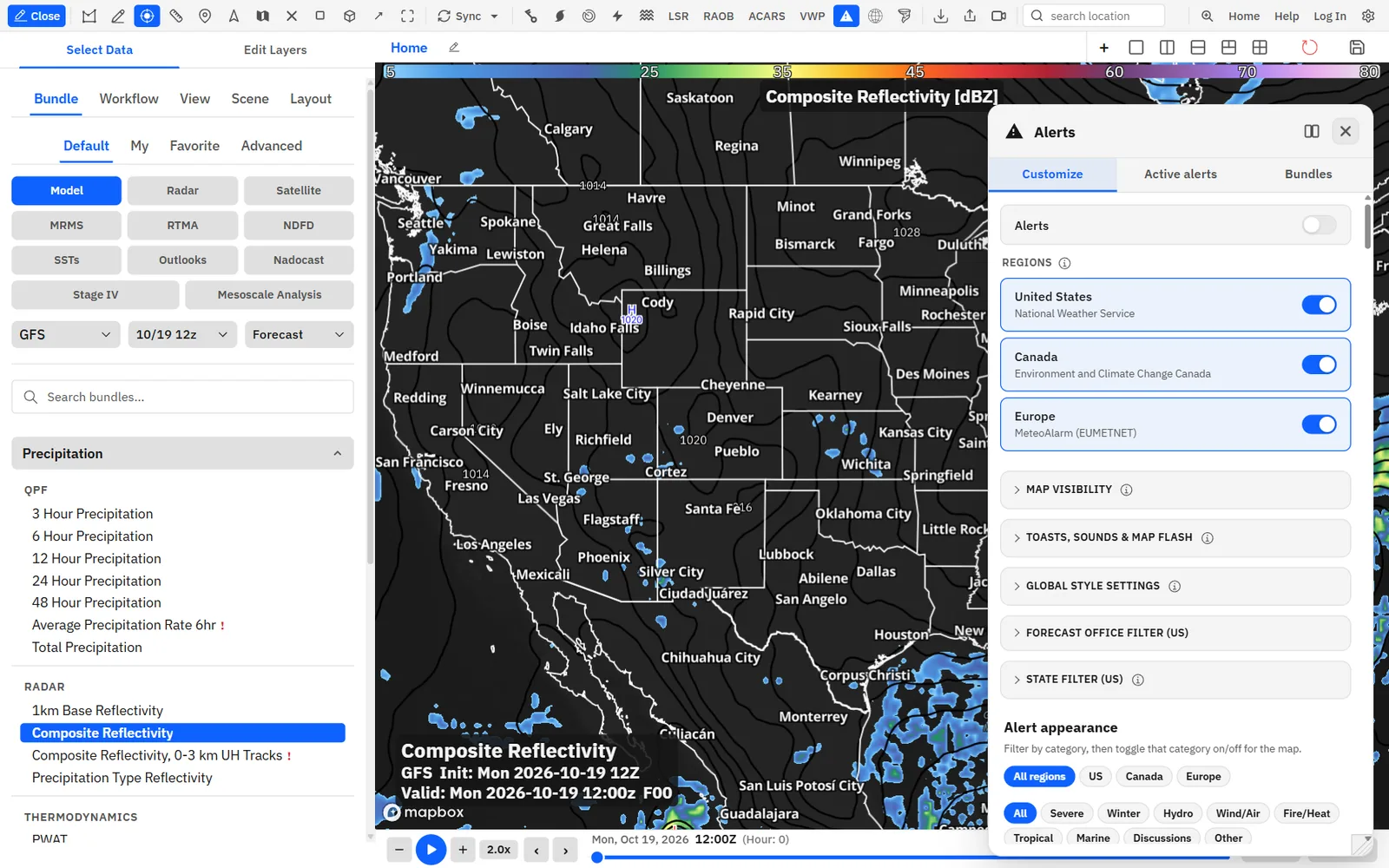
One toolbar button turns the Alerts layer on and opens every alert setting.
Show me in the app- Double-click Alerts (the warning triangle) on the toolbar. Alerts draw on the active panel, or on every panel of the board when Sync Alerts is on.
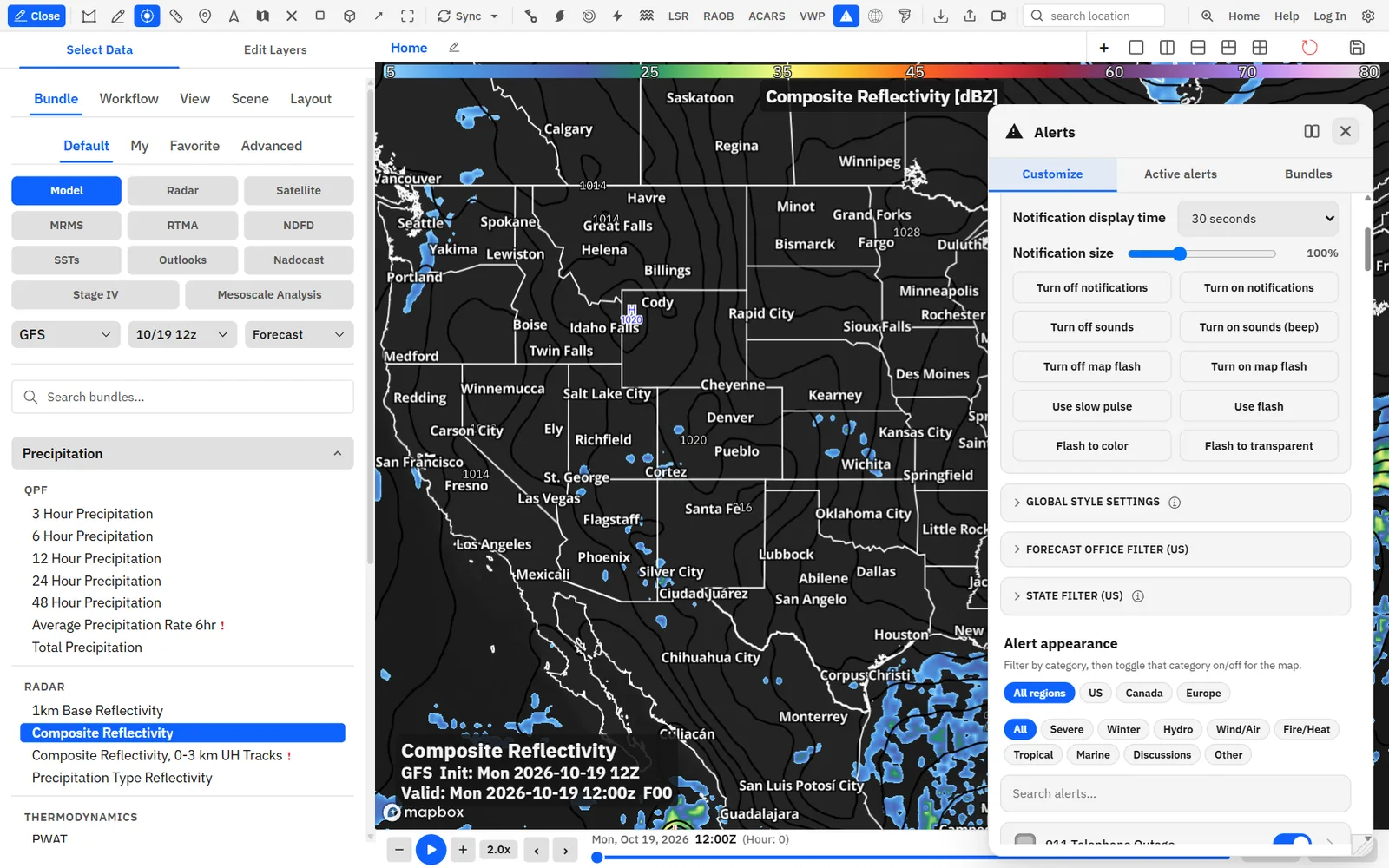
- Single-click Alerts to open the Alerts menu. It opens on the Customize tab.
- Pick a tab: Customize for alert types, styles, filters and notifications, Active alerts for a list of what is in effect, or Bundles for saved presets.
- Click an alert on the map to open its popup.
Tips
- Sync on the toolbar has Sync Alerts, which is on by default. While it is on, turning alerts on or off applies to every panel on the board. Turn it off to show alerts on one panel only.
- In Edit Layers, the layer is listed as Alerts. Its edit button opens the Alerts menu.
- To have alerts turn on whenever you load a built-in bundle, check Alerts under Default bundle overlays in Settings, Data. This needs an account.
- If the time bar is following a model forecast and the board has no radar, satellite or other observations, turning alerts on switches the time bar to Warnings.
- On a phone, tap Alerts in the menu. It opens the settings as a sheet and turns alerts on if they are off. Use Expand modal to make the sheet taller.
Shortcuts
- Enter / Space
- Opens the settings of the alert type row that has focus.
- Enter
- In Add code (e.g. MKX), adds the office. In Name this preset…, saves the alert bundle.
- Esc
- Cancels renaming an alert bundle.
Settings, Keyboard shortcuts lists Toggle alerts and Alerts settings. Neither has a key by default; assign your own to turn alerts on or off or open this menu from the keyboard.
Choose which alert types show
Each alert type has its own switch. Filter the list by region and category, then turn single types or whole categories on and off.
- On Customize, scroll to Alert appearance.
- Pick a region chip: All regions, US, Canada or Europe. The chip only filters the list. It doesn’t hide anything on the map.
- Pick a category chip, such as Severe or Winter, or All.
- With a category picked, use the switch named for it, such as Show Severe on map, to show or hide every type in that category. The note beside it says whether every type is visible or some are hidden. With a region chip picked, the switch only acts on that region’s types.
- To find one type, type in Search alerts… and flip the switch on its row.
- Click a row (not its switch) to open that type’s fill, outline, sound and flash settings. Click Back to alerts to return to the list.
Tips
- Tagged versions are their own rows: Tornado Warning (Observed), Tornado Warning (PDS) and Tornado Warning (Emergency); Severe Thunderstorm Warning (Considerable) and (Destructive); Flash Flood Warning (Considerable) and (Emergency); PDS tornado and severe thunderstorm watches; and the (Convective) versions of Special Weather Statement, Marine Weather Statement and Special Marine Warning. Each has its own map switch.
- Until a tagged version gets its own setting, from its row or from a button that sets every visible type, it uses its parent’s fill color, fill opacity, fill and outline switches, sound, notification and map flash. Outline colors and widths are set per type.
- The swatch on each row previews the map look: a fill with an outline ring, an outline cross-section when fill is off, a solid fill when the outline is off, or a thin line when both are off.
A hidden type also disappears from Active alerts and from the ticker while it follows the map, and it stops making notifications, sounds and map flashes.
Hide or show whole families at once
Buttons that turn every watch, every warning, everything else, or everything except severe threats on or off without turning alerts off.
- On Customize, click Map visibility to expand it.
- Click a button. The switches in the alert type list update to match.
Tips
- These buttons set the same per-type switches as the list, so you can fine-tune afterward. Use three of them in a row (Turn off watches, Turn off other non-warnings, Turn off warnings) to start from an empty map and then turn on only the types you want.
Style one alert type: fill and outline
Give any alert type its own fill color and opacity, and a two-layer outline with an inner line and a wider casing behind it.
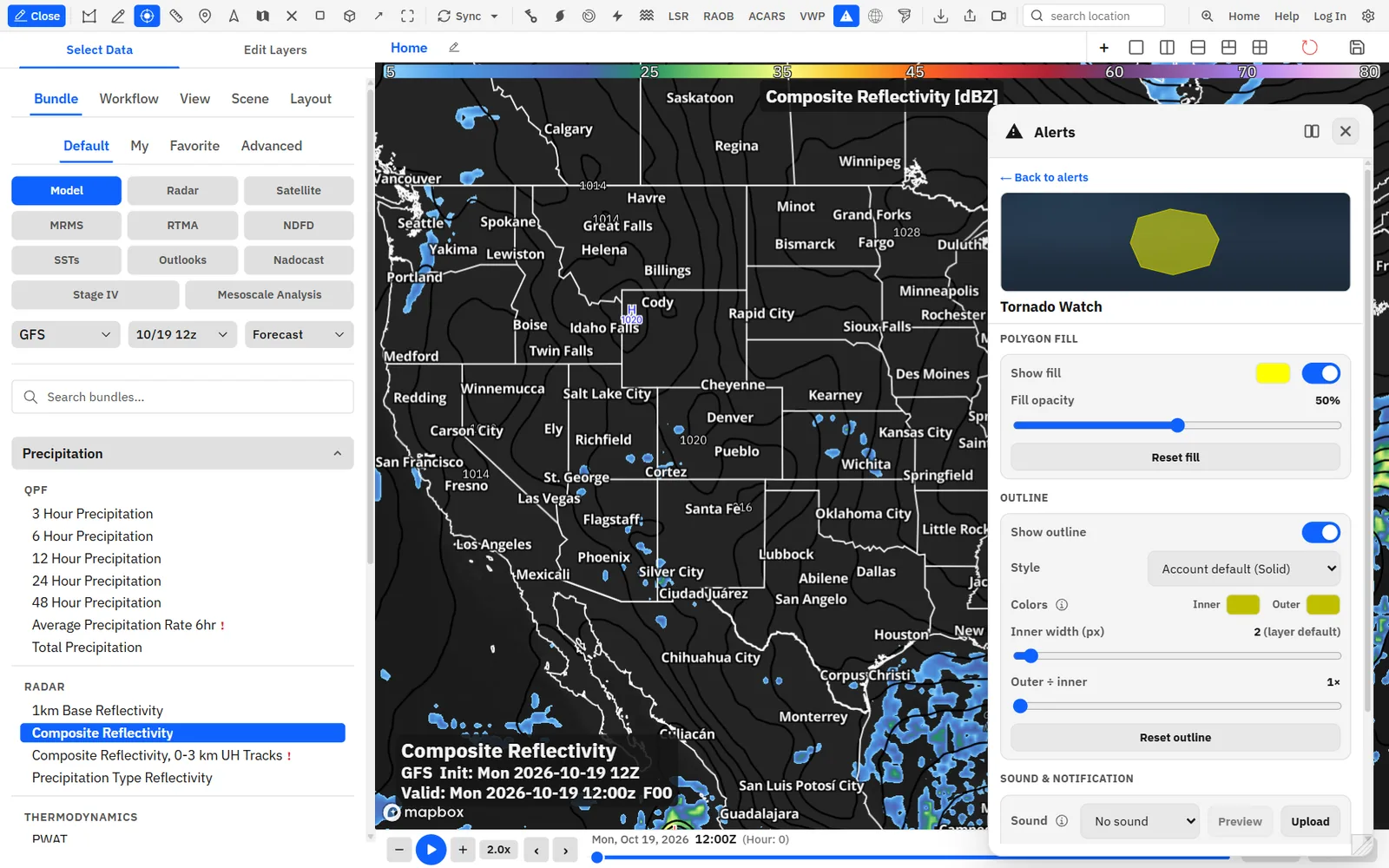
- Under Alert appearance, click the row of an alert type (not its switch).
- Under Polygon fill, turn Show fill on or off. While fill is on, click the color swatch beside the switch to pick a color, and drag Fill opacity.
- Under Outline, turn Show outline on or off, pick a Style, and set the Inner and Outer colors.
- Drag Inner width (px) and Outer ÷ inner. The sample at the top of the panel previews the result while you drag.
- Click Back to alerts when you are done. Changes apply to the map right away.
Built-in outlines: tornado, severe thunderstorm and flash flood warnings and Flash Flood Statement draw a hazard-colored core with a black casing (inner 3 px, 1.4×). Tornado Warning (PDS), PDS watches and the (Considerable) severe thunderstorm and flash flood warnings use a black casing at 1.5×. Tornado Warning (Emergency), Severe Thunderstorm Warning (Destructive) and Flash Flood Warning (Emergency) use a white core inside a hazard-colored casing at 1.6×. Anything you set yourself overrides these.
Tips
- The fill color also sets the default inner outline color and the accent color of the alert’s notifications and Active alerts cards. To change it on an outline-only type, turn Show fill on, pick the color, then turn fill off again.
- If you turn off both the fill and the outline, the type is invisible and makes no notifications, sounds or map flash. Turn off its map switch instead if that is what you mean.
Restyle every alert type at once
Set fill, opacity, outline width, casing and dash style for every alert type in one place, then make single-type exceptions.
- On Customize, click Global style settings to expand it.
- Click Hide fill or Show fill, and Hide outline or Show outline.
- Drag the sliders and pick an Outline style.
- Open a single alert type in the list below if you want an exception.
Each global setting overwrites that setting on every type, including the built-in widths and casing of the default warning outlines. Outline colors aren’t changed. A setting you change afterward on a single type wins over the global one.
Filter by forecast office or state
Show only the US alerts issued by the forecast offices you pick, or that touch the states you pick.
- On Customize, click Forecast office filter (US) to expand it.
- Type a three-letter office code in Add code (e.g. MKX) and press Enter or click Add. Or search with Search WFO codes… and click codes in the grid.
- To filter by state, expand State filter (US) and click states in the grid, or search with Search states….
- Click a selected code’s × chip to remove it, or Clear offices or Clear states to remove them all.
When both filters are set, an alert has to pass both. Either filter hides every Canadian and European alert. Products from the Storm Prediction Center (WNS), such as watches and mesoscale discussions, always pass the office filter; add a state filter or hide those types if you want fewer of them.
Tips
- Filters apply everywhere alerts appear: the map, Active alerts, the ticker while it follows the map, and notifications, sounds and map flash.
Canadian and European alerts
Environment and Climate Change Canada and MeteoAlarm warnings share the Alerts layer with NWS alerts, with the same styling, popups, notifications and time slider.
Show me in the app- On Customize, find Regions.
- Turn United States, Canada or Europe on or off. All three are on by default.
- Under Alert appearance, click the Canada or Europe chip to list that region’s alert types, then style them like any other type.
Canadian alerts that share a name with an NWS product, such as Tornado Warning, Severe Thunderstorm Watch, Special Weather Statement, Snow Squall Warning or Winter Storm Warning, share that product’s settings, so a storm crossing the border looks the same on both sides. Canada-only types include Rainfall Warning, Snowfall Warning, Wind Warning, Freezing Rain Warning, Heat Warning, Arctic Outflow Warning and Special Air Quality Statement.
European warnings are named by level and hazard, such as Orange Wind Warning or Red Thunderstorm Warning. There are 14 hazards (wind, snow/ice, thunderstorm, fog, high and low temperature, coastal event, forest fire, avalanche, rain, flood, rain-flood, marine hazard and drought) at three levels, drawn yellow, orange and red by default.
Tips
- Popups for these alerts show Level, Province or Country, and Issued by instead of an NWS office.
- MeteoAlarm issues each day’s warnings ahead of time. A European warning draws on the map once its start time arrives on the time slider.
- Clicking a Canadian or European card in Active alerts only turns on a radar whose coverage includes the alert.
- Region checks slow to about every 5 minutes while the browser tab is hidden.
Turning a region off hides it on the map, in Active alerts and in the ticker, and stops its notifications and sounds. An office or state filter also hides both Canada and Europe. European warnings: EUMETNET-MeteoAlarm (CC BY 4.0). Canadian alerts: Environment and Climate Change Canada, under the Open Government Licence – Canada.
Click an alert: popups and full text
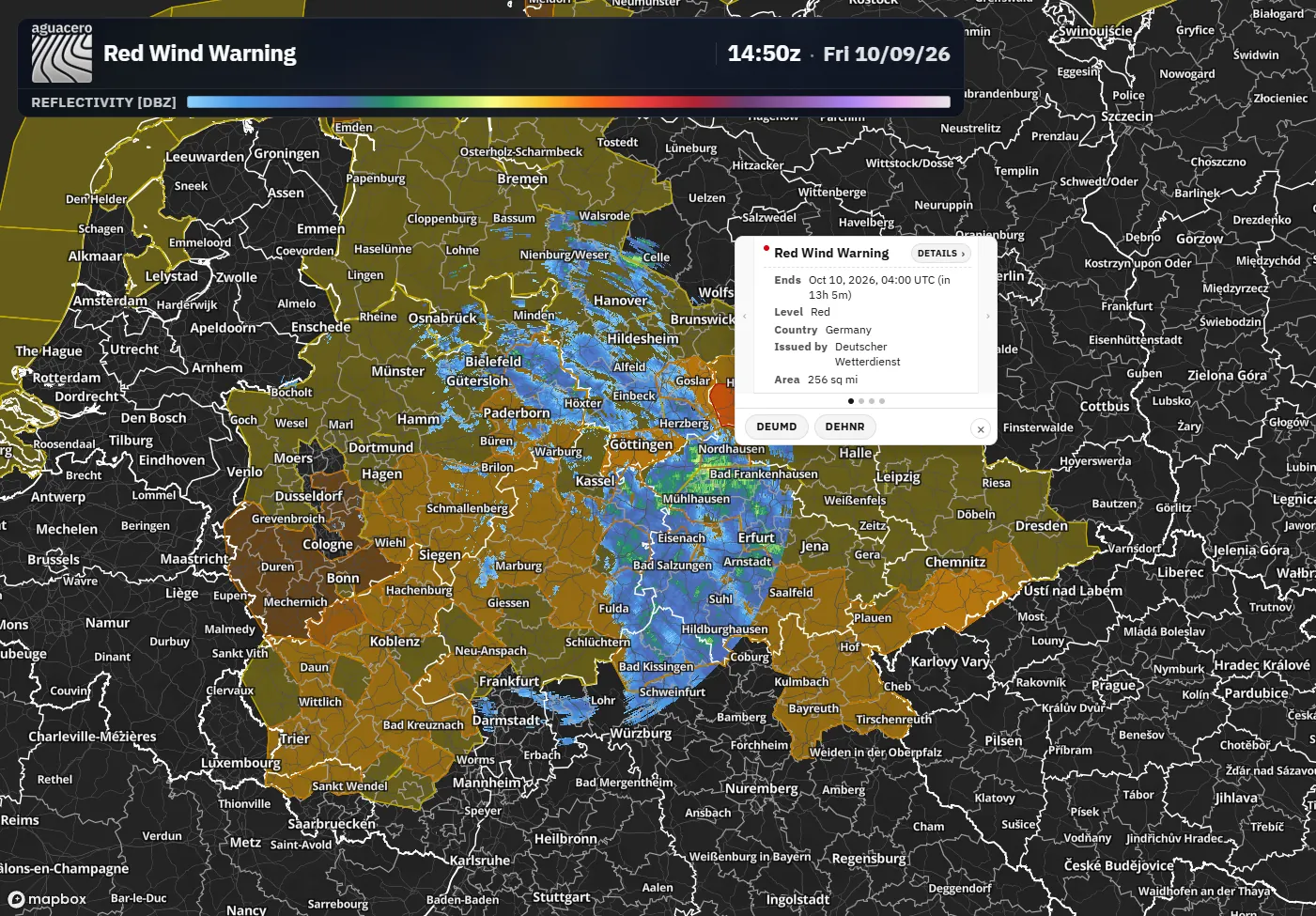
A popup shows when an alert starts and ends, its threats, area and the population covered. Details opens the full bulletin.
- Click an alert on the map.
- Where alerts overlap, use the ‹ and › arrows on the sides of the popup, or swipe on a touch screen, to step through each one.
- Click Details for the full bulletin text and a row of facts about the alert.
- In the full text, click Copy to copy the bulletin.
Between Ends and Area, the popup lists threat details taken from the bulletin, such as maximum hail size, maximum wind gust, how a tornado was detected and the damage threat.
Tips
- In Settings, Appearance, Feature popups, turn on Only show popup when clicking outline to open popups only from the border of an alert, and Allow multiple popups to keep earlier popups open.
- The Broadcast and Broadcast (Simple) popup styles, with their own fields and colors, need Creator.
Shortcuts
- Backspace
- Closes the latest popup on the active panel.
- Shift + Backspace
- Closes every popup and pinned readout on the active panel.
- PageUp / PageDown
- Steps through overlapping alerts in broadcast popup styles.
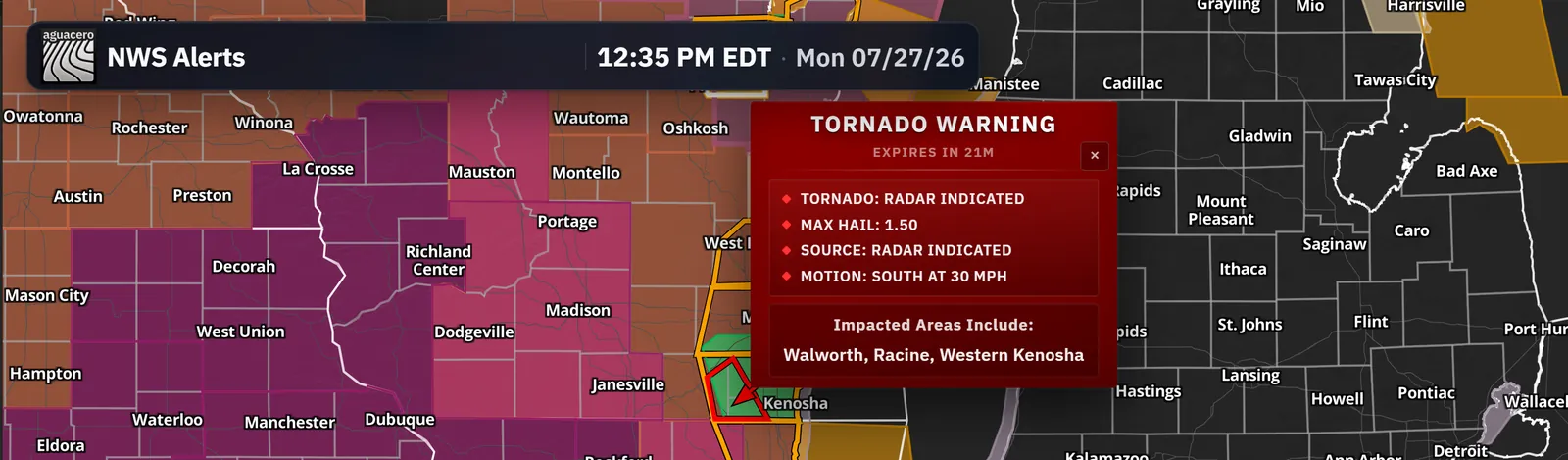
See every alert in effect
The Active alerts tab lists what is in effect, counts the high-impact warnings and takes you to any alert with radar on.
- Turn alerts on, open the Alerts menu and click Active alerts.
- Pick a region chip and a category chip to narrow the list.
- Type in Search active alerts… to find an alert by type, office, state or tag.
- Click a card. The map flies to the alert and turns on the nearest working NEXRAD site.
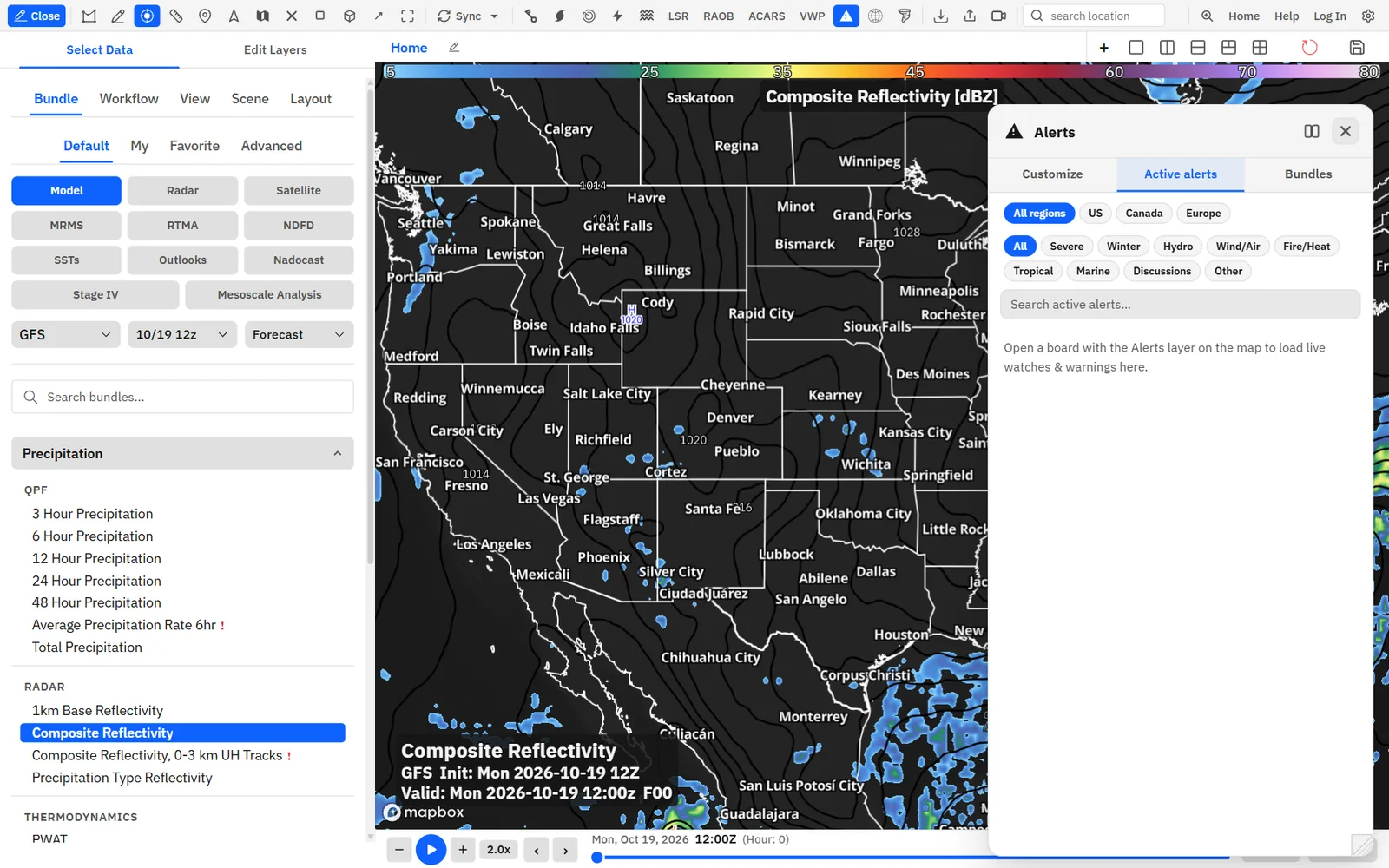
The list follows the time slider, your hidden alert types, region switches, office and state filters and the coastal zone setting. It needs the Alerts layer on a board; otherwise it reads “Open a board with the Alerts layer on the map to load live watches & warnings here.” In archive mode, clicking a card only pans the map and keeps your archived radar.
Get a notification when a new alert arrives
A card appears in the top-right corner of the board when a new alert of a type you chose is issued, upgraded, extended or updated. Notifications are off until you turn them on.
- For one type: click its row, then under Sound & notification turn on Notification.
- For every type at once: on Customize, expand Toasts, sounds & map flash and click Turn on notifications. It applies to every type that is visible on the map.
- Set Notification display time and Notification size.
- When a notification appears, click it to fly to the alert with radar on, or click its × to dismiss it.
A notification shows the alert title, how a tornado was detected (such as observed or radar indicated) under the title, the office, the affected states, tags such as issued, upgraded or extended, and the end time. Up to three stack on the board; a fourth replaces the oldest.
Notifications, sounds and map flash happen when an alert is issued, upgraded, extended or updated while the app is open. Continuations, cancellations and expirations are silent, and alerts already in effect when you open the app don’t notify. The type has to be visible on the map and pass your region, office, state and coastal zone settings. Notifications are cards inside the app, not system notifications. On a phone, alerts don’t show notifications, play sounds or flash.
Tips
- The bulk buttons change only the types that are visible on the map. Hidden types keep their own settings.
Flash new alerts on the map
Make a newly issued alert flash or pulse on the map so it catches your eye.
- Click an alert type’s row, then under Map flash turn on Flash.
- Pick an Animation and what to Flash to.
- Set the duration and timing.
Tips
- Changes apply to polygons that are already flashing.
- Tagged versions such as Tornado Warning (PDS) use the parent type’s flash until they get their own, either from their own row or from the buttons under Toasts, sounds & map flash, which set every visible type.
Play a sound for new alerts
Pick a built-in beep, chime or siren for any alert type. Built-in sounds work on every plan.
- Click an alert type’s row.
- Under Sound & notification, pick a sound in the Sound menu.
- Click Preview to hear it.
Tips
- To give every visible type a sound at once, use Turn on sounds (beep) under Toasts, sounds & map flash.
- When several alerts arrive together, each different sound plays once.
- Tagged versions use the parent type’s sound until you pick one for them.
- The menu has no volume control. Use your computer’s or browser tab’s volume.
- Browsers block sound on a page you haven’t clicked yet. After you open or reload the app, click anywhere in it once.
Upload your own alert soundsCreator
Upload MP3s, such as your station’s tornado tone, and assign them to any alert type.
Show me in the app- Sign in on a Creator plan.
- Click an alert type’s row. Under Sound & notification, click Upload and choose an MP3.
- When the upload finishes, the sound is assigned to that type and added to your library.
- For other types, pick the file under Your MP3s in the Sound menu.
- Click Preview to hear it.
Needs Creator and a signed-in account. Each file must be an MP3 of 2 MB or less and 30 seconds or shorter, and you can keep up to 24 sounds. Without Creator, Upload and the MP3 choices open the upgrade dialog, and types set to an MP3 play no sound.
Alerts on the time slider and in archive mode
Alerts follow the time slider, so you can scrub back to see what was in effect. In archive mode, past NWS alerts come back with the event.
In live mode, the map shows the alerts that were in effect at the slider time. On the newest frame, alerts follow the clock, so a new warning draws as soon as it is issued. US alerts arrive over a live NWWS stream that reconnects on its own and catches up when you return to the browser tab.
How far back you can scrub alerts follows the longest duration set on the board for radar, satellite, MRMS, RTMA or surface analysis, at least 1 hour and up to your plan’s radar history limit. Set a longer radar duration to load more alert history.
- For a past event, switch the time bar from Live to Archive.
- In Archive Builder, set the window, then check NWS alerts under Overlays. Alerts go back to 1986.
- Click Apply. Alerts follow the archive playhead, and the layer shows as Archived NWS alerts in Edit Layers.
In archive mode, the Alerts button is greyed out (“Load an archive event to enable”) until an event is loaded. Archived alerts come from the Iowa Environmental Mesonet (IEM) archive. Your colors, outlines, types and filters apply to them too.
Related guideArchive and reanalysisLoad an archive windowSave and switch alert bundles
An alert bundle stores your whole alert setup under a name. Apply one to swap looks, drive the ticker, or change alerts between scenes.
- Set up alerts the way you want on Customize.
- Click the Bundles tab, type a name in Name this preset… and click Save current (or press Enter).
- To switch, click a bundle’s name. Your current alert settings are replaced by the bundle’s.
- Click Update to overwrite a bundle with your current settings, Rename to change its name, or Delete to remove it.
A bundle stores which types are visible, colors, fill and outline settings, opacity, global style, outline style, sounds, notifications, map flash, region switches, office and state filters, the coastal zone setting, Always only display active watches & warnings, and notification time and size. It doesn’t store the menu’s size or position. Each bundle shows how many types it hides.
Tips
- Each bundle can get a keyboard shortcut, listed as Apply NWS alert bundle “name” in Settings, Keyboard shortcuts. None is set by default.
- On Creator, the alerts ticker can use a bundle instead of the map’s settings: in Settings, Appearance, NWS ticker, turn off Sync with map and pick the bundle under NWS alert bundle.
- In a scene, the Alerts setting picks an alert bundle for that scene with Choose alerts. Unset keeps the alerts in use.
- Data bundles and workflows can carry alerts too: turn on Save alerts to bundle or Save alerts to this workflow when you save one.
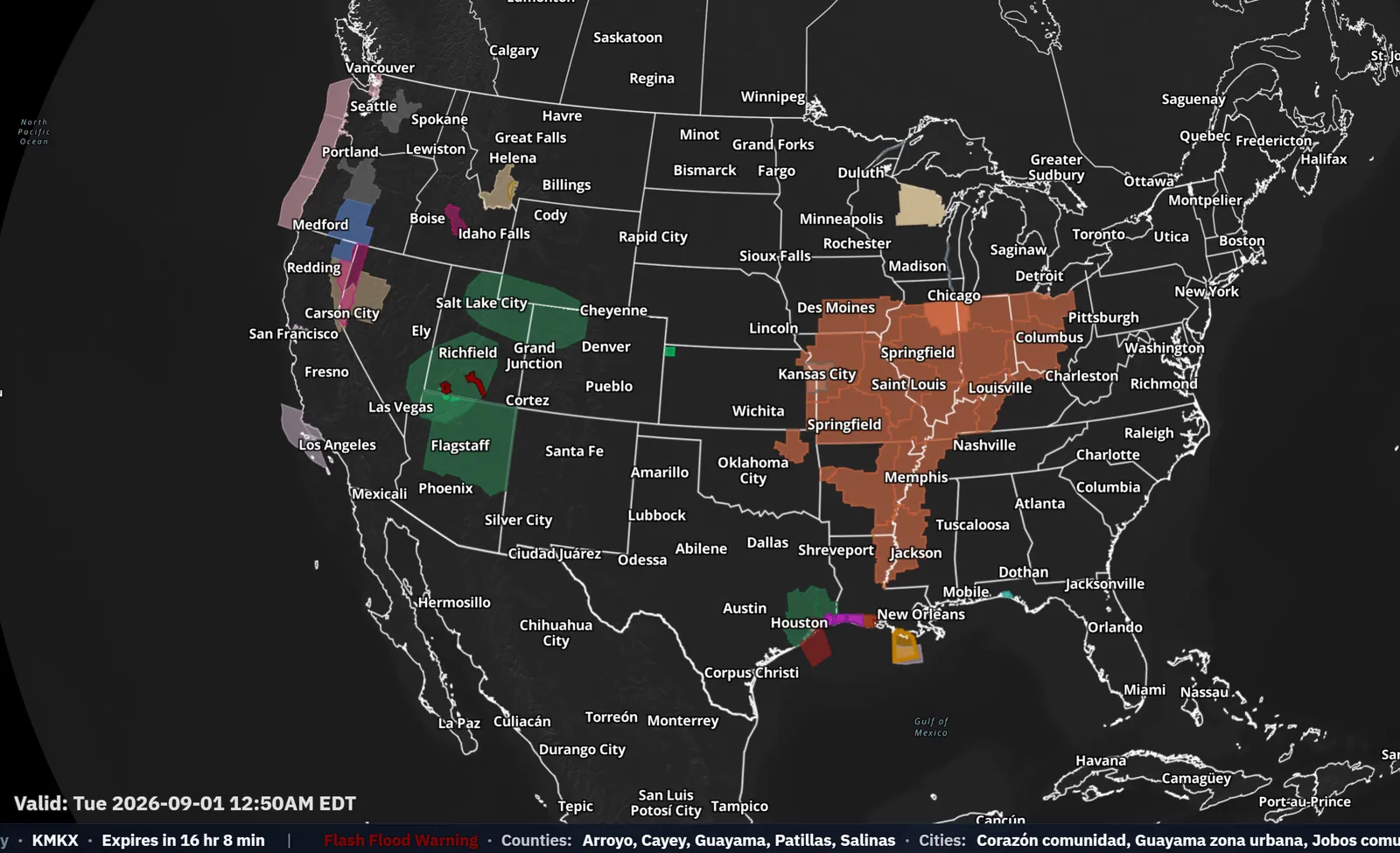
Recipe: only tornado and severe thunderstorm warnings for your office, with a siren
A quiet map that shows only TOR and SVR warnings from one forecast office, sounds a siren for tornadoes and keeps each notification up until you dismiss it.
- Double-click Alerts on the toolbar to turn alerts on, then single-click it to open the menu.
- Expand Map visibility and click Turn off watches, Turn off other non-warnings and Turn off warnings. The map is now empty.
- In Search alerts…, type “tornado warning”. Turn on the switches for Tornado Warning, Tornado Warning (Emergency), Tornado Warning (Observed) and Tornado Warning (PDS).
- Search “severe thunderstorm warning” and turn on Severe Thunderstorm Warning, (Considerable) and (Destructive).
- Expand Forecast office filter (US), type your office code, for example OUN for Norman, in Add code (e.g. MKX) and click Add.
- Clear the search and click the Tornado Warning row. Set Sound to Siren (high, long) and click Preview. Turn on Notification.
- Under Map flash, turn on Flash, keep Animation on Flash, and set Duration (seconds) to 30. Unless you have set them separately, the Observed, PDS and Emergency versions use the same sound, notification and flash.
- Click Back to alerts, open Severe Thunderstorm Warning, set Sound to Chime and turn on Notification.
- Expand Toasts, sounds & map flash and set Notification display time to Until dismissed.
- On Bundles, name it “OUN warnings” and click Save current.
Tips
- Click anywhere in the app once after it opens so the browser lets the siren play.
- The office filter also hides Canadian and European alerts. Add a second office for a neighboring area you watch.
Recipe: outline-only warnings that pulse when issued
A clean look for streaming or chasing: every alert as a bold outline over radar, watches lightly shaded, and new warnings that pulse.
- Open the Alerts menu and expand Global style settings.
- Click Hide fill. Set Inner width (px) to 3 and Outer ÷ inner thickness to 1.6×.
- Open Tornado Watch, turn Show fill on and set Fill opacity to 15%. Do the same for Severe Thunderstorm Watch.
- Tornado, severe thunderstorm and flash flood warnings already have a black casing. To match them, open Special Weather Statement (Convective) and set Outer to black. Do the same for any other type you want to stand out.
- Expand Toasts, sounds & map flash and click Use slow pulse. Every visible type now pulses for 10 seconds when issued.
- Open Tornado Warning and, under Map flash, set Flash color to yellow and Duration (seconds) to 60.
- Save it on Bundles as “Chase outlines”.
Tips
- Flash to transparent makes a pulsing outline fade in and out instead of changing color.
- Switch back to your everyday look by clicking another bundle.
Where alert settings are saved
Alert styles, filters and notifications belong to your account. Whether alerts are on belongs to each panel.
A data bundle, workflow or scene that carries alerts applies them when it loads without saving them over your account settings. If you then change an alert setting, everything you see, including the loaded alerts, is what gets saved. Applying an alert bundle from the Bundles tab saves it as your current settings.
Related guideBundles, workflows and your librarySave alerts with a data bundleCommon questions
Answers to the questions people ask most about alerts.
Why isn’t an alert showing on the map?
Check, in order: alerts are on for this panel (double-click Alerts, or turn on Sync Alerts); the alert type’s switch is on under Alert appearance; the type doesn’t have both fill and outline turned off; its region is on under Regions; it passes your office and state filters and Hide coastal forecast zones; and the time slider is on a time when the alert was in effect. Scrubbing back only reaches as far as the board’s longest radar, satellite, MRMS, RTMA or surface analysis duration.
I turned off Tornado Warning, but some tornado warnings still show. Why?
Observed, PDS and Emergency tornado warnings are separate types with their own map switches. Search “tornado warning” and turn them off too, or use Turn off warnings under Map visibility. The same goes for the Considerable and Destructive severe thunderstorm and flash flood warnings.
Why don’t I get a notification or sound when a warning is issued?
Notifications, sounds and map flash are off for every type until you turn them on, per type or with the buttons under Toasts, sounds & map flash. They fire only for alerts issued, upgraded, extended or updated while the app is open, not for alerts already in effect, continuations, cancellations or expirations. The type must be visible on the map and pass your filters. On a phone, alerts don’t notify, play sounds or flash.
Why is there no sound in my browser?
Make sure the type has a sound other than No sound and click Preview. Browsers block sound until you click the page, so click anywhere in the app once after you open or reload it. Check that the browser tab and your computer aren’t muted; the menu has no volume control of its own. Custom MP3s play only on Creator, while signed in, and only if the file is still in Your MP3s.
Why do the colors differ from the NWS map?
Default fill colors follow the NWS hazard color list, but fills draw at 50% opacity, outlines are a darker shade of the fill, and tornado, severe thunderstorm and flash flood warnings are outline only with a black casing so radar shows through. Tagged versions keep their parent’s color with a stronger outline. European warnings use MeteoAlarm yellow, orange and red. Your own colors, the global style, or an alert bundle, data bundle or workflow you loaded can also change them. Reset fill and Reset outline return a type to its defaults.
My office filter is set, but SPC watches and discussions from other areas still show. Why?
Products from the Storm Prediction Center (WNS) always pass the office filter. To narrow them, add a State filter (US), or hide the watch and discussion types you don’t want.
Where did the Canadian and European alerts go?
Either their switch under Regions is off, or an office or state filter is set. Both filters show US alerts only. Click Clear offices and Clear states to bring them back.
Can I show alerts on one panel only?
Yes. Turn off Sync Alerts in the Sync menu on the toolbar. Then click a panel to make it active and double-click Alerts to turn alerts on or off for that panel only. The alert style is the same on every panel.
Why does the Upload button open an upgrade dialog?
Custom alert sounds need Creator. Built-in beeps, chimes and sirens work on every plan.
My MP3 upload failed. What are the limits?
The file must be an MP3 (“File must be an MP3”), 2 MB or smaller (“MP3 must be 2MB or smaller”) and 30 seconds or shorter (“Alert sounds must be 30 seconds or shorter”). You can keep up to 24 sounds; remove one to add another. You must be signed in (“Sign in to upload custom alert sounds.”).
Why does Active alerts say to open a board with the Alerts layer?
The list is built from the alerts loaded on the map. Double-click Alerts on the toolbar to turn the layer on, and the list fills in.
Why is the Alerts button greyed out?
In archive mode the button waits for an event (“Load an archive event to enable”). Load a window in Archive Builder with NWS alerts checked under Overlays.
Do my alert settings follow me to another computer?
Yes, when you are signed in. Your alert settings, alert bundles and MP3 library are stored with your account. Signed out, changes last only until you reload.
Is there a keyboard shortcut for alerts?
Toggle alerts, Alerts settings and one Apply NWS alert bundle shortcut per bundle are listed in Settings, Keyboard shortcuts. None has a key by default; assign your own.