Open a model sounding
Right-click any point on a model map for a full Skew-T from the model on that panel, for every hour of the run.
Show me in the app- Load a model bundle on the map, for example the HRRR or GFS.
- Right-click the map where you want the sounding. On a touch screen, press and hold.
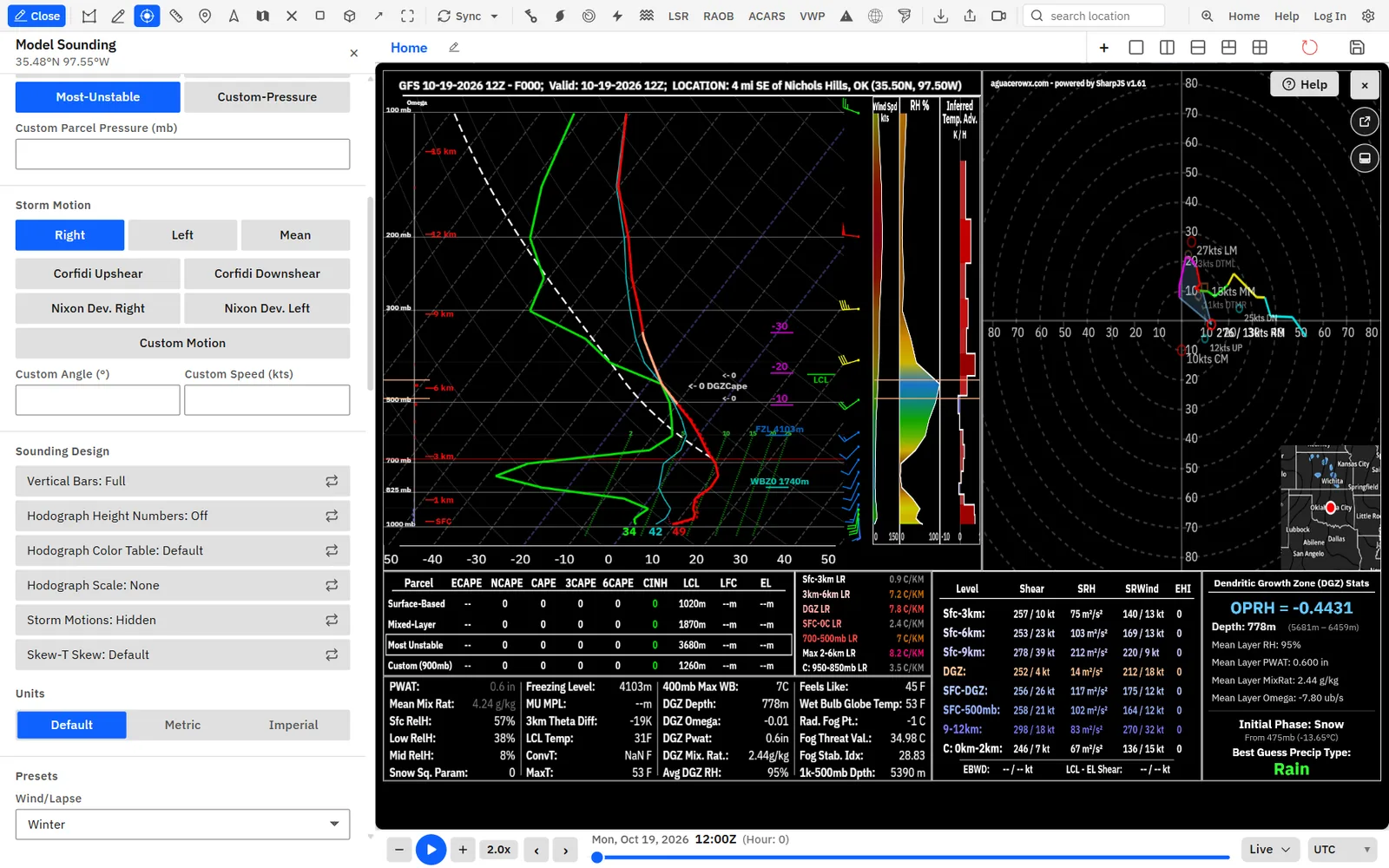
- Under Soundings, click Model. The Skew-T opens over the board (or docked or floating, if that is how you left it) and its controls open under Model Sounding.
- Under Parcel Selection, pick the parcel to draw: Surface-Based, Mixed-Layer, Most-Unstable (the default) or Custom-Pressure.
- Under Storm Motion, pick the motion used for storm-relative helicity, storm-relative winds and ECAPE. Right (Bunkers right mover) is the default.
- Step through the forecast hours with the time slider. The sounding follows the slider and keeps your choices.
- Click × (Close SkewT) in the corner of the chart to close it.
Tips
- The sounding loads every hour of the run, so stepping the slider redraws at once. While an hour is still loading, the last sounding stays on screen.
- On a board with several panels, the sounding uses the model on the panel you right-clicked.
- You can hide or reorder the right-click items in Settings under Context menu.
Read the Skew-T and hodograph
What every line, marker and label on the Skew-T and hodograph means.
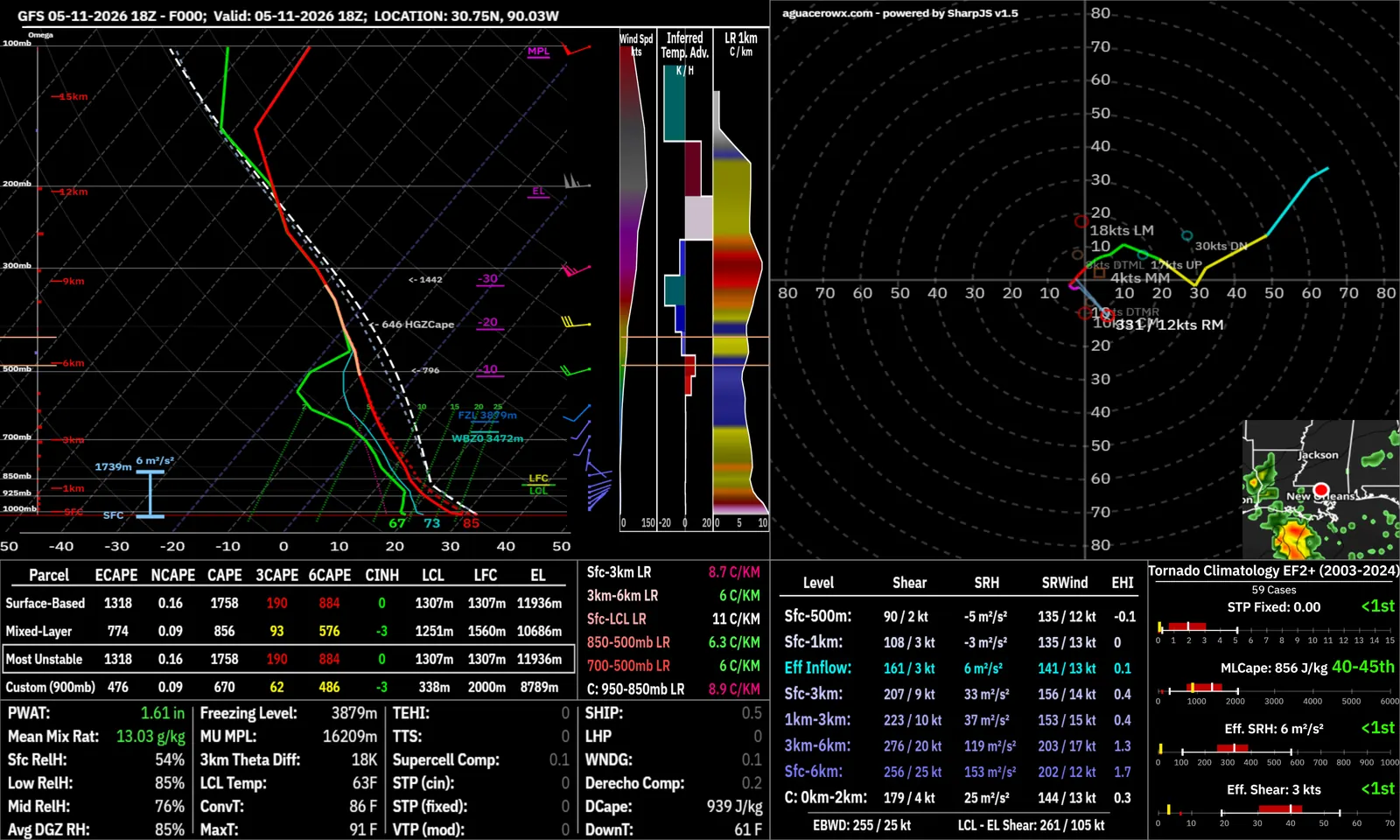
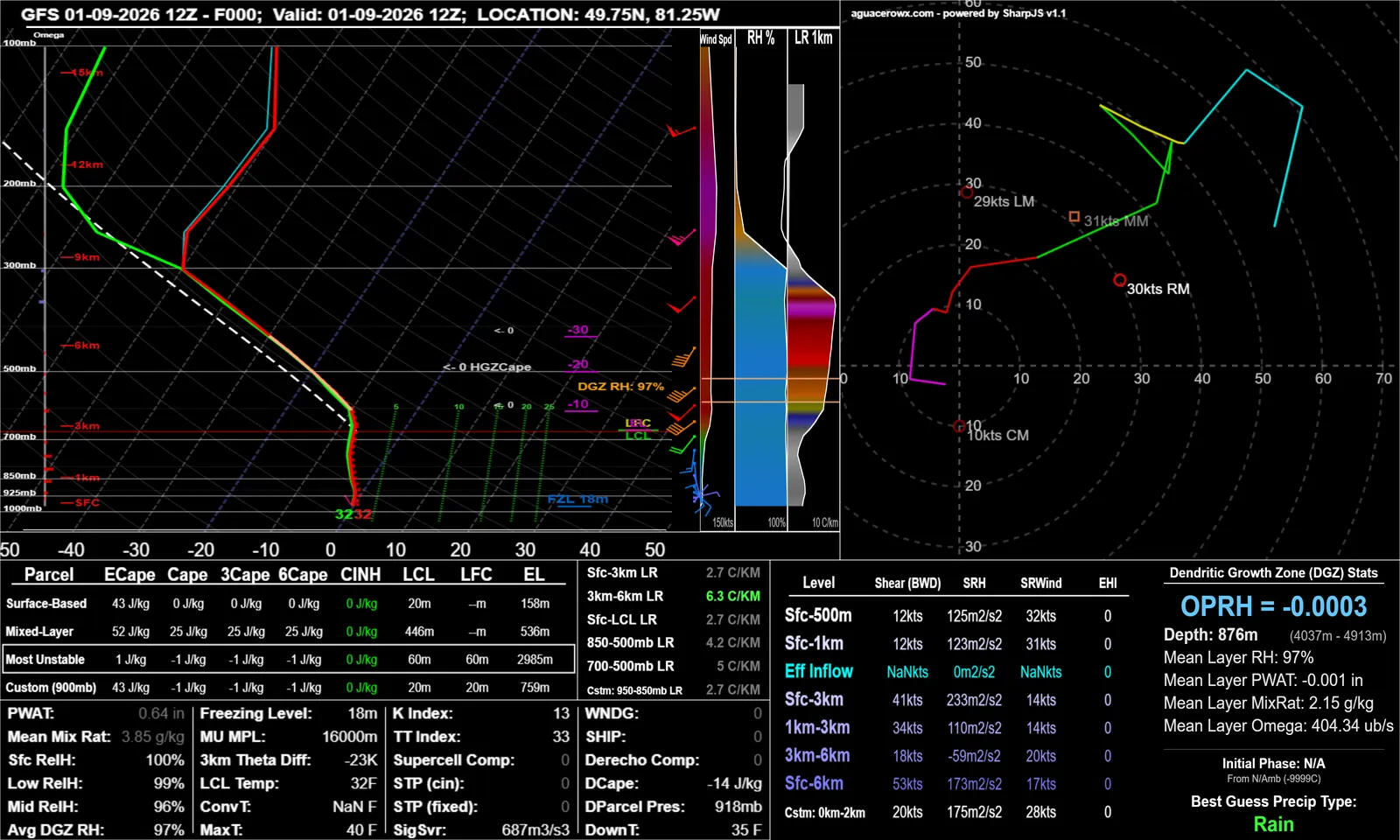
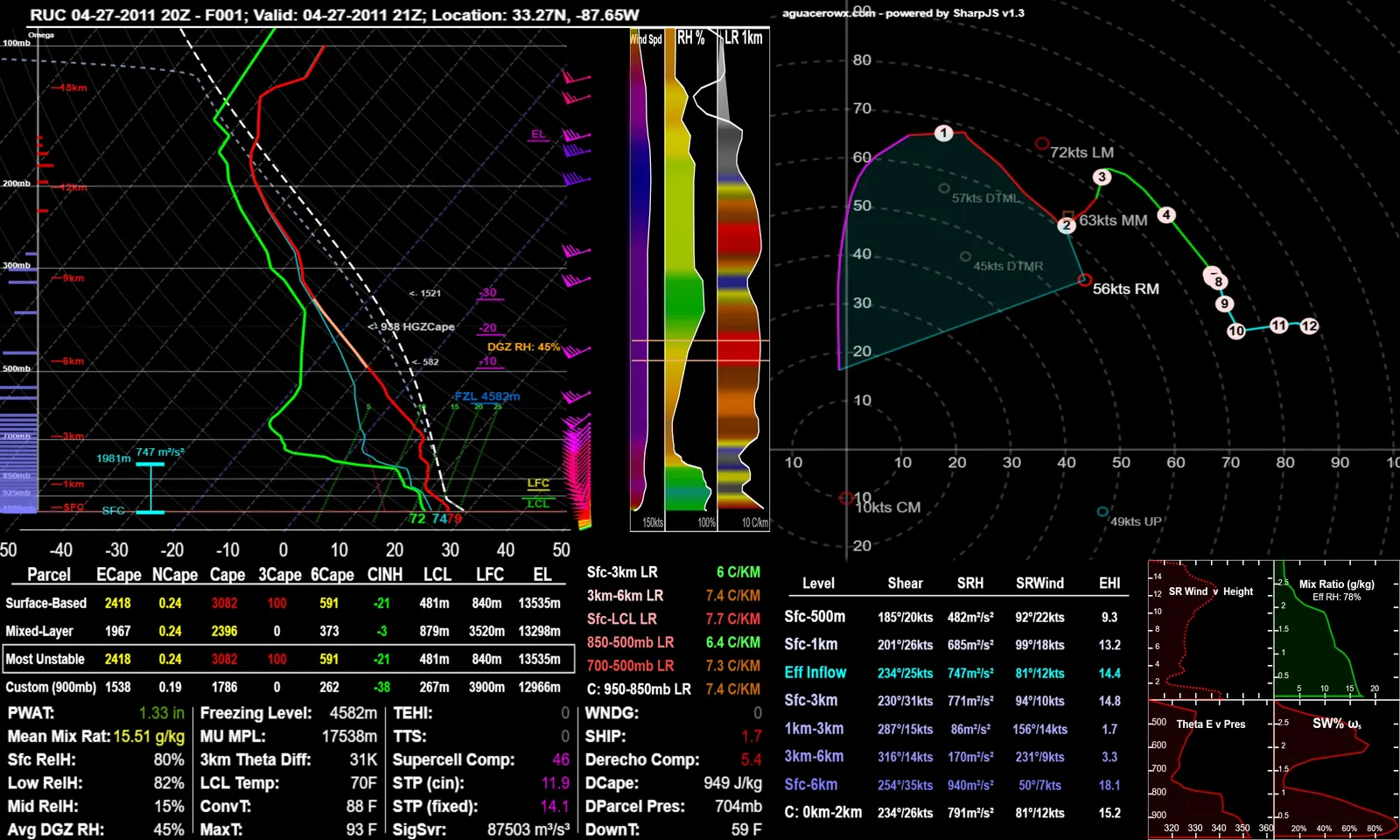
The Skew-T fills the left side. The wind barbs and three vertical bars sit to its right, the hodograph in the middle, the wind table and side panel on the right, and the parcel table, lapse rates and inset parameters along the bottom. The title across the top names the model, run, forecast hour and point, and adds (Modified) after you edit the profile.
On the Skew-T, the red line is temperature and the green line is dew point. The thin cyan line is the wet-bulb temperature and the faint dashed red line the virtual temperature. The dashed white line is the selected parcel, the light blue dashed line is its ECAPE (entraining) parcel, and the dotted magenta line is the DCAPE downdraft parcel. Dotted dark green lines are mixing ratios of 2, 5, 10, 15, 20 and 25 g/kg, and the 0 °C and −20 °C isotherms are drawn heavier.
Tips
- Click Help on the hodograph (desktop) for the mouse and keyboard controls.
- With comparisons on, the parcel, ECAPE, wet-bulb and virtual temperature lines are hidden so the overlays stay readable. The tables still show the main sounding.
Change the model, run or point
Switch the sounding to another model or run, or move it to a place you type, without going back to the map.
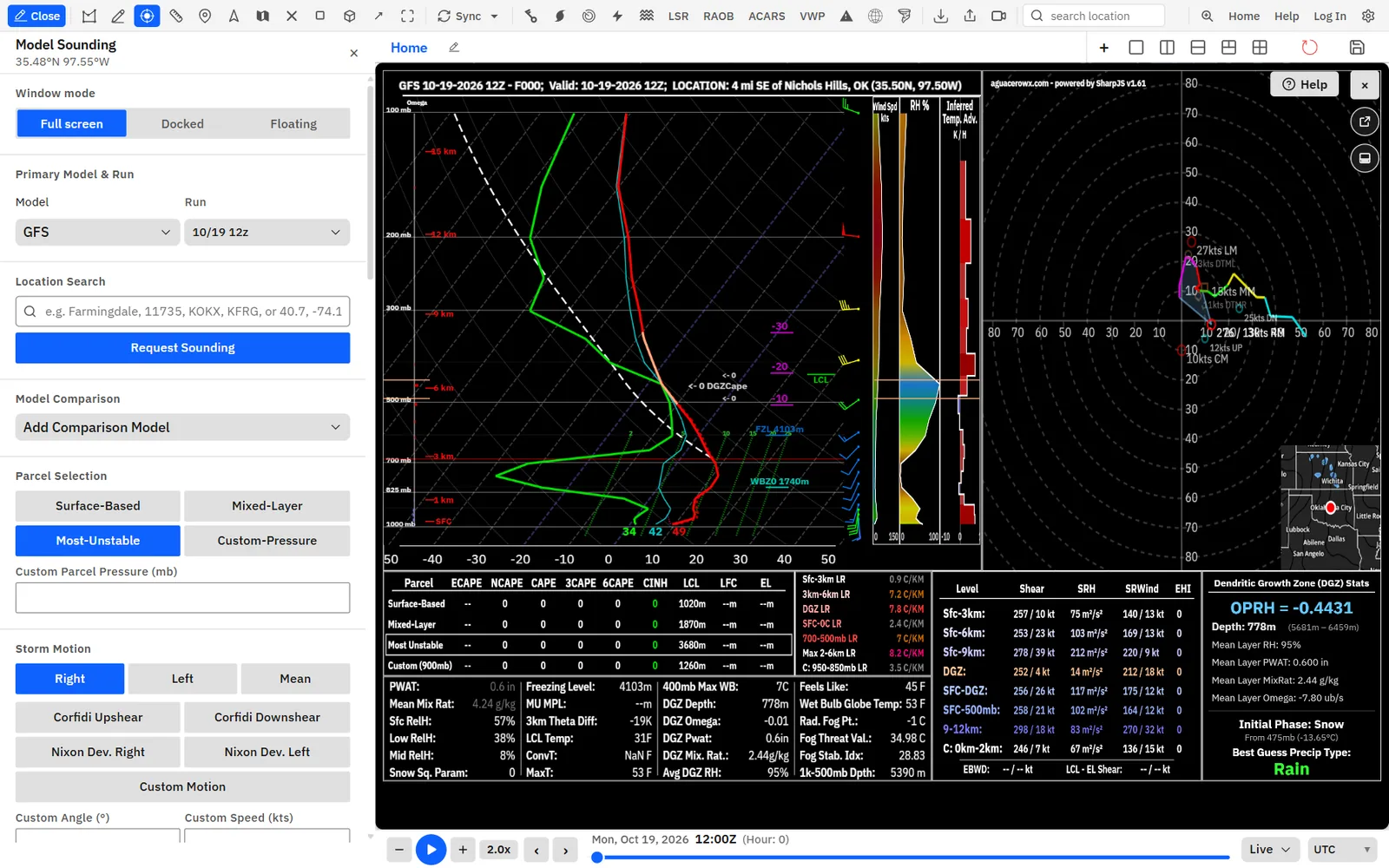
- Under Primary Model & Run, open Model and pick another model. Only models that have soundings are listed, and the latest run loads.
- Open Run to pick an older run of that model.
- Under Location Search, type a city, zip code, airport or station code, or coordinates such as 40.7, -74.1.
- Click Request Sounding.
Primary Model & Run shows only for model soundings. RAOB, ACARS and uploaded soundings have no model to change.
Pick a parcel and read CAPE and ECAPE
Lift a surface-based, mixed-layer, most-unstable or custom parcel, and compare their CAPE, ECAPE, CIN and levels in the parcel table.
- Under Parcel Selection, click a parcel. The Skew-T draws its path, and its row in the parcel table gets an outline.
- For a parcel from a set level, type the pressure in Custom Parcel Pressure (mb), then click Custom-Pressure.
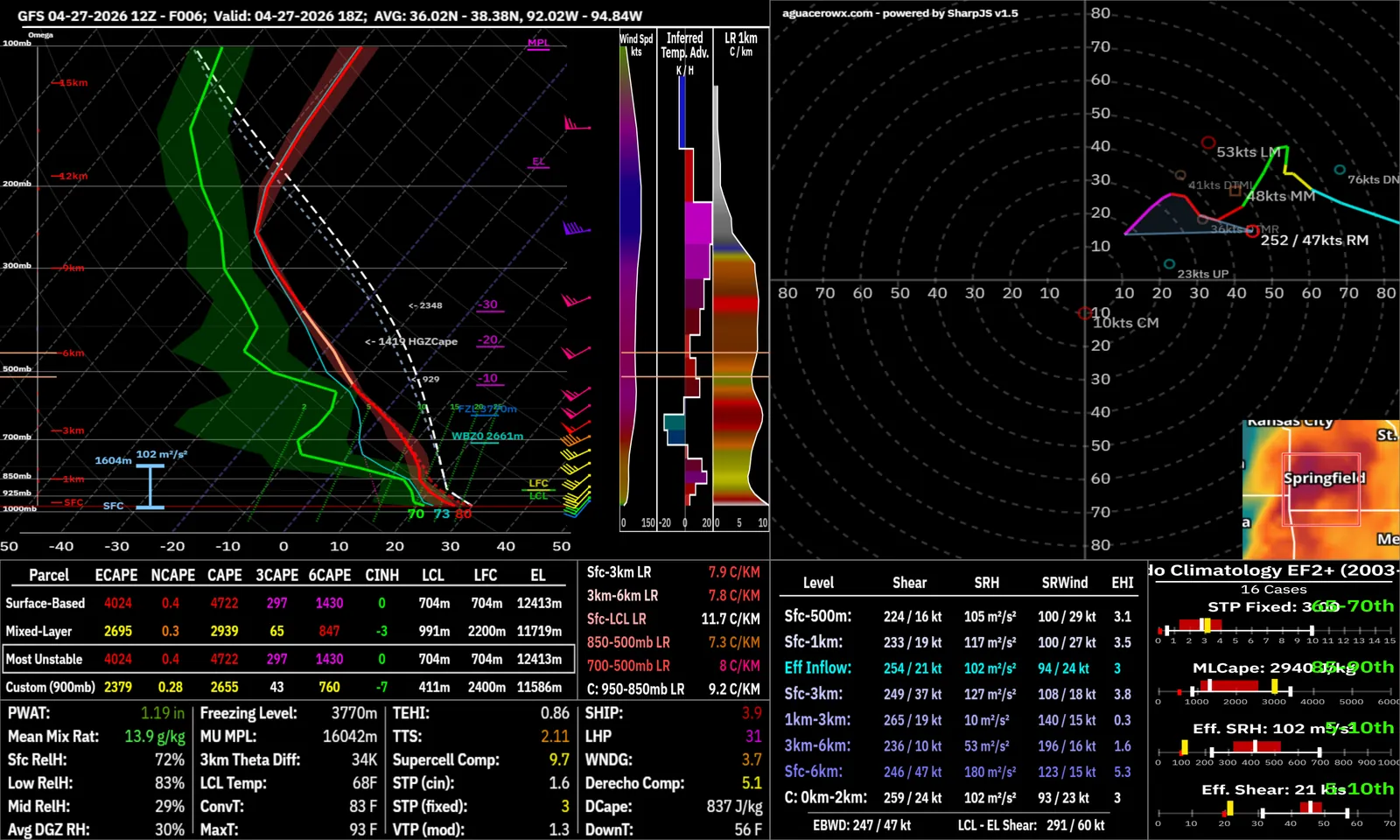
The effective inflow layer is the layer whose parcels have enough CAPE and little enough CIN to feed a storm. The app finds it on every sounding: the blue bracket on the Skew-T marks it, the Eff Inflow row of the wind table gives its shear and helicity, and the parcel-based Bunkers motion uses it. There is no separate effective parcel button.
Tips
- ECAPE changes with the storm motion. Switch from Right to Left or Mean and watch the ECAPE column.
- The Parcel Temp line of the cursor read-out gives the selected parcel’s temperature at any level.
Choose a storm motion
The storm motion sets storm-relative helicity, storm-relative winds, EHI, ECAPE and where storm-relative hodographs center.
- Under Storm Motion, click a motion. The hodograph highlights it and the wind table, ECAPE and read-outs update.
- For your own motion, type Custom Angle (°) and Custom Speed (kts), then click Custom Motion.
- To list every motion with its direction and speed, click Storm Motions: Hidden under Sounding Design so it reads Storm Motions: Shown.
Stepping through time recomputes the motions but keeps the one you picked. A sounding at a new point or from a new run goes back to Right.
Style the hodograph
Color the trace by height, label each kilometer, re-center or zoom it, plot storm-relative winds and mark a boundary.
The hodograph settings sit under Sounding Design and Presets. Each Sounding Design button cycles through its choices each time you click it, and its label shows the current one.
Shortcuts
- Scroll over the hodograph
- Zoom in or out, 1× to 8×
- Click the hodograph
- With Draw front on, draw a boundary line (see Cursor tools)
Tips
- Reset Hodograph under Cursor Options undoes wind edits and resets the storm motion to Right. It doesn’t change the zoom.
- For hodographs across the whole map, add the Hodograph layer instead.
Change the look, skew and units
Trim the vertical bars, change how steeply the Skew-T leans, and switch between default, metric and imperial units.
Some inset parameters always use fixed units: LCL Temp, ConvT, MaxT, DownT and Feels Like in °F, PWAT in inches and Freezing Level in meters.
Switch presets and read the parameter tables
Presets swap the wind, lapse rate and parameter tables, the vertical bars and the side panel between tornado, severe, hail, winter, fire and fog setups.
When a new sounding opens, the app picks presets that fit it: Winter presets and Winter Stats when the surface is colder than 5 °C, Fire presets when surface humidity is under 20%, the tornado climatology panel when the most-unstable CAPE is over 500 J/kg in the US, Elevated Severe/MCS when the inflow layer starts well above the ground, Dryline/Confluence for a deep, dry mixed layer, and Fog/Ambient for fog, extreme heat or cold, or a quiet profile. Change any preset yourself and your choices stay while you step through time.
In each row, Shear is the bulk shear (direction / speed), SRH is storm-relative helicity in m²/s², SRWind is the mean storm-relative wind in the layer, and EHI is the energy-helicity index with the selected parcel.
Measure a custom layer or test new surface values
Add your own lapse rate and wind shear layer to the tables, and try a warmer, moister or windier surface.
- Under Calculate Custom Lapse Rate, pick Mode: Height (km) above ground or Pressure (mb).
- Type Bottom Level and Top Level, then click Load. The last row of the lapse rate box changes to your layer, labeled with a C.
- Under Calculate Custom Wind Shear, do the same and click Load. The last row of the wind table shows the layer’s shear, SRH, storm-relative wind and EHI.
- Under Modify Surface Parameters, type Temperature and Dewpoint, pick their Unit, and click Load Temps. The parcels, CAPE and parameters recompute and the chart reads Custom Surface Data.
- Type Wind Direction (°) and Wind Speed (kts) and click Load Wind to change the surface wind. The storm motions, SRH and hodograph update.
Read values with the cursor, draw a front or edit the profile
The cursor tools read any level, draw a boundary on the hodograph, or let you drag and type new values into the sounding.
- Turn on Modify sounding. The Modify Sounding Data table lists every level.
- Click a temperature, dew point, wind direction or wind speed cell, type a new value and press Enter. Press Esc to cancel.
- Or drag a box over part of the temperature or dew point line on the Skew-T to select those points, then use the keys below.
- Drag a box over part of the hodograph trace to select winds, then move them with the arrow keys.
- Turn Modify sounding off when you are done, and turn Read-out back on.
Shortcuts
- Scroll over the Skew-T
- Zoom in or out, 1× to 3×
- Alt + drag
- Move the zoomed Skew-T
- ← / →
- Modify on, Skew-T points selected: lower or raise them by 1 °C
- m
- Modify on, Skew-T points selected: moisten the dew point toward the top point’s temperature
- l
- Modify on, Skew-T points selected: straight line from the lowest to the highest point
- n
- Modify on, Skew-T points selected: mix down from the top point (dry adiabatic temperature, constant mixing ratio)
- ← → ↑ ↓
- Modify on, hodograph points selected: move them 1 kt west, east, north or south
- i / o
- Modify on, hodograph points selected: add or remove 1 kt of speed
Edits change only what you see. The title adds (Modified), and Download Sounding Data saves the edited profile.
Dock the sounding and move it with the mouse
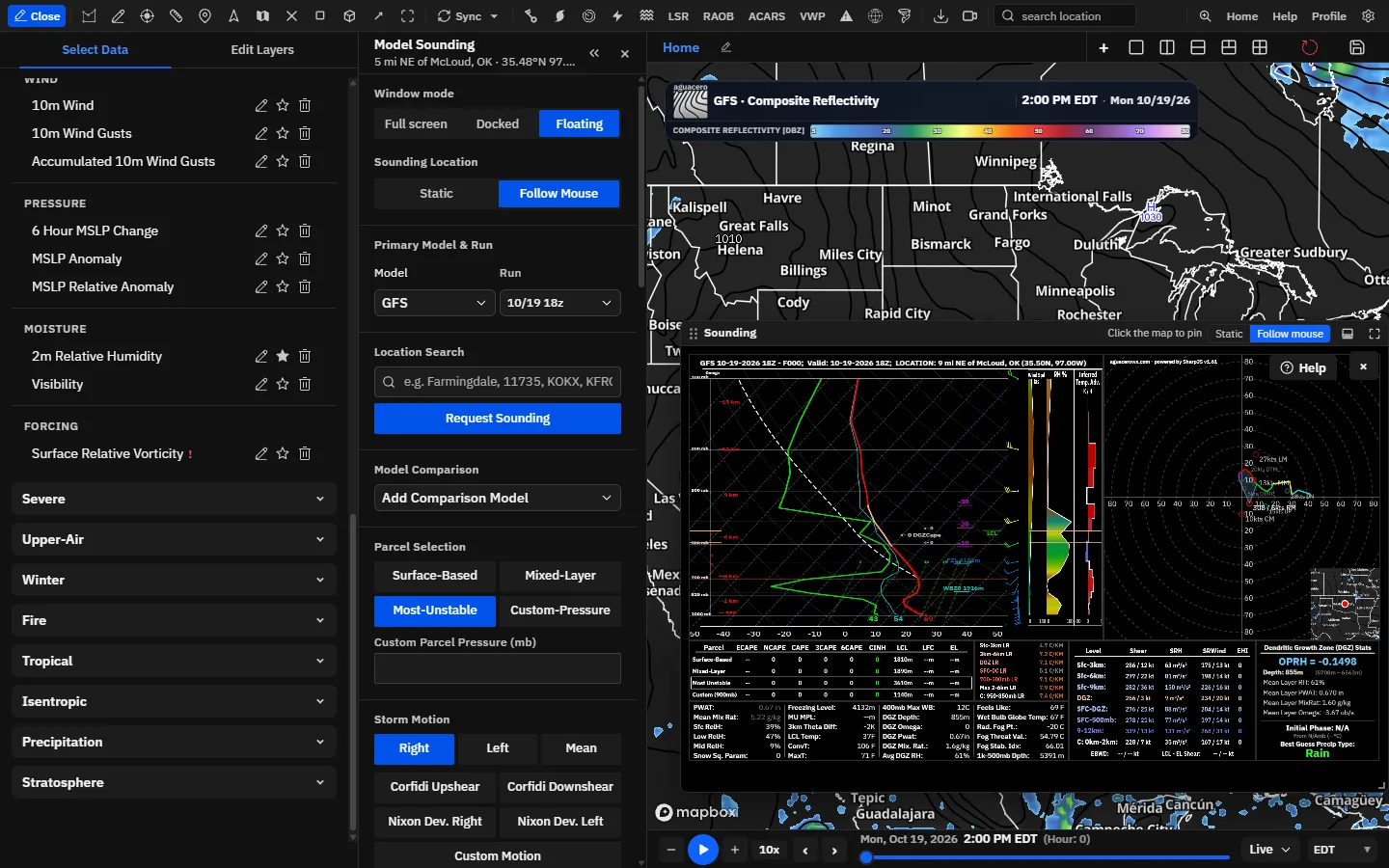
Dock or float the sounding so the map stays in view, then drag its marker or let it follow your cursor. The profile redraws as it moves.
Show me in the app- Open a model sounding.
- Under Window mode, click Docked to put it under the map, or Floating for a window over the map.
- In the sounding’s title bar, click Static to get a marker you drag on the map, or Follow mouse to have the sounding track your cursor.
- With Follow mouse, move over the map. Click to pin the sounding at a spot; click again to follow the cursor.
- Step through time. A pinned or dropped point loads every hour, like a right-click sounding.
Tips
- The same Static / Follow Mouse switch is under Sounding Location in the controls, below Window mode.
- Comparison overlays hide while the point moves and come back when the new point loads.
- For Meso analysis soundings, follow-mouse loads the profile each time the cursor enters a new grid cell, so it updates a little slower.
Docked, floating and moving soundings are on desktop only. Moving works for single-point model and Meso analysis soundings, not for box, RAOB, ACARS, NEXRAD VWP or uploaded soundings.
Average a box (area soundings)
Draw a rectangle for one sounding averaged over every model column inside it, from the model or the SPC Mesoscale Analysis.
Show me in the app- Load a model bundle on the active panel.
- Click Box sounding on the toolbar, or hold B.
- Drag a rectangle over the area.
- In the Box sounding menu, click Model or Meso analysis.
- Read the averaged sounding. The tool turns itself off; the map inset shows your box.
Shortcuts
- Hold B + drag
- Draw a box sounding without the toolbar button
- Esc
- Cancel a box you are drawing
Tips
- Every sounding setting works on a box sounding, and the time slider steps it through the run.
- Change the hold key, or bind a key to the toolbar button, in Settings under Keyboard shortcuts (Draw box sounding and Toggle box sounding tool).
The middle of the box must be inside the model’s area. Meso analysis isn’t available in archive mode.
Observed balloon soundings (RAOB)
Show radiosonde launch sites around the world and open a station’s recent soundings, then step through its launches.
Show me in the app- Click RAOB on the toolbar. Launch sites show as red dots; hover one for its name.
- Click a site. Its most recent soundings load, up to the last 48 launches, and the controls title reads RAOB / ACARS Sounding.
- Step through the launches with the time slider. The sounding shows the launch nearest the slider, within 12 hours.
Tips
- Right-click the map and click RAOB under Soundings for the nearest station without turning on the sites.
- Overlay a model on the balloon sounding with Model Comparison: it loads the model at the station for each launch time.
- Observed profiles have many levels. Hodograph wind under Sounding Design switches between a trimmed and a full-resolution hodograph.
- With an archive window loaded, the sites and soundings come from that window.
Some sites list no recent launch times; clicking one shows Sounding unavailable with the reason.
Aircraft soundings (ACARS)
Profiles measured by airliners as they climb out of and descend into airports, often between balloon launches.
Show me in the app- Click ACARS on the toolbar. Airports with recent aircraft profiles show as grey-green dots; hover one for its code.
- Click an airport. Its profiles from up to the last 72 hours load.
- Step through the profiles with the time slider.
Tips
- Right-click the map and click ACARS under Soundings for the nearest airport with data. If the nearest has none, the app tries the next closest airports.
- ACARS soundings use the same controls as RAOB, including Model Comparison.
In archive mode, ACARS is available for windows from January 1, 2019. Earlier windows grey out the button and remove ACARS from the right-click menu.
Compare models, runs and observationsProfessional
Overlay other models and runs on one Skew-T and hodograph, on top of a model, RAOB or ACARS sounding.
Show me in the app- Open a model, RAOB or ACARS sounding.
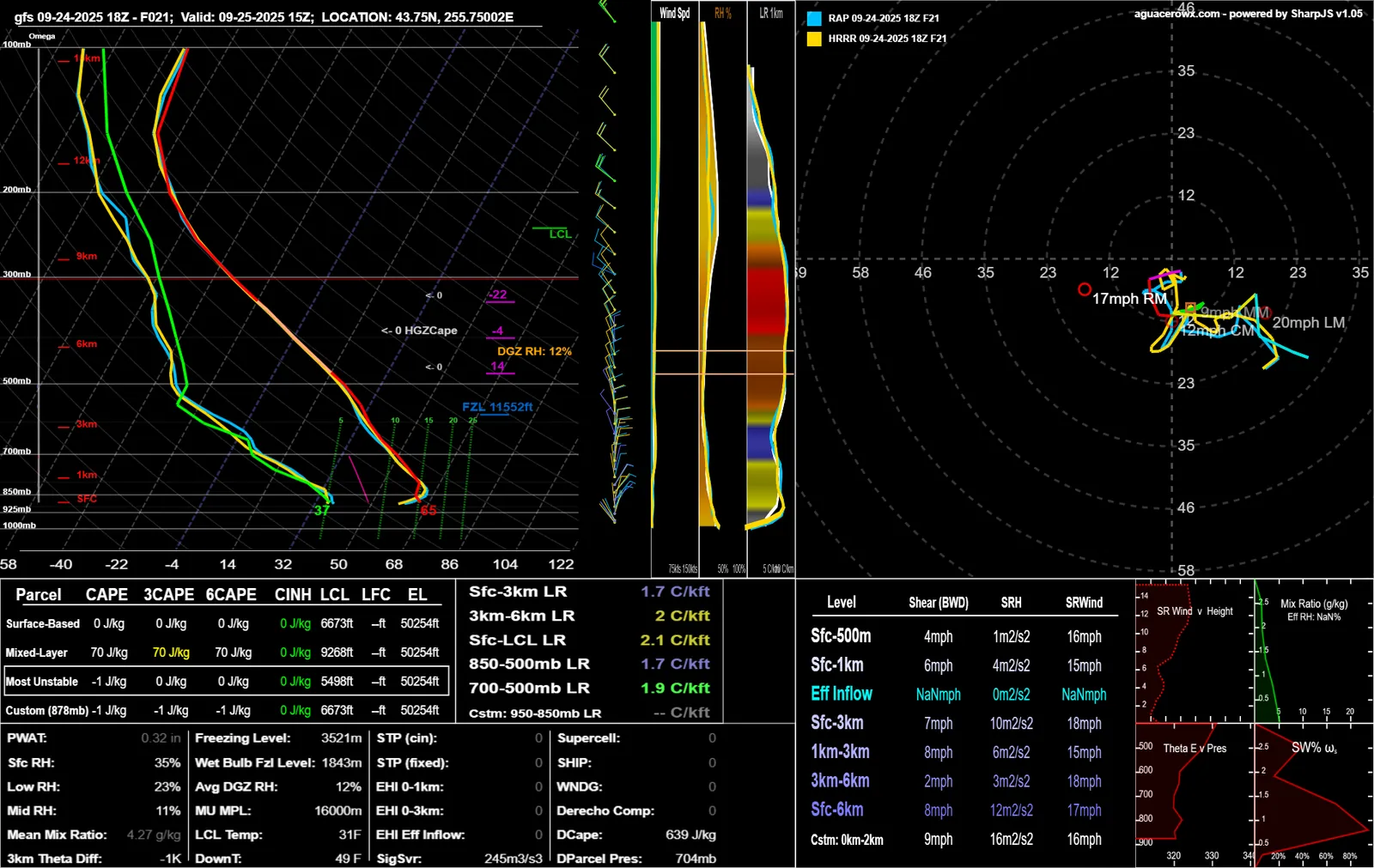
- Under Model Comparison, click Add Comparison Model and pick a model. Only models that cover the point are listed. Its latest run loads and its temperature and dew point lines appear in a new color.
- To compare runs, add the same model again. Each time it takes the next older run not already shown.
- Click a comparison’s name (Click to change run) to pick a specific run.
- Click its color swatch (Change color) for another color, the eye (Hide / Show) to hide it, or × (Remove) to remove it.
Tips
- To overlay your own files instead, use Upload Comparison Soundings under Load Custom Sounding. Pick several files at once; Clear All Comparison Soundings removes them.
- Overlays hide the parcel and wet-bulb lines. Remove or hide them to see the parcel again.
Model Comparison needs Professional or Creator. On other plans the button reads Compare Model (Pro) and opens the upgrade dialog. It is hidden in archive mode and for NEXRAD VWP.
Load archived RAOB, ACARS and BUFKIT soundings
Pull a past balloon launch, aircraft profile or BUFKIT model sounding for any date, for case studies and event reviews.
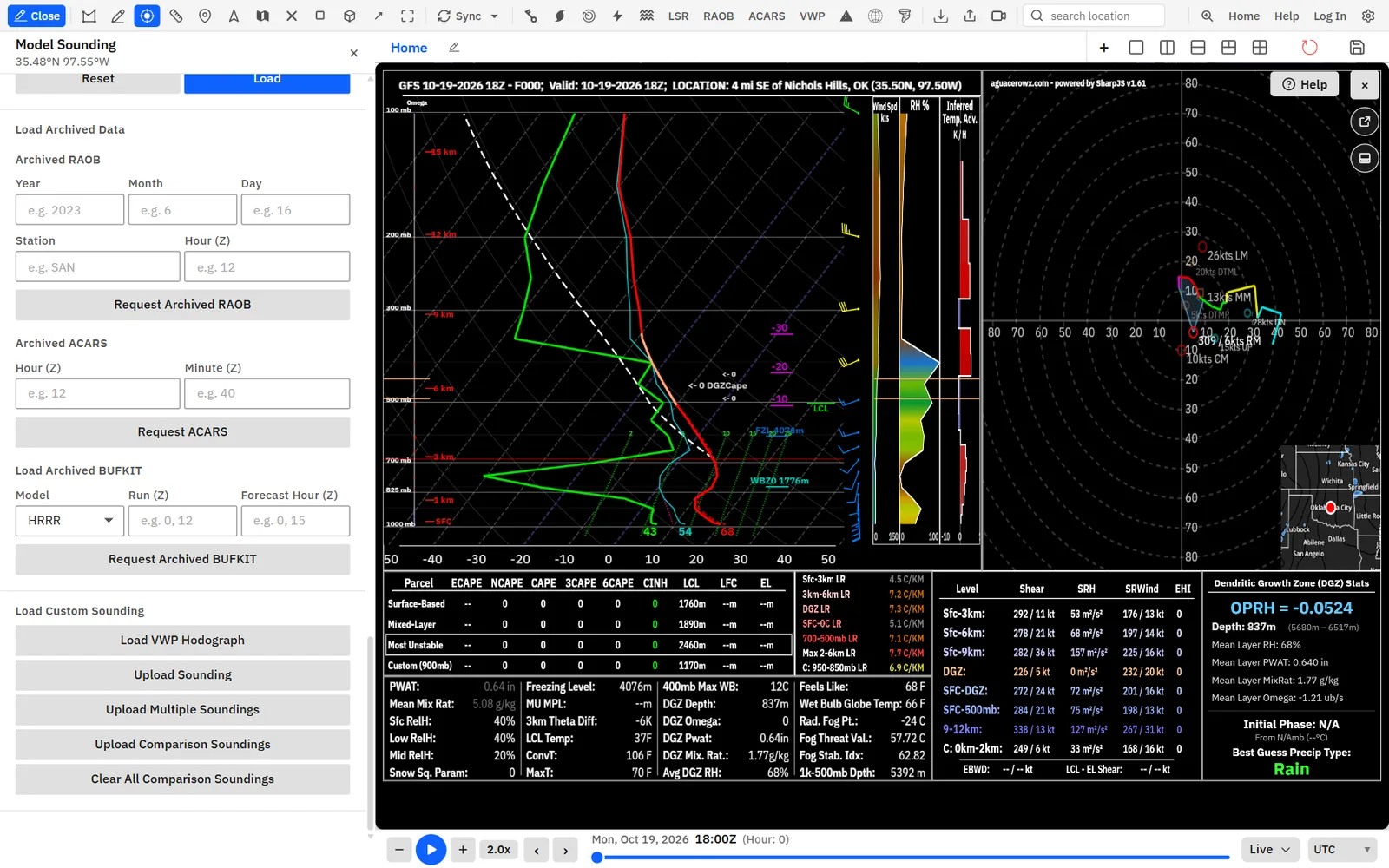
Show me in the app- Open any sounding and scroll the controls to Load Archived Data.
- Under Archived RAOB, type the Year, Month and Day.
- Type the launch site in Station and the launch time in Hour (Z), then click Request Archived RAOB.
- For an aircraft profile, keep the date and type the airport code in Station, set Hour (Z) and Minute (Z) under Archived ACARS, and click Request ACARS.
- For a model, keep the date and pick Model, Run (Z) and Forecast Hour (Z) under Load Archived BUFKIT, then click Request Archived BUFKIT.
Tips
- A status line under the button shows Searching archives... and any error. If no BUFKIT file exists for those times, a No BUFKIT Available dialog opens.
- With a NEXRAD archive window loaded, right-click the map and click Model: the sounding opens with the window’s date and hour and the nearest BUFKIT site filled in, and requests the BUFKIT sounding on its own. In archive mode the controls show Load Archived BUFKIT in place of Load Archived Data, and hide Location Search, Model Comparison and Load Custom Sounding.
- Archived RAOB and BUFKIT data come from the Iowa Environmental Mesonet archive.
Export images, animations and data, or load your own
Copy or save the sounding as an image, animate it through the run, download the profile for SharpPY or CM1, or open sounding files.
- Under Export Sounding Format, pick the data format.
- Right-click the sounding (press and hold on a touch screen).
- Click Copy Sounding Image, Download Sounding Image, Download Sounding Data or Create MP4/GIF Animation.
Recipe: compare HRRR and RAP soundings at a targetProfessional
Overlay the RAP and an older HRRR run on the latest HRRR at a chase target to see how the models and runs differ on moisture, the cap and shear.
- Load an HRRR bundle and set the time slider to the hour you care about, for example 21z.
- Right-click your target and click Model under Soundings. Or type the town under Location Search and click Request Sounding.
- Under Model Comparison, click Add Comparison Model and pick RAP. Its lines appear in sky blue.
- Click Add Comparison Model again and pick HRRR. The previous HRRR run appears in gold, so you can see the run-to-run trend.
- Under Parcel Selection, click Mixed-Layer, and under Inset Parameters pick Severe/MCS.
- Look at the hodograph legend and the lines below 700 mb: a deeper moist layer or a weaker inversion in one model shows at once.
- Click the eye on one overlay to hide it, or click its name to pick a different run.
- Step through the afternoon with the time slider. All three soundings follow.
- Right-click the sounding and click Create MP4/GIF Animation to share the loop.
Tips
- The parcel table and wind table describe the main HRRR sounding. To read the RAP’s numbers, make the RAP the primary model under Primary Model & Run and add the HRRR as the overlay.
- For a balloon check, open the nearest RAOB and add the HRRR and RAP to it: they load at the station for each launch time.
Recipe: a tornado environment check
Set up the sounding the way a storm chaser or warning forecaster reads a tornado environment: effective inflow, deviant motion, ECAPE and how the profile ranks against past tornadoes.
- Open a model or Meso analysis sounding in the warm sector.
- Under Presets, set Wind/Lapse to Tornado, Inset Parameters to Tornado and Side Panel View to Tornado Climatology (CONUS only).
- Set Tornado Filter to Significant (EF2+) to rank the sounding against significant tornado cases near the point.
- Under Parcel Selection, click Mixed-Layer, and compare its ECAPE with the CAPE column.
- Under Storm Motion, try Right and then Nixon Dev. Right. Watch the Sfc-500m and Eff Inflow SRH in the wind table and the ECAPE change.
- Under Sounding Design, set Hodograph Height Numbers to On and Hodograph Scale to Dynamic, and set Hodograph Mode to Storm-Relative (Fixed) to see the storm-relative inflow.
- Hover the Skew-T near the LCL to read the temperature, dew point and parcel temperature with Read-out.
- Click Draw front and click the hodograph along a boundary’s orientation to see how storm motion compares with it.
Tips
- Dock the sounding and turn on Follow mouse to sweep across the warm front and watch the low-level hodograph grow.
- For hail, switch Inset Parameters to Hail Heights (kft) and read the −10 to −30 °C heights and the HGZCape label.
Common questions
Answers to the sounding questions we hear most.
Why does it say Skew-T not available, or that the location is outside the bounds of the model?
Some models have no sounding data; switch the panel to a model that does. The point must also be inside the model’s area: a regional model like the HRRR has no soundings over Europe. Under Primary Model & Run, the model list only shows models with soundings.
Why is Model missing from the right-click menu?
It is hidden while the Archive Builder has a model archive loaded, and it may be turned off in Settings under Context menu. ACARS and NEXRAD VWP also drop out of the menu for archive windows they don’t cover.
Why does the comparison button say Compare Model (Pro)?
Model Comparison needs Professional or Creator. Clicking the button opens the upgrade dialog. Upload Comparison Soundings under Load Custom Sounding overlays your own files.
Why did the parcel line disappear when I added a comparison?
With overlays on, the Skew-T hides the parcel, ECAPE parcel, wet-bulb and virtual temperature lines so the model lines stay readable. Hide or remove the overlays to bring them back. The tables still describe the main sounding.
Why did the cursor read-out stop working?
Turning on Modify sounding turns Read-out off, and that choice is saved. Turn Read-out back on under Cursor Options. A click on the Skew-T also freezes the read-out; click again to let it follow the cursor.
Why did my parcel, storm motion and presets change?
A sounding at a new point, or from another model or run, starts fresh: Most-Unstable, Right, standard custom layers and presets picked to fit the profile. Stepping through time keeps all your choices.
Why is Tornado Climatology greyed out, or why does it say Insufficient Cases?
The climatology covers the contiguous US only, so the choice is greyed out elsewhere. Near the edge of the data or in quiet areas there may be fewer than 5 past cases, which is too few to rank. Try All Tornadoes (EF0+) under Tornado Filter for more cases.
Why does ECAPE show --?
ECAPE needs a parcel with an equilibrium level below the top of the profile. A parcel with no CAPE, or one that rises to the top of a shallow profile, has no ECAPE.
Why are Docked, Floating and Follow mouse missing?
Window mode is on desktop only. Static and Follow Mouse show only while the map is in view (docked or floating), and only for single-point model and Meso analysis soundings.
Why does a RAOB station say Sounding unavailable?
Some stations list no recent launches, or the launch isn’t posted yet. The sounding shows the launch nearest the time slider, within 12 hours; move the slider to a launch time or pick another station.
Why does Meso analysis say no hours are downloaded yet, or not work in archive mode?
Meso analysis soundings use the latest SPC Mesoscale Analysis hours, and the message shows when none are available yet. They aren’t available in archive mode; use Load Archived BUFKIT for past events.
Why are some parameters in °F or inches with Metric units?
Units changes the chart, read-outs, heights, wind and lapse rates. A few inset parameters, such as LCL Temp, ConvT, MaxT, DownT and PWAT, always use °F and inches.
Which format does Download Sounding Data save?
The one set under Export Sounding Format, which starts on SharpPY (Default). Pick SharpJS (Omega Added) for an omega column or CM1 for a CM1 input_sounding file.
Why don’t my hodograph and unit settings stick after a reload?
Hodograph, skew, read-out and unit choices save to your account, so sign in. Vertical Bars, Storm Motions, Hodograph Mode and the export format last until you reload.
Why are the sounding controls missing?
On a narrow phone screen the sounding opens full screen without its controls. On desktop, a docked or floating sounding puts its controls in a panel beside the sidebar; click Hide these controls to fold it. Recon dropsondes open in a simplified viewer with no sounding controls.