Open the Layout tab and save a layout
Change how the map is labeled, then save the result as a named layout.
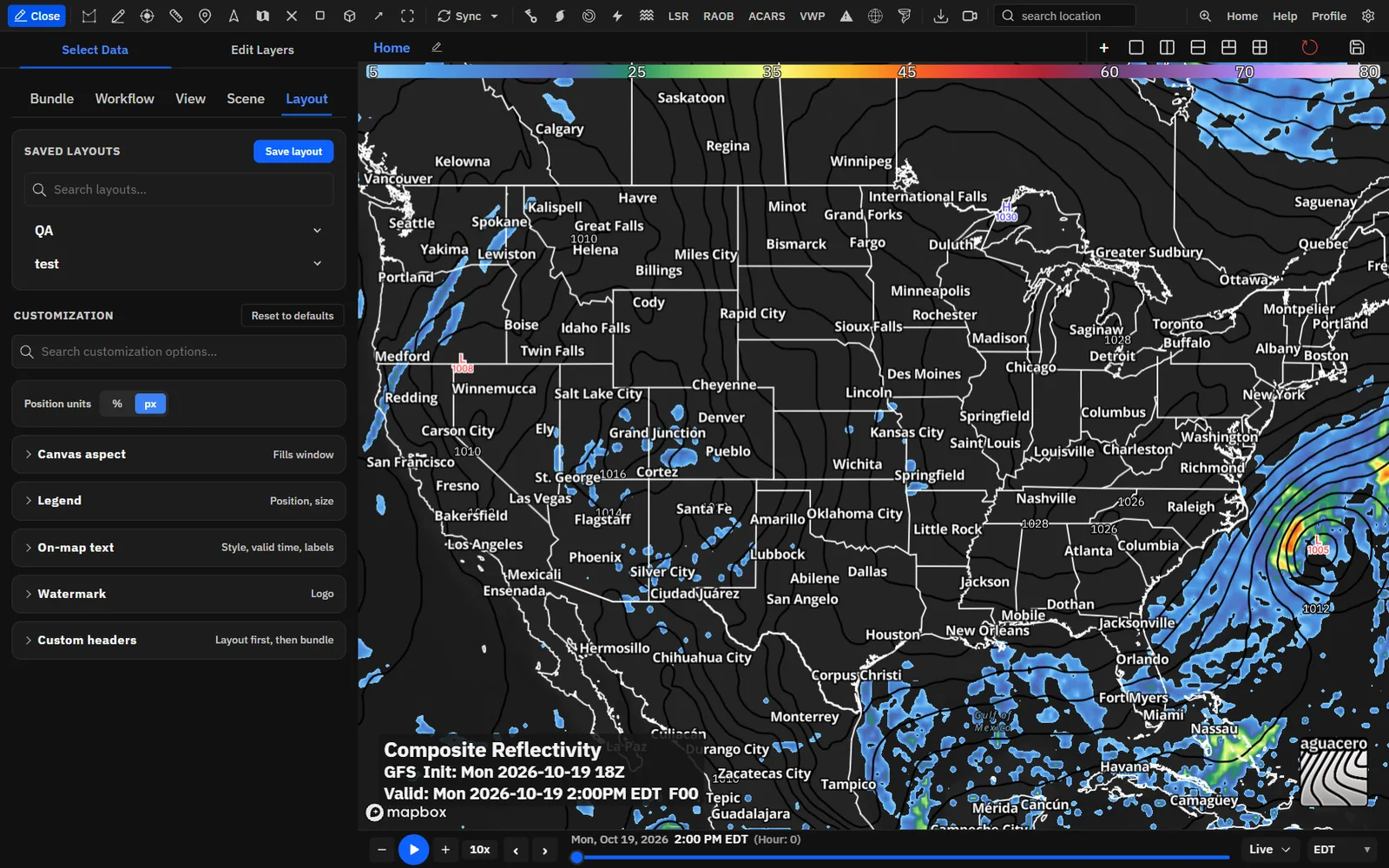
Show me in the app- Open the sidebar and click the Layout tab. Saved layouts is at the top and Customization below it.
- Under Customization, click a section to open it: Canvas aspect, Legend, On-map text, Watermark or Custom headers.
- Change what you need. Each change shows on the map right away.
- Click Save layout, enter a Name, Category and Subcategory, and click Save layout in the dialog.
- To switch looks later, open the layout’s category under Saved layouts and click its name.
Tips
- Type in Search customization options… to jump to a setting, for example “time zone”, “bar width” or “9:16”. Matching sections open by themselves.
- The built-in layout puts the legend across the top, the bundle name, model, init and valid times at the bottom left on a dark plate, and the watermark at the bottom right.
- Reset to defaults, next to Customization, puts the board back on the built-in layout.
Place any item: X, Y, anchor and units
Every item on the map is placed the same way: an X and Y position, an anchor point, and, if you like, a custom header to measure from.
Tips
- Match the anchor to the corner you aim for. The built-in caption uses Bottom left at X 2, Y 97, and the watermark Bottom right at X 98, Y 97.
- px positions remember the panel size they were set on and scale from it, so a layout keeps its look on a laptop and on a big monitor. Lock the canvas aspect when you need the same frame everywhere.
Style the legend
The legend shows a color bar for each layer with a color table. Put it on the map, above or below it, or inside a header, and choose how its bar, title and numbers look.
- Open Legend and keep Show legend ticked.
- Set X, Y and Anchor. For a vertical legend, Y sets where its column starts; it runs down toward the bottom of the map.
- Pick an Orientation, then set the layer name, the bar and the value labels.
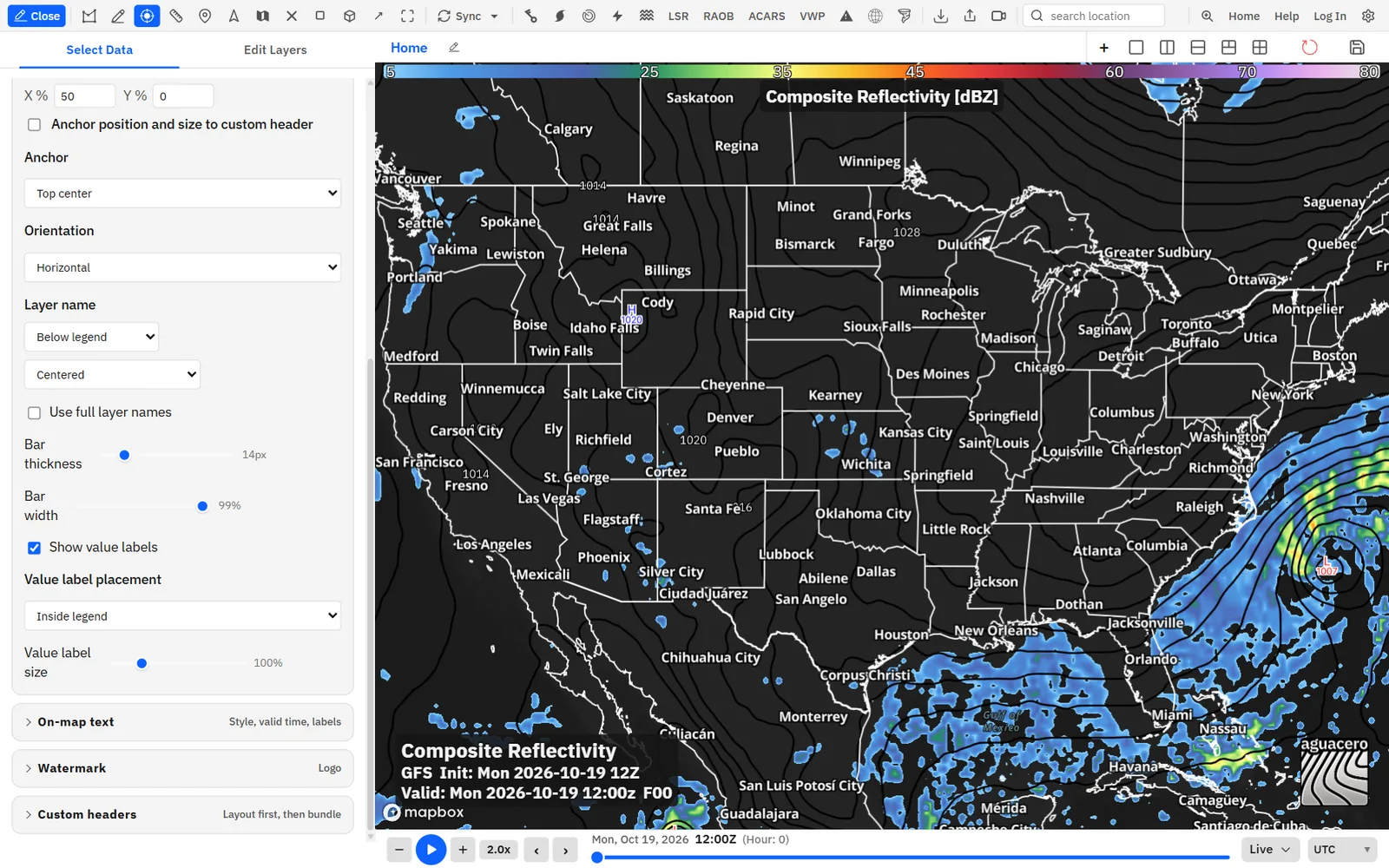
The legend’s title and badge follow the layout’s text style. The layer name uses the font, color, outline and background from On-map text → Default color, outline & background, and that background is the dark badge behind the layer name in the built-in layout. Clear Background there to drop the badge, or change its color, opacity, size and corner radius. The value labels use the same text color and outline.
Tips
- A Y below 0, or of 100 and above, moves the legend off the map. Image and video exports grow to show it above or below the map instead of covering the data; on the live map it can be cut off at the panel’s edge.
- A vertical legend down the right edge (Top right, X 98, Y 10) suits tall 9:16 frames.
- In Broadcast mode the banner draws the legend, so these settings don’t apply.
Set the text style for the whole layout
One style covers every on-map text item and the legend’s layer name. Give any single item its own style when it needs to stand out.
- Open On-map text.
- Pick a Default font family.
- Under Default color, outline & background, set the text color, outline and background plate.
- To style one item differently, open it (for example Valid time) and tick Custom color, outline & background. It starts as a copy of the default style, with its own Font family.
Tips
- Over busy radar, keep Outline on even without a plate; it keeps light text readable on light colors.
- Changing the default style changes every item that doesn’t have a custom style, including the legend’s layer name.
Bundle name, model name and init time
The caption that tells viewers what they are looking at: the bundle’s name, the model and the run it came from.
Each item below also has X / Y, Anchor position and size to custom header, Anchor, Font size and Custom color, outline & background, which work as described in Place any item and Set the text style.
Valid time and forecast hour
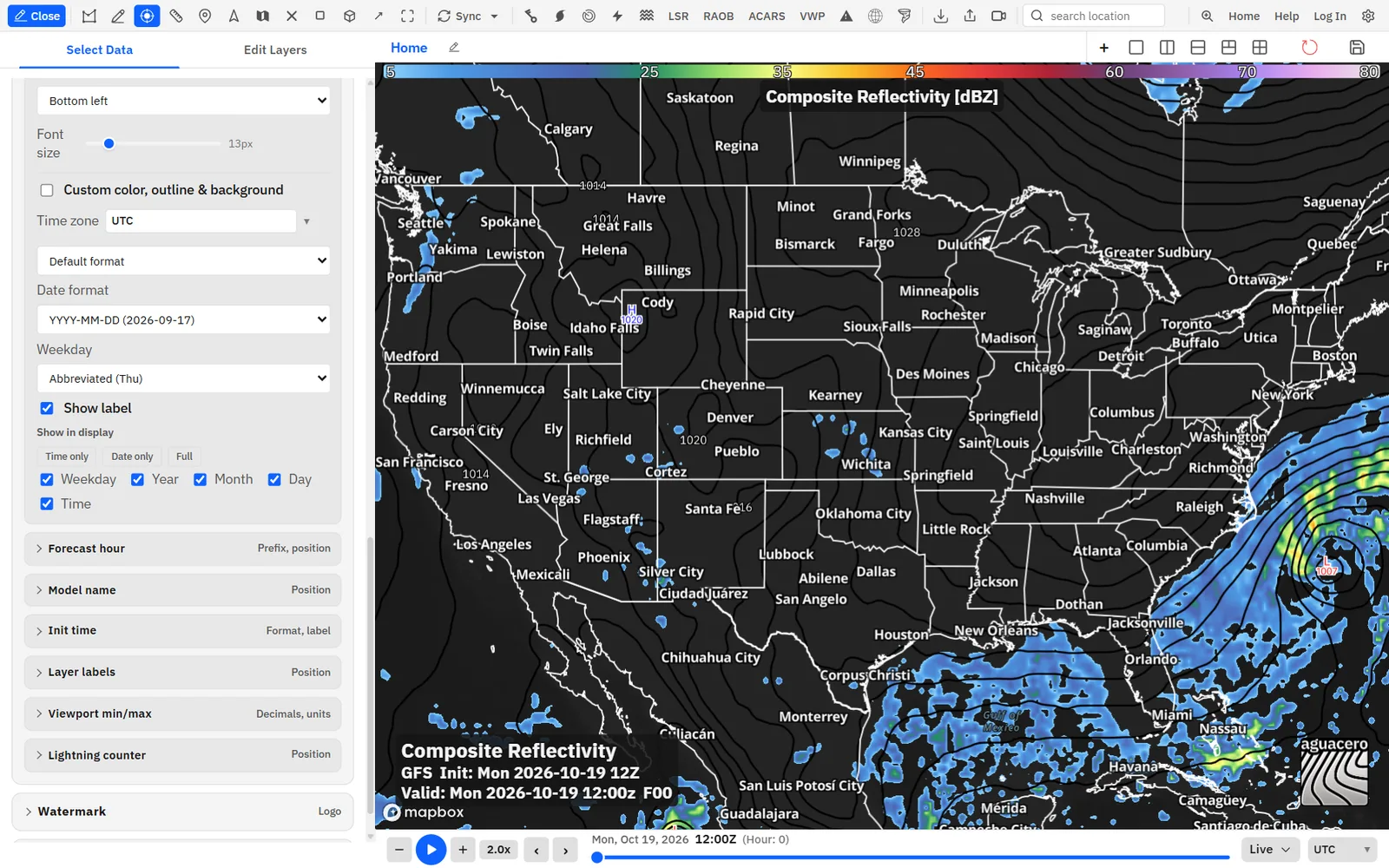
The valid time follows the time slider. Pick the time zone, how the date is written and which parts show, and add the forecast hour.
- Open On-map text → Valid time and keep Show valid time ticked.
- Pick a Time zone. Type to search, or choose local time.
- Choose a format and a Date format, then pick the parts under Show in display.
- Open Forecast hour to add or change the F-hour.
Tips
- For TV, try Default format with Month name, an Abbreviated weekday and your local zone. It reads like “Valid: Thu Sep 17, 2026 6:00PM CDT”.
- In UTC, times read like 18:00z, or 18:00Z with Compact. Compact with YYYY-MM-DD keeps the line short for forecast discussions.
How text items share a spot
Items placed at the same spot join into one caption block instead of piling up on each other.
Tips
- When the bundle name, model name, init time, valid time and forecast hour sit at the same spot with the same style, they form one block: the bundle name on top, the model name and init time on the second line, the valid time and forecast hour on the third. That is the built-in caption.
- Outside that block, the model name and init time share a line when they sit at the same spot, and so do the valid time and forecast hour (unless Forecast hour on its own line is ticked).
- Items count as “the same spot” when X and Y are within 1 unit of each other and the anchor matches. Move an item away to take it out of the block.
- The block needs one style for all its items. If you give one of them Custom color, outline & background without moving it, the lines are drawn separately at the same spot and overlap. Move that item, or style the whole layout instead.
Layer labels, viewport min/max and the lightning counter
Three optional readouts: a list of the layers on the map, the lowest and highest values in view, and a live lightning strike count.
Each one also has X / Y, Anchor position and size to custom header, Anchor, Font size and Custom color, outline & background.
Tips
- These three readouts still show in Broadcast mode, where the rest of the layout is replaced by the banner.
Place or remove the watermark
The AguaceroWx mark sits on the map and in exports. Every plan can move it; Commercial can turn it off.
Tips
- On a board with several panels, the mark appears once, on the panel closest to the top right.
- In Broadcast mode the banner has its own logo and watermark switches in Settings → Appearance → Banner.
- The mark isn’t drawn in the mobile layout.
Custom headers in a layoutCreator
Put your own logos and lower thirds in the layout so they stay on screen as you load different bundles.
- Open Custom headers under Customization.
- Click Add custom header (Add another custom header once there is one) and click Use on a header in the picker.
- Its controls open below the row: drag it on the map or type its position, width and opacity. Click Done when finished, and Edit to open them again.
- Use Change to swap the graphic and Remove to take it out of the layout.
Layout headers show on every panel of the board, and they override bundle headers: when the layout has any, the bundle’s own header layers are hidden. Needs Creator; without it, Add custom header opens an upgrade window.
Related guideCustom headersEvery custom header optionLock the canvas aspect and resolution
Letterbox the live map to a fixed frame, such as 16:9 for TV or 9:16 for vertical video, so screenshots, OBS and exports all see the same picture.
Show me in the app- Open Canvas aspect in the Layout tab, or Settings → Media export → Map canvas. Both show the same controls.
- Click a ratio. The map is letterboxed to it, even with the sidebar open.
- Under Resolution lock, keep Fit or pick an exact size.
- Click Off to let the map fill the window again.
A line under the chips shows the live size, for example “16:9 · live canvas 1920×1080”. When the window is too small for a locked size, the line says so and the frame is scaled down to fit.
Tips
- The Canvas aspect heading in the Layout tab shows the current ratio, or Fills window when the lock is off.
- In the mobile layout the lock isn’t shown live; it applies to exports only (“saved for exports”).
- These settings are saved on this device and to your account. A saved layout can also carry a ratio (see the next section).
Save, update and organize layouts
Saved layouts live in your account, grouped by category and subcategory. Load one with a click, update it in place or keep copies.
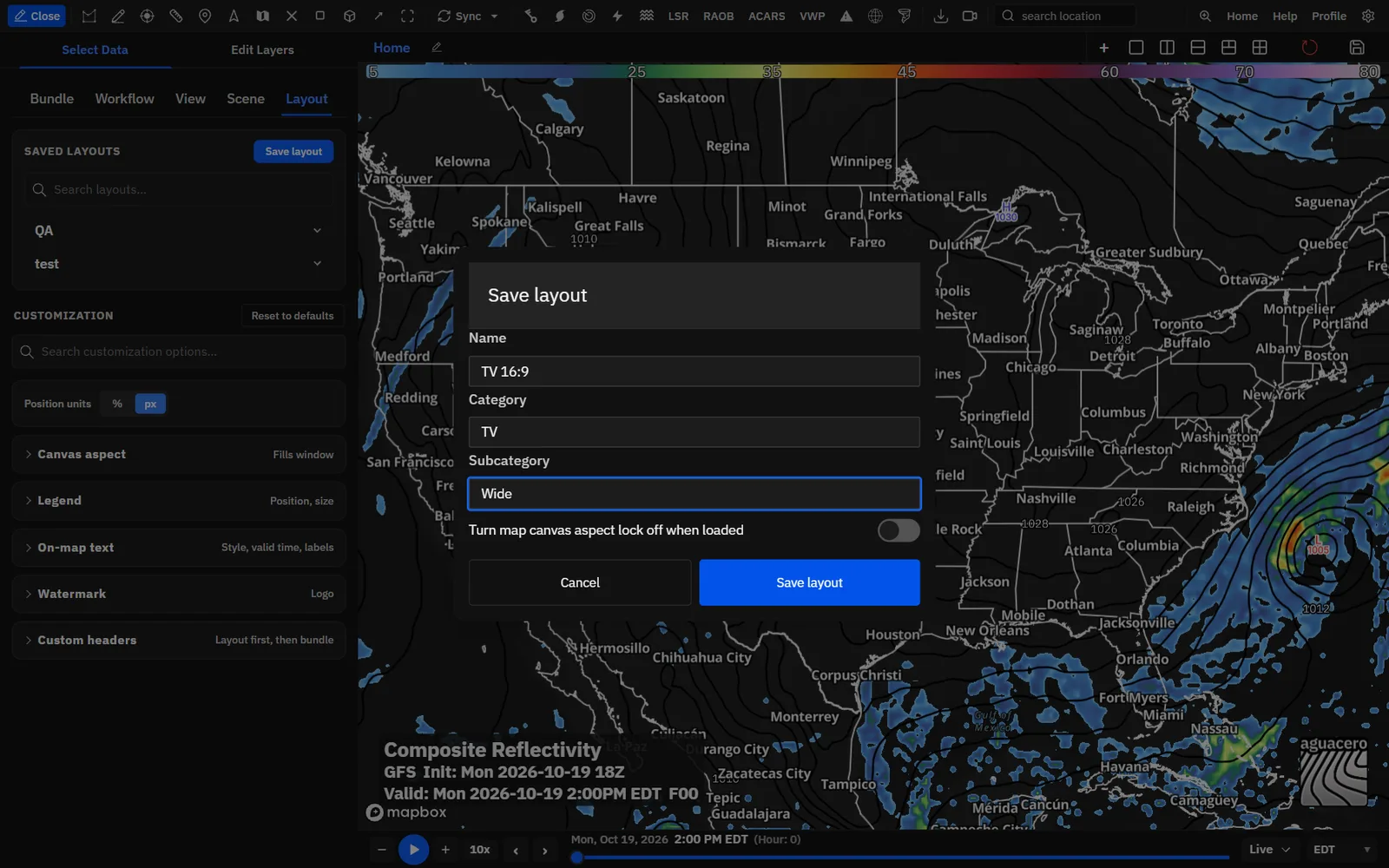
- Click Save layout. If you are signed out, this asks you to sign in.
- Enter a Name, a Category and a Subcategory. All three are required.
- Check the canvas switch. With the canvas locked it reads Switch map canvas to 16:9 when loaded (or your ratio); with it off it reads Turn map canvas aspect lock off when loaded. It starts on when the canvas is locked.
- Click Save layout. The button shows Saved ✓ and the dialog closes. The new layout becomes the active one.
Edit layout renames a layout without changing its look. To update its look as well, turn on Replace its settings with the board’s current layout, or use Update active layout with current settings on the layout you loaded.
Tips
- Drag categories, subcategories and layouts to reorder them. This works when you are signed in and the search box is empty; the order syncs to your account.
- Bind Open Layout library in Settings → Keyboard shortcuts to jump straight to this tab. It has no key by default.
- Loading a layout that carries a ratio switches the map canvas to it. Layouts saved without one leave the canvas alone.
Use layouts with boards, bundles, workflows and scenes
A layout applies to a whole board. Bundles, workflows and scenes can carry a layout so it comes back with them.
When more than one applies, a step’s layout wins over the scene’s, which wins over a bundle’s, which wins over a workflow’s. A step that inherits one says so, for example Using bundle layout.
Tips
- A bundle keeps a copy of the layout as it was when you saved the bundle. Later edits to the saved layout don’t change that copy; save the bundle again to pick them up.
- Only loading a layout from the Layout tab changes the canvas frame. Bundles, workflows and scenes leave it as it is.
Layouts in exports, Broadcast mode and mobile
Exports draw the layout as you see it. Broadcast mode and the mobile layout replace parts of it.
Where layouts are saved
What stays with your account, what stays with the board and what lasts only until a reload.
Recipe: a 16:9 TV layout with the legend at lower left and your logo
A clean on-air frame: title and times at the top left, a compact legend at the lower left, your station logo in the top right corner and the watermark at the bottom right.
- Open the Layout tab and click Reset to defaults to start from the built-in layout.
- Open Canvas aspect and click 16:9. Under Resolution lock, pick 1080p for an OBS scene or keep Fit.
- Open Legend. Set X 2, Y 97, Anchor Bottom left, Orientation Horizontal, Bar width 35%, Bar thickness 18 px and Layer name Above legend with Offset left (flush with bar).
- Open On-map text. Pick a bold sans-serif Default font family and keep the dark plate, or change its color and Corner radius to match your graphics.
- Open Bundle name and set X 2, Y 3, Anchor Top left and Font size 24. Give Model name, Init time, Valid time and Forecast hour the same X, Y and anchor so they stack under it as one block.
- In Valid time, pick your local Time zone and Month name under Date format.
- Leave Watermark at X 98, Y 97, Bottom right.
- With Creator, open Custom headers, click Add custom header and Use your logo. In the controls that open, set Anchor Top right, X 98, Y 3 and Width (% of panel) 12. Click Done.
- Click Save layout. Name it “TV 16:9”, category “TV”, subcategory “Wide”, and leave Switch map canvas to 16:9 when loaded on.
Tips
- Keep the caption items’ styles identical, or they stop stacking and overlap (see How text items share a spot).
- Make a 9:16 version for social video with the next recipe; switching layouts switches the frame too.
Recipe: a 9:16 layout for vertical video
A tall frame for stories and Shorts, with the caption centered at the top and a vertical legend along the right edge.
- Open Canvas aspect and click 9:16. Pick 1080p under Resolution lock for a 1080 × 1920 canvas when your window is big enough.
- Open Legend. Set Orientation Vertical, Anchor Top right, X 98, Y 12, Bar height 60% and Layer name Hidden.
- Open On-map text → Bundle name: X 50, Y 3, Anchor Top center, Font size 28. Give Model name, Init time, Valid time and Forecast hour the same position and anchor so they stack under it.
- In Valid time, pick Compact and click Time only under Show in display for a short line that fits a narrow frame.
- Click Save layout, name it “Social 9:16” in the same category as your TV layout, and keep the canvas switch on.
Tips
- Load “TV 16:9” or “Social 9:16” from Saved layouts to flip the whole frame, legend and caption in one click.
Common questions
Answers to the questions we hear most about layouts and map text.
Why is the Layout tab greyed out?
The banner is in Broadcast mode. The banner draws its own title, time and legend, so the Layout tab is unavailable to signed-in users. Switch the banner to Default in Settings → Appearance → Banner.
Why can’t I save a layout?
Saving needs a signed-in account; Save layout asks you to sign in. In the dialog, Name, Category and Subcategory are all required, and names with profanity are rejected.
My layout changed by itself. Why?
Something else applied a layout: a bundle saved with Save layout to bundle, a workflow saved with its layout, or a scene with a Layout set. Signed out, your changes also reset when you reload.
How do I change a saved layout’s look?
Load it, change what you need, then click Update active layout with current settings. Or open Edit layout and turn on Replace its settings with the board’s current layout. A plain edit only renames it.
Is there a “no layout” option?
Every board always shows a layout. Reset to defaults brings back the built-in one. For a bare map, turn off the legend, text items and anything else you don’t want, then save that as its own layout, for example “No Layout”, and load it when you need it.
Why is the valid time in the wrong time zone?
The Time zone in Valid time is the app’s time zone, and loading a saved layout switches to the zone it was saved with. Pick the zone again and click Update active layout with current settings.
Why don’t I see the init time or forecast hour?
They show for model data only. The init time needs a model with a run time, and the forecast hour needs Show forecast hour on. Also check that Show init time is ticked.
Why are my text items drawn on top of each other?
Items at the same spot join into one block only when they share one style. If one of them has Custom color, outline & background, move it to its own spot.
Why can’t I turn off the watermark?
Removing the watermark needs a Commercial plan. On other plans, clearing Show watermark opens Commercial feature with an Email us button. You can still move it anywhere.
Why do layout changes hit every panel?
A layout belongs to the board, so all its panels share it. Put panels that need a different look on another board; each board has its own layout.
Why does my layout look different on my laptop?
Positions and sizes scale with the panel, but a different window shape moves things relative to the map. Lock Canvas aspect to a fixed ratio, and save it with the layout, to get the same frame on every screen.
My export has extra space above or below the map. Why?
The legend’s Y is below 0 or at 100 or more, so the export grows to fit the legend outside the map. Set Y between 0 and 100 to keep the legend on the map.
Where are the custom header controls?
In the Custom headers section of Customization. Adding headers needs Creator, and the section is unavailable in Broadcast mode.
Can I open the Layout tab with a key?
F1 opens the sidebar. To jump straight to the Layout tab, bind Open Layout library in Settings → Keyboard shortcuts.